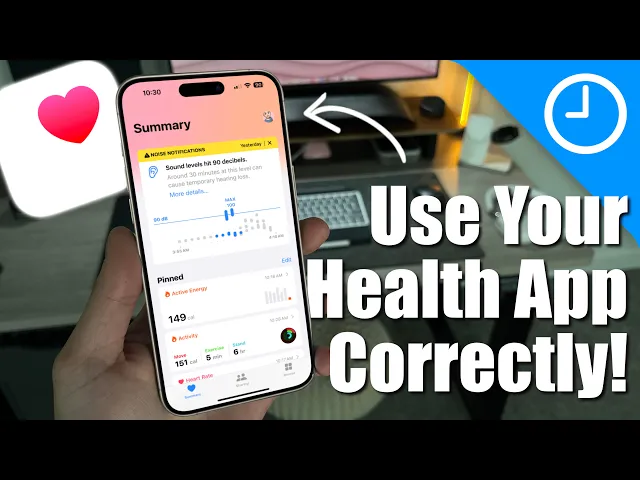
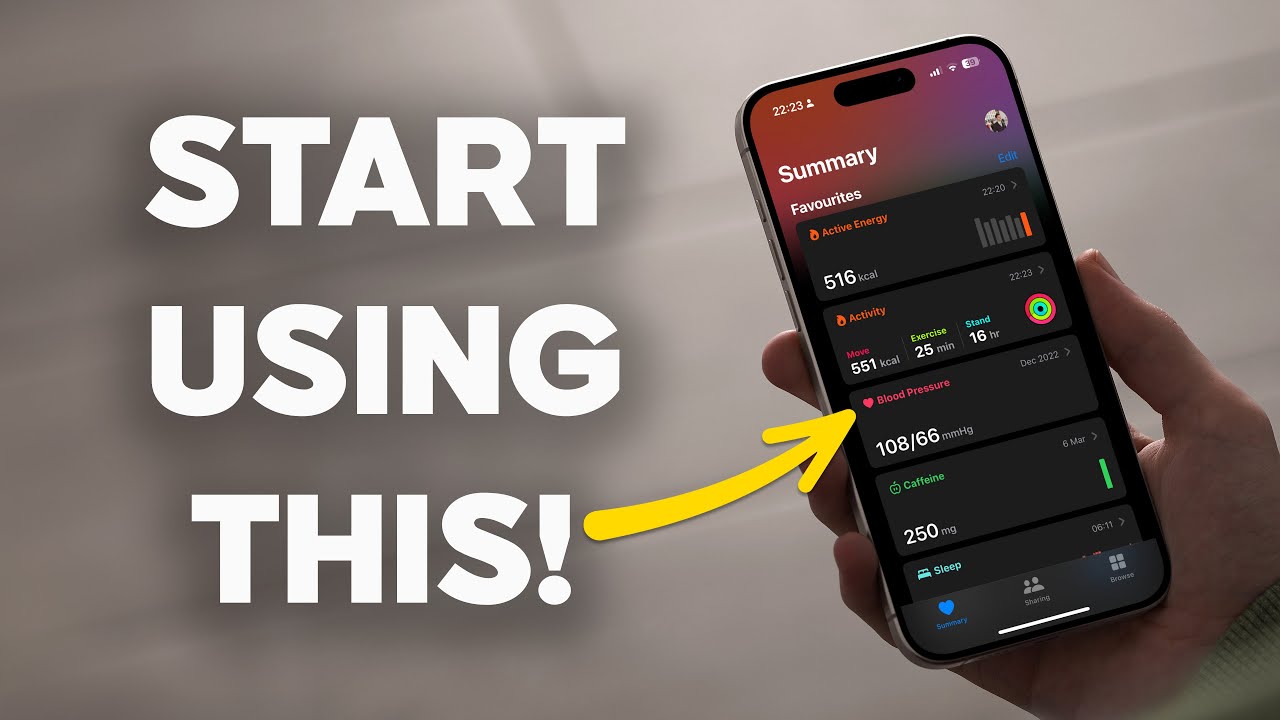
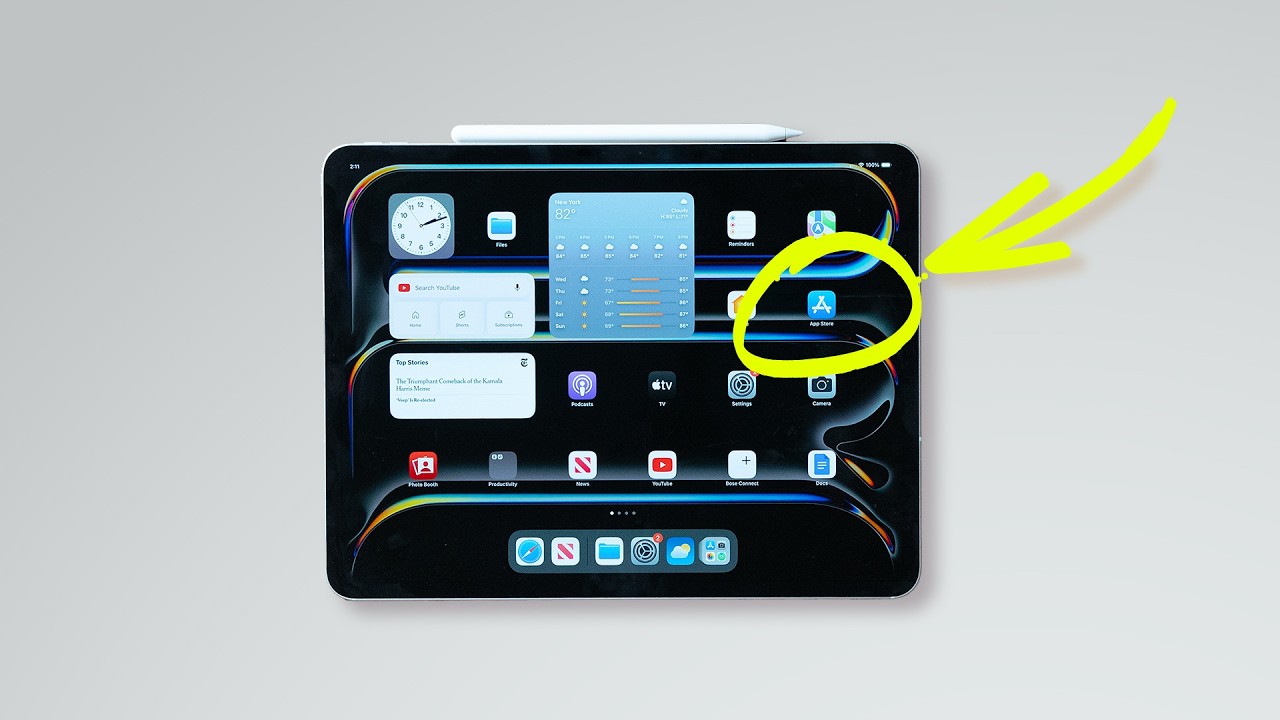
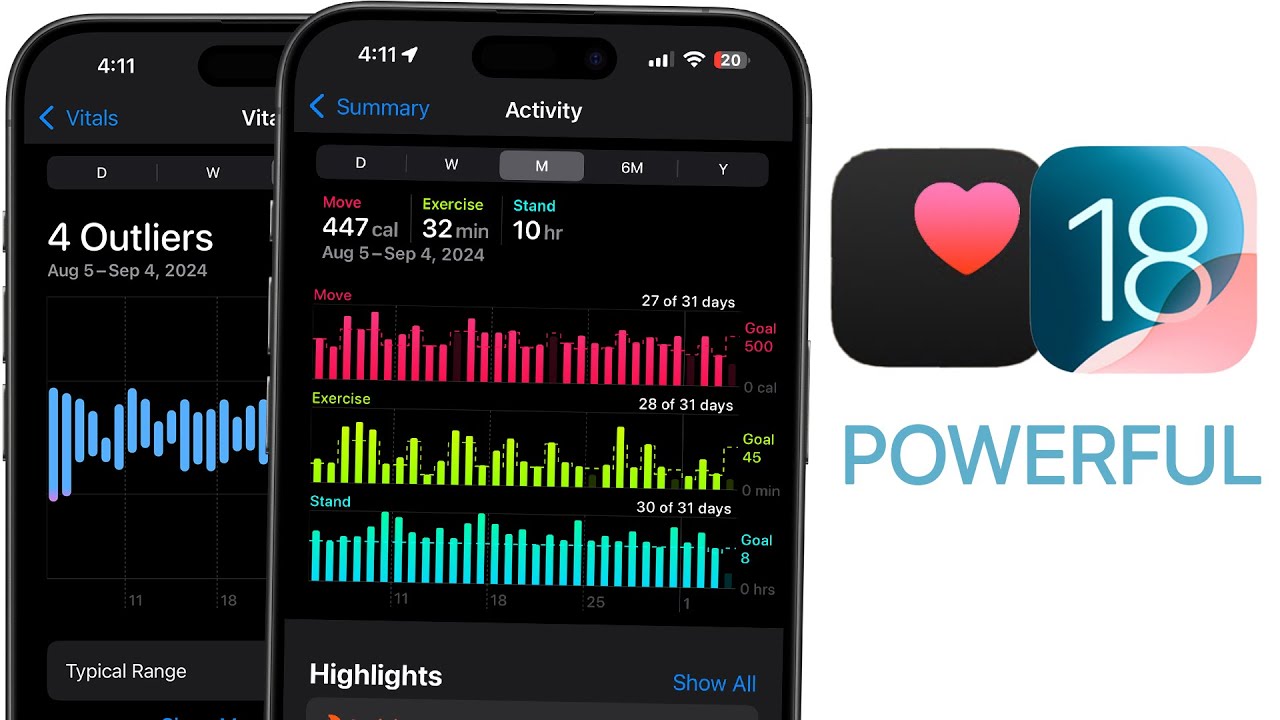
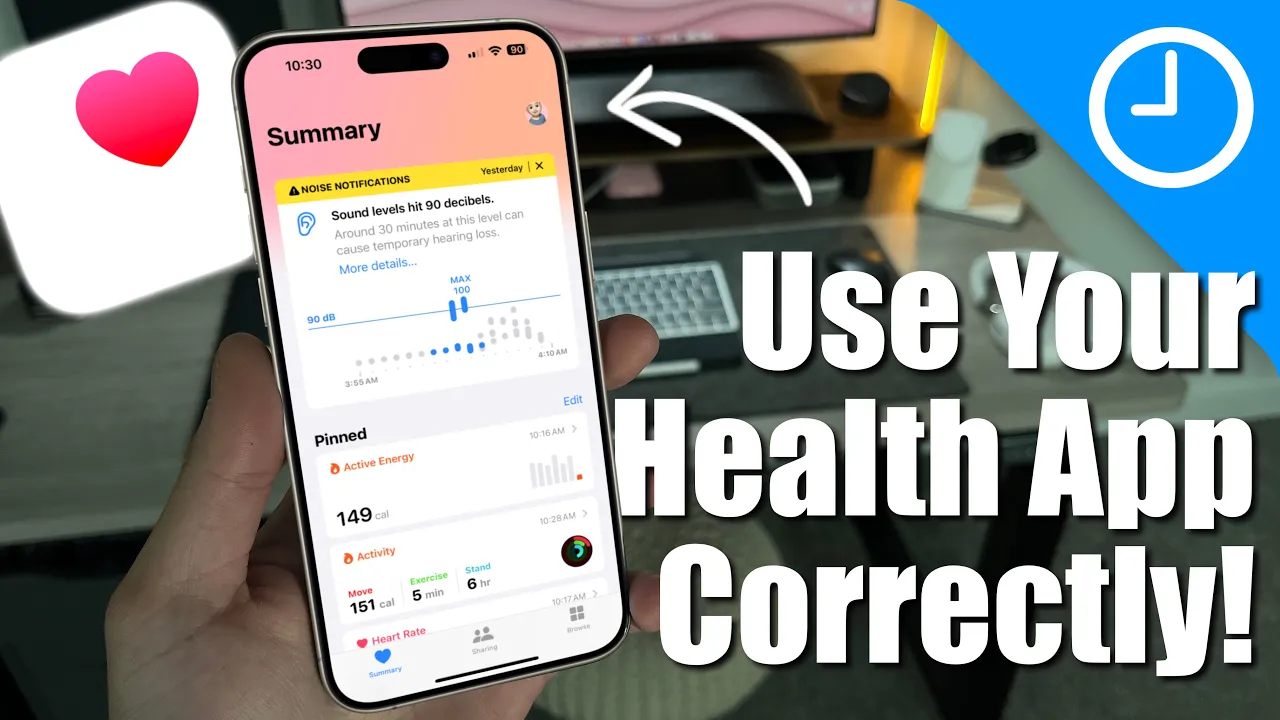
so over the last 2 and a half to three years now I've been on this intense fitness and health journey and I've been using things like the Apple watch Ultra the fitness application but most importantly the health application throughout this experience I've learned just how valuable the health application has been for me personally and what I want to do in this video is show off just how robust and how underrated Apple's Health app is because the abundance of data the trends the gamification all kind of leads to a net positive of getting you into better shape and bringing you to an overall better status of Health which is what I've been able to do these last 3 years with that Health application so without further Ado let's talk about the health app the ins and outs how to navigate it how you can use it to your benefit and I just want people to be aware of just how powerful this application is let's get into it now before we do get started with everything I want to caveat this piece right here do not fixate on the actual numbers and the values of every single metric themselves but mostly focus on the trend data and the trend analysis so if you're looking at your heart rate and you see a number that you don't like don't focus on that number but focus and compare it to what it's been like over the last week over the last month over the last half year because that's what's really going to help you benefit down the line these Apple watches aren't perfect they can give you some ranging datas overall and I don't want people to start to freak out when they see a high heart rate when it should be lower or vice versa so again focus on the trend data overall and don't fixate on the actual number and then you'll have a very positive relationship with your Apple watch and the fitness application because if you start to fixate on things then the relationship can be a little bit more detrimental than positive but now that I got got that out of the way let's get into this video and learn all about this health app well all right everyone let's get into this video and I do want to mention that I am running iOS 18. 1 beta but a lot of this stuff will be relatively the same if you're still running iOS 17 but if you are now watching this and you are on the public beta or the regular version of iOS 18 depending on when you're watching this then it'll be just that much more accurate and I will indicate some differences if I do see any as we move forward if you still are on iOS 17 but the first thing I'm going to do is just jump into the itself so let's go into the health kit app we're going to go to health open it up and then this is going to be what you're greeted with and this is your dashboard I'm going to break this up in a different section so if you guys want to bounce around definitely look at the description for the chapters below but let's start off with this dashboard with this homepage and the summary page so when you first open up the application the first thing you're going to see by default will be any notifications so as you guys can see here I have my noise notifications turned on so basically every time I'm around sounds that go above 90 DB I do get a notification either on my watch on my phone or then of course it'll show up in my summary until I actually X out of it so you can see that yesterday I was probably in the car blasting music or maybe my daughter yelled when she was around me so I did get this notification and you can see that it shows that I reached 100 DB at one point and you can tap in to get more details understand what the issues are so again that is just the very first thing that you see but I am going to x out of this to kind of swipe it away and if you do not have a notification then this is where you're going to be greeted with so this is going to be the one and only real difference between iOS 17 and iOS 18 18 with iOS 18 this section is going to be called pinned and you can actually change these which I'm going to show you in in a second and you can rearrange them versus on iOS 17 I believe it's still called favorites and you can actually add and remove some you just can't reorder them and what I have Pinn here is my main Fitness card so I have my active energy which is the total calories I burned today my overall activity Rings because I do have my Apple watch and then of course I have my latest heart rate and then you go into the show all Health Data now before we get down there I do want to show you how to actually rearrange and edit the actual homepage so if you press on this edit button right here you can actually pin pretty much anything that you want or any data or any metric from the Apple health kit from cycle tracking to hearing to heart rate so for instance if I want to add something kind of more trivial let's say like exercise minutes It'll pin it'll show up up there we'll press done and then you can see my exercise minutes are right here and as you can see there is a little hamburger here so if I hold one down move it down press done you can see that it does rearrange itself showing that now the activity is up there at the top if I press edit I can then rearrange them again so you have my exercise minutes Active Energy activity and then I even added workouts down there so over time you can start to kind of add this rearrange it customize it to whatever you see fit to show your most important cards or I guess what's most relevant to you personally and if you want to get a view of literally everything you can click on this right here that says show all Health Data and then it'll show you every single Health Data that you can ever imagine that Apple tracks for you and keeps again we're going to talk about privacy later on in the video but this is everything and it's broken down on chronological order and how frequently they actually update so you can see that these are all the cards for today so it's going to look at things like physical effort resting energy environmental sound levels you know flights climbs stair speed it's crazy how much data you actually get right here heart rate variability resting heart rate blood oxygen levels if you have that sensor attached to your Apple watch and then if you continue to scroll down then you have stuff that's on the past 7 days so this is more metrics that aren't really taken continuously but they do get taken every now and then so every I would say on a weekly or maybe a couple times a week shows you kind of the same thing so 37 minutes for workouts you know your walking steadiness and then you have your past 30 days which will be your Cardio Recovery overall cardio Fitness your V2 Max which I'm going to touch on in a little bit but that is what it looks like when you look at all the health data now as I mentioned in my disclaimer in the very beginning you don't want to hyper fixate on the actual metrics and the numbers and the values because again these aren't medical devices this is an Apple watch this is technically a consumer device and it's not going to be 100% accurate 100% of the time so what you really want to focus on is is your Trend data if you're trending positively then that's good if you're trending negatively then you want to make some adjustments and some arrangements but the trend data is what's really going to set you apart to really gamify it and kind of make you feel as you're making progress because you actually are but if you click on the trends this gives you an overall look at all your Trends and as of right now I have nothing that's trending either up and down but it does give you kind of your overall look in terms of different Active Energy your blood oxygen exercise minutes it gives you pretty much an average of everything you deal with on a day-to-day week to week and month-to-month basis so you can see my resting heart rate is is about 51 beats per minute over the last 26 weeks you can see that I've been getting about 6 hours and 40 minutes over the past 27 weeks which we'll touch on in a bit at the end of the video because I do track my sleep every single night you have standing hours so again you can kind of go and run the gamut of all these different things you look at you can see my Cardio Recovery and then of course you can kind of look into them if you want to see a little bit more data so if I go into not trending if I go over the last year so my daily average over the last year is about 897 6 months 903 over the last month about 844 and you can see that it is kind of trending downwards a little bit because I am dealing with some injuries so it's a little bit tougher to work out but we're getting better over time and then if you continue to scroll down again we're still on the same main page so Apple does break this down kind of nicely so you're understanding what's going on it'll give you the Highlight so this next section is all about what's happened most recently and what's actively going on so you can see that my last workout was actually yesterday normal workout session I use a app called strong lifts for weight training highly recommend if you guys are looking to get into weight training and then you have other cards like your steps so it even compares your average steps on a day to basis to where you're currently at so as you can see right now I haven't worked out today and I've been pretty sedentary I've been on my desk all day so my steps are pretty low compared to my daily average and then you get to see your overall activity so if you've closed your rings every single day or what the case is you can tap in here to get some more granular data as we're going to touch on in a bit but you can continue to go down here see your heart rate as you sleep minimum of 41 that's pretty good that usually means good heart health which is awesome to see I will say about 2 years ago that 41 number was definitely not the case but we'll touch on that as we go on but we continue you look at different things here so Active Energy headphone audio levels and then you go all the way down to where it says show all highlights so once you get there you can tap on the show all highlights and individually you can click on every single section to understand how you're doing from a weekly daily and monthly highlight so walking and running distance highlights you can see that my running distances have been going down because I've been dealing with a foot injury like I mentioned so haven't been able to run nearly as much as I want to but hopefully we'll get that fixed very soon and now we're rounding off the summary section so if you go underneath all the highlights this is the get more from your health so this is essentially different options and different things that Apple recommends that you get involved with so maybe setting up your medical ID which I personally haven't done I haven't really send any of my health data to my healthcare provider because I'm just that's not something that I'm going to do quite yet maybe eventually over time especially if my healthcare provider really promotes it and they give me a net benefit for it maybe I'll do that you can see that there's different options like get a research app get started with accessing your records set up medications if you take any and then you have your health checklist I would definitely recommend going in here seeing exactly what you have turned on what you have turned off so you can see that I have inactive my medical ID and then walking steadiness notifications I don't feel like I just I don't need to set those up but I do have a bunch of other ones that are set up so these are these quote unquote life-saving features that Apple TS with their Apple watch their iPhone so for instance when it comes to crash detection if you have an iPhone or an Apple Watch that supports that this is turned on so if it does feel a sudden stop or a jerk or again a crash it'll detect the authorities has fall detection high heart rate notifications low heart rate notifications for instance every now and then probably once or twice a week when I'm sleeping I'll wake up to a notification of my heart rate going below 40 which is technically low but for the most part that does mean it's a good thing but you can go in here and customize what these notifications give you on a per notification basis or per category basis you have your ECG app which is set up your regular heart rhythm blood oxygen the vitals app which is awesome we'll touch on that application in a little bit as you saw in the very beginning I have my noise notifications turned on my headphone notifications so I definitely recommend going in here seeing what you have turned on and seeing what you want to turn on or turn off in terms of what you want to have active for your health checklist and the final section is just some health articles that get updated over time to give you a baseline knowledge of what you're dealing with what data you're looking at you know what it means if your card orio Fitness is low or why hearing Health matters again just a couple articles to get you into the loop and get you kind of in that same vernacular in that same jargon to understand what the data you're looking at does long term that is going to be the first page of your health application and if you want to go to the top you can just tap on that summary again or if I'm all the way scroll down just tap on the top of the screen and you're able to scroll all the way back back up so that is going to be the first section and I do recommend just getting familiar with everything that you want to see on here now let's go to the navigation toggles and go to sharing now sharing is an interesting one because it isn't the same thing as your Fitness sharing so if I go to the fitness application you can see that you can actually share your workouts and things like that so this is a little bit different Health sharing is instead of sharing your Fitness you're sharing actual Health Data so you can see this is my brother he accidentally shared it with me a couple times ago thinking he was sharing his Fitness but I can go in here and look at all of his Health Data if he gives me the option to so you do have the option to share with somebody else and also have the option to have somebody share it with you when it comes to health sharing so again you just share with someone or ask somebody to share you also have the option to share with your doctor if that's something that your healthcare provider does so if you tap on that you can share with your doctor to kind of measure your vitals so it uploads into their system again something that I haven't personally done you can also go in here and look at all the different applications that you're either currently sharing with or that you've un unshared with in terms of uninstalled applications so for instance I have my Omron connect which is a blood pressure reader which I use every now and then because my family has a history of high blood pressure and I like to measure it probably once or twice a week and you can see that everything here is turned on on both side so it's going to be able to read and write the data both on the healthkit side app as well as on the rron app side as well so here you can manually toggle what you want to be shared if you want to share all this data with the actual application and vice versa I like to keep it all turned on because at the end of the day it's fine for me to share my health data in that situation you can see there's other applications here like this is my workout application so I'm able to track my workouts by leaving this turned on which is cool to see and then if you can go into the data itself and let the data load and it'll show you all the data that it's been tracking over time so if you go into Active Energy you can see all the recorded data and you can see on a day-by-day basis every single time that I go and hit a workout with the strongest application you can go in here and you can change it and again what's beautiful about this is that yes there's a lot of data that's being put under your phone but it is your data and you have the right to change every single aspect of that data so if you want to you can go in here and edit it you can delete each one and you can get a little bit more granular once we touch on how to actually add data yourself if you want to and then the very last option is going to be down here in the research studies again I'm not part of any research studies and leave a comment down below if you know somebody or you yourself have been using a research study that can be tracked and you know managed through the Apple Health app I haven't personally seen anybody do it or have seen any kind of information on it but it is an option there if you do want to partake in research studies and then the last toggle on the bottom right is going to be your browse section so this is pretty much almost like your app Library version inside of the health app this is where you can search search for any metric any value you can go through any of these categories tap into them get more data so this is kind of just a huge database of all the information that's being looked at and you can easily search through it so to give you guys an example if I go to my activity it'll show you all the different metrics and values that it's going to search for in activities in terms of categorizing it based on exercise minutes stand hours how we saw earlier and then of course if you want to you can tap into one so this is going to be my VO2 max and this is going to be a great example of how the Apple health kit has really changed how I view health and how I've been able to gamify everything so if I touch on the above average it'll let you know that I am above average in V2 Max leave a comment down below what your V2 max levels are mine is at about 50 right now but you can kind of go down here and get some more information on each metric once you click on it so it'll explain to you what V2 Max about cardio Fitness so this is a measurement of your V2 Max which is the maximum amount of oxygen your body can consume during exercise etc etc so it'll let you know hey the higher this is the more fit you are overall from a cardiovascular standpoint and now this is a great segue to how to actually View and interact with all this data so there's a couple different things that you can do here and for the most part each one of these sections are exactly the same you can add data here understand your levels of Fitness in terms of whatever category you're looking at an explainer of what this metric means and you can go down here and also get articles to learn a little bit more about your cardio Fitness very similar to how we saw in the very beginning where in the summary gives you some overall articles and information this gets a little bit more granular into each individual metric to let you know exactly what you're looking at and why it's important if it even is but again in order to manage it you can look it on a day-by-day basis you can look it at a weekly basis bis you can start to look at it as a monthly basis so if I look at my year and I can actually scroll through first you can see that the scale changed because I believe when I turned 30 it lowered it a little bit in terms of what was above average and what was maximum and things like that but if I swipe over to the left you can see just how low this was so I believe this is 2022 April it was at 37 and this is kind of where I really started to take my health seriously and then it started to kind of increase over time I started to run and then you actually see exactly where it went so it went from about 37 all the way to as high as 53. 4 so that was kind of when I was maxing out this is kind of where I started to get some injuries with my feet because again I guess my body wasn't meant to be running long distance but as I keep mentioning we'll get that fixed and get back on track and you can see that because I've been working out less from a cardiovascular standpoint it has been lowering and now I've actually dip below 50 now still above average according to my my age and things like that I would love to have it above 52 just to make sure that I'm there because cardio Fitness to me is actually one of the most important things when it comes to health and fitness and now maybe you do have other ways to measure your V2 Max that's a little bit more accurate you can you can actually add data manually so if you tap on that add data it'll kind of pre-populate the date and the time and you can put a value in for your V2 Max and then if I scroll all the way down you do have a couple other options you can pin it to your summary from here which is awesome you also have the ability to show all of your data so every single time your V2 Max was measured which is cool to see and like I mentioned you can edit that data to delete each one you can go into here and kind of see exactly what's going on and then of course you can look at where this is actually coming from so you can see that my Apple watch is what's Gathering all my V2 Max data which is great and then lastly you can change the unit of measurement which is great to see so if you are dealing with the metric system or you are dealing with the imperial system you can kind of decide which one you want to go with but that is how it's going to look like for each individual metric now I do quickly want to touch on the Apple fitness app before we continue with the health app but if we go to the fitness application there were some nice changes overall and I did mention this in my most recent watchos 11 video but there's a couple things that I do want to bring up when it comes to the fitness app first and foremost is the ability to actually edit your different cards here so iOS 18 brings that ability so if you go down here you can actually edit summary and then it turns into wiggle mode right you're able to move these around so if I long press move it down able to add more cards if you want to so these are a bunch of different ones that you can add if you would like to as you see fit you can press done and then also if I long press let's say on the step count it'll give me different options of what step count I want so do I want my step count like this or do I want my step distance to be shown which is great so that's a new little option to be able to edit and see exactly what's most important to you very similar to the pin section in the summary in the health app and then the other thing that I want to bring up is two things for the actual Fitness in the Rings so first and foremost you can actually change your goals and you can always change your goals before but it would be on a daily basis so this is the way that it would be with iOS 17 and prior it makes you decide on a calorie goal on a move goal and then that would be your calorie goal on a daily basis but now with iOS 18 because some people don't work out every single day right some people don't really want to do that some people take the weekends off like myself so during the week I want my calorie burn to be 700 but on the weekends I want it to be a little bit lower because again I'm not working out I'm not kind of spending more time with my family I'm walking around a lot but I'm not in the gym I'm not running so my move goal is a lot lower on Saturday and Sunday and you can do that and customize your schedule that way and the second nice update is the ability to pause your rings so before let's say if you did hit the weekend and you didn't meet your calorie goals because again I'm more sedentary on the weekends then you would lose a a streak right A lot of people like to have their streaks and like to be able to build that now with pausing your rings you can do that you can do it for the day for the month for the week until a certain time period so it doesn't count against your streak if you want to take that day off on the Apple Ring Side so some nice little additions just to help you from a psychological standpoint I guess so you feel like you kind of can have a break overall so I do want to talk about some other categories real quick before we finalize this video because they're the ones that I kind of take into account the most so if we go again into our browse section in the health app there's a couple ones that I'd like to talk about so the first one's going to be sleep tracking now sleep tracking on watch OS 11 specifically got an update where it now has Auto sleep detect versus before with iOS 17 and watch OS 10 you need to go into your sleep Focus mode in order to actually activate the sleep tracking to begin but now we do have autod detect which has been a great feature so even if you fall asleep early fall asleep late maybe even take a nap it'll track that sleep but the Sleep application again is very powerful and for the most part it's pretty accurate right so you can see here and kind of go with my last night's sleep that I'm in my coar sleep most of the night I hit this deep sleep for a couple minutes and down here I hit it for a couple minutes as well and then as you can see here my alarm goes off at 6:00 a.
m. and then I kind of Snooze it a couple times and then as you can see I do finally wake up at around 6:49 and then you can kind of start to see some other highlights with your sleep so you can see my heart rate while I'm sleeping so high of 51 low of 41 which I believe is pretty normal and pretty good your uh respiratory rate while you sleep so again obviously your respiratory rate is going to be a lot lower your average duration of sleep for the week so a little under 7 hours even though I try to get like 7 to 8 hours and then you can check out your schedule that you can actually set yourself for your sleep schedule to be turned on so every night at 10:30 p. m.