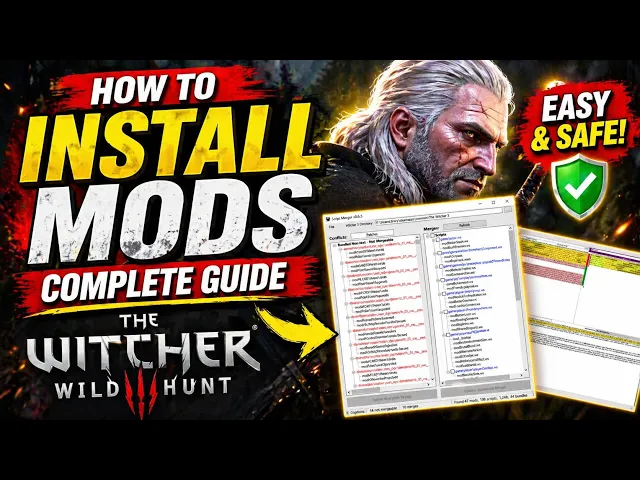
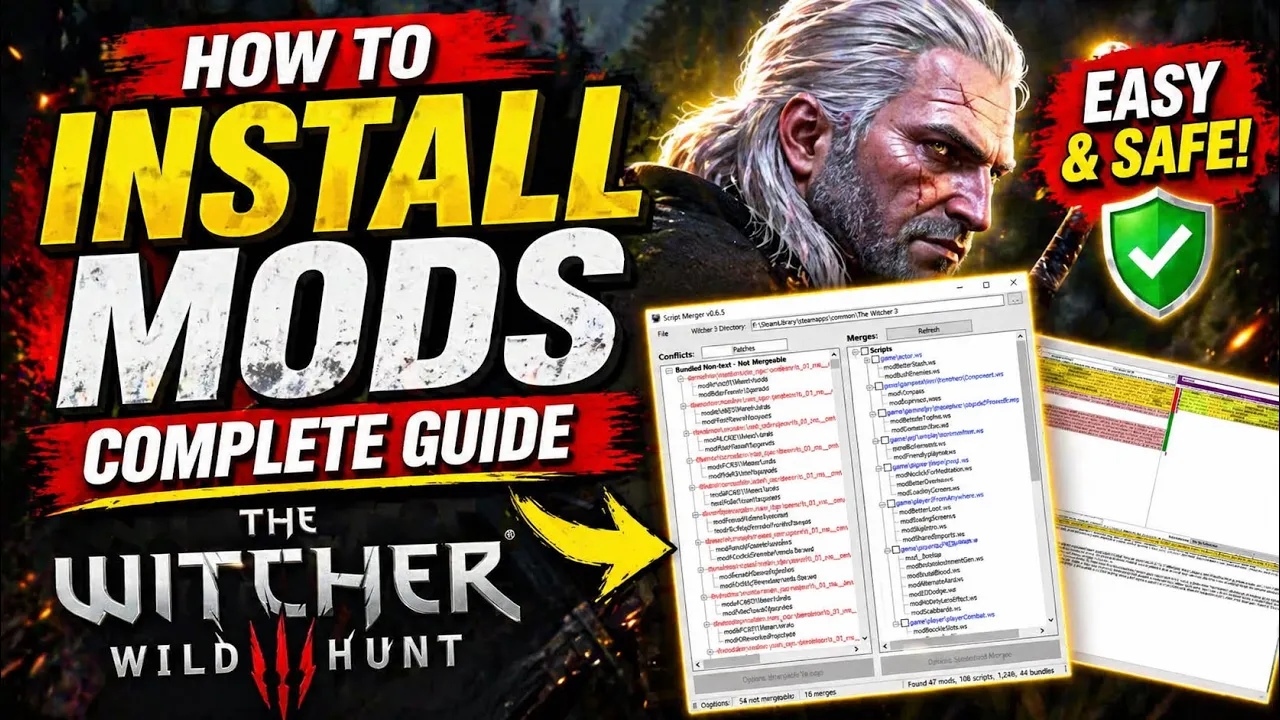
hey guys so straight into it this will be a mod installation guide for manually installing mods this won't be using any mod manager such as Vortex so let's get straight into it open our steam find Witcher three game we'll go to properties installed files and brows now this will open your Witcher 3 directory which all of your manual mods will be installed the only difference with Vortex is it pretty much adds it all in here for you with manual we do this as it it suggests in name manually which I find it much easier to
do it might scare a lot of people but bear with me we'll walk you through together all right so first step we want to go to Nexus mods The Witcher 3 and we want to download script merger it has all the installation instructions here quite easy just download it extract it to anywhere you can extract it to your desktop if you like launch it and then I'll ask for your game installation path and that's why on Steam before we navigated to our game installation path and this is it here so once you open script merger
for the first time it'll ask where is Witcher 3 located you just type in the path there it's quite easy and what it does is show you just here in The Witcher 3 path if you go to mods it'll actually add a little icon down here like its own application called Script merger we won't need to worry about anything for now this is just the first step once that's there we can start installing mods and we'll use the script merger later on and I'll show you how to use it so let's jump into installing our
first mod manually I've just gone to most download of all time found a mod that looks great to me I love Aqua what I've done is I've deleted it out of my mods I'm going to reinstall it just so we can see how it's done so going to the mod we'll go to files and what we'll do is we will click manual download it will come up with this we'll just go slow download it's only a 3.7 megabyte this will be done very quickly so it's just up here downloading right once it's downloaded it will
come up as a zip folder we'll open this go straight into it and it has mod Aqua all you need to do here so easy copy files from clipboard navigate to our mods folder in The Witcher 3 directory literally all you need to do is paste this will add the mod here that is all done that mod is now in the game it is that easy to do now we'll start with a mod that's a bit more complicated but we'll give you a great walk through to make it work every single time now swords on
the hip AKA carry weapons as you want is a incredible mod that allows you to as in the name Carry Your Weapons or customize your weapons anywhere on your body and roach so you can see in the pictures here both on the left hip or The Witcher one which are two uh sword setup and you can change your crossbow placement also the thing with these is it looks a bit more odd because we'll open the zip folder instead of just having the mods thing where you as before you copy and paste into your mods folder
in the directory you now have DLC and a bin folder quite the same the DLC one is exactly the same you copy files from clipboard navigate to your Witcher 3 uh directory and instead of going into Mods we will go into DLC all we need to do here is copy paste I'm not going to replace files as I've already got it but that step is done once you've done that now the bit more tricky one that people are scared of is the bin folder so what we do the easiest way to do this is we'll
go into the bin here config R4 game user config Matrix PC mod weapons carrying what this means is we just need to add a text file into our direct X1 and directx12 folder as said in the in description here right here so what we want to do is we copy the mod weapons carrying XML copy this text string we'll navigate to The Witcher bin config R4 game user config Matrix PC directx11 and DirectX files now we'll go into these these are the ones that I've added these ones are already in there as a default these
ones down here are the ones I've added all you need to do as I've done here going into this copy and paste save done I've already done this so I'm not going to add another one there you would go save perfect done that is finished a lot of people have conflicts because they don't do that step what that does it adds the ingame menu to your ingame so you can actually customize this that's how you get in game menus is you add text files into the directx11 and direct X12 directory now that we've downloaded some
mods we can go to our script merger as we're talking about before once we open script merger it will load detect conflicts of all your mods as you can see it's skimming through all the mods folders just to find if there are any conflicts now that it's scanned all the mods what you'll see is two sides you'll see your conflict sides and then you'll see your merges side these are all the ones that have already merged together now don't be afraid that a lot of these are red because some can't be non that some are
non- mergeable so you can't get this perfect all the time don't worry it's not going to do anything to your game it's just that they can't be merged together but the ones that can be you'll see the little squares next to them I'm going to click bundle text for all of these create three selected merges what will'll do start going through all of the ones that need to be uh merged together in Conflict it'll start running scrips perfect now this has come up with a conflict number of conflicts unresolved one this is a very scary
page to a lot of people it looks like you're coding for bloody NASA security system so what this means it is so easy this one this one this one as we can see at the top vanilla this is our realistic weather mod and our lighting mod these three are conflicting because I have a script that want to change multiple things but all of them have different things that they need to change we just need to prioritize one what we'll do is down here with the little question mark double click on this no sorry you right
click on this my bad what we need to do is select one that we want to use so for me I want to take priority of realistic weather over the other three right click click B that is done we will go up to the top press save press exit this will come up saying it is finished continue now we've got another one because we're selecting multiple mods before so it's going through all conflicts now what does this one want one unresolved conflict vanilla game merge bundle content mod Vel this is another lighting mod I would
like to take this because it's changing a lot more stuff that I would like vanilla doesn't even have anything it's only conflicting with this one here so we'll go down to the question mark right click C save exit done continue now this will be doing it for all of these so I think there'll be two more here for this one we have two unresolved conflicts so realistic weather and a lighting it's the same ones again we want to prioritize our realistic weather uh you could do lighting if you want this is personal preference doesn't change
too much you just need to read into it on the actual descriptions of the mods I know that I want to prioritize realistic weather here so I want to go B and then it will flick down automatically to the other unresolved one and I want to go B save two done exit continue four this one's got four merge bundle or V I want to go merge bundle content so I want to go B B B and B again save that should be all of them done one [Music] more better trophies or brother in arms I
want to go better trophies save perfect and okay packaging our bundles now so it creates a merge bundle of all these let you know which ones are done now it will reload all of them and show you in the merge section that these have been merged and perfect done so these are the ones that un mergeable these all been merged when you open the Witcher 3 and sometimes it's about to finish it's script merging it gets to like 100% And it says gives you an error and says merging conflicts this is how you resolve it
congratulations guys we have made it to the menu script screen so if we go to the options and mods you can see here that these are the mods that we added into the direct x 11 and 12 these will add the in-game menus now we did add Aqua so let's jump in and see if it had applied so we'll look at the water textures and we will see how much better it looks so this brings the guide to an end I hope everyone got something of value out of this video I hope to see everyone
trying new mods and modding in the future as it's so much fun um I just hope everyone has a great time if you have any questions about the video any questions in general just ask Below in the comment section and I will get back to you I hope everyone has a happy Adventures see you later