hi everybody this is jeanette from bodyguard sewing crafts this video what i am going to do is i am going to show you how you take a file download it on your computer put it on your flash drive stick it into your usb port and you know have it ready so that it can be stitched out i know that there were a lot of folks that were having trouble understanding this you know so let's just get to it and i'm going to show you step by step and explain everything okay so now to start off
let's start off talking about the uh the flash drive okay i don't recommend using a flash drive with a huge huge memory in there i don't think that the sc 1900 is um capable of handling flash drives that have a large storage lot large memory storage okay the ones that i usually use is i got these off at amazon they were five to a pack and they're 16 gigs per stick okay so because there's five of them i figured that's pretty cool um you know and it works right these already come formatted too so i'm
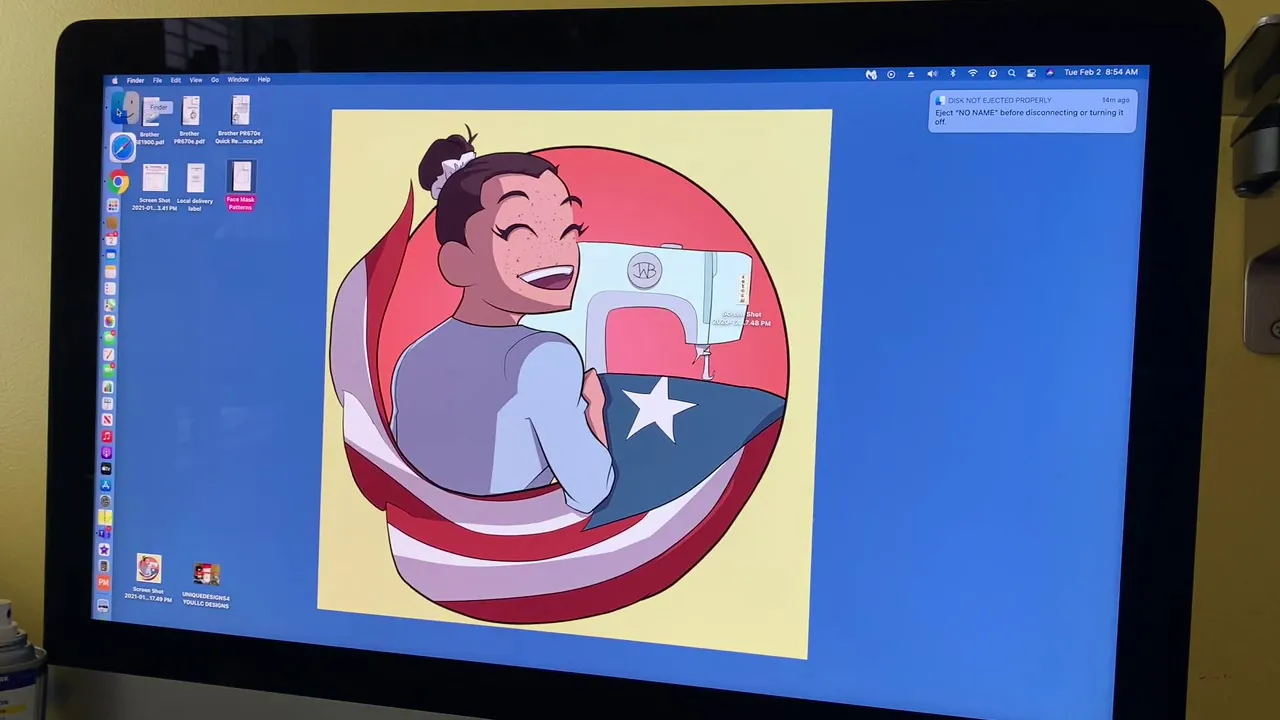
going to talk to you about the formatting of this so what i'm going to do is i'm going to stick this and hold on let me close the door because my my husband's pretty loud okay hold on um oh boy daddy's loud isn't he oh my goodness okay all right sorry about that guys um so let's talk about the usb port i'm going to stick this into my mac okay and i'm gonna go under finder and here is the drive okay this is a brand new one brand spanking new uh flash drive so i'm going
to click on info getting the info and i think in windows you would look on the properties now i'm going to expand this because the flash drive has to be in a particular format okay you know some flash drives when you buy them they come formatted some don't this flash drive is formatted in ms dash dots and in parenthesis it says fat32 okay so if you have a us a usb flash drive okay and it doesn't come formatted then before you start anything you would need to make sure that you format the um flash drive
to this okay once you have that done then you're golden you're you're ready to go okay so i'm gonna close this up and what i'm gonna do is i'm gonna go over to etsy and i am going to download a um a file that i that i purchased okay now let me um scroll this out because i want to make sure you see exactly what i'm doing so let me see okay now um here is a design and i think it's two sizes i don't remember if this is a five by seven yeah it does
have a five by five okay now one of the things when you're buying designs okay whether you're getting them off of an essie shop or you're getting them from any other embroidery uh website one of the things that you want to pay attention to is does it have the file format that the brother machine reads and also the size that will fit your hoop okay the brother sc 1900 the biggest size you can go is a 5x7 so if you look when i went and i purchased this it has it comes with three sizes it
has the five by five the six by six seven by seven now the six by six is seven by seven i can use this on my big machine but on my sc 1900 i would use the 5x5 then i also have to scroll down read the description also okay let me um make this a little bit bigger so you can see in the description see they list they list the sizes that the file will come with and then it also says that it's going to have all of these formats okay now all these formats are
the are used for different type of brands of embroidery machine the brother machines use the format pes which is the first one that's right up here that i'm pointing to right here with my pointer i'm circling it okay you always make sure that whenever you're buying them that it has this format in there now sometimes you know when you buy from certain websites they will ask you what format you want okay and that's when you would say i want the ps and then when you buy it they just send you the ps i found that
when i am buying from etsy okay they just sell you the file they sell you a file with all the sizes and all of the different formats included so all you have to do is when you download it you select the one you need okay so um i already have purchased this so i'm gonna go to my purchases and i'm going to click download files okay now let me hit downloads downloads and it downloaded and then i have to look for it there it is download here it is the cookie okay now if you notice
um put it on my downloads folder this is the folder um and then look it has all the different folders which means that these are the different file formats and i bet you in each of these they have the different sizes right now remember i need the pes size so here's the pes okay no let me go a little bigger so here it is ps 5x5 6x6 7x7 so of course the um brother sc 1900 does 5x7 and this is the five by five i think i said five by seven before but okay so this
is the one that i would need so what i would do is i would hit um copy and then i will go to my my uh drive okay and then just do a paste paste the item there you go okay so now i have it on my on my drive okay so um now let's say that i have in brilliance and i want to see what it looks like okay what i can do is i can open up in brilliance i'm going to open it up now you want to make sure that i have my
5x7 hoop which i do okay um i'm going to click the little folder over here because you i want to open it so i'm going to go in there and i'm going to go in here options there it is i'm going to open it and this is how it's going to look in my 5x7 hoop this is the 5x5 version but this is just how you would open an umbrellas you don't have to have in brilliance in order to transfer a file okay it's just i just wanted to show you guys how to open it
so if you don't have in brilliance don't worry about what i just showed you okay i'm gonna close this out and i'm gonna go right back now remember we copied and pasted it and now it's on the on the usb drive this is a brand new one you could tell that it's right in here so what i'm gonna do is i'm gonna eject it from my machine and i don't think i did did i i sure did okay cool and now what we're going to do is we're going to go over to the sc 1900
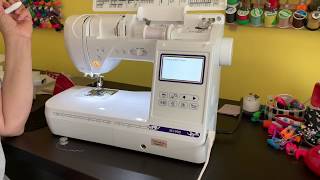
and i'm going to show you how to bring it up on the screen okay okay now here we are at the machine so we i have my usb i mean i keep saying usb this is the flash drive okay this is where we copied the file to now one of the things that i want to show you before we plug this baby in okay now in order for your machine okay you know to read this file it needs one thing it needs for you to put in the embroidery bed okay now if you look inside
here you're gonna see that there is like a card reader now this is what reads the data from the computer on your sc 1900 that's pulling information from your flash drive okay so when you stick in the flash drive to the usb this has to read this okay so what it does is it uses this this reader right here to read the information from your computer so before anything what you do is you make sure this is in your machine so you put this in okay and now you're gonna turn it on okay so it's
going to be in embroidery mode okay you're gonna hit okay okay now that you have your machine ready for embroidery this is where you're gonna take your usb and um your your flash drive you're gonna put it in the usb port so i'm going to do that right now and get around the door because the dog always decides to lay down right in the middle okay now make sure you have can see that yep you can't okay once you have that in there then what you're going to do is you're going to click this it's
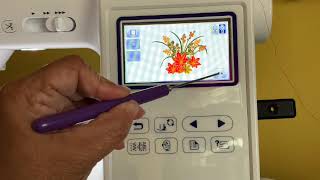
a pointer you're going to click this right here okay this is the usb okay it's telling it i want you to read what's on this thing so i'm going to click on that and there you go see that's the file that looks a little ugly and stuff like that but let's click on it and then i'm going to say set and there you go and if i want to see what it what it looks like as is right i would click on the little tv thing i call it the tv thing but it's really a
hoop it's a hoop click on that and there you go there's my cookie and it is it is on it's going to fit on a 5x7 so when you you know i just want to re-emphasize you has to be whatever files you're using to use on this machine it has to fit in a 5x7 hoop it also has to be in a pes format and i recommend that you don't get a flash drive that has a whole bunch of memories for some reason the machine gets a little quirky on that and these these um flash
drives are inexpensive they're not they're not bad i bought five in a pack i don't remember how much i paid but it wasn't expensive at all trust me and they already came formatted in the format that i needed so that way all i had to do was buy my designs copy and paste it and then put it on the machine and then see this is ready to embroider so anyway i hope this video um you know helps a little and stuff and you know i hope you like it you give it a thumbs up um
please subscribe to my channel you know i am all about this machine i love this machine um i've had it for two years now and there's not a lot of videos out there and i know a lot of people just bought this machine and um you know i really want you guys to enjoy it and explore it and everything so you know hope hope this was helpful and you know happy sewing and embroidery bye