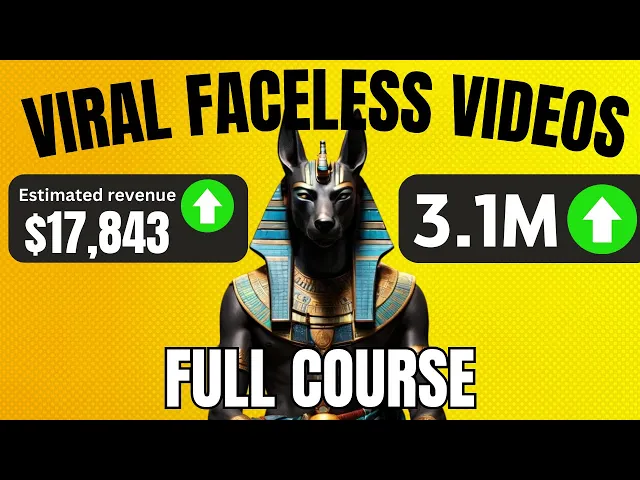
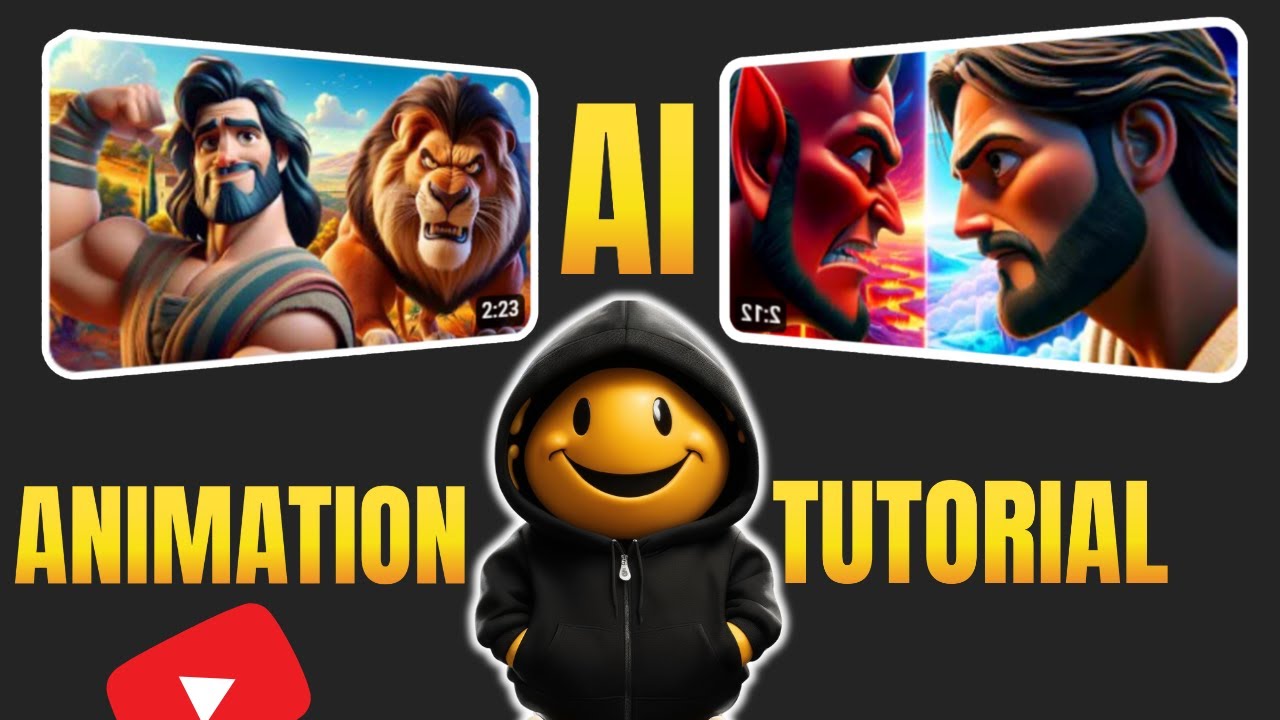
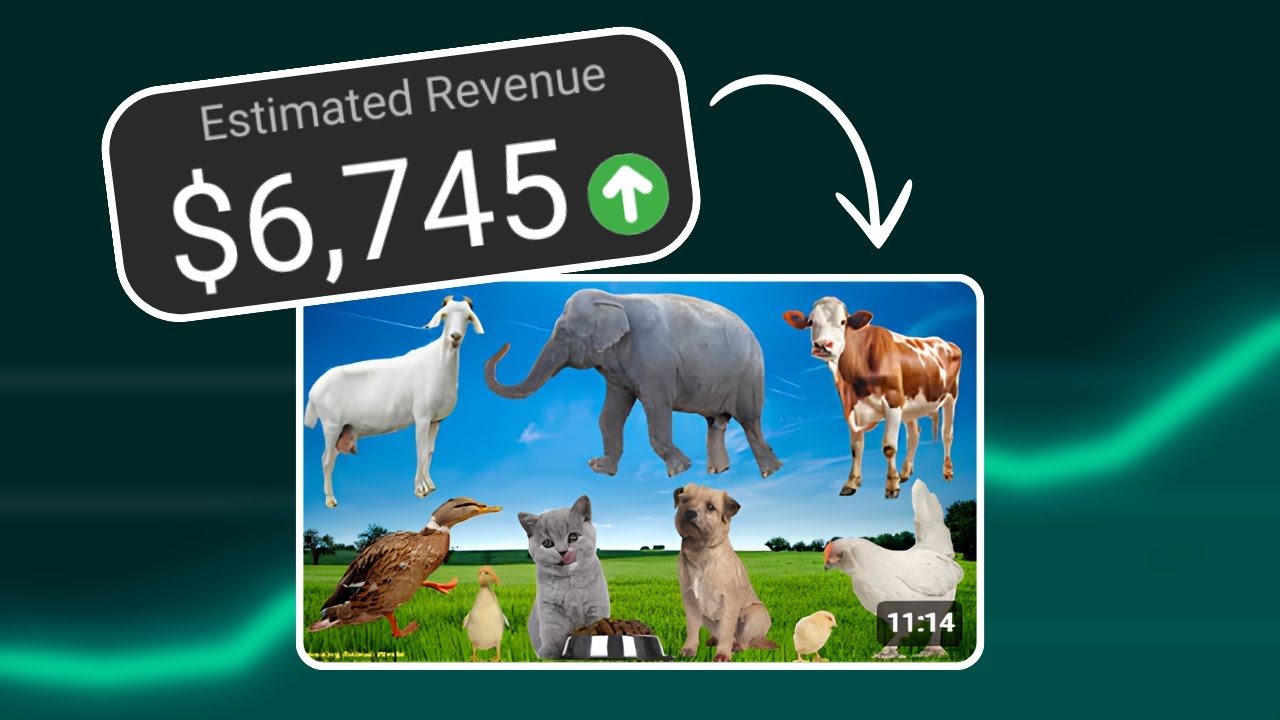
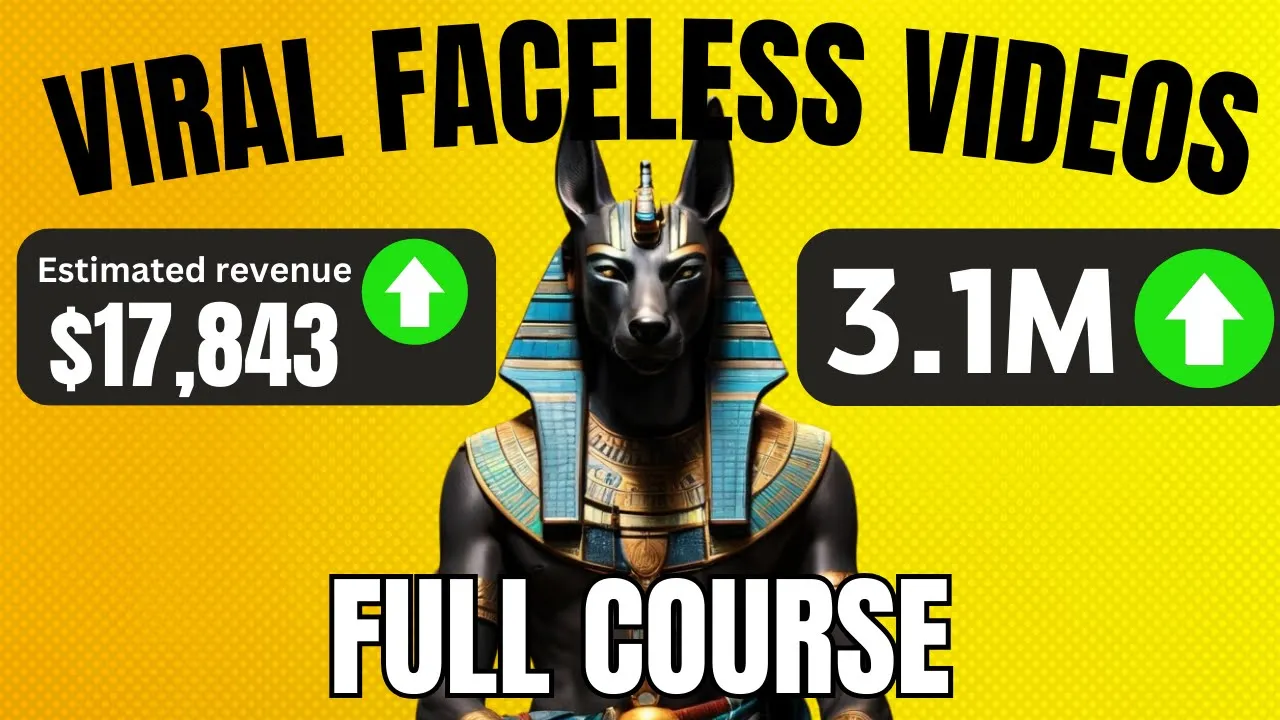
these videos on this channel generate over 350 million views and in the last 30 days it has earned over $117,000 from uploading these simple mythology videos this channel has generated over 140 million views and if we take a closer look at the third Channel it was literally started 6 months ago and has generated over 500,000 views and they all earned somewhere between $1,500 to over $2,000 which is just insane if you watch this video Until the End you will learn how to create a mythology YouTube channel my plan is to automate the entire creative process
I will literally do everything from creating the channel designing the logos and writing scripts to voiceover visuals and more and now I will show you part of the final video that we will create together these Divine beings was Anubis the guardian of the Underworld the jackal-headed deity who guided souls to their afterlife and weighed their hearts against the feather of myat so we will go step by step to creating the actual video to start you're going to need to create a brand new YouTube channel and branding for it so this is one of my channels
but now I'm going to create a brand new channel on the right side click on your profile icon then click switch account and all the way at the bottom click view all channels now click create a channel now let's choose a name for the channel so let's ask chat GPT this give me 10 YouTube channel name ideas for my mythology Channel where I will be featuring all kinds of Mythology and fiction from all around the world mythical Realms of ancient gods heroic Warriors and legendary creatures now pick the name you like copy it and paste
it into your name field now head back to chat GPT and ask it create a short YouTube channel description for my mythology channel the result is amazing let's copy and paste it here click publish and now we need a logo and banner to create a logo we will be using Leonardo AI just go to Leonardo Ai and click on image generation on the left prompt magic should be turned off and down here in the image Dimension section you will select one by one aspect ratio here choose dream shaper and here I will put my prompt
it is up to you to copy the prompt and replace winged horse with a lion or whatever you want your logo to look like click on generate and the results are amazing this image is mind-blowing let's just download it now let's go to canva and search for a YouTube banner I will keep it simple by changing the color to this one go to file then settings and enable show rulers and guides grab the ruler and drag the first guide to 2053 the second to 57 the third to 8 and the last to 932 so anything
we put in this area will show up on all devices including computers and tablets we'll have this part included as well now let's head back to chat GPT and ask it to create 10 fun YouTube Banner captions about subscribing to a channel that is about mythology videos now we have so many options but I like this one let's just copy it and head back to canva click on add text choose heading and then paste it here let me resize it a bit then put your logo here and in this Square put an arrow and text
saying subscribe now and we are all set let's download it now head back to the YouTube studio and upload our logo and banner let me show you how the channel looks perfect I like it now that our channel is set up and ready it's time to move on to the video creation process to start let's look at our competitions Channel and see which of their videos get the most views for example if we go to this Channel and go to the video section and sort the videos by popular we will see that they have a
video for Anubis which has 1.7 million views if we visit another channel from our competition we find out they also have a video about Anubis which means this topic about Anubis has a high potential for views so why not make our own mythology story about Anubis with chat GPT I put this prompt in chat GPT create an original and interesting 1,000w myth about Anubis in Egyptian mythology within seconds you have a great script ready to go now we have the story but we need a voice to read it so copy the script from chat GPT
and we are ready to move on to the next step if you're enjoying this video so far make sure to leave a thumbs up and subscribe all right here comes the voiceover the website we will be using to make our realistic AI voice is called 11 laab this website is the best of the best at making natural sounding AI voices in 11 Labs there are hundreds of voices you can select from and they give you 10,000 characters for free every month now let's generate our voice over for that select a voice from this list or
you can also select any voice from The Voice Library I'm selecting this one then paste your script and select generate once the voiceover is generated download it all we need for our video now is a visual let's go back to chat GPT and ask it to provide us with some visuals for the story so let's write the prompt could you generate 15 text prompts that encapsulate the scenes characters and emotions from the story these prompts will be used to generate images with Leonardo AI now with these prompts let's go to Leonardo AI Leonardo AI generously
provides 150 free credits on a daily basis which is more than sufficient for creating videos select the image generation and you will be redirected to this page here for this video purpose I'll select Leonardo diffusion then choose the desired ratio for your video I will select 16 by9 next go to chat GPT copy The Prompt and paste the first prompt in then select generate repeat as many times as you want until you get the perfect image for your video as you can see it gave us something quite good so I'm going to open some of
these to take a closer look and as you can see it turned out very well so go to chat GPT copy and paste The Prompt for the next picture and repeat the process to build the story with pictures okay we got our images ready now let's animate these pictures to take our video to the next level we can do it in two ways the first way is to use Leonardo's built in animation tool so go to personal feed right here click on image and right here you will see this button image to motion next literally
just click on it set the motion to around 3 to 5 and hit generate it's going to take a few seconds and look at this now we have an animated image within seconds it looks really good so this is the first way to animate your images and now let me present you the second way the second way is with the free AI tool piix verse so first you need to go to your browser and search for pix first AI now just go to get started in web click on it and here click to create a
new account with Google and you are in here we can see some of the generated videos and to be honest they look very good you can see how they look and now let's generate animations for our video to create a new video just click create you can use text or an image to create a video I'm going to upload an image after uploading you can write a prompt if you want then let's increase the strength of motion and also adjust the seat you can turn on HD quality then simply click on create after a few
seconds there you have it this AI tool adds motion to your Steel images this is freaking awesome awesome and yeah this tool is completely free for now now let's click on this video and you can upscale it or simply if we go down here you can click this download icon to download the video repeat this process with the rest of the images and download all the animations okay now we have the script visuals and voiceover we only miss free music to find a really great track that you could use for free on YouTube head over
to a website called pixabay try searching for something like Egypt and you'll get a bunch of suggestions down here I like this track that sounds really good so just go ahead and download the track you find now it's time to put everything together you can use whatever editing software you prefer but in this video let's use cap cut because it's completely free to begin choose create a new project next import all the voiceovers and all the animated pictures and of course the music into the project and choose an appropriate video size by clicking on the
16x9 aspect ratio now arrange the voiceovers and the animated pictures in the correct order by dragging and dropping them onto the timeline one by one make sure that the animated pictures align with the script it is also very important to remove the pauses from the voiceover so click here on the left of this arrow and select blade and remove the brakes as I show you so your video will be much better next we need to add transitions between our images to do that obviously go to Transitions and find the transitions that you think are suitable
for this video for example I will select one and drag it right here between the first and second animation and I will do that for the rest of the animations next up let's add some effects to make the video look much better so go to effects and here I will review some of the effects what I will do is drag it onto the timeline and on the right side adjust it next add some sound effects to match the script and add background music click on the music and on the right side set their volume to
around -24 but make sure to listen through as it depends on the loudness of the actual song you are using finally let's add caption select the text option from the top menu and choose Auto captions within seconds the captions will be generated you can then edit these captions using the side menu increase the text size and apply text effects and animation once this is done the video editing process is complete you can now export the video literally hit export choose 1080P and wait a few minutes now let's go to YouTube studio and upload our video
while it's uploading let's create our thumbnail head over to Cana click on create design Now search for YouTube thumbnail upload your image of Anubis created in Leonardo click on it and resize it now click on the text then heading and write story of Anubis choose the font to impact and adjust the size you can change the color of one of the words to red or yellow you can add effects like glow or Shadows to make it stand out and I think our thumbnail is ready let's download it now go to YouTube studio and upload the
thumbnail now we need the title video description and key words for our video I will use Gemini for this because I think it gives much better results than chat GPT for this so go to Gemini and it's free and ask it to create 10 titles for a YouTube video about mythology YouTube video about the story of Anubis Egyptian mythology I really like this one now I will ask it to create a short YouTube video description to get views with the title the Egyptian god of the dead and the underworld I really like the description it
even gives you a hashtag for your video now let's ask to create long and short keywords to get views on a YouTube video with the title the Egyptian god of the dead and the underworld and watch this wonderful results split long keywords and short keywords I would just quickly copy and paste our title and description here and let's copy and paste this as well now we are all done literally hit publish now and our first video is live now it's time to show you guys the final video in the time before time when the world
was still young and the gods walked among Mortals there existed a land of of Ancient Wonders known as Egypt it was a land where the sun kissed the Golden Sands where the Nile flowed like the lifeblood of the earth and where the gods held sway over the Affairs of both Gods and Men among these Divine beings was Anubis the guardian of the Underworld the jackal-headed deity who guided souls to their afterlife and weighed their hearts against the feather of mayat but the tale of anubus did not begin with his Divine duties it began with a
journey of Discovery betrayal and Redemption