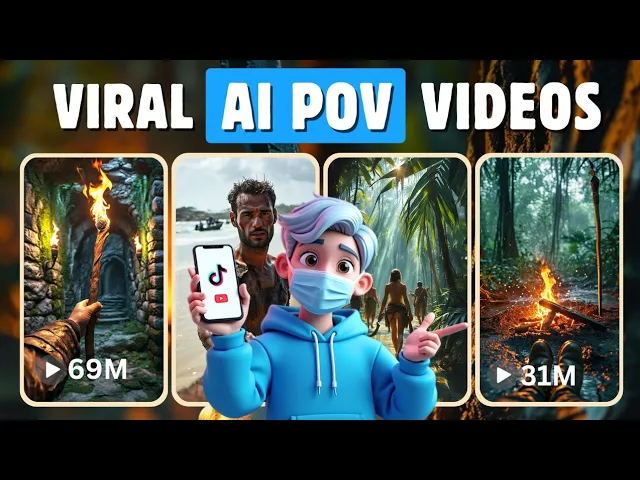
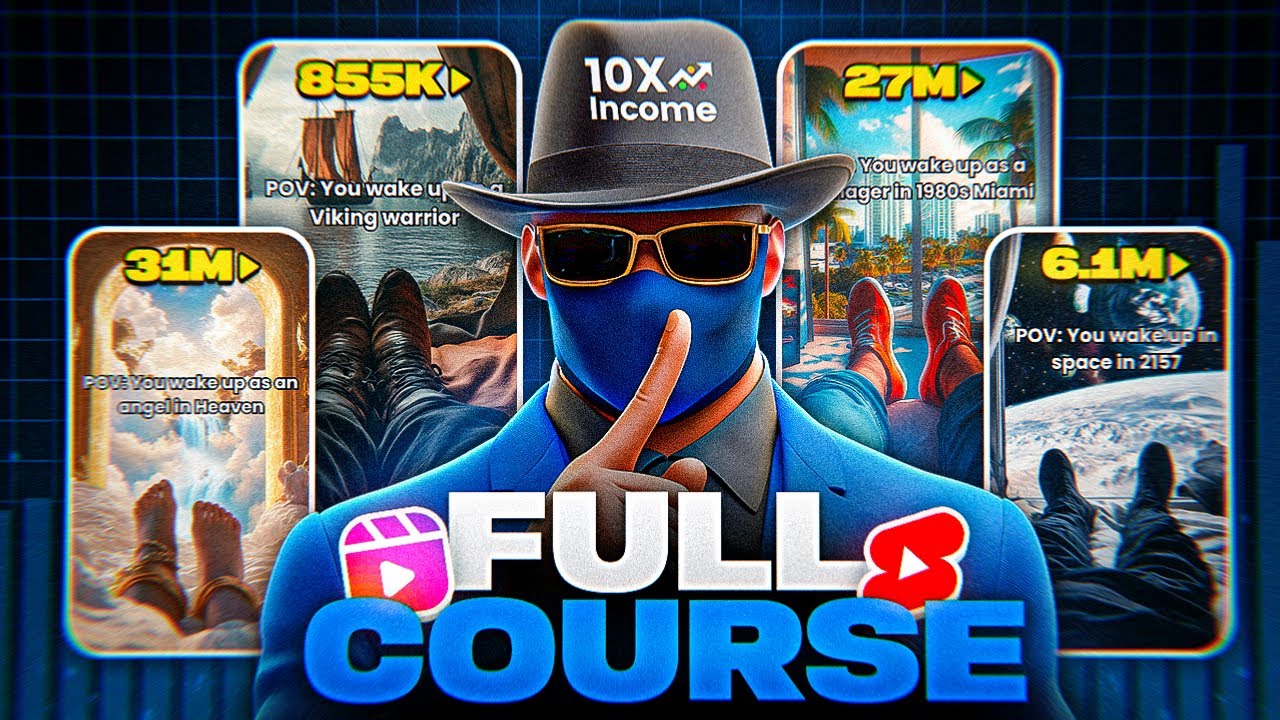
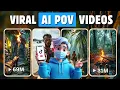
I know many of you have seen those trending POV videos on social media if you want to create your own viral realistic AI POV videos that can even help you make money on Tik Tok and YouTube then this video is for you today I will show you how to make firstperson videos that feel like you are actually inside the story with just one simple prompt you can create anything a historical Adventure an action movie scene or even a moment from a video game I will guide you step by step and also share useful prompts tips
and tricks to make make your videos stand out and show you how to do all this without spending too much money so stay with me until the end and you'll learn everything you need to start making your own viral aipo videos let's get started all right first we need to create our story and the prompts for it to do this we will use chat GPT for help go to chat GPT and get the special prompt from our Discord or telegram Channel this prompt will help you create any POV Style video just by entering the title
of a movie historical event or video game you have played for example I typed I worked as a crew member on a pirate ship once I clicked generate chat GPT instantly provided multiple creative ideas based on the idea I entered when you receive these ideas carefully read through each one and select the one that interests you the most after choosing your favorite idea copy it and paste it into chat gpt's text box but before clicking generate make sure to also copy and paste the POV video scenario prompt right below it this extra prompt helps chat
GPT create a detailed and immersive firstperson scenario for the idea you selected once you have your scenario or story ready it's time to create image prompts for each scene to make this easier I have created a special image prompt that helps generate all images in firstperson perspective all you have to do is copy this prompt and paste it into chat gpt's text box now in the same chat specify how many image prompts you want more image prompts mean more scenes a longer video and better storytelling but for this demo I'll keep it at 15 image
prompts now chat GPT will generate 15 scene image prompts all in firstperson perspective perfectly aligned with our POV Niche now that your POV image prompts are ready it's time to create highquality realistic images after testing different tools I found the perfect one that gives better results than most other AI generators the tool we're using today is divid AI this tool creates high quality images and videos from text with just a simple short prompt first click on start for free and log in with your Google account once you're logged in you'll get some free credits to
try the tool which is awesome on the left side you'll see different features this tool offers to create images click on AI image once you're there you'll see a simple and easy to ous interface like this now go back to chat GPT copy the first POV image prompt and paste it into the DVID AI prompt box next select the aspect ratio for your image here you can also add a negative prompt to exclude any elements you don't want in your images once everything is selected click generate divid AI will now create your firstperson perspective image
based on the scene and here is the result a high quality ultra realistic image that looks just like a real life scene let's try another one go back to chat GPT copy the second image prompt from your list and return to divid AI paste the copied POV image prompt and click generate divid AI will instantly create four firstperson perspective IM based on the given prompt as you can see these images are of the highest quality and all we provided was a short simple prompt now if you want to download an image just click here and
it will be saved to your device now repeat the same steps for all 15 scenes in Your Story start copying each remaining image prompt one by one and paste them into divid ai's prompt box make sure each image is visually stunning high quality and consistent with the previous ones if needed take your time to refine the prompts and select the best generated images for your video and the best part is it only costs one credit per generation making it an affordable option for creating highquality AI generated images here are the images from all 15 generated
scenes now save all of them because next we're going to convert them into a video now go to devid AI image to video section and click on the frames tab next upload the first image that you want to convert into a video Once uploaded we need to add an animation prompt to tell the AI how we want the animation to look writing animation prompts manually can be difficult and timeconsuming so I've created a pre-made animation prompt to make things easier copy this animation prompt and paste it into chat GPT which will then generate detailed animation
descriptions for all your images these descriptions will include cinematic camera movements character actions and background effects to make the scene feel more realistic and immersive now copy the first scenes animation description and paste it into the DVID a I prompt box next select the prompt strength animation mode and length for your video I'll leave it at the default settings and click create dvida I will now start processing your image into an animation and here's the result it's smooth high quality with realistic camera movements and animated backgrounds if you have two related scenes you can also
use the end frame option which allows you to combine two images into a single seamless animation just upload two images add a prompt and click create now now while it's processing you can upload the next image copy the next animation prompt from chat GPT and generate the next video here's the result using the end frame option looks great right now repeat these steps for all remaining images converting them one by one into videos using DVID AI image to video the best part is that you can run up to five animations at the same time and
there's no CU so you can animate all the images quickly without waiting here are the highquality Cinematic POV videos I've successfully generated using divid AI each scene comes to life with smooth animations and stunning visual effects now download all the animations in The Next Step we'll be using cap cut to create our final video now open cap cut and import all the videos you downloaded from DVID AI drag them to the timeline placing them in the correct order starting with the first scene and ending with the 15th scene once your Clips are perfectly aligned it's
time to enhance them first add transitions to make the flow smoother go to the transitions Tab and select blink this transition works perfectly because it simulates a real person blinking their eyes add it to all the clips for a more natural look next let's add some text to grab attention and tell the story go to the text template section choose a style you like and add it to the timeline now go to chat GPT copy the title of your story and paste it into the text box adjust the size of the text as needed move
to the second clip and add more text again go to chat GPT copy the first scene's title text and paste it in the text box then copy and paste this text template in all the clips modifying the text to match the content of each scene now let's get to the most important part adding sound effects I used 11 labs for sound effects but you can also use free sites like pixabay in 11 Labs go to the sound effects section and here you can type any sound you want but to make it easier I'll go back
to chat GPT copy the scene descriptions and paste them into the El Labs text box set the sound duration to 5 Seconds since each clip from DVID AI is 5 Seconds long then click generate El Labs will give you four different sound options for each scene download them and head back to cap cut now upload the sounds and drag them to the timeline arrange the sounds for the first scene ensuring that each sound matches the scene to create a more immersive POV experience repeat the same steps for all the other scenes making sure you add
the appropriate sound effects to each one once the sounds are in place let's add that cinematic Touch by applying a vignette effect to the video this will give it that professional cinematic feel finally review your video to ensure everything flows smoothly when you're happy with the result export your video in 4K resolution yeah [Music] [Music] and just like that your stunning high-quality POV AI video is ready to go viral you've just learned how to create an epic AI generated POV video from start to finish now apart from video generation D AI also has other cool
features like reference to video which helps create consistent character videos by uploading reference images and describing the scene there's also text to video video to video Lip Sync Ai and viral templates like AI kissing AI hugging and many more if you're interested in this tool you can buy their paid plan starting from just $14 per month plus if you sign up yearly you can save 29% all the link in the description so you can check it out for free if you need help join our Discord or telegram group you'll also find all the prompts we
use there so you can use them too if this tutorial helped you don't forget to like subscribe and turn on notifications so you don't miss any new videos thanks for watching and I'll see you in the next one