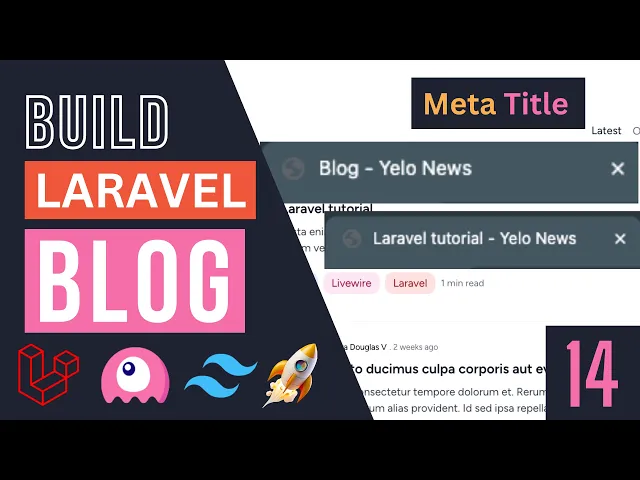
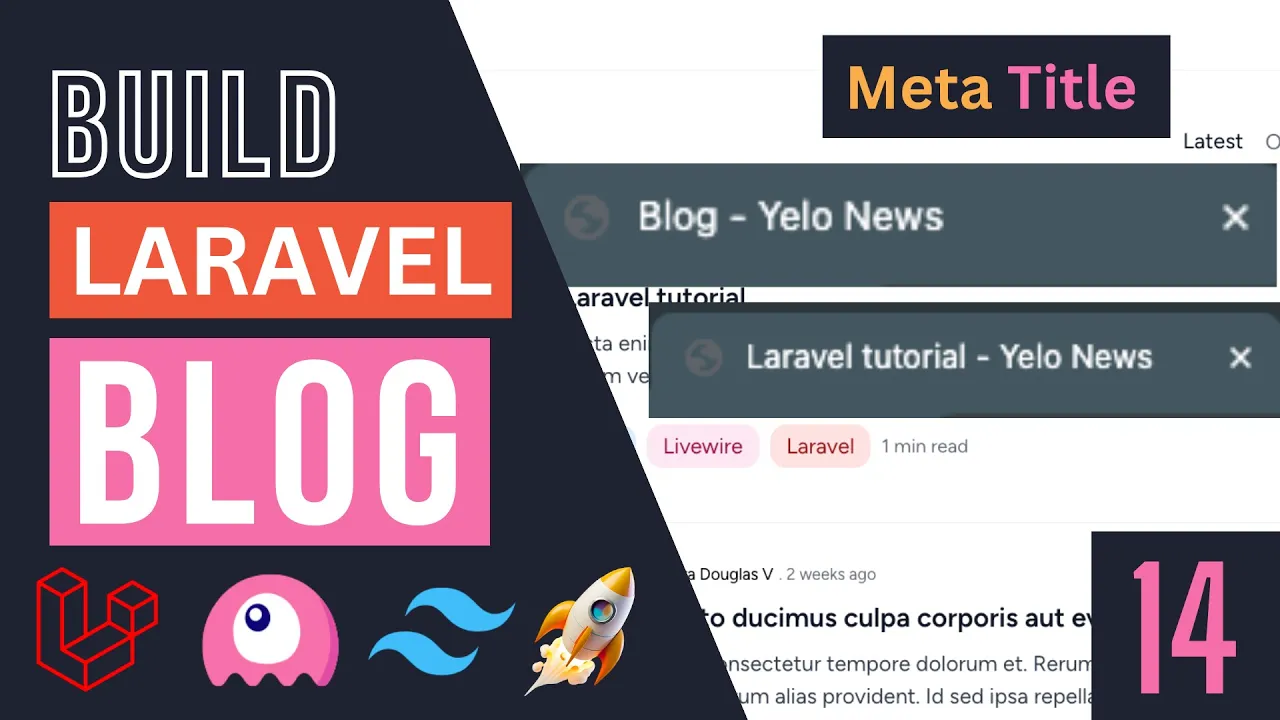
hey guys welcome back on today's episode we are going to fix a problem we have at the moment on all our Pages which is all of them have the exact same uh meta title tag okay so if you guys pay attention at the top left I have zoomed in a little bit we are showing yellow news on our homepage if I go to the blog page our page title is still yellow news if I go to Lal tutorial again we have yellow news this is obviously not good for both SEO and also from the users
perspective so let's go ahead and and fix this it should be a very easy uh fix so I'm going to go back to our codebase and if you guys take a look on our layouts we obviously have our app and guest layout which we set up already and under this title this is basically right now we are showing our application name which we set up on our. EnV file so whatever we have over here is going to be used over here right now generally what you want is to have the page title the current page
then followed by some sort of separator let's say Dash and then your website name right that's the kind of the most common format I seen of course some websites don't even have the website name they just have the current page title so it's up to you which one you want to use now how do we get this page title passed in from every single page right now there are few different ways you can do it so one common way I have seen a lot is you can go ahead and use the yield and we are
actually already using yield for our hero section so the way you would use yield is you can just say yield title and then in order to pass that that title from every single page let's say our from our homepage we can open up home and you can do this anywhere on the page but I'm going to do it at the top over here and say section title and then pass the title as the second argument in this case let's say home page right so this is how you would go ahead and use yield right very
easy to do and if I go back and I reload we actually get homepage at the top let me zoom in so you guys can see a little bit better so this is how a yield works right now you can go ahead and use yield if you guys would like I personally prefer to use props so let me show you guys the way I would do it or I have done it before and I prefer so let me remove this so the way I prefer to do this is I prefer to actually Define a prop
on my layout so let's do that I'm going to say props and then Define a title prop and instead of using yield I'll just use the variable title okay so I'm going to say title now this title could be null right so you may not set the title on some pages so I'll use the null operator and I'll set it to an empty string right so this is the easiest way of doing it now if we do have this kind of separator over here which will cause some issues I'll show you guys uh what I
mean in a second but this is the easiest way you just use a prop and then in order to actually pass this title we let's open up our homepage again you can just basically pass pass the prop over here right the same way we have been using uh you know this postcard over here right we were passing it the post same thing we can go ahead and say title equals uh you know home page I really like this syntax and because it's you know it's very easy to read so I generally prefer to use this
if you are using a blade component for your layout file so that's how I would personally do it so let's go ahead do a Reload and now if I zoom in obviously it's going to look exactly the same now we do have one issue with this if I go to a page that doesn't have a title set we get a dash then the yellow news so this is a little bit annoying I don't like to see that so we do need to fix it and this is relatively easy to fix guys so let me show
you guys how you can fix that so we can go ahead and use an is set to fix that so the way I would generally do it is I'll just do a quick is set check to make sure title is actually set right so it's not null and then if it is set we can do kind of an inline if statement on the true statement we can do title and then kind of add our separator okay this Dash and then for the L statement which is kind of noted with this double colon we just show
an empty string right now since we have this Dash over here we can remove it from this side and this is how we can go ahead and ensure that you don't show the dash when Title is not set so let's save this let's go back I'll do a quick reload and now if I zoom in on the blog page we are no longer showing the dash but if I go to the homepage we do show it so this is how I personally do it generally I would say majority of the time so you can go
ahead and do it the way I do or you can do whichever you prefer you can also use yield if you like I'm also going to go ahead and remove this lot of all uh which is show nothing if you don't have a title now some people prefer to kind of dynamically do this instead of passing it in so they get for example the route name and then they display it here it's up to you if you want to do that I think this is a bit better because you have more control and you can
also Translate like these if you need so now that we have this guys let's go ahead and set the page for all the pages we have so we already did it for the title page for the homepage let's go ahead and also do it for our blog page so our blog page is posts index so let's go ahead and add this as well I'll do title uh let's just name it blog H you guys can set this to whatever you like so I'm just going to gohe and set it to blog and next up we
have our blog show page this one so this is going to be this show page now for this one I'll set it to the post title okay so I'll do title and then I'll do Post title now if you guys remember I use this double colon syntax a lot when working with blade components as you guys can see we did with author it basically makes it so whatever you put inside these double quotes are interpreted as PHP I just wanted to kind of do a quick reminder on this so if you don't add the double
colon you do need to go ahead and add these uh curly brackets okay double curly brackets brackets so let's set it back to the double colon so if I reload now we should get the page title followed by yellow news and let me zoom in again so you guys can see so that's it okay and I think that's all the pages we have now we do also have our login and log out page so if we go to those pages we are not getting this format now our login and logout page are actually using a
different layout they are not using the app layout they using the guest layout now this guest layout is kind of redundant at the moment because they are exact it's exactly identical to our app layout so I think now is a good time to go ahead and remove it now if you guys are using a different uh kind of what's it called layout as I am the like the different HTML template that I provided you guys then you may want to go ahead and keep this guest layout but in this template the guest and the actual
application layout is exactly the same right so it's kind of there is no need for us to have a separate guest layout so let's go ahead and delete this now in order to delete it we need to first delete the blade file so I'm go ahead and delete that we also need to delete the corresponding PHP file okay so it is going to be in app view components and this guest layout so I'm going to go ahead and delete this as well now one more thing while we are on the PHP file guys instead of
defining a prop we could have also passed or defined this title inside our app layout by defining it as a public property something like this and then added a Constructor uh I generally prefer the prop face I'm not not going to be covering this way but it is something you can do if you know you guys want to do so that's it now that we have deleted both the PHP file and the blade file we have removed it the layout but if we reload we should or you should get an error like this right so
we also need to go ahead and update all our authentication pages okay so let me open up the login page it should be under views login and if you guys take a look we are doing X guest layout so we need to change all these all pages now you can do it manually in order to make this easier I'm going to go ahead and select this and then if you're on vs code or PHP storm I think Sublime Text I think all major text editors have that or idees and if you're on Windows do control
shift F and if you're on Mac do command shift F I'm on Mac so I'm going to do command shift F and this lets you do a kind of a folder wide or project wide search right so it searches your entire project for X guest layout in this case it found 18 results right for all the authentication pages and then if you click on this toggle over here you can go ahead and replace this with whatever you like there should be something similar on PHP storm as well same for vs code and Sublime Text whatever
editor you guys are using they should all have this so I'm going to go ahead and replace guest layout with app layout and then hit this AB to AC okay so this replace all button this will ask me to confirm I will say replace and that's it that's all we have to do so it's automatically replaced for for us so if I reload now we should be able to actually see this now this won't automatically add the title for us we still need to go ahead and open up all these pages so let me open
up login we still need to go over here and do a title and I'm going to say login now to save time guys I'm just going to go ahead and set this for our login and register and I'll set the other ones on my own time off camera so I'll let you guys do that on your own as well so I'll go to register and I'll also do it over here title register the remaining pages are going to exact same thing like reset password two two Factor authentication verify email and things like that so I'll
let you guys do that on your own time it should be very simple exact same thing we've done so far all right guys so that's it now one more thing I would also like to fix on this episode is this was actually something you guys asked me in the comments and which is when we search for something let's say I come over here and I search for L you generally from user perspective they expect you they expect that if they hit enter you know you will perform the search result right and if you're using a
regular HTML form that should happen right if you hit enter it will go ahead and search now on our application we are not actually doing that so let's go ahead and add that it should be very easy to do with alpon JS so we can add the functionality so we are also searching if we hit the enter key so uh let's go ahead and open up our search box this is our search box now with Alpo JS it's very easy to do keyboard shortcuts so the way you would do it guys is it can do
X on and then do key up so key up as the name suggests is when you hit a button and then you lift it right and then after that you need to do dot followed by the key you want or the key combination you want so in this case I want the enter key I just type this in now you do need to check the Alpine documentation for the list of supported key and the the name for them but it should have all the common ones such as enter shift things like that so I just
do enter and then then you can do an equal sign and inside this perform whatever action you want it's actually very similar to X on click okay so in this case I'll just copy this dispatch event we had and I'll put it inside these double quotes exact same thing right so I'll save this up it did format it for me so it's okay and that's all we have to do so let's go back I'll do a quick reload I'll type in l and I'll hit enter previously it wasn't working so I'll hit enter again and
it automatically searched up for me now The Way Alpine JS Works guys is by default if you are adding something like this it will only search if you are focused on your Alpine element okay or your Alpine component so this enter only works if I'm actually focused on my input box if I'm kind of Click outside and it's not focused and I hit enter nothing will happen let me remove this if I hit enter nothing is happening I'm hitting it very hard so hopefully you guys can hear here I don't know if it's being picked
up by my microphone but it is not working so in order to make it work anywhere on the screen even when you're not focused you need to go ahead and also add dot window okay let me save this now we do need to reload the page now if I type in l I'll make it out of focus and I hit enter it all also does the search so it's up to you guys if you want the first Behavior or the window behavior I'm going to go ahead and keep the window I think it's a little
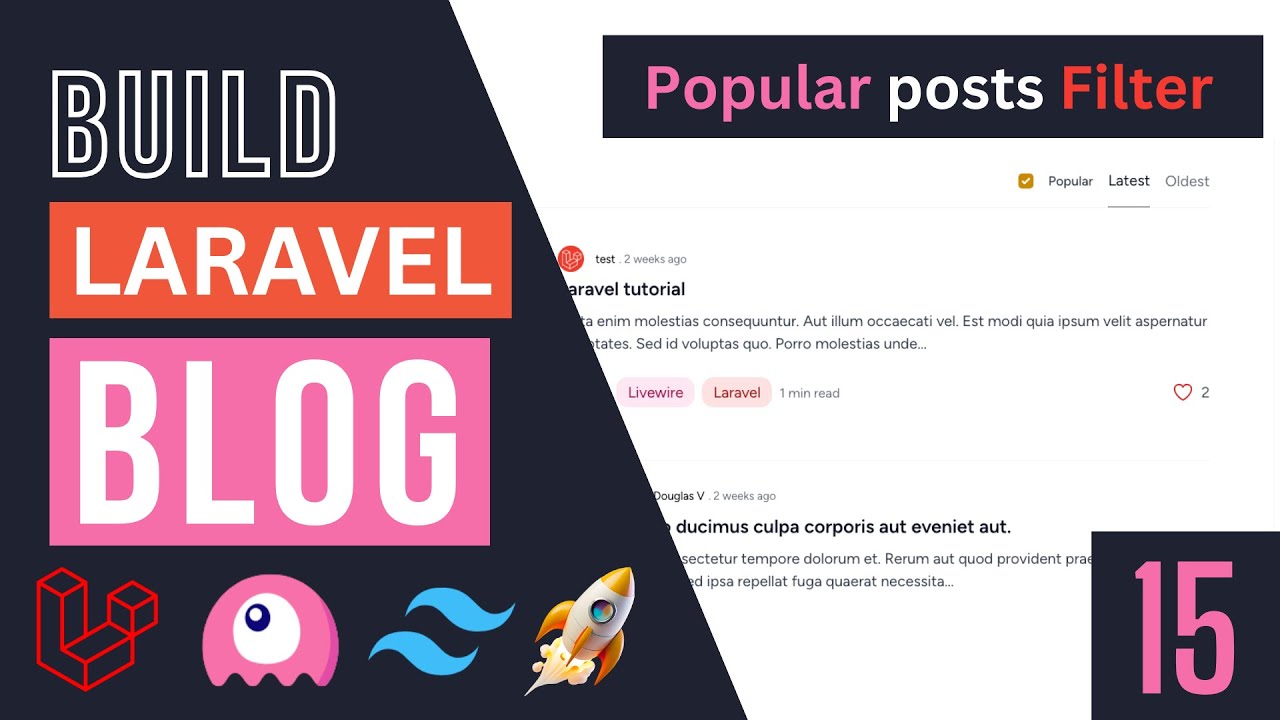
bit better for us so I'll keep that and that's it guys for the second thing I wanted to cover so today's episode is going to be a very short one on the next episode what we are going to do guys is we are going to add a popular section over here so we can show all the posts with the most number of likes so that's going to be what we cover on the next episode if you guys have any questions you can ask me in the comment section below as always make sure you like the
video and subscribe that's the way the best way to support the channel and I see you guys on the next episode have a great day bye