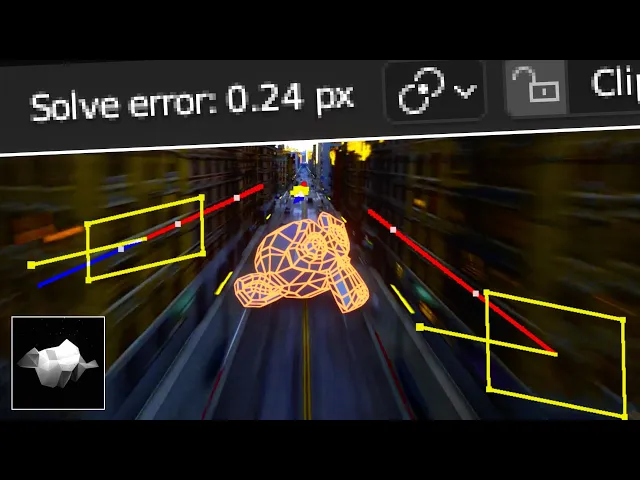
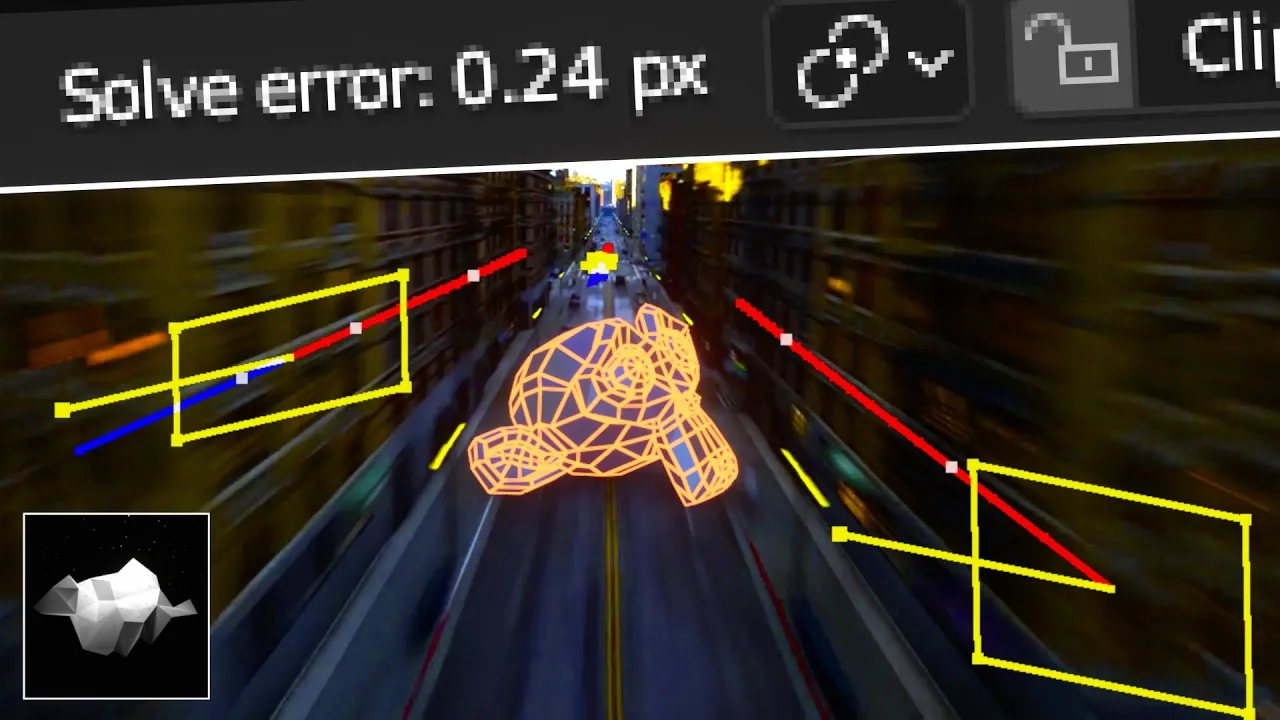
if you want to become a camera tracking Pro then this video is exactly right for you first open the motion tracking workspace and load in your footage important your footage should be an image sequence because else there will be consequences then click set scene frames to make the project match the clips started and frames and press prefetch to pre-cache the clip this will make playback faster and smoother now let's check out these settings here the pattern size is the size of the feature that you want to track and the search size is the area that
blender will search for the pattern in so if you have really fast moving footage then you'll want to increase the search size a bit but these settings can always be tweaked later so I'll just leave them at the different settings for now the next thing is the motion model it's pretty important so you'll have to choose the right one for each situation the location location and scale and location and rotation models are pretty self-explanatory but the ones you will probably use the most are the FNA perspective models the perspective model is going to be able
to trade perspective shift and the F9 model can handle spread system but it can also be used for perspective shifts by the way the one I use most is the F9 model because it works in most situations now you see this match drop down here this is going to determine if blender will search for the feature based on how it looked on the last frame or based on how it looked on the last keyframe furthermore I recommend you to check this normalized books because it would make it so that if the brightness of the pattern
changes blender will still be able to find the pattern with the settings sorted out we're ready to start tracking when choosing what to use as a pattern you'll always want to use high contrast areas like this window here if your footage has a lot of motion blur then you'll want to use features that are as big as possible because they stay way more visible than small features when the footage gets blurry now to track them you can either press Ctrl T to trick them forward or you could press alt and the right arrow button to
just trick one frame forward if you want to track backwards you can press Ctrl shift t or alt and left Arrow if the tracking stops and you don't know why Try pressing alt s and check if this search area is still big enough if not just increase the size and continue tracking if it still doesn't want to trick further you can either give up on the track or manually keyframe it onto the feature in the frame where it stopped then once you have the tracker reposition just continue tracking it to reduce the solve error later
down the line watch the trick closely if it's still tricking the right thing if it's still tricking accurately enough because if it's not it's just better to stop the trick the the point where it gets inaccurate then once you have eight active crackers on each frame go to solve and hit solve camera motion if your software is high you could check keyframe and let blender choose the keyframes but I don't recommend that because it makes bad choices sometimes what I recommend is set is to manually change the keyframe A and B the frame range you
choose has to have at least eight tricks that stay through the entire frame range now just experiment until you have the lowest possible solve then check the focal length radial Distortion and optical center checkboxes and solve again if the software is still high we can bring it down by finding the tricks that have a high sulfur and then fixing them do that check info on this drop down here and select all the tracks now you can see the 12 errors of each rig and what you'll want to do is to select the ones that have
the highest solve error lock onto it by pressing L and then watching it throughout the entire clip and if the software is high then you'll most likely see a point where something goes wrong with the trick when that happens you can either try to fix it by keyframing it onto the correct position again and tracking from there or you could just delete all the inaccurate correct data by using these buttons here another option is to just reduce the weight of the trick and that will reduce the influence that the track has on the final result
now if you feel the track becomes inaccurate for no reason then you could try a few things to improve the trick the first thing is to limit the color channels like this which will in some cases bring out more contrast or you could also try out different motion models the last option is to just delete the trick it's better to have less tricks that are more accurate than more tricks that are less accurate I think it's a good idea to reach out after each fixed track figure out if it actually got better but now you
know how to fix the bad track so resolve again and set up the tracking scene by going to solve down to scene setup and pressing setup tracking scene then select the trick ideally on the floor and hit set origin this will put the selected trick at the origin of the scene after that you'll want to select three tricks either on a wall or the floor and hit the floor and wall buttons respectively after that you'll want to set the scale of the scene so select two tricks that you know the distance of fight the distance
into this text field here and hit set scale last thing is to select another track in relation to the origin and hitting either set X or Y axis to align the camera with the x or y axes and now you should have a perfectly tracked camera and a tracking scene that you can just start working on if this video helped at all please watch this video next And subscribe