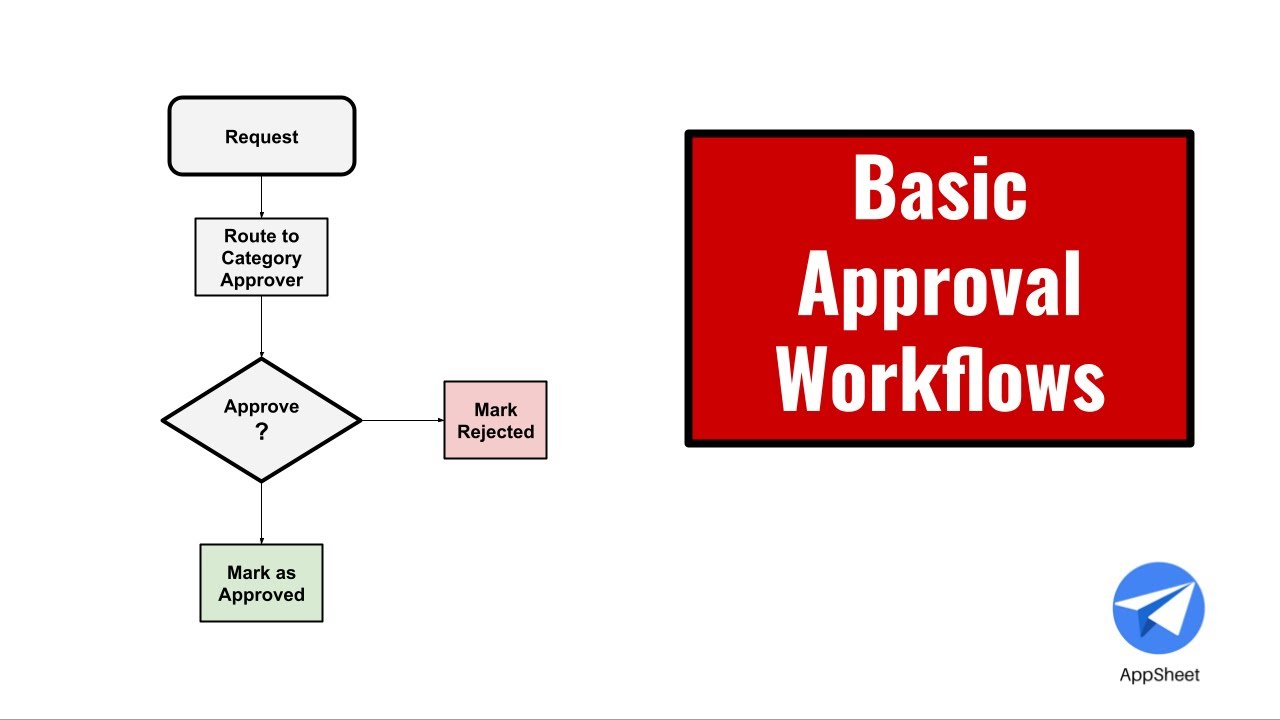
[Music] hello and welcome back to the building with app sheet series i'm google developer advocate christian schalk and in this two-part episode we will introduce app sheet actions and workflows let's get started app sheet actions and workflows control the overall behavior of an application specifically actions are application operations that involve ui data and or third-party integrations they can be triggered directly by the user or via workflows workflows provide rules for automatic or scheduled execution of actions i'll have more on workflows in the second part of this video as mentioned actions perform distinct operations within an
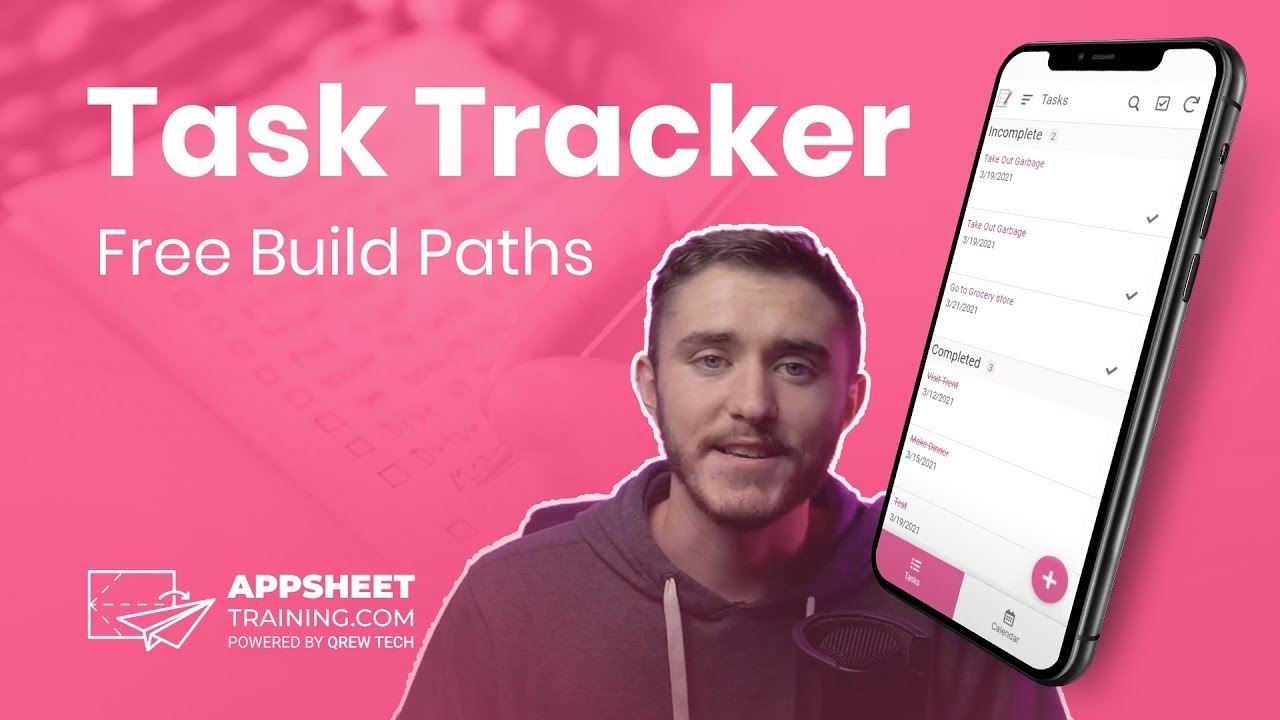
app the three types of actions are ui navigations which allows an app to show a new view within an app or of another app or even a separate website data changes which perform data updates on the app data itself and third is external communications which sends information to an external party such as with an email sms message or even a phone call now let's return to our task tracking demo app and build some actions so here we are with our demo app from before and if you recall we had two tables essentially the tasks and
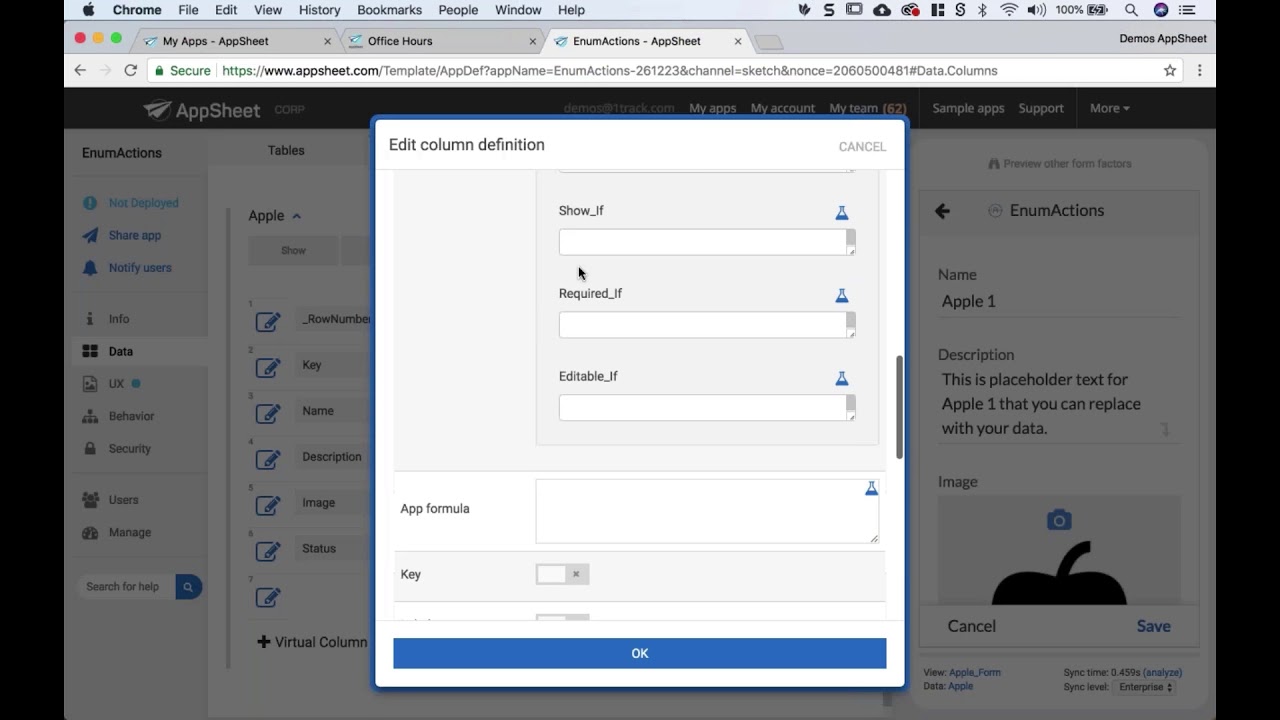
owners tables and they were actually related to each other so here's the ui essentially we have like the owners table and the tasks table so i'm going to go ahead and add a few actions to this application here to improve its overall functionality all right so to do that i click on the behavior tab here and i'm going to go ahead and click on new action and the default action that gets created is actually functional and i could actually have it running right now but what i'm going to do for this initial example is i'm
going to override this default behavior and just have it go to a website all right and it's basically good to go at this point i'm going to change one thing on it i'm going to select display overlay for the prominence and what this means is that it will place the action icon to be over in this region right here and so i click save and now we have our icon there basically it doesn't matter if i'm viewing the entire table or a particular record it's it's always there because it's not a row level operation so
i can click on it and it will take us to the app sheet web page all right so pretty straightforward stuff so let's go ahead and create a new action and for this action i'm going to go ahead and accept the default behavior but i am going to customize a few little things on it i'm going to change the name just slightly that way it renders better so here we go it's showing up here at the top i will add another column update so i'm going to add the due date and the value i want
it to be is essentially five business work days into the future so if you recall from an earlier video i used this same formula to just project it out five days into the future or five work days into the future and that evaluates correctly and then now i'm just going to tweak the uh the ui a little bit and so in this case i'm going to use this icon here which is essentially this little roll back icon actually that's it i have everything good to go so i'll click save and then we just do a
quick test to make sure everything is working as we expected all right so now we have our action at the top here and i can just go through a few uh records and select a record that i might want to update so in this case let's go ahead and change this record to be in from in progress to set as not started and i've also updated the due date so pretty simple let's create a new action and this last action i'm going to add is to essentially do a csv dump of all of the data
in the task table right so as you can see it's not a row level action so all i have to do is select it it will set us up to do this operation and then it even gave us a good or an appropriate icon and all i'm going to do is just update the prominence so that it's going to do the overlay display and so that will place the icon in the lower right so click save and then it only shows in this case in the full table view which makes sense so i'll click on
the icon and that will kick off a csv download and there's our downloading file and now that it's finished we have our downloaded file so there we go so you can see in just a few minutes i was able to create some very interesting additional functionality to the task tracking app using actions this concludes the first part of the intro to actions and workflows episode be sure to check out the second part of the episode where i'll go into a lot more detail on workflows for more info on app sheet google cloud and google workspace
check out the links in the description below and for more videos like this make sure you subscribe to this series so you don't miss out as always thanks for watching and stick around for the next video to learn more about workflows you