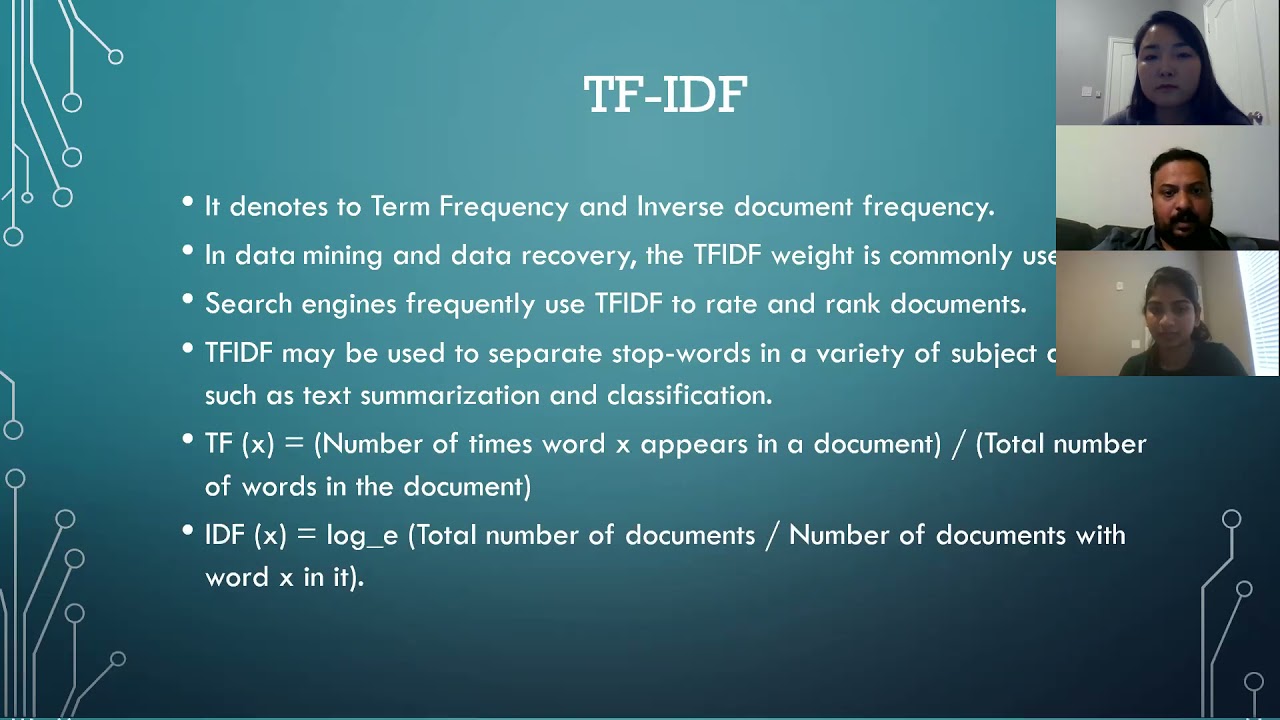
what is going on guys welcome back in today's video we're going to use machine learning to detect fake news articles using python so let us get right into it [Music] alright so for this video today we're going to start by installing three external python packages that we're going to need and for that we're going to open up the command line and we're going to type pip install into three packages on numpy pandas and scikits dash learn and all three of those are part of the main python data science machine learning stack so numpy is just for efficient array processing pandas is for working with data sets and data frames and scikit learners for the machine learning part for the traditional machine learning we're not going to use deep learning in this video so that will be enough we don't need tensorflow or Pi torch uh you just install those packages in my case they're already installed as you can see here what you want to do after that is you want to download the data set that we're going to use for this video today you will find a link in the description down below it's the fake news data set from GitHub from this repository here as I said you will find a link in the description down below when you are in that repository you just click on the data directory and then you just download this CSV file here and you store it in the directory that you're going to be working in now I'm going to use for this video a Jupiter notebook or an IPython notebook in Jupiter lab if you want to also use Jupiter lab or Jupiter notebooks and you have some trouble setting everything up you can find two videos on my channel one about Jupiter notebooks and one about Jupiter lab as an environment and I show you there how to set it up and how to use it but you can of course also just choose to work with an ordinary python file you don't have to use a notebook so I'm going to start a new one here I'm going to zoom in a little bit and we're going to start with the Imports I'm going to import numpy S and P I'm going to import pandas as PD and then we're going to import from scikit-learn so from sklearn dot model selection the train test split now the idea behind the train test split is you have the full data set you split it into 80 training data 20 testing data so the model is trained on 80 of the data and then in order to evaluate it to see how well it performs how good it is at classifying fake news you just evaluate it on unseen data on data it has never seen the testing set to 20 it has never seen that's a basic idea so this is what we're going to do here then we're going to also say from sklearn dot feature extraction we're going to import TFI DF vectorizer is it vectorizer or vectorization let me just see we forgot one thing it's feature extraction dot text from there we need to import this vectorizer here the basic idea behind this vectorizer is um we want to take the text and turn it into something that we can feed into a machine learning model we cannot just take the full article and just blow it into a random force classifier and say okay tell me if this is fake news or not we need to have something that can be represented using numbers because machine learning models work mathematically and we cannot just take words or sentences and calculate something based on those we have to somehow represent them as numerical features and what this vectorizer does essentially is it takes two metrics it has a TF metric and the IDF so basically it's written if you don't import it here in Python it's TF Dash IDF and this stands for term frequency and what was the IDF I think inverse was it inverse inverse document frequency so basically without getting too much into the detail the TF is just a number of times the term appears in a document and the inverse document frequency is um a metric that is calculated with the logarithm and a division you basically divide the number uh the number of times a uh you know the number of documents divided by the number of documents that contain the term and then basically the whole thing is you multiply those two metrics and you get this uh score where essentially to to describe it from a high level high level perspective that's not too mathematical is you want to know what the most important and most distinctive terms are in a document in an article so you get an article you count the terms you compare them with the other documents with the other articles and you then know okay this term is very special because it uses that specific word way more often than other articles so that might be an indication for something that's the basic idea here I'm sure you can go more into the details of the mathematics here but that's the basic idea we vectorize the text uh using this metric using this calculation here and then we're also going to import the actual model that we're going to use we're going to save from sklearn Dot and you can use multiple different classifiers here you can also try to go with the K neighbors classification but for text Data usually what's very powerful is a linear support Vector classifier so a linear support Vector machine so we're going to just use here from svm the linear SVC I also played around with a random force classifier it wasn't too bad but this one produced by far the best results um all right so those are the Imports let's now load the data set by saying data equals PD reads underscore CSV and we're going to load here the fake or real news CSV file then we can display it and you can see here we have basically just four columns we have the ID we have the title we have the text the article text and then a label is it fake or is it real now since this is now text we're going to encode this as a binary feature this works quite simply by saying data fake so is it a fake yes or no is going to be the label and we're going to just apply a simple Lambda expression we're going to say that for each value in label for each value X we're going to say 0 if x equals real and else it's going to be one so now we have zeros and ones and we can then also drop data equals data drop we can drop this label feature uh actually it doesn't make sense to drop it because we're not going to use the data frame itself we're going to just use the text column we're also not going to include the title because the accuracy that we're going to get is quite um quite good even without using the title we're just going to take the article text we're going to vectorize it we're going to try to predict the fake feature um and this is going to be our task so what we want to do here is we want to say now the X data and the Y data is going to be data text and data fake so basically the X data looks like this and the Y data looks like this this is our Target variable very simple um very simple task here we just have one feature and one target target value Target attribute now we want to do the train test split so we say x underscore train equals or X underscore train sorry X underscore test y underscore train y underscore tests equals train test split x y and we want to choose a test size of 20 20 because 20 of the data should be used for the evaluation 80 of the data should be used for training so we'll provide a test size of 0. 2 I think that's also the default value so I'm not sure if we need to provide it but we're going to do it here and now we have X strain this is also a random split so it shuffles the data and then splits it but the length of the training data is now 5068 instances and the length of the test data is 1267. all right so what we're going to do now before we feed all of this into our linear support Vector classifier is we want to vectorize it because now as I already showed you here the training data is just sentences we want to have numbers so what we're going to do now is we're going to say that we want to have a vectorizer which is going to be this TF IDF vectorizer with stop words being in English since this is English text maxdf we're going to set to 0.
7 and then we're going to just take the X data and vectorize it so the X train and the X test data we're going to vectorize it we're going to say x underscore train underscore vectorized equals vectorizer and the first time I want to use fit transform this is like scaling the data first you use fit transform then the vectorizer is fit and you only use transform on everything that comes after that so we do fit transform X train and then we do X test vectorized equals vectorizer dot transform x-test like this uh now it's done I'm not sure if we can actually display this I think not notice just a sparse Matrix but now we have the structure of these metrics so for each text we now have the vectorized data and now what we can do is we can just create a classifier by saying linear SVC we're not going to provide any hyper parameters we could of course do a grid search or a randomized search to get the best hyper parameter settings to even further improve performance but we're going to just keep it like that now we're going to say clf fit extreme vectorized and we don't need to of course vectorize the Y variable or the Y attribute so we don't need to vectorize the zeros and ones because those are not text data so we can just use y train it's already fitted and now we can go ahead and say clf score X test vectorized y test and you can see we get a 94. 79 so almost 95 accuracy on the testing set meaning that from all these um from all these how much was it why test from all these 1267 articles 94. 79 were classified correctly let's see how much that is 0.
9479 1200 were classified correctly from those 1267 so 60 67 or probably 66 since we're almost here uh at one uh we're classified incorrectly this is quite impressive for such a simple model like a linear support Vector classifier uh but you can see it's quite powerful now if you want to predict another article that's maybe not part of the data set how would you do that you would just take the article text whatever it is you can put it into a text file so for example here um we're just going to use X test ilock 10 for example this is just one article for example and this is of course part of the data set but you can just copy paste it from a website what you do is just say now with open and then [Music] um my text .