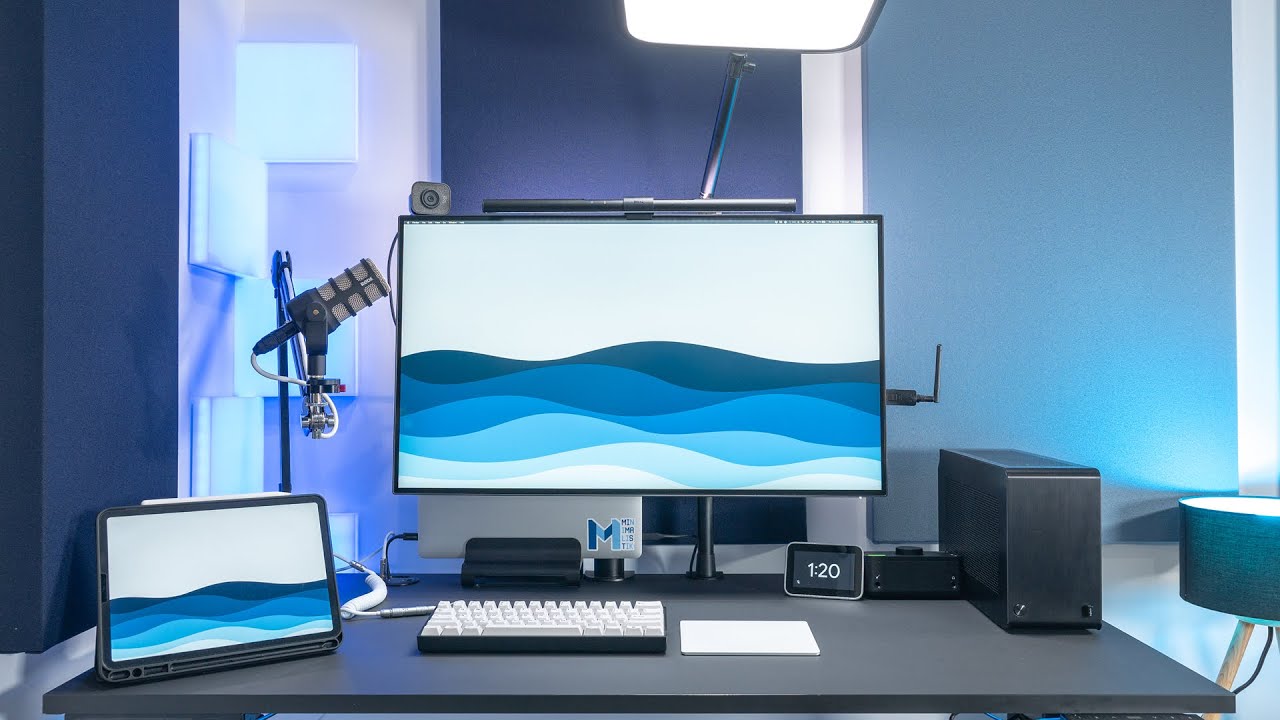
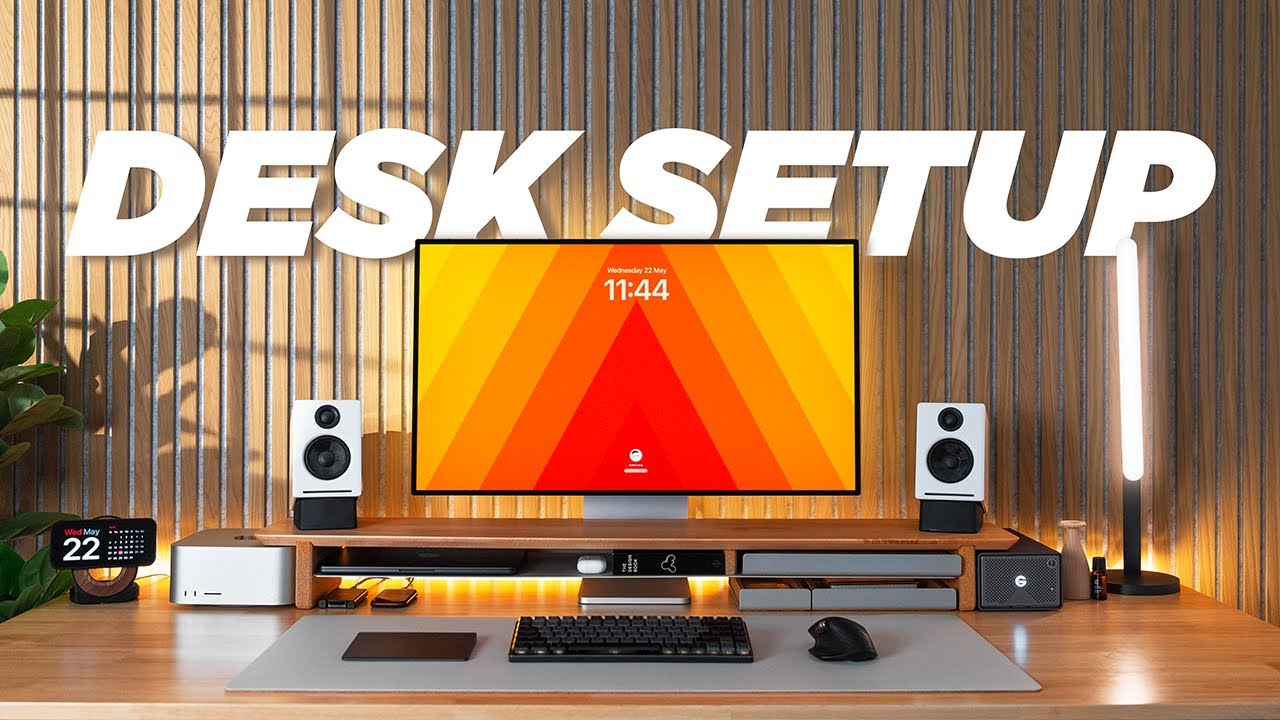
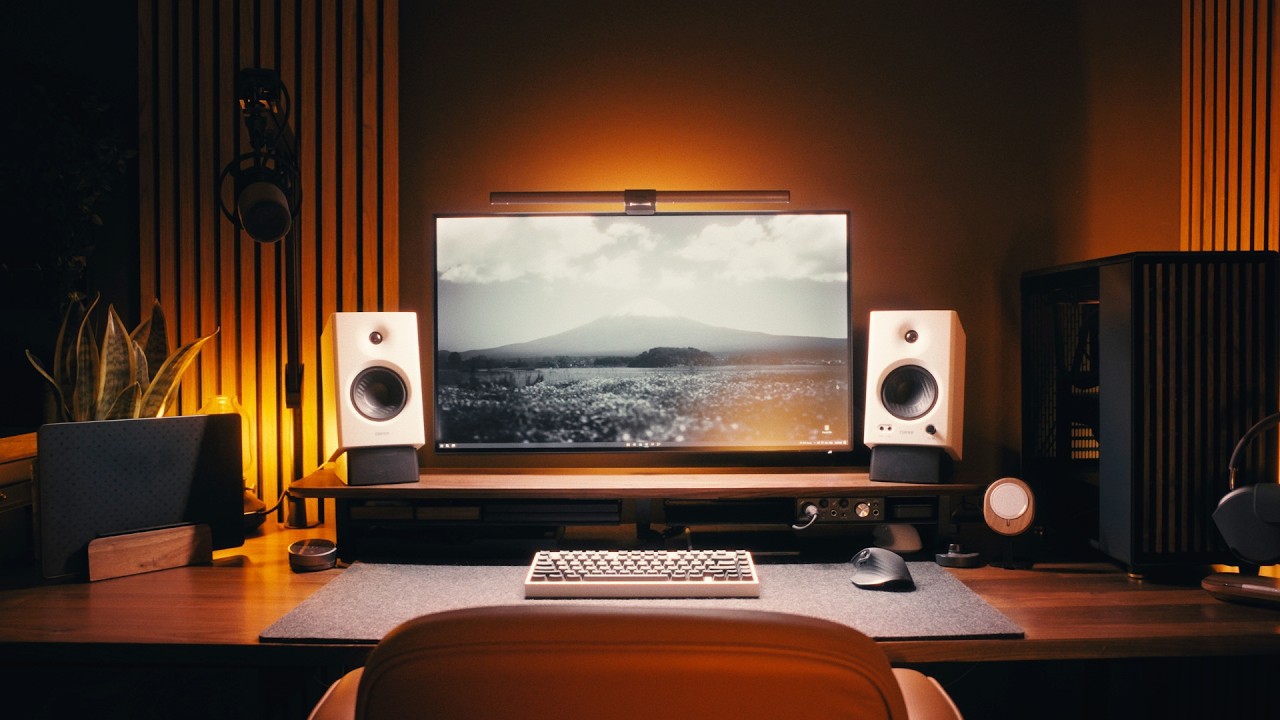
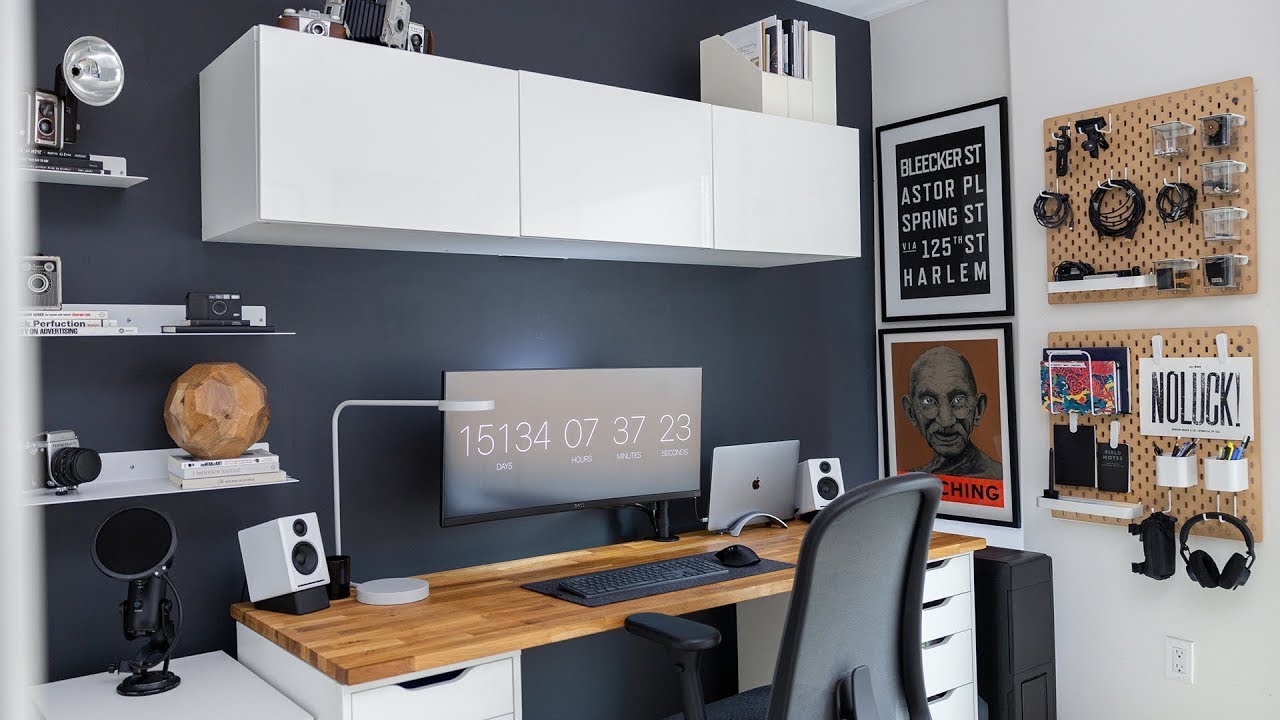
so I've been working from home for the last month as a software developer unfortunate enough that the industry I'm working in has not been affected that much by this pandemic and while I had an adaption period my setup at home was already pretty much exactly what I wanted and I believe that's because of how simple looking it is while still having all the core elements I need to be productive over the last years I've continuously improved this desk setup at home and I thought I'd share what I learned to keep my setup clean and uncluttered
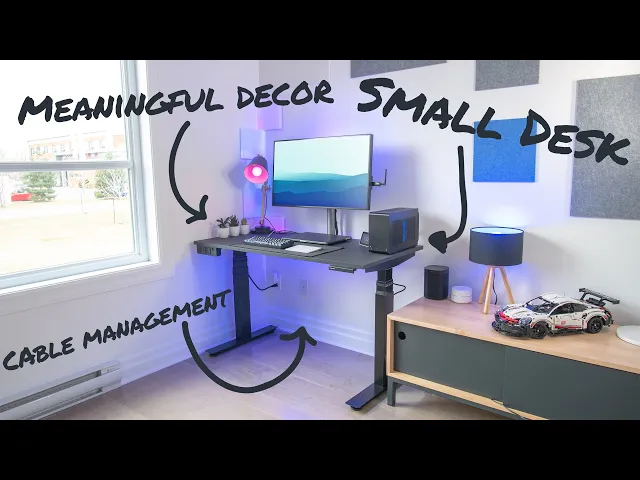
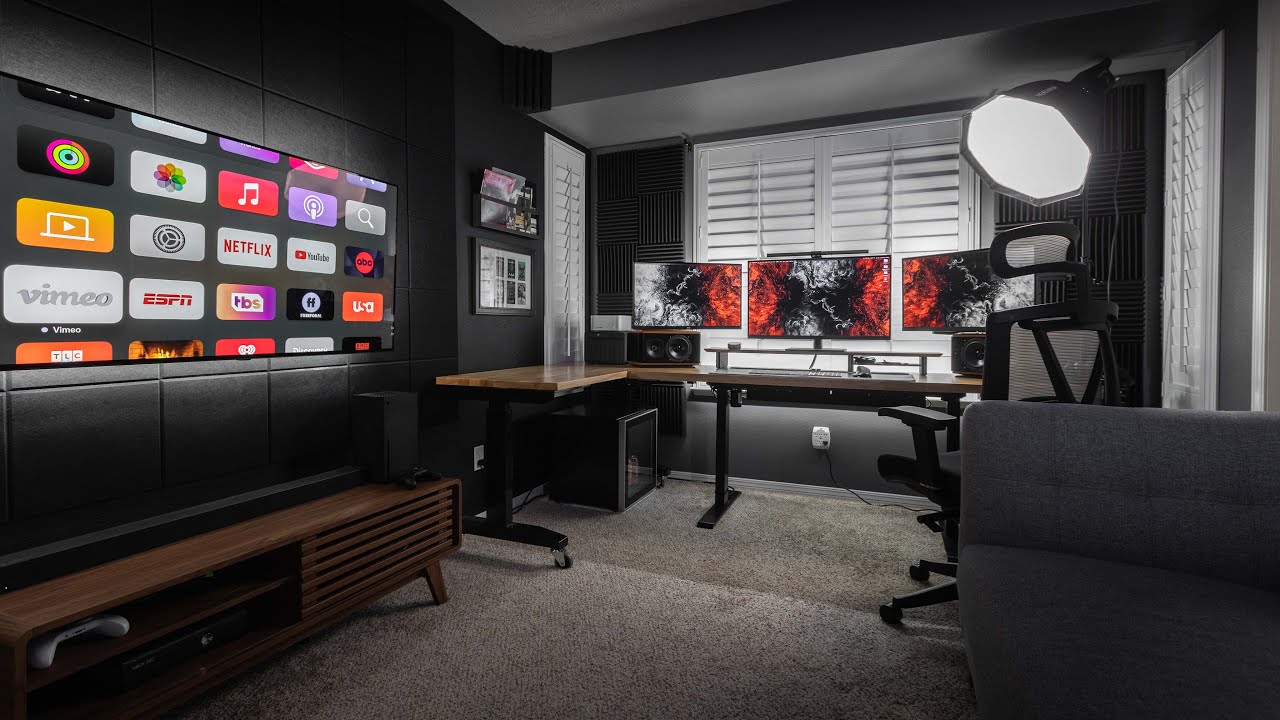
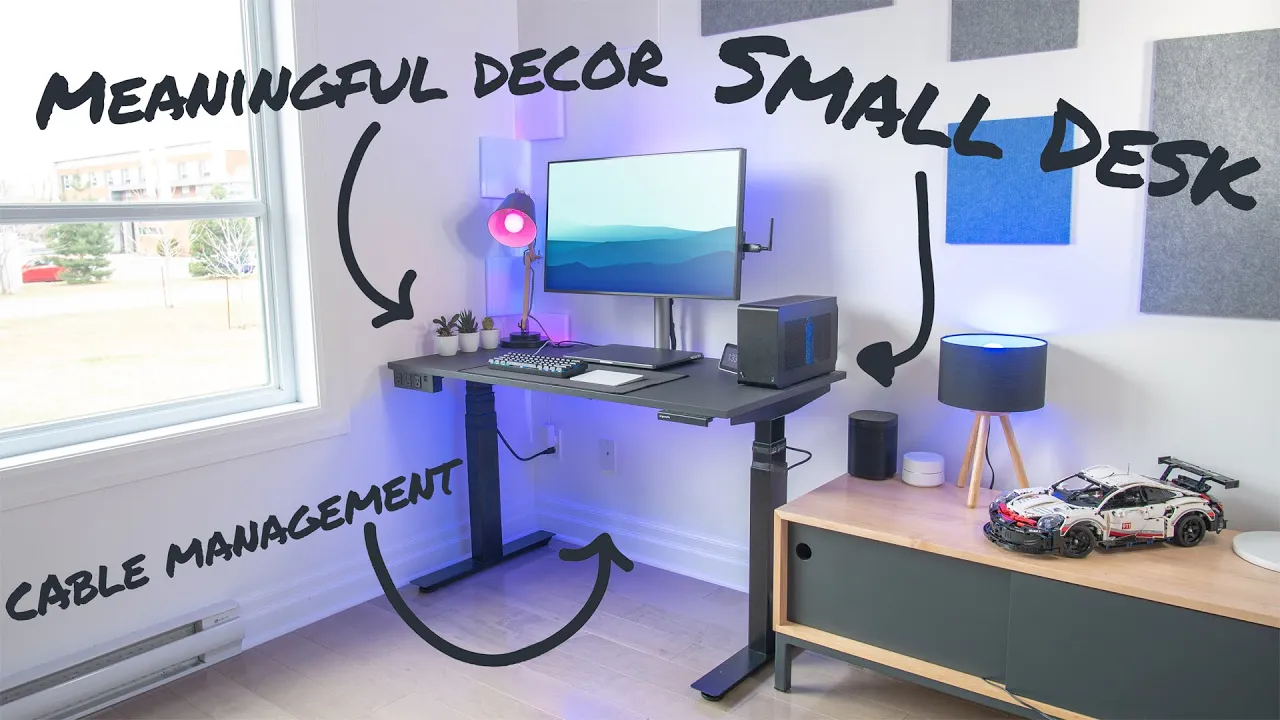
helping me stay focused while I worked full time from home so let's go so my first tip would be to set a dedicated workspace ideally somewhere where a work can be left there at the end of the day without needing to pack everything like a kitchen table not everyone has the space to do so but even a tiny corner in a room might be good enough speaking of space I recommend going for a smaller desk than a bigger one I used to have a 30 by 60 inch desk and I since downsized it is 24
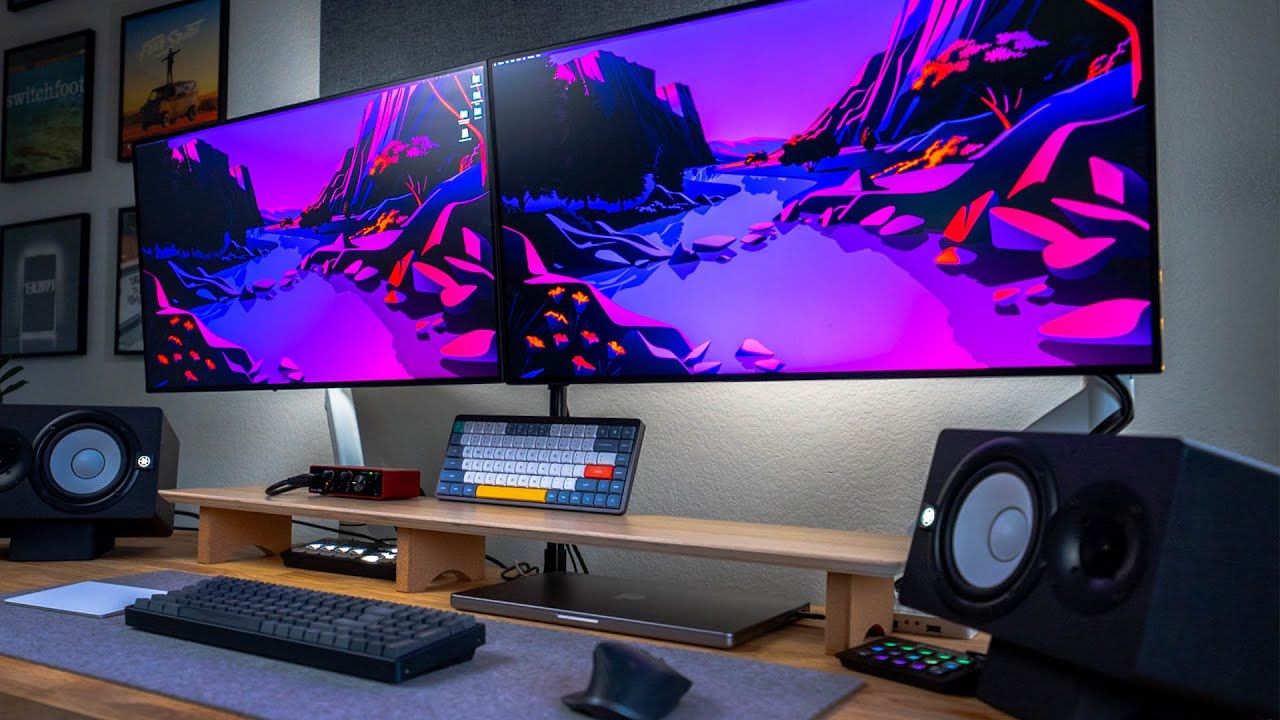
by 48 inch model and while I think it looked nice having a large surface looked great and it gave me more room to work my current desk is in fact large enough and I never really need more space than what it offers I believe that the more space I have the more likely I will fill it with stuff that I don't really need as an example I used to have a speaker pair with a subwoofer although I use headphones most of the time even with my current desk I would be able to downsize again or
make room for stuff that I care more about just by replacing my desk lamp with one that mounts on my monitor putting my smart clock in another room or having a vertical stand for my laptop now as for removing things from my desk I believe that items that aren't used every day shouldn't live on my desk I'm all in for decoration as long as it's something I like and it doesn't take all the space otherwise as an example I used to keep my gaming mouse on my desk at all times although I can go through
weeks without touching my gaming PC so I decided to leave it in my closet instead and just go get it back when I actually need it for all those items that I want to keep but that I don't use every day I like to have them in my closet or in this media unit that I have on the side of my desk instead of having drawers or trays on my workspace I think that would add to the clutter and would distract me more than anything also in the future if I want to add new accessories
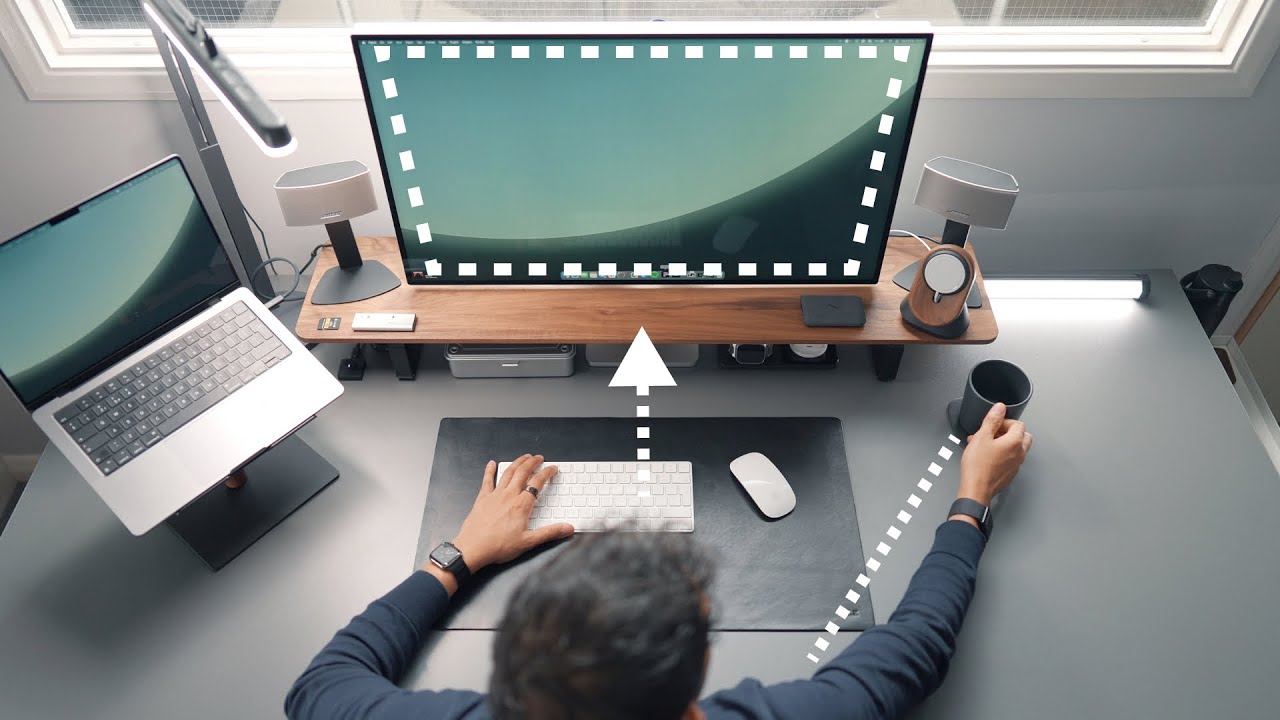
or tools to my desk I'll try to see if there's a variant that's clamp able clamps usually have a much smaller footprint as an example I might get a monitor arm at some point to reduce the footprint of the base of my current monitor another good way to reduce the visual clutter is to have proper cable management's but what's even better than good cable management is no cables at all one way to achieve that is by going with wireless peripherals effectively removing cables from sides other ways to achieve that is to use a single cable
for multiple purposes like my laptop that charges sends a video signal to my monitor and connects to my peripherals with a single Thunderbolt cable or this USB hub that I have it in under my desk that only adds a single cable going to my monitors USB ports while still effectively connecting more than one peripherals to my computer but for all those remaining cables proper cable management will be required the goal here is to have no visible cables on the floor and other than the fact that it looks better it's also easier to keep the floor
clean and it reduces the chances of dragging something on the floor by strangling my ankle in D hanging cables there are many ways to achieve that and some vests come with built-in nets or hidden sections to hide cables in my case I created in that structure with Velcro cable thighs to keep all cables close to the other side of the desk in some cases I attached the cables directly to the structure for desks that don't have any built-in cable management systems it's possible to add a rack like this one the Signum Iraq via Ikea which
does a pretty good job as well although it's easy to bump your knees into it if it's not at the back of the desk I also like to have a power strip mounted directly under my desk for my setup I used a super long model and velcro strapped it to the frame of my desk facing the back that makes it even harder to see from above I was also able to attach the cable to my standing desks leg giving enough slack to the cord so that it moves with the leg when I shift from sitting
to standing this makes it easy to connect all power devices to it and not have those AC cables running to the floor it's also possible to add a power strip directly in a cable management rack or simply screw it under the desk as most of these have mounting holes the final tip I have to reduce the number of cables on a desk is to standardize cable types across devices ideally having a single cable type that can connect to any peripheral in my case my gaming mouse has a microUSB connector my trackpad is a lightning connector
and my keyboard has a USBC connector so I would need three different cables to connect or charge these devices to address this I use these magnetic adapters and I have them for each variant of the USB port I need that way all these devices can connect to my computer with the same cable and it adds a MagSafe feature as well it's much easier to connect and disconnect and prevents accidents when pulling the cable if you want to do something similar keep in mind that you need to go with a system that allows charging and data
transfer for it to work across devices finally I try to not use any paper as that's clutter to me I just use note-taking apps to take notes or start a small text document either in my text editor or directly in a Google Doc if I plan to collaborate on that idea later on as for keeping track of the work I have to do I use the Microsoft to-do app to list tasks and make sure I do them before their due dates it's not perfect by any means but it works fine for my usage and if
I ever receive important mail I prefer to digitize it using the Adobe scan app which gives really good results that way I don't need a scanner but I can still safely store documents to the cloud and get rid of the paper version if that makes sense so that's it for today I hope you got something out of this video and if so please consider leaving like as it ups the channel I'll try to have all the items I mentioned linked down below as a reference if you want to do some of these upgrades to your
own home office as always thank you for watching make sure you leave a like if you did and don't forget to subscribe if you still haven't already as I'll see you in the next video [Music]