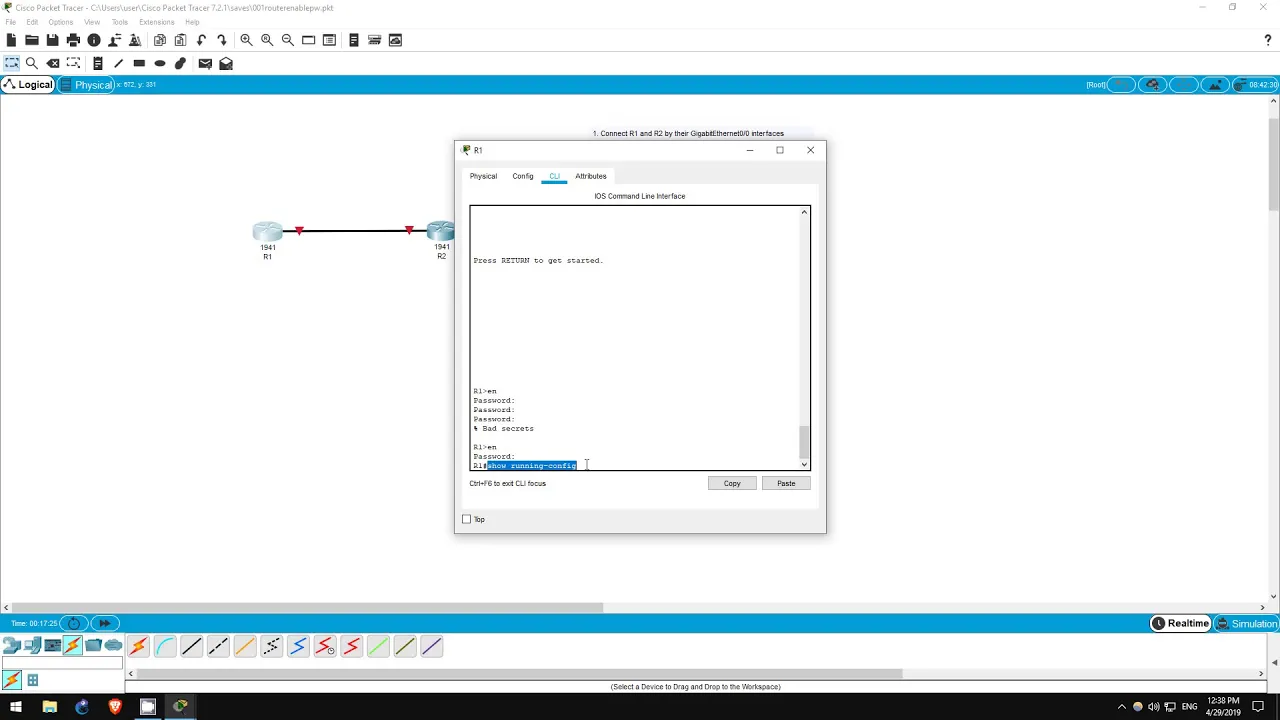
welcome to this free Cisco CCNA packet tracer practice lab you can download the lab file from the link in the description see if you can complete the lab yourself first and then continue watching this video if you have any trouble or watch it afterwards to check your solution in this lab we will be working with two routers r1 and r2 we will configure basic security on the routers by using the enable password which is used to enter privileged exec mode also known as enable mode I will only work with one of the routers in this
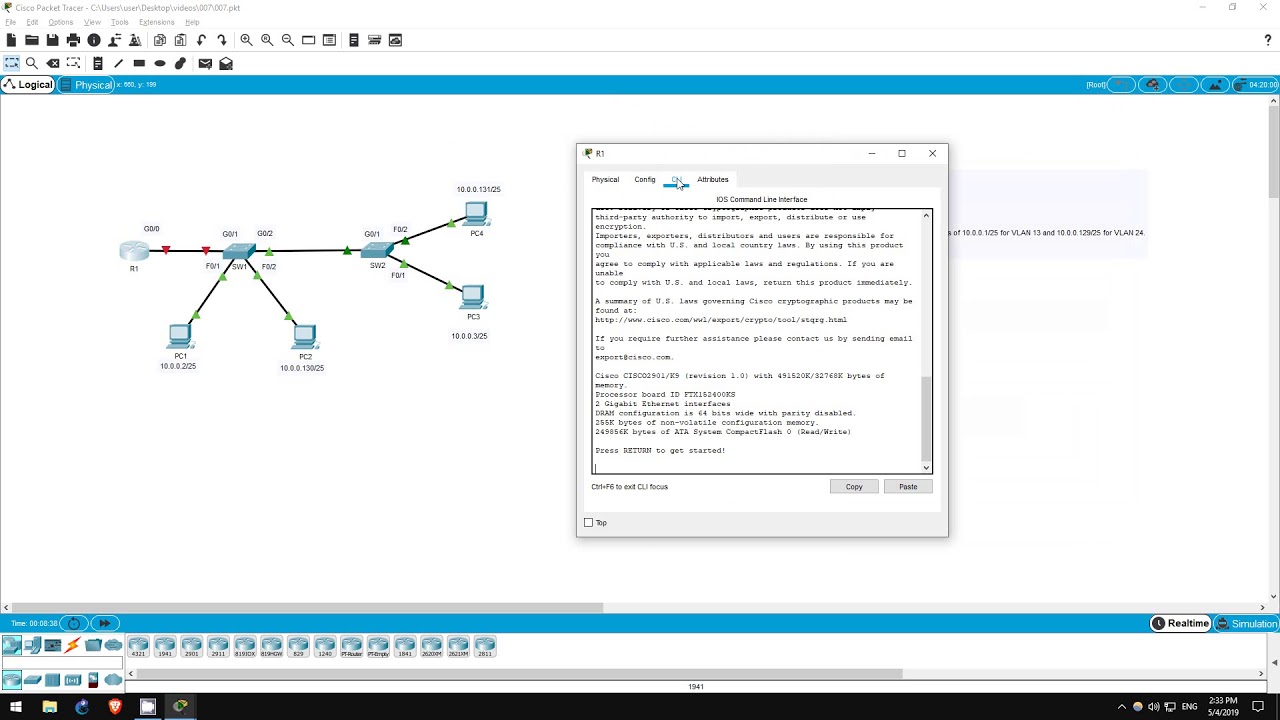
video for the sake of time but I highly recommend that you perform the configurations on both of the routers for practice repetition is essential to become familiar with the command-line interface or CLI step one is to connect the two routers by their Gigabit Ethernet 0 0 interfaces I will refer to these as the gig 0 0 interfaces click on connections in the bottom left and select the cable connected to the gig 0 0 interface on r1 and then r2 there we have it step one is complete step two is to set the host names according
to the network diagram that is to r1 and r2 click on each router and then select CLI to access the command-line interface from which we will configure each router the current host name for each router is displayed here as you can see each router is currently named router to change the host name of a router we must enter global configuration mode however to get there we must first enter privileged exec mode this is achieved by using the enable command to demonstrate a shortcut I will use the exit command to return to the previous exec mode
notice that you can enter privileged exec mode by simply typing en you can also type en and then use tab to autocomplete it to enable but this isn't necessary en alone is fine II however is too short and we are told this is an ambiguous command this is because there are other potential commands that begin with E which we can see by typing E and then a question mark as you can see there are two potential commands an able and exit so if you just enter E the router doesn't know which command you mean however
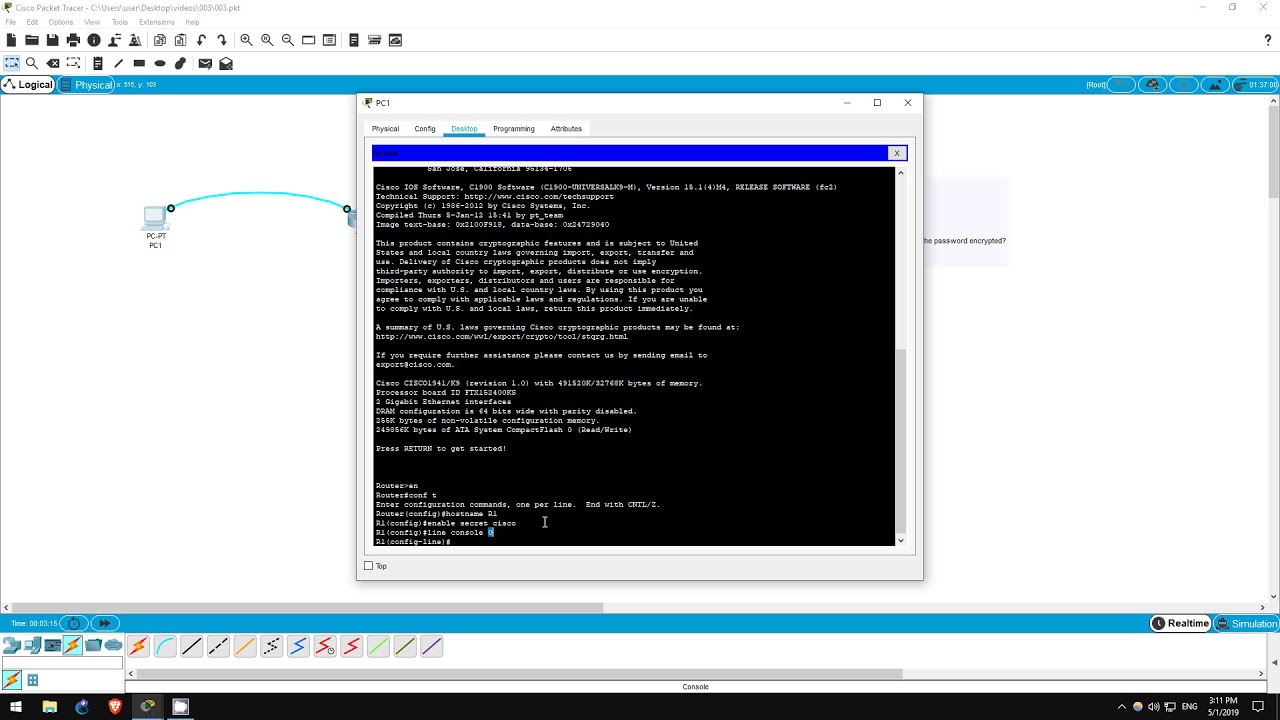
enable is the only command beginning with en so en is all the router needs to know which command you mean now that we are in privileged exec mode we can use the configure terminal command to get to global configuration mode if you want to use shortcuts again as we did with enable and en the shortest version of the configure terminal command is coffee tea from here we can set the hostname of the router this is done with the hostname command I will enter hostname r1 as you can see the hostname has changed from router to
r1 change the hostname on r2 as well and step two is complete step three is to set the enable password on each router to Cisco the enable password is used to enter privileged exec mode which as I mentioned before is also called enable mode previously we had no password set so we were able to enter privileged exec mode without any password now we are going to protect privileged exec mode so that only administrators can access it the command is simple and it is done in global configuration mode which we are already in type an able
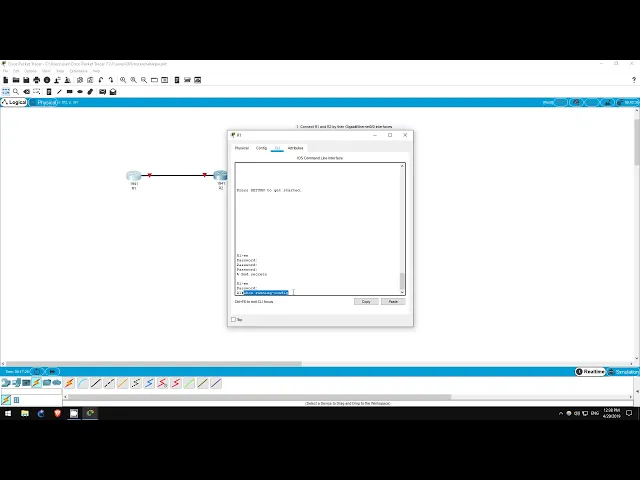
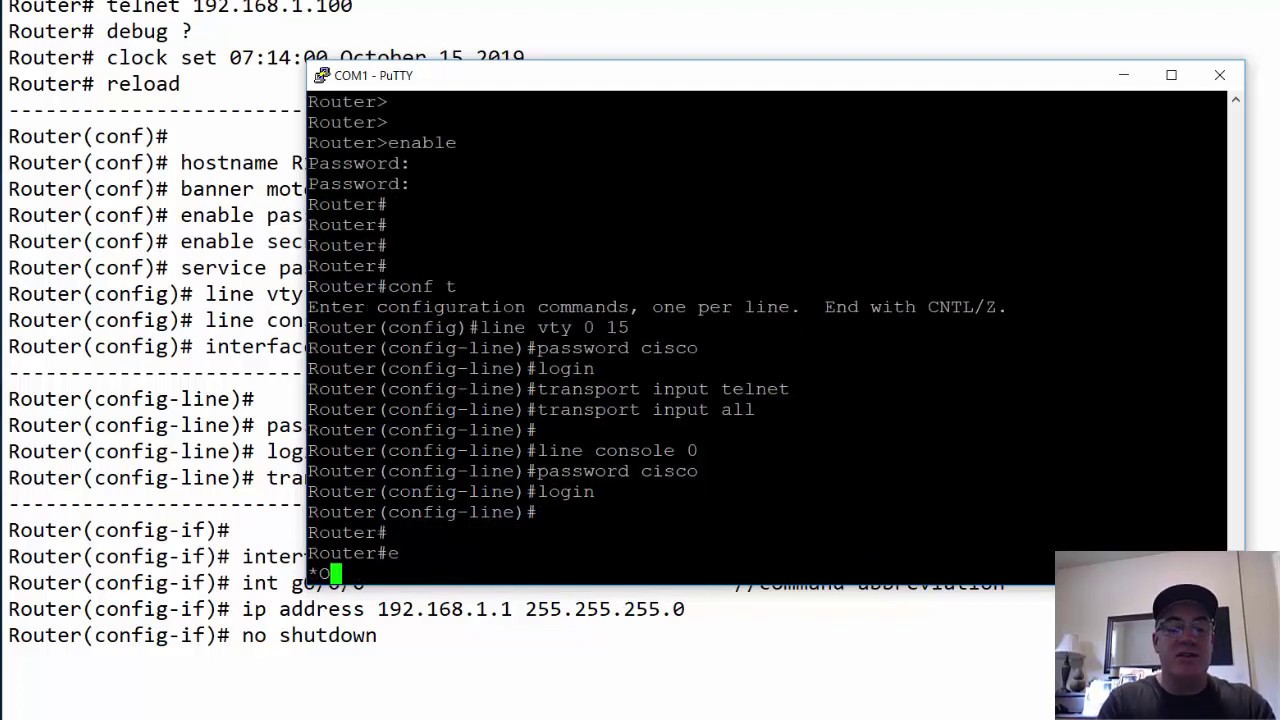
password Cisco that's it now let's test it out from here I will use the exit command twice once to bring you back to privileged exec mode and then once again to bring you back to exact mode now I will use the enable command again however this time I am asked for a password the characters do not appear as I type however if I type the password Cisco correctly and press Enter I am brought to privileged exec mode now let's see what happens if I fail to enter the correct password I entered the wrong password once
twice and then three times before being rejected for having bad secrets now I will try again with the correct password and I'm in step 3 is now complete step four is simply to view the password in the running configuration the running configuration is the current configuration of the router whether or not you have actually saved it if you turn off the router without saving the running configuration you will lose any changes if you want to keep your changes you will save them to what's called the startup configuration that will be for another lab to view
the running configuration use the show running config command from privileged exec mode which we are already in you can abbreviate it to for example SH run enter the command and you can see the password right here with the exact command we used before enable password Cisco step 4 asks if the password is encrypted meaning translated into an unreadable code to protect it from being discovered by people who should not know the password as you can see it is not encrypted it is written in clear text right here Cisco so the answer is no step 4
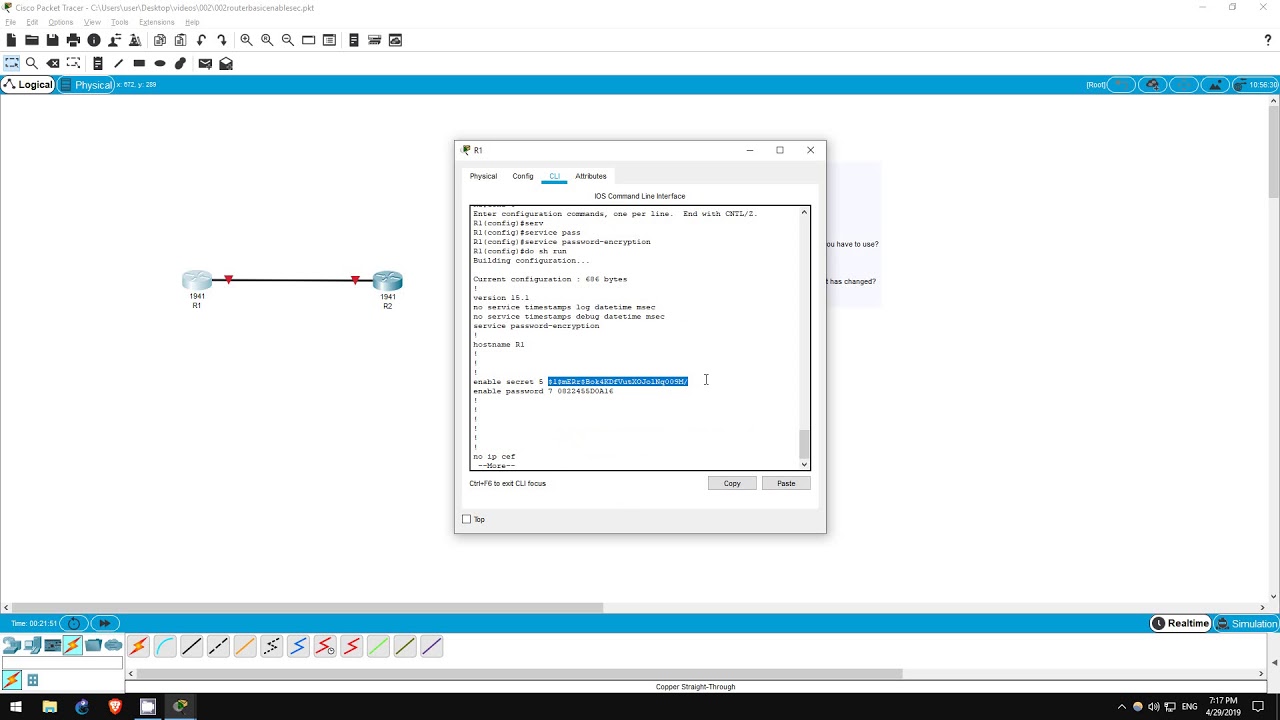
is now complete step 5 is to enable password encryption on the router we can protect passwords by encrypting them to render them unreadable this is done from global configuration mode with the command service password - encryption I will enter the command and now step 5 is complete step six is to once again view the running-config I will use the same command as before and now let's check the password however the command doesn't work that is because we are currently in global configuration mode and show running config must be entered from privileged exec mode now I
could type exit to drop back to privileged exec mode and then enter the command but there is one more way if I type do in front of the command I can enter it from global configuration mode do show running config there we go let's look at the password you can see here an able password followed by a seven and then a string of other numbers the password has successfully been encrypted although we didn't type this 7 when we entered the command it refers to the type of encryption used there are other types as well but
that's not something to worry about now the string of numbers that follow are the passwords Cisco encrypted to be unreadable so that anyone looking over our shoulder can't read the password keep in mind that the encryption used in the service password encryption command isn't very secure and can be cracked but this at least renders the password safe from someone simply glancing over your shoulder step 6 is complete step seven is to disable password encryption we enabled password encryption with the service password encryption command now we will simply type no followed by the same command no
service password encryption that's it step seven is now complete step eight is once again to view the password in the running configuration this time I'll exit down to privileged exec mode and type show running config to view the running configuration as you can see the password is still encrypted why is that even though we disabled password encryption well disabling password encryption will prevent future passwords from being encrypted however it does not unencrypted passwords that are already encrypted so the answer to step eight is yes the password is encrypted step eight in the lab are both
now complete thank you for watching I hope this lab and video have been helpful please subscribe for future labs like this which will be released weekly if you have requests for any specific labs let me know in the comment section if you want to support my channel I accept Bitcoin donations via the address in the description I am also a brave verified publisher and accept bat or basic attention token donations in the brave browser thank you