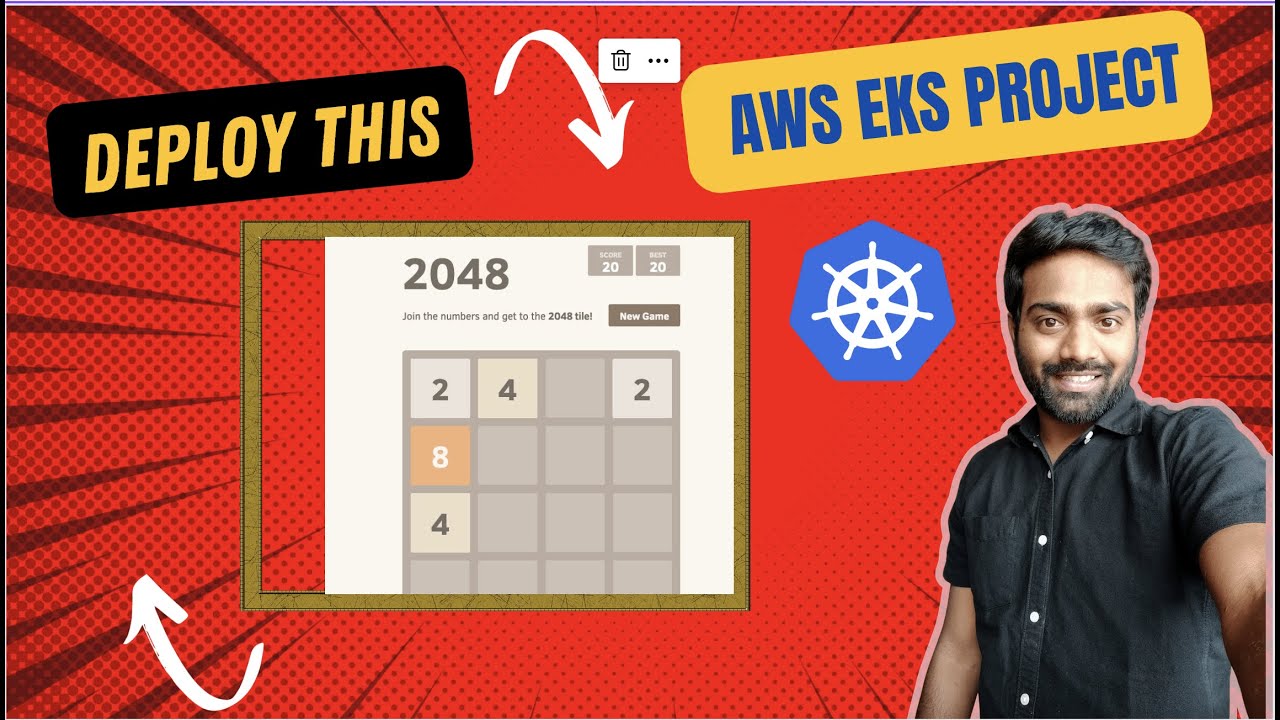
hello everyone Welcome to Cloud Jam in this video we are going to do a devops project where we will be creating a game using Docker container and then deploy it on AWS in this devops project we will learn how to create Docker file Docker images Docker containers and then how to deploy a containerized application on AWS watch this video till the end complete the project if you complete the project and showcase this on your resume or your LinkedIn there are high chances that you can get your devops job faster so watch this video and complete the project with me before we start with the video If you haven't subscribed to Cloud champ Please Subscribe I post videos on AWS cloud and other devops tools so please subscribe and let's start with the video let me give you an idea of what are we going to create in this devops project so you might have heard about a game named as 2048 so this game two zero four eight you might have played we are going to create this project on Docker so we're going to use this GitHub repository I'm going to paste the link in the description so you can go check it out so this is repository by Gabriel we are going to use this repository to create a game on Docker container and then we will be using the elastic Beanstalk service in AWS to deploy this Docker container on AWS if you haven't seen my elastic Beanstalk video go check it out you can find it here in written so let me show you what this game might look like so that for those who don't have the idea can get the understanding of what are we going to create so I'm going to go to this website I don't know whose website this is but this is what we are going to create similar to this so this is a 2048 game very matchy numbers so 2 plus 2 becomes 4 and 4 plus 4 8 till you get the number 2048 so this is what we are going to create so let's start to get started with this we are going to use the repository as mentioned and they will be using this repository to create our own Docker image and then Docker container so now that you have the understanding of this project let's go and create it I'm going to open my terminal and create a folder so name it 2048 the name of the game and inside this folder I'm going to create a Docker file so I'm going to go in this folder open my vs code if you're running if you're on Windows you need to follow different steps to create a folder you cannot use mkdir command but that's for Linux inside this I'm going to create a Docker file make sure when you get the name for the file D is capital and that stuff all is going to be small so Docker file and we are going to create a Docker file for our game so I'm going to use the base image as Ubuntu 24 sorry 22 so Ubuntu and 20 20 22. so let me show you the image on Docker half so this is the official Docker image for Ubuntu 222 sorry this is Ubuntu and we have different versions so we're going to use this image which is 22. 04 so whenever you want to use an image you need to type from and then the name of the image so Ubuntu colon 22.
04 if you want to know all these different commands on Docker you can go and check out my LinkedIn I post a different post on Docker or all devops tools I have a post where I Define or explain all the different Docker instructions so from means to specify a base image run environment copy expose add we are going to use some of this instructions in our Docker file so you need to have good understanding of what this is I'm also going to post the link for this post in my description so you can go check it out you can follow me on LinkedIn so yes so now we are going to use the base image as Ubuntu next we need to run a command so run apt hyphen get update which means update all the packages on my Ubuntu machine next we again need to run a command so run curl sorry run apt hyphen get install utility so we're going to install equal zip and nginx nginx is a web server which will be used to host our game on the browser so install hyphen y nginx then we also need zip to unzip our repository M curl utility then once we install all this we are going to Echo a message which is we are going to Echo Daemon off you need to do this configuration in our nginx so slash Etc nginx slash nginx. com so we are going to run this uh once we install nginx our ZIP and curl we are going to do this configuration which is D1 of in the nginx file next we need to curl hypheno slash VAR slash www HTML slash master dot zip hyphen l the repository let me give you let me paste the link here so here in this on line seven we are trying to curl the repository on this path which is master. zip inside VAR www HTML folder so we are trying to install all the things in this GitHub I showed me earlier so this repository we are trying to get the files on our this path you don't need to clone it you can just run this without cloning you'll find you'll see all the files here so here we have it in zip folder we need to unzip it as well so in the next command we are going to unzip this master.
zip so CD slash one slash www HTML which means I'm going to go in this directory next Once I am inside this directory I need to unzip master dot zip folder so master. zip where we have all the contents for our GitHub the repository and once we unzip it then move all the content so move two zero four eight hyphen master and and all the contents inside this tour path which is current path so copy all the extracted files in this path of inside HTML folder so once I do that I'm going to uh also remove the previous master. zip as folder here so RM rf2048 hyphen master and master dot zip so master dot zip once you do this we are going to now expose the port 80 what do you mean by Expose if you want to know you can go and check my LinkedIn post which I was talking about so this is so where is the LinkedIn post again all right so you can see here Xpose main specifies the port to be exposed on Docker container so this game is going to be hosted on web browser so it is going to be exposed on Port HTTP or HTTP which is going to be Port 80.
so we're going to use expose we have used from to specify the base image run to execute any command and now we are using Xpose to specify the port on which we are going to run this application so I'm going to run expose port 80. next Once I do that with my application is almost ready I just need to run a command to start my nginx or to do a configuration so CMD and then inside square bracket I'm going to do slash user slash S bin slash nginx and I'm going to do hyphen C so you can see comma same thing slash so this path here which is its Etc nginx conf all right so I'm going to paste this this is ready we have our Docker file ready now let's try to create an image out of this and see if we are going to get the application as desired so make sure you create this Docker file let me explain it to you again so here we're using from to get the base image so base image is Ubuntu and the version is 22 then we are running the command to update all the packages in our Ubuntu machine we are running command to install nginx zip and curl so this three utilities are required once you install this nginx you need to do this configuration which is D1 off in the nginx conf file after you do this configuration you are going to curl to get the repository content in your VAR slash ww HTML folder this content is going to be in master.
![Complete Docker course in 30 mins | Docker Tutorial for Beginners 2025 [Updated]](https://img.youtube.com/vi/q5S14cfOWfE/maxresdefault.jpg)