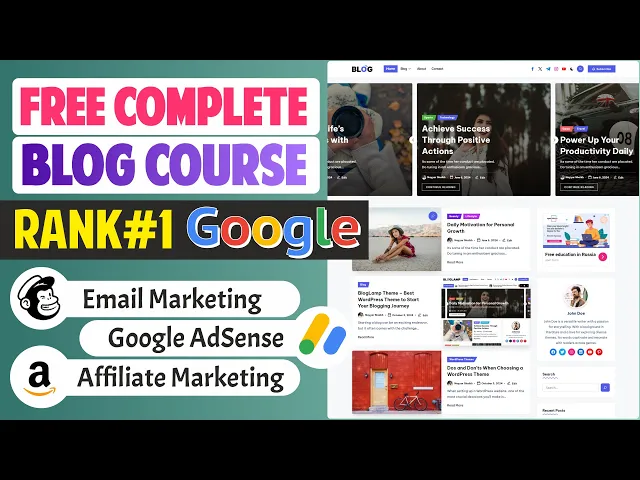
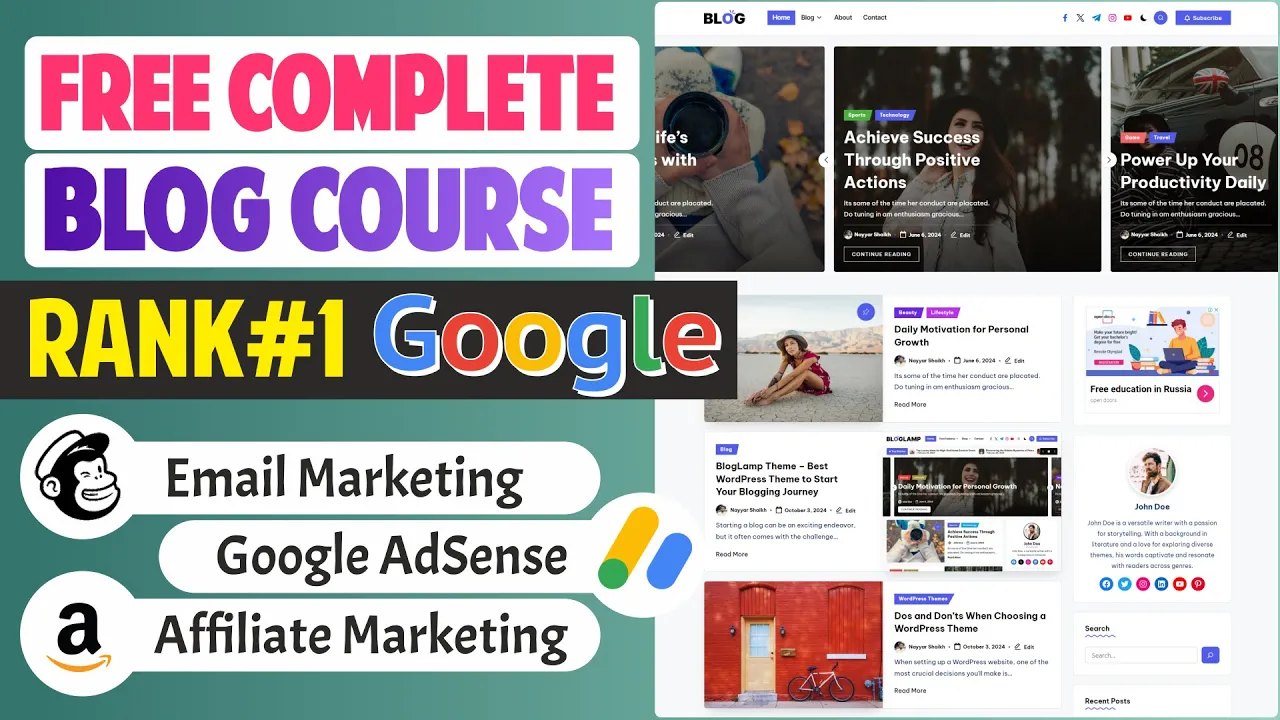
If you want to learn how to create a high ranking SEO friendly blog website and make money through Google AdSense and affiliate marketing then make sure you watch the complete tutorial because today in this video I'll show you how you can do exactly that now first of all you can see this is the website that we'll be creating very first thing that you will see that we have integrated Google AdSense in this website you can See at the bottom Google ads running you can see over here it says ads by Google at top also Google
ads running so in this video I'll show you how you can create a Blog website and how you can create high quality SEO friendly blog post so that you can easily get accepted by Google AdSense if you scroll down you can see the design of the website is very simple very neat and beautiful you can also minimize this Google AdSense by the way if you scroll down you can see This is how your website looks like now one more thing we'll be using only free resources to create this website we'll be using a free theme
free page builder and only free resources to design and create this website now if I open a single block post as you can see again some Google ad will run so I can come over here I can cut this thing when I try to open a single blog post and once I close that Google ad then I can see this thing I can see my blog post now Basically these days creating a Blog website is really easy and there is nothing special about it the main part of any successful blog is knowing how to write
a blog post then how to do proper SEO of the blog post to make sure that your blog ranks higher in Google and Bing search results which we'll be learning in today's video now if I scroll down you can see this is how the single block post looks like and if you see at top if you see this icon this Green icon over here we'll be using Y SEO to optimize our block post and you can see I've achieved green which is very good basically we have achieved very good ranking for SEO score and also
readability score so I'll explain you how you can improve your SEO score and how you can integrate and improve your readability score as well and again I'll also explain you how you can display these kind of you know article in between article ads This is also a Google AdSense I'll explain you how to do this thing now to display these kind of ads in between article most of the times it requires a premium paid plugin but in this video I'll explain you how you can do it for absolutely free then if you scroll down you
can see few more things we'll see how to use images how to do SEO for images as well there is a different uh media SEO is a totally different thing blog post SEO is a different thing media SEO is a different thing I'll explain you and show you both the options both the things then if you scroll down again in between some ads then I'll also explain you how you can create these kind of call to action newsletter thing so we'll also see how to do email marketing in this video so in between your articles
you can create these kind of sections and in this section if somebody wants to subscribe to your newsletter or subscribe to your email Marketing list they can click on this subscribe Now button and they will see this popup we'll also see how to create this popup these kind of popups for absolutely free your customer or your visitor can simply enter the email address and click on receive email marketing or receive newsletter whatever and they will automatically be added to your newsletter list to your email marketing list then we'll see how to choose how to properly
choose the right Title WR headings when to use what how to use internal and external links how to improve your readability score and so on then how to conclude the article again I'm saying main part my main aim in this video is to show you how to write a blog post what is the concept behind that how to choose a paragraph how long or how short your paragraph should be these are the things that will be mostly focused on with that we'll also see how to create different pages Like how you can create your blog
archive page how you can create your about page so this is your about page you can see how you can create your contact page and so on okay so basically we'll be creating a complete website everything will be included you can also make this website light mode and dark mode so you have this simple button once you click on that button this website will now be converted into light mode and dark mode if somebody wants to Search for any article if I search for if some visitor wants to search for WordPress the search for WordPress
and you can see we have two articles on WordPress then I'll also explain you how you can create this button when somebody clicks on this button then again see this popup now I've kept this website very simple but if you want to do some more changes in this website for example if you want to add a slider like this one you can I'll show you how you can do That thing similarly if you want to add few more sections like if you want to add this kind of section then I'll explain you how you can
create this kind of you know section as well and with that we'll also see how to do free email marketing how you can improve your email marketing skills then we'll also see how to do free affiliate marketing how you can use affiliate links to make some extra money and after that I'll explain you how to do promotion on social media Platforms and this website is also 100% mobile and tablet friendly if you open this website in your mobile phone you can see this is how it will look like so this is 100% mobile and tablet
friendly your logo comes over here and after that your menu automatically becomes like this if if you open a single block post this is how it looks like okay and you can see ads also everything is adjusted according to the device size if you open this in a tablet for example let's open This in iPad Pro or not in iPad Pro let's open in iPad a okay so you can see this is how it will look in an iPad B basically in in a tablet so this website is 100% mobile and tablet friendly okay guys
so this was a very short demo of the website that we'll be creating in this video I hope you guys like the demo website now if you like this demo website and if you want to create this website and if you want to learn everything about blogging SEO or email Marketing affiliate marketing social promotion make sure you watch the complete tutorial and before you proceed further make sure to subscribe and click on the Bell icon so that you don't miss any future notification if ations now if you like this video give a thumbs up to
this video share it with your friends on Facebook Twitter WhatsApp whatever social media platform you use and throughout the video if you have any doubts any comments any suggestions for Me you can always leave them in the comment section below now let's start creating this website now to create any kind of website whether it's an e-commerce website a professional blog Business website membership website any kind of website we need two basic things a domain name and a Hosting account a domain name is simply the name or the URL of your website for example blog.com youtube.com
google.com these things are different domain names so we'll also Have to register a domain name on the Internet so that whenever someone wants to visit your website they can simply type in this domain name in the browser URL bar and they can land on your website second and the most important thing is your website's hosting hosting is basically your server or a computer wherein your entire website is saved so if you see this website from top to bottom all the different blog post all the different media files this entire Website database is saved in a
server and that server is running 24/7 so that whenever someone wants to visit your website from any particular country at any given time they can always see your website because your server is always up and running your website is always live now hosting is the most important thing about your website because everything related to your website is directly or indirectly dependent on your hosting your website speed your website's Performance the user experience on your website your website's security and even your website's ranking in Google and Bing search results is totally dependent on your hosting so
if you select a good and reliable hosting everything will be positive on your website your website will load very fast the user experience on your website will be very good with that for anybody to attack or hack your website it will be almost impossible and most importantly your blogs will rank Higher in Google and Bing search results and obviously in contrast to that if you select a cheap and crappy hosting everything will be opposite of that now there are literally thousands of different hosting providers available in the market but unfortunately only handful of them are
really good enough to consider but you don't have to worry about that you can simply do one thing open a new tab and type in blog.com hosting go in fact you don't Even have to type in this thing this link is also given to you in the video description below so if you want you can simp simply click on that link and you should be redirected to this page now this is the hosting that we'll be using because we'll be using Wordpress to build our website we want a hosting that is specially crafted for WordPress
website so that is the reason why we are using managed WordPress hosting instead of regular web hosting now if you scroll Down you can see this is one of the most affordable cheapest option cheapest in terms of price but the quality that you get the Speed and Performance the support you get is really amazing if you scroll down you can see they have a very POS positive rating and review on trust pilot then after that if you scroll and you can see they have multiple plans over here the one which I recommend is this one
the most basic one the most affordable One Premium hosting plan Which starts at just $3 per month you can see with this website you can create 10 different websites so today you're creating this website this blog tomorrow if you want to create maybe another e-commerce website or maybe another blog for some other Niche you don't have to purchase a new hosting you can host up to 10 websites in one single plan with that we get 25 GBS of SSD storage which is more than enough for 10 20 30 40 different websites you get free domain
Name you don't even have to purchase your domain name the domain name is also free we get automatic website migration SSL certificate and because we're using Wordpress server we are using Wordpress hosting a lot of Wordpress related features most importantly WP CLI and WordPress acceleration to improve your website speed so this is the hosting plan that I recommend most affordable hosting plan just select this Premium plan and click on this choose plan Button in the next step you'll have to select how long do you want to purchase this hosting for so you can see by
default 48 months is selected which is 4 years so this is if you select four years if you want to purchase for 4 years you'll get the most discount and for four complete years of Hosting you just have to pay $140 in fact if you enter my coupon code if you click on have a coupon code and enter this code ner n a y a r click on apply you can see Now you'll get additional 10% discount so now you just have to pay $130 for four complete years of Hosting if you compare it with
some other hostings you have to pay like $130 $140 just for one year of Hosting but here you're getting four years of Hosting for $130 if you want you can purchase one year as well which you have to pay just $32 $33 two years hosting is just $60 $70 64 actually so this is very affordable make sure you use this coupon near year so That you get 10% additional discount now whatever option or however long you want to purchase this hosting for select that and click on continue then in the next step enter your email
address and choose a password so enter the email and password for your hostinger account so that whenever you want to login back to your Hosting account you will have to enter this email and password so make sure you remember this email and password then click on next and you will See the final step which is this one you'll have to enter your details so let me very quickly do that right so once you enter your details after after that you can simply click on continue and now you can select any payment method that you want
to make payment through so just $60 $70 and you can make payment through credit card debit card PayPal Google pay alip pay if you're watching this video from India then you can also make payment through UPI net banking and so On so whatever payment method you want you can use that enter your payment details and after that click on submit payment button now once you click on that button and once your payment is successful you will see this page they will ask you who you Crea creating this website for so I'll select the first option
I'm creating it for myself so I'll select this option first option and at the bottom right corner you'll see the next button simply click on that Button then in the next step they will ask you do you want to create a new website or migrate an existing website we obviously want to create a new website so again I'll select the first option and click on the next button at the bottom right corner then they will ask you to enter or create logging details for your WordPress website so the website that you will be creating if
you want want to log to the back end of the website this is the email and Password that you have to enter so enter that email and password and again click on next then they will ask you what type of website you want to create online store blog portfolio business and services other you can select blog in this case and click on next again then they will recommend you few pre-built website designs and themes we don't need any one of these because we'll be using a different free theme so this time click on this button
create a blank Website then after that they will recommend you few plugins we don't need them so click on this skip button now here enter whatever domain name you want to register so for example if I want to register ners shake.in I'll type in ners shake and you can see you get so many different options ners shake.in me. pw. fun whatever domain name extension you want you can select that so I want to register this domain ners shake.in I'll select this and as you can see it is Free for first year because as I said
you earlier our first domain name is free so select that domain and click on next now because we are selecting a new domain name we have to register this domain and to register this domain you have to enter your details so simply enter your details and click on this complete registration button once your domain registration is completed you will see this option you have to select your data center location because I'm From India for me India data center location is selected if you're watching this video from USA some data center location nearest to you whatever
data center location is nearest to you that will be selected I would recommend you to leave it as it is if you want you can change it or if you want as I said you earlier I would recommend you to just leave it as it is and finally click on this next button again now once you do that a new process will start for you Basically what is happening right now is WordPress is getting installed on this new domain name this is a very small process hardly takes around 2 to 3 minutes so let's wait
all right so as you can see this is 100% completed now you can see this domain ners shake.in and after that you will see this button admin panel button simply click on this admin panel button now once you click on that button it will open a new tab for you and you'll Automatically be redirected to your WordPress website now this is how it will look like now what you have to do is click on this dashboard Link at the left hand side now this page that you see on your screen is your dashboard page this
is the most important page of your website because you will be controlling your entire website from this page so with whether you want to write a new blog post manage your blog post manage users contact forms Everything everything will basically be done from this page and whenever you want to log to this page you simply have to enter your website name after that put in/ wpen admin you'll land on your dashboard page now whenever we install WordPress on a new domain name there are few basic things that you have to understand and there are few
basic settings that you have to do first of all on your dashboard page you will see all these widgets these are not really Useful so what we'll do is will get rid of all these widgets so you can click on the screen option at top and untick everything from here okay so these widgets will be gone then at the left hand side you will see next option is your post option click on that you can see one dummy block post is already created for you hello world later on in the video we'll delete this blog
post and we'll create our own custom blog post then we have the media option now In this option you will see all the different media files that you're using on your website then we have the pages option which obviously will be used to create different pages like your blog archive page your about page contact page homepage and so on then we have the comments option now whenever somebody leaves any comment on your blog post you will see those comments from here if you want to approve them unapprove them if you want you can even reply
them from Here or if it is a spam comment you can mark it spam and delete it the next option is your appearance option click on that under appearance you will see few themes will be installed for you and one of those themes is automatically activated so in this case 2024 theme is activated now if you open your website in a new tab you will see this is how it looks like now this design this appearance of your website is because of this theme 2024 theme now if you go Ahead and activate some other theme
for example let's activate this 2022 theme click on this activate button again if you come back to this website and refresh it you will see your website design is again changed so this is basically what a theme does theme changes the style and appearance of your website we don't want to use any one of these themes we'll be using a very different themes specially crafted for blog website so for now you can delete All the extra themes you can click on them you can click on this delete button at the bottom there has to be
one theme always activated so for now you can leave any theme activated and later on we'll delete this theme and install a new theme then at the left hand side we have plugins now what is a plugin a plugin is kind of a software or an add-on that will add some extra features and functionalities to your WordPress website for example if you see this Plugin over here light speed cache this plugin is a caching plugin which basically in simple words this will improve your website Speed and Performance so if you want to create for example
a contact form you you just cannot create a contact form like this you have to use a plugin that plug-in will help you to create a contact form like this okay so that is what a plug-in does then at the left hand side you'll see settings click on that first we have Our general setting so under general setting you have to give your website some name site title so by default it will will be uh written like blog I'll change the site title to blog dude okay which is my blog's name if you want you
can change it to some other name basically enter your brand name your company name the name of the website and in tagline you can describe your website in few words so here I've just typed in best WordPress resources review website So this basically describes my website so in this website maybe in this blog that I'm going to create I'll be reviewing different WordPress resources which is different themes and plugin so you can type in something like this and these also work as different keywords these are also very useful very helpful for SEO purposes then after
that you can enter your site icon now if you open the demo website if you see the demo website if I show you this thing you can see at Top of this tab you have this icon over here so this is your site icon if I open my website if I show you my website that we are creating right now the current website you will see at top of your tab it is just the regular icon we have not yet set any icon so if you want to set set an site icon you can upload
that icon over here by the way there is a link given to you in the video description below if you click on that link you'll be redirected to my website Now whenever I create a YouTube tutorial I always create a blog post related to that so for the previous tutorial you can see how to create a rental and booking site like oo rooms I created this uh tuto I created this article basically I created this blog so you'll also be redirected to a similar uh page and at the bottom you'll see download free images you
can click on this download button blue download button and after that you'll download a zip file Once you unzip that file you will get all these files now these are simple images that I've given you you can use these images for dummy purposes so this has your you know website name this has your logo this has your five icon and so on so you it also has your site icon so if you want to upload your site icon or if you want to use that site icon you can use it so what I'll do is
I'll simply click on choose a site icon select file and upload that file so here As you can see see this is the Fab icon I'll select this open it click on set site icon you can also see uh the example over here this is how this is where it will display then after that you can also tick mark anyone can register so that customers or your visitors can register on your website and they can post a comment okay so you can tick mark this thing then you can select your time zone so wherever you're
from I'm from India so in India we use The Kolkata time zone if you want to change this thing you can change it based on your location and click on Save changes now under settings click on peral links and make sure post name permalink uh structure is selected if some other peral link structure is selected for you like month and name is selected for you you can simply tick mark post name and click on Save changes now again come back to your dashboard now with this all the basic settings Related to our WordPress website is
now completed now before you proceed further let me show you a few more things if you again come back to this website basically whenever you want to go to your Hosting account you have to enter this link hedge panel. hosting er.com okay so this is the control panel basically for your Hosting account for your hostinger account now the left hand side if you click on websites you will see all the websites that you have Created using this Hosting account using this hostinger account now as I said you earlier while purchasing the hosting that in future
if you want to add more websites 10 20 30 different websites you don't have to purchase a new hosting you can create those websites you can add multiple websites in one hosting so let me show you if you want to you today are creating we are creating our first website tomorrow if you want to create maybe another website if you want to add Another website in this list how you'll do that and with that I also want to show you one more thing if you want to use an external domain name for example many people
what they do is they already have domain names registered on go ID name chep those kind of website so if you already have a domain name registered on go ID name chep or any other website and maybe if you want to use that domain name with this hostinger account let me show you both the options How you can do it so first of all to add a new website you click on this button add website you select WordPress and again you will see a similar setup that we have seen previously you have to enter your
email and password for your WordPress account click on next what type of website you're creating you can select that click on next then if you want to use any pre-built themes don't want to use so click on create a blank site they will recommend you few plugins Don't want to use click on skip skip now it's time for domain name now whatever new domain name you want to purchase you can type in that domain name and as I said you earlier if you already have a domain name registered and if you're want to use that
domain name let me show you how you can do that so if I go to goad for example you can see on my goad account I have several domain names maybe I if I want to use this domain fm.in with hostinger so what I'll do is I'll simply type in this domain name over here it will obviously tell me that this is already registered but I'll still select it registered at another provider okay so it says when using a domain that's registered elsewhere you'll need to manually connect it to your website we'll see how to
do it for now just click on next again same thing WordPress is getting installed on this new domain fam. in or whatever domain name you have entered now you can see This is also completed here it says you have your domain name fm.in but now if you try to click on admin panel you're not able to do this it says this feature is not available if domain is not pointing to hostinger so let's see how we can point our domain to hostinger for that you have to click on C details so whatever plan you're using
it will tell you Premium plan or whatever plan you using under that you will see C details click on that and here it will tell you Or it will show you your hosting or name servers just copy your name server number one okay just this much okay ns1.dns.com this much come back to your good ID account or name chap whatever domain name regist you using go to that account and click on DNS every single domain name regist has this thing DNS which stands for domain name server click on that and search for name servers which
is over here you can see name servers click on that now click on Change name servers and select this option I'll use my own name server and under line one paste in this name server then copy your name server number two only this much ns2.dns.com and paste it under name server line two and click on Save now once you click on save it can take up to 24 to 48 hours to link your domain name with hostinger so you can wait till that time and once your domain is connected once you go to that domain
and it shows something like This which means that your domain is connected after that you can follow my steps now let's do one thing let's install all the required themes and plugins so first of all we'll start with the free theme that we need to change the design of the website and make it beautiful like this one now first of all when it comes to themes many people use you know multi-purpose theme like they just search for the most popular theme on WordPress or something like that and They use that theme and that theme might
not be made mainly for blog maybe that is a multi-purpose theme it is used for e-commerce also for blog also for membership website also so that is not the theme that you should be using we want to use a theme that is only made for you know blog website so that everything on that theme is SEO optimized and the design also looks good and it is a very light theme if you use a multi-purpose theme some multi-purpose Free themes are very heavy because they have multi-purpose they have multiple things they have a lot of Designing
and they have a lot of coding in them we want to use a simple lightweight theme which is made and which is used only for blogging so let's install a theme like that so click on appearance at the left inside and click on add new theme now as I said you earlier if you search for themes so many different like thousands if not hundreds of thousands of Different themes will be available now what you have to do you have to search for blog lamp Okay this is the theme that we'll be using you can see
this is the theme click on this install now button once this theme is installed you can activate this theme so once it is installed this button will convert into an activate button you can see now it says installed you can click on this activate button and this theme will be activated for you once it is activated It will recommend you this plug-in HTO core this is the core plug-in which adds all the you know customization features with this theme so click on this install now button and click on install and activate this will install and
activate this HTO code plug-in for you now once it is activated this page will reload and you can see plugin activated if you again come back to your website and refresh it you can see your website has already started to look very similar to The demo website we have this thing we have everything over here we just need to design it a little bit more but you can see the design all these things all the light mode dark mode feature this button everything is already working for you okay so half the work is automatically and
already done again come back to your dashboard now let's install few plugins so I'll click on this plugins option to install a new plugin you click on this button add new Plugin first plugin that we need is an SEO plugin so if you search for SEO by the way there are many different popular SEO plugins us SEO is the most popular one we have rankmath SEO all-in-one SEO I have multiple videos in which I have used rank math SEO so if you want to use rank math you can watch those videos in this video we'll
be using the most popular you can see 10 million plus active installations this is the most popular SEO plugin so this is the one That we'll be using Y SEO click on this install button to install this plug-in once it is installed click on this activate button and we can do a quick setup of this plugin now you can see here it says your site is already easier to find for search engines again as I said you earlier this is the importance of a theme because our theme is SE optimized you don't have to do
a lot of extra settings but if you see the second option if you want to still do first Time configuration you can click on this button start start first time configuration and after that they will ask you a few things over here for example SEO data optimization you can click on start SEO data optimization click on continue we don't have any data by the way but still you can click on continue what uh do does your site represent an organization or a person you can select that what is the name of the website organization name
you can Upload your website logo okay if you have already created a logo you can upload it from here if you don't have a logo yet you can do one thing later on you can come to this setting and how you'll come to this setting at the left hand side you have us SEO under that if you click on General let me show you you'll see this thing and if you click on first time configuration click on continue and here you have your site representation and you can upload your Organization logo so I have a
logo which I've given you again in the media folder and this is the one I'll simply upload this logo click on select Okay click on Save and continue then after that you can upload your social profile file so you can upload your Social Links I'll just enter my website name for now and click on Save and continue okay we'll have to enter the Twitter link okay so let me copy and paste in the Twitter or X link click on Save and continue you Can add more social profile links then after you can select no I
don't want to share my site data click on Save and continue and if basically your configuration is now finished we have a lot of more settings to do with Y SEO which we'll do later on for now click on plugins let's install a few more plugins now we need another plugin this plugin us SEO was obviously to uh do SEO settings okay for our website another plug-in that we need if I if I open a Single block post now let me actually do one thing in fact before that let me do one thing let me
block all the Google ads on this website because this will you know keep on disturbing me so I'll pause them for now and later on we'll again run it so you'll see this is table of content which is very important okay for SEO purposes very important so you might have seen almost every website these days uses table of content so we need a plug-in for this so if you search For table of content click on add new plug-in and if you just search for table by the way you'll get that plugin search for table and
there will be some plugins to create like table press or something but we want to use this one easy tables of contents by magazine 3 okay install this plugin again another very popular theme more than half a million active installations this line basically means more than half a million websites are currently using this plugin on their Website so this is how popular this plugin is now click on activate now once you click on activate you might see this thing just click on no thanks I'll stick with the free version under support and auto insert untick
Pages we just want this thing on post okay so untick Pages under support and also untick Pages under Auto insert so we just want it under post okay and we don't want to let me just scroll down and come to this section we don't want to include heading Six heading 5 heading 4 we just want to include heading 1 2 3 I'll explain you about these things again later on when we start creating our blog post for now under headings just type in or just tick mark heading 1 2 and three then at the bottom
click on Save changes let's again install another plugin come back to plugins add new plugin next plugin that we need is SG plug-in SG is basically a file format which is very popular these days so now if if you want to if you Want to upload SVG files on your website or webp files on your website you'll need these plugins so there are two very popular plugins I SVG support and safe SVG both are good whatever whichever you want to use between these two you can use it I'll simply use the first result SVG support
so you click on install once installed you can click on activate again now click on add new plugin let's add another plugin now we need to install a plugin we need to search for a Plugin called WP forms this plugin will be used to create forms obviously it says WordPress forms WP forms this is the plugin WP forms by WP forms so if you see the contact page that we have created this form is created using this plugin if you want to use some other plugin obviously you can do that but this this is the
supported plugin so this is the one that I recommend again activate WP forms as well now finally one more plugin click on add new plug-in And search for mc4 WP okay mc4 WP and you will see the first result mc4 WP which basically stands for MailChimp for WordPress now this is your newsletter plugin so these kind of newsletter if you see in the sidebar I have created this simple newsletter on line newsletter also in the footer I've created this newsletter so these newsletters are created using this plugin MC for WP click on activate then another
plugin that we need is to create These popups as I have explained you if you want to create these kind of Pop popups then we need a plug-in called hustle popup Builder just search for hustle and you will see this thing hustle popup Builder hustle email marketing lead generation optin and popups click on install now again once it is done click on activate and activate this plugin so these are the plugins that we all need and we require now let's do one thing let's click on Post at the left hand side delete this hello world
so click on this trash and now let's create our first block post to do that click on this add new post button you will see some options like this cut it close this thing all right so very first thing whenever you create a blog post let me again come back to this website go to this homepage I'll give you an example for this blog post first of all you have to choose a title now whatever title you want to select Make sure it is a catchy title it's not just a regular title okay and make
sure it contains the main keyword of whatever the blog is about so in this example this is the blog post that we'll be seeing as an example dos and don'ts when choosing a WordPress theme so in this example in this article basically I've explained what is the importance of selecting the right theme uh what is the we have to consider the purpose of this theme just now I've explained you while Selecting the blog lamp theme uh in this example or in this tutorial also I've explained the same thing that you should be selecting a a
theme that is best suited for your website and your needs and the main keyword that I've set for this entire blog post is the this thing WordPress theme and you can have any other title dos and don'ts when choosing a WordPress theme or how to choose uh the right WordPress theme anything could be a title just make sure you select a You know catchy title right title so I'll just copy and paste in the title now once we start creating the blog post in fact we have started creating the blog post I'll also show you
how you can use chat GPT to help you now we don't want to do that stupid thing just copying and pasting everything from chat GPT that is not recommended you can obviously use chat GPT there's no problem at all but don't copy entire thing and paste it over here I'll Explain you how to use chat GPT without getting caught because Google does not very much like automated content Google wants you if you want to get your website you know approved by AdSense and if you want your blog post to rank higher it should be an
organic content okay but it does not mean that you have to type everything from yourself you can use chat GPD Alex explain you how to use the combination of both now in this case for example let's actually start using That example so if you wanted to select some other uh title for this let's see how we can use chat GPT for that so I'll come to chat gp.com and I'll type in this thing uh I'll first of all copy the title and I'll type in over here all right so here as you can see this
is what I've have typed dos and dos and don'ts when choosing the WordPress theme this is the topic of my blog post please suggest some SEO friendly titles for the topic use the focus keyword WordPress Theme in the title so let me explain you what we we have done over here I have done one thing that I have just given chat GPT the topic which I'll be covering in this blog post I wanted to suggest me some SEO friendly you can see this is very important make sure you always type SEO friendly so that it
knows chat GPT knows what to recommend okay so I am asking them to recommend some SE friendly titles for this topic and with that I'm also telling chat GPT To use the focus keyword WordPress theme this is going to be my main keyword of this blog post okay so I'm telling it to use the focus keyword WordPress theme in the title now let's submit it let's see the results okay so Ultimate Guide dos and don'ts When selecting a WordPress theme avoid these mistakes dos and don'ts for choosing the right WordPress theme so if you see
the reason why I selected this I typed in this thing use the focus keyword WordPress theme you'll See WordPress theme this keyword WordPress theme is used in every single title that they have suggested WordPress theme WordPress theme WordPress theme uh WordPress theme at the beginning okay you can see so this is how important it is so maybe I want to use let's say this one okay maybe if I want to use this one because great thing about this title is that this title has Focus keyword right at the beginning which is another great thing if
you if you have your focus Keyword right at the beginning that is a big positive thing so maybe instead of the regular title I want to use this one WordPress theme selection essential dos and don'ts for beginners okay just to show you an example so I'll type in this thing now this is my focus keyword so what I'll do is scroll down at the bottom you'll see us SEO section and type in your focus keyword which is WordPress theme or whatever your focus keyword is just type in that thing now Once you type in and
select your Focus key phras now if you click on this uh icon if you see this icon at the top right corner us icon if I click on that thing and if I click on us uh analysis you know few things are already tick mark for you if it is green which means that this is a positive thing so you I've just entered the title and we already have three positive things let's see what the these are so first one says key phrase in the SEO title the exact Match of the key phrase appears at
the beginning of the title so as I said you earlier our main key phrase or key for Focus keyword is WordPress theme and we have this in the title and not only that we have it right at the beginning which is another great thing then it says key fres length is good and that is the reason why I typed in this thing SEO friendly okay so when you type in SEO friendly chat GPT knows what should be the length of the title and how should Be the title and all those things so that is the
reason why it is all the length is automatically and already good then third positive thing about this thing is that about this uh result is that we have not previously used this Focus keyword or key phrase on our website so three things are already positive for us then after that you should type an introduction about this topic about this title about this article and you can see the paragraph Should be pretty small like few lines just four five lines paragraph so all if you see the entire blog post all the paragraphs are pretty small okay
and I've constantly used headings to separate these paragraphs to separate different topics so this is how you should always be doing first of all you should always write a simple introduction okay in few lines or in few small paragraphs and whenever you are typing in these things here also make Sure to always use the focus keyword for example you can see Focus keyword WordPress theme is used over here and also it will be used multiple times you can see another time here also say it is used Focus keyword WordPress theme so make sure to use
this key phrase multiple times throughout your article especially in the introduction okay so I'll copy and paste in the introduction over here now you can see one more thing is uh tick mark for you one more Positive thing or green thing is happened for you focus keyword in the in the introduction okay so this is another positive thing for us so to make your website to make your blog post SEO friendly make sure you use Focus keyword in your SEO title and in your introduction of the article then after that we have to use table
of content now you don't have to add any table of content table of content is automatically created on your website I'll explain you later on how to do this then our first subheading this is called subheading okay our main heading is this dos and don'ts when choosing a WordPress theme or whatever your main heading is and after that we have subheadings okay now if you right click on this let me show you if you right click on this title and click on inspect you can see over here if you see properly it says heading one
okay so your main title is heading one I hope you can see this Thing I'll Zoom it so that you can see it properly your main title is heading one and after that whatever this subtitle is that will be heading to if I right click over here click on inspect and here as you can see this is heading to okay and after that maybe in this subtitle you have few more subtitles then you can use heading three for that okay so let me see this is an example for example this is heading two inside this
we have another subtitle Pro tip so This could be heading three so this is how you should be dividing your blog post so this is our main heading okay our first subheading basically the importance of choosing the right uh right WordPress theme Here Also if you see this thing in our subheading also we are using the focus keyword or Focus key phrase so this is also very important use your focus keyphrase in title in introduction in headings whether it's subheading H2 H3 and throughout the Website so I'll just copy this much now to add your
for heading you click on this plus button and search for heading select this heading and select heading two Okay click on h two and instead of this if you want to select some other option you can do that by by default it is heading to so we'll select this thing now I'll paste in this thing now as you can see as soon as you paste in this thing we have one more thing which is know tick mark for you or which is Positive thing for us here you can see key phrase in subheading so your
hed2 or hed3 subheading reflects the topic of your copy okay so this is another great thing positive thing about this thing then again on top of on this topic the importance of choosing the right WordPress theme you can write two three simple paragraphs okay and you can type in your paragraphs over here now if you want to use chat GPT maybe if you want to use it then you can let me show you How you can use it for example uh if you don't know what to write about here then you can use this thing
so I'll type in please write 2 3 short SEO friendly paragraphs on this subtopic so please write two three short SEO friendly paragraphs on this subtopic the importance of choosing the right WordPress theme and again I'll type in the same thing use the focus keyword this okay I'll paste in this thing use the focus keyword WordPress Theme in the article okay and press enter so this will give you two three simple paragraphs and as you can see Focus keyword used once twice it will be used multiple times now what you can do is whether if
you want you can copy and paste in this entire thing just copying and pasting one or two paragraph is not a problem the problem arises when you just tell chat gp2 to write an article on this topic and you just copy paste everything from here another thing that You can do if you want to be more safer if you want to be on the more safer side you can simply read this paragraph and can just rephrase it okay so that is also another thing that you can do then after that if you see then what
we have next we have another subheading and again in this subheading also I'm using Focus key phrase WordPress theme so I'll use heading for this paste in the thing and after that I've also used these images so using images on the website is Very important if you have a article maybe a very long article but you have not used any images on the article then your readability score will be very low so basically your chances of ranking higher in Google search results is very low so make sure your article looks good you know it has
images maybe if some if needed some videos also or some links if you might have seen you know news articles which covers uh which has different links uh and different images Of different tweets from Twitter platform of from some other platform make sure your article is interesting it has it looks good it has images and all this stuff not just simple text from top to bottom to me so if you want to use these kind of images if you want to upload these images let me now tell you about image SEO so when you when
when you try to upload any image on your website you can see some it the title of that image will be something like this You know some text so what you should do is before uploading this image on your website change the title so what I'll do is I'll change the title to this one okay I'll select the we uh video I'll select the blog post title paste it over here and place these uh space with with Dash or with hyphens okay make sure you don't have you know spaces in your title okay okay just
replace your spaces with the dash or hyphens and then it should be good there Is there is a website that will help you to do it by the way let me show you first let me type in this thing all right so this is the thing once you type in this thing I'll do one thing once you you know rename this thing I'll copy this rename and then I'll use this on my website how you'll use it you'll click on this plus button add blog search for image element this is the image element click on
upload image select this image click on open now once you open this Image once you upload this image this image will be shown if I show you this thing if I come back to the dashboard let me do one thing click on media file I just uploaded this image so once you open this image in the media folder you can see the title this is the title do the same thing you can also add a caption okay so this could be the caption let's see whether we have added the caption I want to add this
as my caption okay so under caption you don't Have to replace these spaces and all this is fine under description also you can type in some text and under alternative text alternative text is basically if the website fails to load and this image does not load properly so instead of that image that alternative text will be displayed and alternative text is again helpful for search engin so make sure you type in your you know your title uh or your key Focus key phrase over here under alternative text As well okay so make sure it looks
something like this you have filled in description caption title alternative text everything all right again open okay make sure everything is done and after that we'll come over here scroll down then after that again you can copy and paste in simple textt okay then another option that we are using to consider the purpose of your website so again we'll use plus button heading okay and after that we'll simply Copy and paste in this thing now let me explain you about internal and external links before that let me tell you one more thing Let Me Explain
You by showing you this so for many people it might be helpful if you have not yet written any blog post this is the first time that you're doing it then it will be helpful for you if you do it like this you can use chat GPT just to understand the pattern of the blog post how you should write a blog post what should what Things you should be including so you can use chat GPT to understand only that don't just copy paste just just for understanding so I'll just paste in my title over here
okay and I'll type in please write a 3,000 words SEO friendly article on the topic and maybe I'll paste in this topic over here okay on this topic and use the focus keyword again I'll type in this thing use the focus keyword WordPress title in the article Okay now I'll just submit this thing now you can see it will give you just a template a layout how you should uh know how you should write an article so here as you can see first introduction then it will give you some subtopics so maybe you can use
these subtopics and you can write WR in your own article okay so again I'm saying use this thing just to understand the pattern how you should be writing the blog post don't just copy paste everything then your website will Not uh you know rank very high on Google search results now remember one thing what Google is actually looking for in a article or in a blog post Google is actually looking for some unique contents content that will be helpful for the visitor for the reader so make sure you just don't put in everything that is
already available on on the internet in this example in this case if you're for example reviewing a theme or a plugin don't just copy paste Everything from the website from the text different websites and paste it on your website actually use that theme and plugin and then give your own two cents on that okay so basically give your own opinion on that and write in few more things that most people might have you know just neglected or most people might have just avoided or you know skipped now sometimes it might might stop over here you
can click on continue generating so it will continue Generating sometimes um it will stop like this maybe 3,000 words was completed so that is the re reason it stopped or maybe sometimes it just stops like this so you can do it now as you can see it will give you all these points so you can use these points maybe if you were missing some point then you can use it like this and after that it will also show you how to conclude your article in this article as you can see they have used this uh
you know bulleted List so they have used this list a lot in this article so you can also you use and do it like that okay so let me yeah we were talking about in internal and external links now here in this case you can see we are talking about 2024 theme so what you can do is you can link this 2024 text with actually link of 2024 theme so I'll go to Google and search for 2024 WordPress theme and I'll simply copy the link for this theme and P paste it over here so select
this text 2024 Click on this link icon and paste in the link click on this submit and this will be linked now this will become your outbound link or your external link and if you see at the right hand side now we have one more thing tick mark for us out we are using outbound links on our website we are using images on the website that is also tick mark for us and after that text length is also good you know for now the text contains 367 words the article right now is 360 words Article
now internal link let me show you what an internal link is internal link is very understandable if you have another article explaining some topic for example you can see over here we are using we are recommending blog lamp theme over here so maybe I have another article on my website which I've written on Blog blog lamp so let me actually do one thing very quickly create an article just a dummy article just to show you okay in fact I've created that article On this website so I'll copy and paste it just like that okay so
I've have created this article uh on a review for blog lamp theme so I'll copy the title paste it over here okay and maybe this is going to be my Focus key phrase over here okay and after that I'll simply copy and paste everything because in this example I just want to show you how it works all right just copy and everything again I'm I'm saying just to just for example just for demo purposes once it is done I'll just publish this for now now once you publish it you get the link okay so this
is the link for this blog post I'll copy the link and I'll come over here so because I'm I'm using I'm talking about blog L lamp theme and I already have a article on this theme so I can link it with that internal link so I can select this thing paste in over here and paste in the link click on submit so simple Thing if the link is outside your website that is external if the link is inside your website that is internal link again you'll see this will be also tick marked internal link you
have enough internal links good job then if you go back to that article that we were referring to okay then again we have used another image same thing you can do if you want to use this image for example you can give it some title which I have already done okay so make sure You have given it some title and after that upload it on the media folder okay in the media file upload it over here and after that you can paste in the same thing under description caption uh don't put it like this put
it without uh these thing with spaces okay uh without spaces will only be under title and rest everything will be with spaces okay I just wanted to show you that now if you want to use this image you can click on this plus button image element media Library and select this image okay then after that same thing then after that it's it's all the same thing okay same uh article then again same thing I'll paste in over here okay now before we go forward let me actually do one thing let's see if there is some
if there are some things which are still red or orange that we need to fix so all the green things are fixed what we need to fix right now is meta description which we'll see at the end of the video SEO Title so maybe our title is wider than the viewable limit viewable limit we'll fix that thing as well later on under readability analysis okay so it says passive voice is used in 13.5% of the sentences so you can fix this thing now that is that is because we have not yet completed the article once
I complete the article that will already be gone then we using subheading distribution which means that subheading is equally distributed we Don't have like one subheading then 10 different paragraphs then another subheading like that so we have subheadings used and we have 2 3 four paragraphs in each subheading sentence length is also good transition word is also good now do one thing scroll down and type in your title and slug description okay maybe what I'll do is uh I'll remove this essential word from here just to make the title U you know a little bit
uh Smaller and uh let's see go back to that now as you can see that thing is gone that earlier error that we were getting about title length that is gone now we we have one error or one red mark for meta description let's fix that thing and I'll come over here meta description you can use basically this thing you can use chat GPT for that so I've just typed in please type SEO friendly meta description for the Articles so this thing can be used you can now copy and Paste in under meta description this
will not affect your website okay paste it under meta description you should not you should be using a little bit smaller learn the essentials dos and don't so WordPress theme uh right to so I'll remove this much okay all right maybe okay so this is how it will look like just few words okay like uh and make sure until it becomes green you do it like this slug is automatically added You don't have to add slug in this thing and you can see this is how your website looks in Mobile and this is how if
somebody is searching for this keyword okay WordPress theme keyword or another keyword new and Don for beginners this is how your result will show up on Google search result okay then after that few more things are left if you see at the right hand side at top we had earlier clicked on this us SEO now click on this settings tab okay if you see This icon and you can set a featured image for this article like we have set this image as the featured image you can set a featured image for this article so maybe
maybe I'll just set this image as the featured image for the article okay I'll click on set featured image okay now you can see this is how your result will look on mobile and uh desktop version okay with the featured image then you can also set category for the article so click on category tick Mark block category and add a new category we are talking about WordPress so maybe I'll do one thing I'll add a new category name it WordPress themes okay maybe in this category whenever I'm talking about WordPress themes or WordPress topic themes
related topics then I'll this category I'll recommend you to always tick mark block category and I'll explain you the reason uh later on and then after that also select this category okay you can also give some Tags okay if you want and once you're done you can publish it and with this once you click on publish your blog post will start displaying on your website and this is how it will look like okay you have your uh featured image at top then we have this is and you as you can see table of content already
added on your website okay because it automatically gathers the subheadings and headings and it creates this table of content for you so table Of content is already created now you can see in between I am using this thing okay if you scroll down I using this thing okay I'm using this newsletter call to action so that when we want people to click on to get latest tips and news straight to your inbox click on this thing once they click on this thing this popup will show up and they can enter the email and after that
they click on this submit button and their email address will automatically be Added to your newsletter email marketing list and you can do email marketing with that so let's see how to do this things here there are two three things working together first of all we have to create this section okay this section that you see here this is the first thing another thing that we need to do is we need to create this popup okay and then we need to connect this popup with this section so let's see how that is done so for
that again come back to your dashboard First of all and over here click on plugins at the left hand side now to design this thing first we need a page builder so to install that page builder this is also a free page builder we don't need to purchase anything to install this page builder you have to open a new tab and type in blog.com element in fact this link is also given to you in the video description below so once you click on that link you will be redirected to this Page we want to use
the free version so you can see first option is free but here we don't get element we just we don't get just the Elementor we also get WordPress with it we don't want to use WordPress because we have already installed WordPress we just want Elementor so let me explain you how we can extract Elementor from WordPress first of all click on this download now button type in your email address tick mark this thing and click on let's go Once you click on let's go new file will start downloading for you a zip file you can
see WordPress latest so whatever the latest version of Wordpress is that will be downloaded for you and once it is downloaded let's open this one all right so this is how your file will look like this is the downloaded file what you have to do is you have to right click and uh extract this file okay so click on extract files so basically unzip this file this is a ZIP file unzip this file Once you unzip this file you'll get this folder WordPress latest by the same name you'll get this folder open this folder in
this folder you see the WordPress folder under that you see WP content under that you see plugins and here we have element now this is a folder we have to convert this into a zip file so right click and send to click select send to and select compressed so this will basically convert this into a zip file okay this is one way another ways You can right click and you can click on add to Archive you can select zip from here and click on okay so this will also convert this into a zip file now
once the folder is converted into a zip file we can upload this file on the website so we'll come back to plugins click on add new plugin upload plugin and you can choose this file I'll simply select it like this okay you can choose the file click on install now once it is installed you will see the activate Plug-in button click on this button once it is activated you'll see this setup we don't have to use this setup so at the top right corner you will see this cross you'll see this x click on that
and you can exit this thing now you will get to this Elemental overview widget over here we can remove that thing again remove the wp forms as well and dismiss this thing and after that you can do one thing you can upload another plugin okay we need a plugin so that we can use Elementor anywhere on the website this is created using Elementor but you cannot insert it inside gutenburg so to insert it inside Gutenberg we have to use another plugin okay very light all these plugins that I'm showing you these are all lightweight plugins
so search for anywhere if you just search for anywhere I think you should get this thing anywhere here it is anywhere Elementor by WP wipes okay make sure you install this one once it is Installed you can go ahead and activate this plugin as well now you will see at the left hand side we have AE templates which stands for anywhere element or templates click on that click on add new and uh name it anything so I'll name it blog newsletter okay newsletter form maybe I'll name it blog newsletter form and first of all click
on publish once you click on publish then you click on this button edit with Elementor okay now let me explain you how you can design This thing now once you open this file this is how it will look like first of all uh let me show you this thing so first of all Let Me Explain you how this Elementor page builder works if you already know it's good but if you're seeing this for the first time so at the left hand side you'll see these are all the different elements that you have to use to
design any page or any section or anything at the right hand side we have this uh this this is your canvas Basically this is the content area so let me explain you how we can use both these options so first of all if you see this thing we have to divide it into three columns at the left column we have this image in the middle column we have this text and at the right column we have this button so let's see how we can divide or how we can create a section with three columns for
that you click on this plus button click on Flex box or select Flex box and select three columns Which is this one okay select this now as you can see three columns are created for you left middle and right and this is what we want left a smaller middle wider and then again right column smaller now in the left column we want to use this image now if you want to get these kind of illustrations for free there is this website undraw doco illustrations if you go to this website and here as you can see
we are talking about mail or new inbox or newsletter Anything like that then you can search for that you can click on this search and if you search for newsletter let's see whether we get anything here as you can see these are all the options for newsletter whatever option you want or if you want to use for mail if you search for mail you get many more new options okay whichever you want to use you can use that this is the one that I'm using in the demo website and if you want some other color
option for example Instead of purple if you want to use let's say red color then you can select and now everything will be converted into red okay whatever option you want to use select that and click on this option download PNG or you can also download SVG because we have that plug-in SVG support we can also upload SVG file so if you select SVG come back over here now first of all at the left hand side things have changed so what you do is you click on this plus button Add element if you follow my
mouse cursor at top left corner you have this plus button add element and over here search for image element if you search for image element you'll see the first option and drop it to here now upload that image okay so I'll click on upload image and this is the image I'll simply open it okay if it says this file is not allowed for security reasons you can do one thing you can upload it from media folder Okay click on media click on add New media file select file upload it from here and make sure as
I said you earlier make sure you have that plugin SVG support and now as you can see this is uploaded and once it is uploaded first click on publish now refresh this page and after that you can use it on this website so first click on publish at the top right corner refresh it and now click on this image Okay click on this image now the left hand side click on choose image and simply choose this File okay it will be pretty big under image resolution make it full now to decrease the size go to
style and change the width okay so maybe in desktop we want to use 50% okay so you can select 50% over here now in the middle we want want this text so I'll copy the text come over here okay click on this plus button for add element drag and drop the heading element this time okay paste in the text go to style now let's change the color so you can see it is this Black color so I'll go here select black color which is this 00 color code then typography by default it is Roboto if
you want to change this thing if you want some other font family you can change it so I'll change it to popins okay now as you can see text style is changed now size also if you want to increase or decrease the size you can do it like this maybe I'll set 28 pixels if you want to make it lighter or Bolder you can change the weight if you select 100 you can see very light very thin 300 light okay 500 this is how it will look like 600 so the higher the number the Bolder
it will become under line height you can set some line head basically you can increase space between each line okay like this so maybe I want to 36 38 something like this all right then after that we have this text so I'll copy the text come over here okay click on this plus button again add element this time we'll use this text editor okay drag and Drop at the bottom paste in the text this is how it will it will look like if you want to do any changes in this you can click on style
maybe change the color a little bit darker again go to typography if you want to change uh the font family to again popins you can do it if you want to decrease the size maybe okay maybe let's say 14 or 15 pixels you can do that then after that we have uh this subscribe button at the right hand side so click on this plus Button again search for button okay drag and drop the button element the button says subscribe now so I'll type in the same thing under text I'll type in subscribe now under link
for now let it be as it is we'll change that thing now for styling now if you want to get any color code if you go to any website if you like any color if you want to get the exact color code then you can right click on that so if I want the color code for this button I can right click On this button select inspect now at the bottom right corner you'll see the color code here as you can see background color and this is the color code 554 F you can copy this
from here come back to your website go to style and instead of this green color replace it with this color okay then the color of the text is white so we'll click on this typography pencil button first of all let's make it robot or let's make it popins instead of Roboto you can also Change the size if you want and if you see we had that underline if we don't want the underline so under decoration select none okay that underline will be gone you cannot see it because the color is different let me change the
text color to white so this is how it will look like now okay now now first thing that I want to do is I want to bring everything in middle in Center okay like we have over here so you can click on this six dots icon if you follow my Mouse cursor this six dots icon which says edit container click on that and here you will see Center click on this align items click on Center everything will be in the center then after that if you want to add some spacing in between you can do
that what we want to do is we want to add this background color so again I'll right click click on inspect to see what this background color is this very light color okay here as you can see this is the color code F3 F0 FF Okay so I'll go to style under container under edit container go to style and paste in this color over here this is how it will look like okay now if you publish this thing now this is how it looks on a desktop let's see how it looks on a mobile phone
so so to see how it looks on a mobile phone you click on the mobile icon at top and this is how it will look like so I don't want this thing so big so I'll click on this thing I'll change the size of this title in Mobile phone okay maybe 15 or 16 pixels is good 16 pixels and we don't want line height this big we want will decrease the line height okay for text also we'll change this size we'll click on this text maybe instead of 15 we'll make it uh let's see 13
pixels or 14 pixels okay and bring the button in Center so button size is fine but I want to bring it in Center in fact I'll bring everything in Center for mobile phone okay if you want to increase the size of this image for Mobile phone maybe 65 pixels you can do it so this is how this section will look in a mobile phone then we have tablet this is how it looks in a tablet first of all I'll click on the image I want to increase the size of this image maybe to 80 90
pixels then I'll select the text decrease the size of the text okay maybe again 18 19 pixels and decrease the line height okay then select this second text decrease the size for this one as well Okay maybe 13 pixels okay then after that you can do one thing uh we can change the size of this button okay so click on this button and decrease the size a little bit just so that we can see it one uh see it in one line like this maybe I'll decrease the size of this a little bit more only
this much so once you have it you can click on publish okay so this is how it looks in different devices now you can come back to your dashboard so click on this Elementor icon at top left and click on exit to Wordpress now you'll get this short code if you see at the top right corner it say short code and you have this thing copy this short code if you follow my mouse cursor copy this short code come back to your article this is our article now wherever you want to paste it so maybe
if you want to paste it over here click on this plus button search for short code element select it paste in the element for now if I just Save this El save this article and see this in a new tab scroll down you can see this is how it works now if I click on uh subscribe now nothing happens because we have not yet created the popup and we have not yet linked the popup but once you we have once we do this thing it will start working okay so this is how it works maybe
you can increase the size of this image a little bit more for desktop it is looking small so if you want you can Increase the size of this image okay but this is how it works then after that let me show you about affiliate marketing so most of the things we have already seen before we create the popup I want to show you some things related to affiliate marketing so for now I'll simply copy everything from here because we have already seen uh most of the things so I'll simply copy it from here okay and
paste it over here and finally make Sure you conclude your article so if somebody wants to just read about the article read a summary about the about the article you can just conclude the article in two three four paragraphs like this okay so very important this is also not only for readability this is also important for SEO score so you should conclude your article in two three paragraphs now let's see about affiliate marketing a little bit so most of the times what people do is they add Their links anywhere on the website so that is
also one option for example if you if we are talking about any product or anything you can add a link nowadays you'll see for most of the products for almost every products and services affiliate marketing is available because it is a very successful business model the seller gets new sales so Amazon uses affiliate marketing flip cart uses affiliate marketing and affiliate marketing is very much common especially In Services sector so in WordPress also affiliate marketing is very common people recommend themes and plugins they add their affiliate links once you click on that link and make
a purchase you get uh the the owner or the person who has given you that link gets a small Commission Now the great thing about this pattern about this system is that the customer does not have to pay anything extra customer is paying the same amount whether they use the link Whether they don't use the link so customer is not losing anything on the other hand the person who is promoting the theme or promoting the Amazon product or anything they are promoting they get a small Commission on that and the third party which is the
seller or whether it's the theme developer or whether it's Amazon they get new sales so basically it's a win-win situation for everybody and almost every single blog post uses affiliate marketing even If you go to my website blog dude you'll see I have this section my gear which is a very old section have not yet you know updated it but you can see in this I have basically explained what all gear I use what computer or what mic I use you can see I use sh sm7b with Scarlet 2i2 now if somebody wants to purchase
this mic they click on this button and they will be redirected to Amazon and as you can see this is quite a big link and here it says referral is equal to and so On and so forth so basically this is an affiliate link if you if somebody makes a purchase with Amazon then I get a commission so so almost every single blog uses uh uses affiliate marketing so there is two ways in fact there are multiple ways of doing it one way you can see it on my website you can create a different page
and you can showcase these kind of products if somebody clicks on this button you'll get a discount on that okay you'll get a Commission on that another way is that maybe you're talking about this uh thing okay maybe I'm writing an article about this sh sm7b mic so in this case what I can do is wherever I have used uh sh sm7b okay that text maybe this is that text sure it says sure sm7b I'm just giving you an example so what I can say do is I can select this thing click on link and
I can add my affiliate link over here okay click on now when whenever somebody will click on this Link and they make a purchase you'll get a commission on that or you can do one thing you can also add a button over here so you can add a section you can add a button over here and let me actually uh show you how you can do this thing in fact you can do one thing you can create a similar section like this let me show you very quickly if I click on uh AE templates and
if I let's click on edit with Elementor let me just show you one thing let me save this thing as A template so I'll right click click on save as template and I'll type in newsletter form click on save so once you have this template saved come back to your dashboard create a new uh option create a new AE template and you can name it product okay I'm just giving you an example for affiliate marketing if you want to increase your sales click on edit with Elementor now similarly just like we created a newsletter call
to action you can create a product call to Action so you can click on this thing this time click on ADD template my templates and click on insert apply so this will be created for you now instead of this image instead of this image let me do one thing go back to my website download this image sure sm7b image come over here okay replace it with this image very quickly I'm just showing you an example okay so I'll replace it with this image increase the size of this image okay title I'll type in sure sm7b
And description I'll type in best microphone for recording your tutorial songs something like that okay then you can increase or decrease these because we have a single line you can increase or decrease the size of this and instead of subscribe now I'll type in buy now okay and over here I'll paste in this link okay copy link address basically I'll paste in my affiliate link okay I can also increase the size of this button maybe so padding so under padding You can do one thing dink it top and bottom is 10 fine left and right
I can make it 30 okay so this will make this button quite bigger or if you want to make it even more bigger increase this number okay 15 45 now as you can see the image is bigger or the button is bigger you can also do one thing you can paste in the same link under this title so select the title and paste in the link select the text and go to content and Link this thing as well so select this And click on insert link paste in the link okay select this image you can
also link it so select link custom URL paste in your affiliate link now with this if you publish it now what happens is even if somebody clicks on this image they will be redirected to that page even if somebody clicks on the button or anywhere they will be redirected to that page and once they make the purchase you know you get a commission and same thing to use it you can copy this short code Paste it wherever you want to use so that is how you can use affiliate marketing to make some extra money another
way as I've already explained you is that you can create uh Different Page and in that you can showcase all the gear that you use and you can uh you know add your affiliate links so that whenever somebody purchases it you get a commission now remember one Golden Rule about affiliate marketing you will be successful in affiliate marketing only If you help somebody to make a purchase decision so let me give you an example for that somebody is very confused which theme to use for creating maybe an e-commerce website you write an article about it
or you create a video about it and you really do your homework you really do your research you try all the themes and all and then you give them a conclusion then in that kind of case will be very helpful in affiliate marketing that helps the customer to Make a decision and then they can make the purchase you you might have seen YouTubers also they use a lot of that especially Tech YouTubers whenever they review a product they give you Amazon Links at the bottom in the know description once you click on that link and
make the purchase they get a commission so there are any use cases for affiliate marketing all right so this is also done now again come back to this thing that we were talking about Earlier let me open this thing so let's see how we can now create uh that popup so that when somebody clicks on this subscribe Now button uh they see that popup and all okay so to create that popup first what we'll need to do is we need to go back to our dashboard and we already have this hustle plugin so click on
that hustle plugin and once you click on that thing you will see the setup click on get started whether you want to create a popup slide in whatever you Want to create we want to create a popup so we'll select this click on create now I'll name it newsletter popup now whether you want to collect email addresses or it's just for information purposes so we want to collect email so that we can do email marketing with that so I'll Select First Option email optin click on choose template now there are so many pre-built templates already
given to you you can use these templates if you want to use it uh you can use the Most basic simpler one you can see if you want to see a preview you can click on preview okay this is a very simple basic newsletter form you can use it if you want close it or if you want you can use it this one very popular one maybe I'll use this one okay okay let me show you I'll click on choose template now instead of this because this is nothing to do with covid-19 updates so I'll
change the title to get latest updates and after that you can use some Emoji Over here and after that we don't want this covid image so we'll remove it and we'll replace it maybe maybe with this image okay and for now if you click on preview this is how it looks like as you can see get latest updates and after the instead of this text you can type in some other text and then you have this thing okay and come back to okay cut this thing this is how it is looking for now and again
instead of this content because of Corona virus outbreak you can Change it and type in something else now next step is emails so click on emails okay we want to collect emails so that is fine don't want to do anything once somebody enters the email address they'll get this message thank you for subscribing we'll keep you updated on our availability you can change this text obviously then click on integration right now it is local list which means that if you see under hustle at the left hand side we should see email list so Whenever somebody
enters the uh email address they will be added in this list we'll also connect it with MailChimp after we complete the setup so first let's complete the setup click on appearance don't need to do any changes just leave it as it is click on visibility then we have the visibility Rule now if you want this popup to display only on specific Pages or blog post you can add a condition or if you don't add anything it will display Throughout the website so we we will will just leave it as it is or if you want
to display only on pages you can select pages and click on ADD condition okay so that could be a condition but I'll delete it we'll go to behavior which is the last option Now by default it is time so after delay of 3 seconds so whenever somebody comes to your website for example okay they come to your website after 3 seconds this popup will Automatically display I don't want that I want click okay so you select click and you get this option as you can see once you uh maximize this thing it says trigger by
clicking on an existing page element so you have to enter your page element or your button element where you want how this work let me let me explain you how it works by the way okay don't want to make it very difficult for you go back to your dashboard again open all anywhere Elementor templates open this Thing that we have created click on edit with Elemento now click on this button go to Advanced in fact don't go to Advanced we have under content only we have button ID give it any ID you want so uh
let's give it an ID of popup head okay popup hyphen head copy this thing okay this is an ID so copy this thing paste it over here now before you paste it for ID put in this hashtag so hashtag whatever your ID name is here my ID name was popup head so # popup head okay now When somebody clicks on anything that contains this ID this popup will appear you'll see that thing okay so once you see this thing click on publish and ready to go or now it will start working on your website now
before we see a demo of that let me connect it with uh MailChimp MailChimp is a basically a platform which will help you to do free email marketing up to 2,000 people after you have a list of more than two 2,000 people you have to uh you know use you Have to upgrade your plan basically but till 2,000 people it is free you can use MailChimp for newsletter email marketing up to 2,000 people for free now under hustle you will see integration click on that and you can see many different if you don't want to
use MailChimp if you're want to use maybe uh active campaign or if you want to use convert kit or something else you can use it I I'll be using MailChimp I'll select this click on this plus button you need to Enter your MailChimp key and identify so under identify I'll just name it newsletter okay newsletter popup this is my identif now I need to enter my API key to get your API key first go to mailchimp.com Now log to your account and once you log to your account let's go to MailChimp home all right so
once you log to your account you will see your username at top right okay click on that and click on profile under profile you'll see extras under that you will See API Keys click on that now scroll down and create a key for you so click on create a key name it anything I'll name the same thing I'll in fact simply copy the name newsletter popup click on generate key copy the key once it is generated simply copy the key and paste it under API key click on connect now this will connect MailChimp with your
um popup now when somebody enters the email address uh they will automatically be added to your MailChimp list okay now by The way if you want to learn more about MailChimp I have a complete dedicated tutorial on that how to do free Automation and automatically sending a lot of messages like uh abandoned card kind of thing and when automatically sending coupons all those kind of things if you want to learn basically email marketing and automation for absolutely free using using MailChimp you can go to my YouTube channel and you can search for that video in
fact you can search Over here you can search for n Shake MailChimp and you can watch uh uh this video as you can see how to do free automated email marketing MailChimp okay make sure you watch this video more than 1 hour long tutorial I have explained how to create templates how to do Automation and how to free the basic things is obviously covered like how to do email marketing and all those things how to run campaigns and everything is explained in that video so make sure you Watch that video all right so come back
to this page now it is Con connected if I again open the blog okay first make sure you publish this page okay now let's go back to the website let me open the blog post WordPress theme selection if I scroll down go to that section now if I click on subscribe now you can see this popup appears okay later on in the video at the end of the video we'll also see when somebody clicks on this subscribe button will display the same Popup okay we'll see that at the end of the video for now again
come back to your blog post let's very quickly finish this up in fact we have already finished it we have uh seen how to add the con inclusion and all these things so most of the things is automatically done only the final step is left one thing is left if you again click on Yost SEO thing only one thing is left social media appearance if you click on social media appearance this is how in fact before I Show you this thing let me do one thing now if somebody Wass to share your article on some
social media platform maybe for example if they want to share your article if they share your article on Facebook let's see how it will look like so I'll come back to Facebook if somebody wants to share My article on Facebook if they add the link let's see this is how the article will look like let let it load okay this is how it will look like now if you want to control This thing may maybe if somebody shares your article on uh on Facebook or any social media platform I don't want to use I don't
want to show this image I want to show a different image I maybe I also don't want to show this title some different title then you can control that from here so under social icon maybe under social image I'll upload another image maybe I'll upload let's say uh this image Okay click on Open click on select social title also you Can change it and after that you can click on return to your post now if somebody shares your article on any social media platform instead of this thing that will appear okay so you can use
this thing as well and with this we have seen how to create a blog post we have covered all the single point I hope let me just very quickly go through this outbound link we have seen image key phrase we have seen basically adding uh keywords in image we have seen images Make sure you use images you add images in your article internal links we have seen key phrase in the introduction while you're writing your introduction make sure you use your key phrase Focus key phrase key phrase density so this key phrase or Focus keyword
is used 39 times in the article which is a good thing more than 10 12 times make sure you use it key phrase or keyword is in the SEO title length is good we have used it in the meta description meta Description length is also good previously we have not used it we have also used this in Slug which is automatically added if you have key phrase in the title it will be added automatically in this Slug and we have key phrase in subheading that is heading two and heading three title length and text length
is all good readability score is also good now we using passive voice as I said you earlier once we complete the article it will be fixed And uh subheading distribution everything else is fine basically all right now click on save so this is how you create an article I hope this was helpful now come back to the dashboard now let's very quickly finish up this website now let's integrate Google AdSense because we have not yet done that so open Google AdSense in a new tab so if you search for Google AdSense on Google so sign
into your AdSense account now once you sign into your AdSense Account or once you're using this for the first time the very first thing that you need to do is you need to add your website so at the left hand inside click on sites and make sure your website is in this list if you don't see your website in this list you can click on new site plus new site or add new site add your website name so maybe I'll type in N shake.in Okay click on save so whatever website name you want to add
make sure You add that website name and then in the next step it will give you some options how you can integrate with website whether you can you can type in or you can paste in this code or you can use ads.txt snippet uh this is the one which is most commonly used so what you can do is you can copy this much okay copy this thing this simple thing then do one thing create a new uh text document let me show you over here I hope you can see it I don't think you Can
see it let me bring it at top so that you can see it properly so if I right click anywhere and click on new you can see this text document okay uh open this thing and name it ads.txt okay ads.txt like it says over here okay ads.txt this is the name that you need to add now open this file and simply paste in this thing okay google.com whatever the thing was copy it and paste it over here and press contrl s to save This file once you have saved this file we need to upload this
file on our website so how you'll do that you'll have to go go back to your Edge panel now click on websites at the left hand side now whatever your website name is you can select that in fact you can select dashboard for any website for now click on dashboard now at the left hand side uh search for file manager in fact you'll see file manager right over here but if you don't see it over here you Can search for file manager click on file manager and you can uh access all the files so you
can just access the files of your website name my main website name is blog D so I can click on this access files of blog now whatever domain name we are working with so in this demo website if you see this is the domain name that I'm working with blog 24 hyen 3 okay most of the times you just have to paste it under public HTML if you open public HTML I Already have this ads. text file if you scroll down here you can see ads. text file but if I want to use it on
subdomain or anything like that then you can see this is the one that I'm working with blog 24 hyphen 3 I can p it to here okay or you can just click on upload this thing at the top right corner you can see upload select file and select this ads.txt file okay okay so one error you can see we don't have to name it ads.txt txt is the extension we just Have to name it ads so I'll right click rename it and remove this one txt click on rename so now it is ads.txt which is
fine okay so basically once you name the file just name it ads okay just ads so it will be fixed now just to make sure that this is working you can first come over here you can tick mark I have published the ads.txt file click on verify it will verify whether this file is available or not if in fact it will it will not be available because I've Added a different domain name over here I've added Nik doin which is a different domain name but I just wanted to show you this is how it works
once you paste in the file it will start working for you now come back to this thing once you do this thing you can come back once you have added your site you can now click on adds now there are several ways of using it the most easiest is by this is using this option by site okay the first option we have by add unit we have by Site if you select by site and if you add your website over here so as you can see whatever website list you have added the uh under sites
that list will be added over here so once your website is present over here it will add will start displaying automatically on your website but if you want to display at specific locations then you can use this option okay you can use this option bu add unit and after that you can use this option display ads okay select this name it Anything I'll name it uh blog 24 add 1 okay this is the name I want click on create now copy it okay once you copy this thing you can do one thing you can come
back to your or dashboard and now add a new plug-in so click on add a new plugin and search for add inserter if you just search for add I think you should get it let's see add or ads inserter okay this is the one first one ad inserter by Igor funa install this plugin so using this plugin you can Display ads wherever you want it on your website so once it is installed activate this plugin so let's click on this activate link or this button activate button now under settings you will see this thing so
under settings you will see add inserter click on that now first of all you have to do one thing you have to check whether ads txt file is present on your website or not so if you click on this add txt button at the bottom it will say okay as you can see this file Is present it will give you the account ID as well everything so this is present then after that let's see support Forum then we have this option check theme available so okay fine that is the only thing that was needed now
wherever you want to display now let me again pause ad block on this website and let me show you where I have displayed these ads so if I see from top for now just ignore the sidebar okay right sidebar ignore that let's just focus on this block Post In the block post if you see first ad is displayed after the first subtitle this is the first subtitle the importance of choosing the right WordPress if you see in the table of cont and this is the first thing so this is the first subheading basically so my
first ad appears after first subheading so what I'll do is I'll first of all paste in the ad code select or type in or tick mark post from here and under insertion I'll select before paragraph after Paragraph all these things so I'll select after paragraph So if you see over here if I show you again this is after one if you see one paragraph just after one paragraph or maybe not after one I'll make it after two paragraphs okay so my first ad will disappear after two paragraphs click on save settings okay so this is
one ad now click on two tab two and let's create another ad over here you can use the same code but I prefer to use different codes for this So I'll again click on display ads name it blog 24 add 2 Okay click on create copy it come over here paste in the code now I want to display this thing after paragraph number or maybe before before paragraph let's see or maybe after content wherever you want to add it maybe after paragraph number 10 okay then again this ad will appear so click on save settings
so this is how you can do it so after paragraph number this before content after content after Image after first image if you want to display after first image you can display that thing as well okay so this is how wherever you want to display it and this is applied to all the block post so every single block post after parag paragraph number 10 and paragraph number two this ad will appear so this is one thing that we need to do then another thing if you see if I uh we have we have this sidebar
now let's see the sidebar we have seen we have focused This thing now we have the sidebar in the sidebar we have this add in the very first option okay and when I scroll down this thing stays this this is a sticky sidebar or a fixed sidebar now this is to again increase the number of clicks on the ad so that we get more money okay so once it is fixed somebody there are higher chances of people clicking on this ad and you can make some more money so let's see how this is done so
under appearance you will see widgets click on That now C cut this thing under default sidebar click on this plus button and search for HTML okay select custom HTML and paste in your code okay your uh code for the Google ads okay so basically now this will display this first ad will display playay over here okay under default sidebar then after that if you want to display a few more things let's see what all we are displaying so next thing that we are displaying is this thing we are displaying about the author So we are
displaying image name of the author description and some social media icons so let's see how we can do this now because we have multiple things in one single box if you see this is one box we have all these things in one box what I'll do is I'll click on this plus button and search for group we'll group everything so search for group select this group option select single paragraph or single column inside this first we have image so I'll click on the Plus button search for image and I'll upload my image okay this is
the author image I'll upload it click on open you can resize it if you want so if you click on this image at the right hand side you see uh settings related to that so under with I'll type in 130 pixels okay and I'll bring it in Center so alignment here as you can see if you see this if you follow my mouse CER alignment bring it in Center okay now if you click on this thing so under group Make sure you click on group and you see this plus button small plus button make sure
you click on this not this one because this is outside the group we want to click on this inser inside this uh blue box click on this plus button then next we want this name of the author okay so I'll click on paragraph now what whatever the name is so maybe I'll select name is NAA Shake okay and I want to make it Bolder so I'll I'll select everything like this and I'll Select B to make it Bolder and again I'll bring it in Center okay if you want to change the color you can do
that thing as well again click on this plus button again select paragraph and then something about the author you can type in this thing bring it in center and after that we have social media profiles so again make sure you click on first let's click outside and then click on this click on this this plus button search for social icons okay use this One social icons and after that uh click on this plus button for social icon search for Facebook if you want to add Facebook then click on this plus button again search for Twitter
or X whatever you want to use then search for YouTube maybe okay whatever social icons you going to use now click on Facebook and add your Facebook link click on Twitter add your Twitter link click on uh YouTube add your YouTube link and make sure to align in Center for now if I Just click on update come back to my website and refresh it okay you can see this is started displaying and Google ads is blocking I'll unblock it I'll unblock it later on for now it is blocking in fact let me unblock it just
to show you whether Google ads has started displaying or not you can see the space is empty here sometimes it takes some time to display Google ads here so wherever Google ads is displaying it is empty so after some Time uh it will start displaying okay after a few minutes next we have this search so I'll click on this this plus button now outside this thing big plus button and search for search obviously and uh whatever style you want you can select that I'll just leave it as it is third option that we have over
here is recent post so I'll search for latest post okay this is the one latest post now this is how it looks in fact latest post also first we have the title so I'll actually remove this thing delete this thing first click on this plus button add another group okay we we want group and in this group first we need this recent post title and then we want this thing so I'll search for heading and we'll make it heading four okay make it heading four and under heading I'll type in recent post now again click
outside click on this if if you don't see this thing click on select parent block then you will see this option and Click on this plus button and now you can add latest post okay by default it will just display like single lines only text we want to display image also we want to display author and date also so at the right hand side you can see display author display date display image okay so this is how it will look like now we don't want image at top we want image at left so you can
select this option image alignment left and you can decrease the size of this image so Under width I'll decrease the size you can select any size by the way I'll just select 75 pixels and select this 50% by the way okay 75 pixels and 50% so this is one option another option in fact the last in fact there are many options like this but let let's add this one okay your newsletter thing to use this newsletter we have added if you remember previously we have used MailChimp for WordPress okay you have to click on this
thing and same thing enter Your API key MailChimp API key over here and click on Save change changes after that it will be connected with your website once you enter your MailChimp API key after that under MailChimp for WordPress click on form and let's name it form one click on add new form automatically this form will dis uh start displaying just do one thing remove this label okay this much we don't want uh the right hand side you can see it says email address we don't Want it to say it so remove the label this
much and also remove this label okay just make it like this and click on Save changes once you do it after that you can come back to this page click on this plus button here also will group it so search for group first we have heading so click on heading again heading four this is and uh this is the heading let's keep in touch then again I'll click on this click on group so that we get this plus Button and under this we'll search for MailChimp this is MailChimp signup form okay and it does we
don't want this title so I'll remove the title and click on update let's see how it is looking for now come back open a single block post add then if I scroll down okay we have author we have search recent post and this so everything is working absolutely fine now let's see the footer everything is done except for footer if you see footer is empty what What all things we want in the footer we want l latest post uh search basically everything that we have already used we have used latest post we have used search
we have used social media we have used MIM but we have to use it under footer so under footer one if you see first of all we have again we are we have to group it we have title and then we have the latest post so click on this plus button search for group search heading now I'll do it very quickly Because we have already seen this multiple times under heading for then after that click on this plus button search for latest post uh this is the one latest post same thing display featured image display
everything uh with 75 and left align okay so very quickly and uh under footer 2 first click on update under footer 2 we have search and after that we have social media search we have already seen social media let me show You social icons it is same but style is a little bit different first let me add few options maybe these three let me add their links okay now this time instead of uh just we don't just have the icon we also have the text like Instagram Facebook Twitter so to make it like this at
the left hand side you have this thing show text okay do it like this then click on this Styles icon and select pill shape okay So this will be like this now in third one you have the same thing title okay and after that we have your email address so footer 3 search for MailChimp okay type this under title and this is done come back refresh okay this is how it will look like okay if you see any error like the second one is not displaying then you can click on this and do some changes
maybe I'll add Amazon as well and uh click on update this time it Should work okay now as you can see this is working so this is how we can fix the footer now very quickly let's create our pages okay very simple Pages we need to create our about page and contact page if you click on the about page this is how it looks like okay so to create a new page we click on pages at the left hand side and click on add new page we give it a title of about or about us
now at the bottom right you will see theme page option under sidebar select right Sidebar because we do want to display our right sidebar over here so make sure you select that and publish this uh publish this page for now now whatever content you want to use so this is the featured image so we can upload the featured image first of all uh at top you see at the right hand side top set featured image you can upload your featured image this is the one okay once it is uploaded I'll click on set featured image
then after that what all Text you have so this is a simple text I'll copy it and click on this plus button search for heading okay paste in I don't want heading two maybe I'll make it heading five or six if you want to change the color you can select it it at the right hand side you have text color whatever color you want or you can select it maybe I'll change it to this color Okay s similar to our theme color then after that we have another heading this is also heading so I'll copy
it Press enter to come to New Line click on plus button select heading this is heading two which is fine don't need to change it then we have SIMPLE text so you can simply press enter paste in the text then press enter we need to this is an image this sign that you see signature that you see this is an image so click on this plus button search for image upload your signature or any image that you want to display you can see this is name is signature so open this One now this is how
it will look like if you want to change this size in this case we want to change this thing to 122 width okay then we have this image full width image okay you can see full width image so again click on uh enter click on this plus button search for image upload your image in fact let me upload this image I've given you this image as well so these images are given to you just for demo purposes if you don't have your image for now you Can just use these images Okay click on select now
if you want to make it full width like we have it over here then you can click on this option align and you can select full width okay so this is how it will look like then below this thing we have the same thing you can see that we have used at the top so I'll I'll simply copy it and paste it over here because we have already seen how to change these colors and all so it is the same thing just make sure you change This color to previously whatever color you have used make
sure you use the same color code over here all right then below this thing we have divided this into two columns so if you want to do it press enter click on plus button search for columns you get the columns open this we need two equal columns so select this left side we want this simple text first so click on this paragraph type in the text if you want to make it Bolder Select this select B now press shift and enter okay don't just press enter press shift and enter because we want this in same
option now copy now just enter your email address okay now whatever your email address is Select this and click on this thing link and it will automatically link it with your email address which basically means that when whenever somebody clicks on this text it will open Gmail for them okay same thing you can copy this thing at the bottom Press enter to come to New option and then paste it now the right hand side Simple Text click on plus button paragraph convert into this thing bold and after that press enter search for social icons which
we have used multiple times so same thing Facebook Twitter whatever you want to use just just use it like this okay we have seen it multiple times click on Save and this is your block page finally your contact page let's see how that is done this is How simple contact page same thing very s similar things just simple text changes and everything so I'll click on add new page give it a title of contact us or contact again at the bottom right corner of this page make sure you select right sidebar and publ this page
now instead of wasting time I'll simply copy and paste everything till here because as I said you earlier I have already shown you in the previous page how to do it now make sure everything is Center Aligned so I'll select everything and change the alignment okay Center alignment center for everything okay Center align for everything so you can just copy paste the thing and you can replace it with your own content finally we have the contact form so before that let me save this page let me open dashboard in a new tab to create this
contact form you click on WP forms click on create your first form click on let's go and uh let's use this form okay very Simple uh simple contact form click on use template and uh click on this thing we want first name last name so I'll click on this thing but we want it full width you can see this is full width so select this and do some changes first let's come back over here okay so click on fields whenever you see some other screen just click on fields at the left hand side now click
on name go to Advanced and change this field size to large okay and hide label we don't want To display label which is at top and also hide sublabels okay so if you if I unhide it again at the bottom it says first at the bottom last and at top it says name so these are labels and sublabels we don't want to display it we we want to display placeholder inside these boxes as you can see it says first name last name email write your message so we want to use placeholder so inside placeholder I'll
type in first first name as my placeholder and last name as My placeholder then inside email first of all click on email go to Advanced change size to large hide label suel then placeholder text text will be enter your email I'll just type in email you have to type in enter your email then we have message click on that go to Advanced change the size to large not large medium is fine I think for this one I can hide label again for this one placeholder enter your message so I'll just type in message but you
you should Type enter your message now click on Save once you click on Save come back to this page save it as well now click on uh This plus button search for MailChimp for WordPress form not MailChimp actually we have to search for WP forms select WP forms okay let's refresh it first because the form is not yet showing because we have not refreshed the page now once you select WP forms just select the first form that you have just Created now as you can see this is how it will look click on Save and
if you see this page this is your contact page so this is also working come back to your dashboard now so everything basically everything is done Pages blog post header footer okay only the final customization is done so in final customization position we can change our logo in fact menu is done menu is left let's see how we can create a menu to create your menu hover or appearance and Click on menus this is the only thing left and after that we'll see the final customization now click on create menu if you see this kind
of screen now if you want to display a few more things for example I want to display blog and all these different blogging categories then I can click on add to menu I can bring it over here okay my maybe I want my blog to be Main and after that under that different subcategories like blog WordPress theme is the category that I Created if you want to create if you have created more categories you can display it under blog make sure to tick mark primary navigation and click on Save menu now if I again come
back to the website okay okay under blog it says your blog category which means that this is a description we don't want to display that so come back at at top click on screen options and tick mark this description now open blog and here as you can see your blog category delete It save menu again come back now that is gone so this is how it looks let's do the final customization so for that click on this customize Link at top so in the final customization uh click on general settings layout okay this is fine
layout is fine base color instead of this color if you want to use your primary color to to be this pink color now as you can see everything will become this pink color Okay button everything so if you want this pink Color as your primary color you can set this color come back post category color so we have two category colors or two categories blog and WordPress theme so maybe for blog I want this color for WordPress theme I want this yellow color now as you can see this word yellow color for this theme click
on publish come back U rest everything's fine logo now you can upload your logo we have our logo over here this is the one click on select if you want to crop it crop or if You want you can click on skip cropping now your logo will start displaying click publish come back header we want to display this icon and okay header we have everything is fine we just want this button when somebody clicks on the button we want that thing to display okay if you remember that we want that popup to display so what
we can do is here you can see under additional class it says button small BTN small so copy it just copy it from here like this BTN Small go back to your dashboard let me open this dashboard in a new tab you can also see that ads Google ads have have started displaying on the website as I said you earlier it takes four five minutes and now you can see Google ads have started displaying on the website I'll close it now open hustle popup Builder newsletter popup this is the one click on edit go to
behavior which is the last step under click we have added popup Head now give a comma to add one more you can see Comm you can separate it by comma it says now earlier it was ID this time it is class so for class we don't want we don't use hashtag we use full stop okay which is also called period so you can use period or full stop and then the class name which is BTN small okay this is the one click on update now when somebody clicks on this button as well subscribe button it
will open that thing for you okay now click on publish again Come back page header we don't want uh blog let's select uh not the blog uh select this one okay for examp so we want sidebar if you don't want a sidebar for single block post or block archive page you can remove the sidebar as well for example if you select blog single block post if you don't want a sidebar you can um you can change that thing if you don't want to display any specific thing you can also hide it from here not Recommended
but you can do it blog archive also you can do some changes not needed again but you can do some changes if you want main thing I want I don't want these things in the homepage so let me get this thing if you want to display ticker news by the way you can enable ticker news on the homepage so you can see that thing top stories okay I don't want that I want my blog to be very simple then hero this is the this slider thing this is the hero If you just unti it from
the homepage gone okay so I don't want it so I'll just remove it come back uh featured items if you see at the bottom it says these are the featured items if you want to display it you can display it on I think this is post you may like this is not featured items this is post you may like if I hide it as you can see that is also gone okay finally let's change the copyright text so this will be under footer which is over here Copyright bar copyright text so this till this much
is fine copyright year and your website name after that this is also fine all right reserved I just want to remove this end part blog # WordPress theme so you can remove this much you know this much if you see my mouse cursor this much and publish it now cut this thing come back to your website okay finally one more thing is left actually I just notice that author box if you want to display if I go at the Bottom uh this is the author box it it does not say anything it it does not
have your image so if you want to control this thing you can go back to your dashboard click on this howdi n shik or whatever your name is it will tell you your name scroll down under nickname type in whatever name you want to display so I want to display n Shake so under once you type in your nickname after that display name publicly select that now enter your profile uh Facebook Link and all these links okay Instagram links LinkedIn links enter all your links and you can change your profile picture on gravitar so click
on this link and you can change your profile picture you can also add short biography so I'll simply add this text and click on update profile I'm losing my voice so I'll very quickly finish it up so you can see now it displays this thing displays text everything and if you change your profile picture it will Also change the profile picture over here one more thing one one more thing actually I want this sticky uh heading if I scroll down as you can see the header stays with me at the top so uh I'll click
on customize again and header sticky header I'll enable it okay so that even if I scroll down the header stays with me at the top all right okay guys so with this we have finally completed this tutorial I hope you guys find this tutorial helpful if you find This tutorial helpful make sure to subscribe and click on the Bell icon so that you don't miss any future notifications if you like this video give a thumbs up to this video share it with your friends on Facebook Twitter WhatsApp whatever social media platform you use and throughout
the video if you have any doubts any comments any suggestions for me you can always leave them in the comment section below finally thank you so much for watching This video see you in the next one