welcome to part one of five for the series of the sock automation project the goal here is to go from nothing at all to a full-blown Wasa instance with sore integration along with a fully functional case management using the hive you don't want to miss out on these Labs because this will allow you to gain those hands-on experience that are needed to get into the field of cyber security specifically within the domain of security operations now I am sure there will be some errors popping up for some when tackling these Labs but that should help
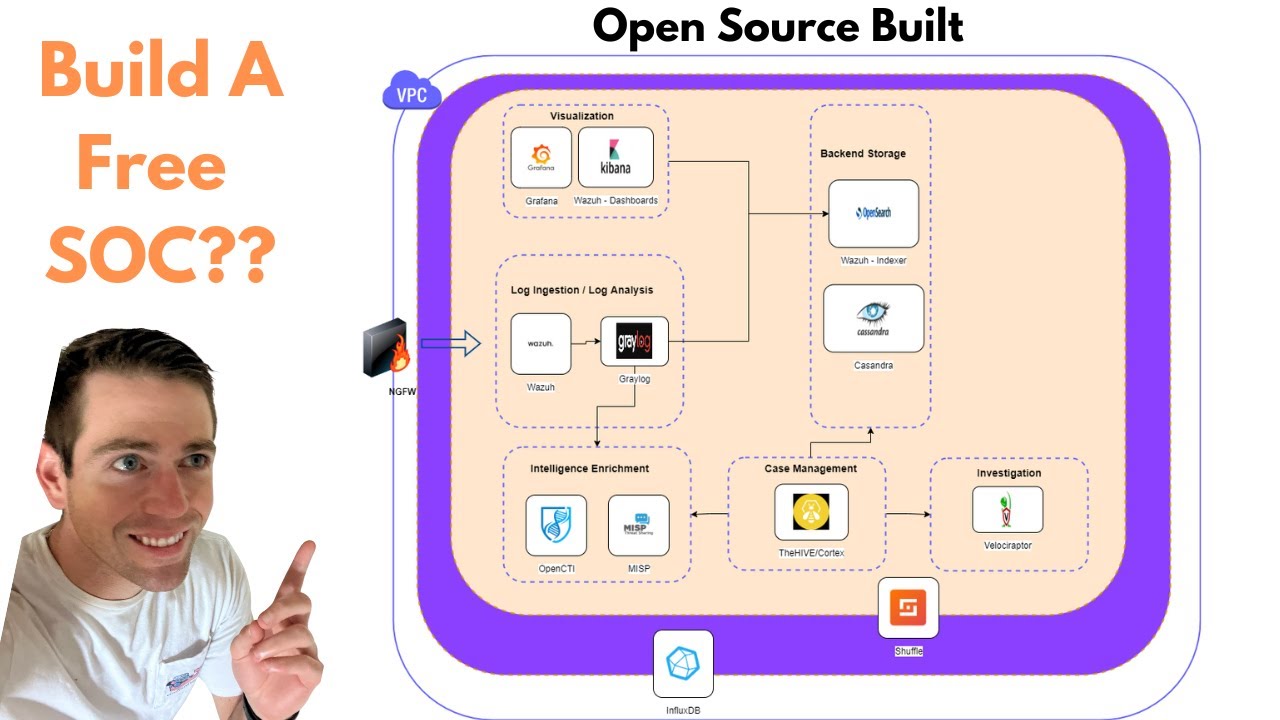
you build up your researching skills in this part one series we will be focusing on creating our diagram and mapping out how we want to build out our lab logically the main thing here is to allow us to build a visual so then we can start to understand how data might flow and of course what are the pieces required to make this all work the reason I am doing it this way is because during some interviews some would provide you with a whiteboard and ask you to draw a diagram of a basic lab and secure
it now hopefully by participating in this lab you'll gain a lot more confidence in doing so to create our diagram I'll use a site called draw.io because it is free to use and we love free it is quick to access as well the one thing to keep in mind is that these diagrams do not need to be pretty you just need to do it and build it out now later down the road you can go ahead and make it look pretty especially if you are going to present this to a client but if it's just
for us in a lab environment I'd rather you put in the work and focus on doing it versus spending hours on trying to make it look visually appealing we'll start off by heading over to their site at draw.io under the search shapes we can search for PC and hit enter now we can select any icon that you like in my case I'm going to select this PC over here now again do keep in mind this does not need to be pretty just yet as long as you create it and work out the workflow you should
be okay next I will search for router and hit enter and then let's take this icon I will double click the PC icon and begin typing in Windows 10 client and we do know for a fact that this will have the Wasa agent installed next I will search for internet and I'll just take the first icon as the cloud I'll double click it and then I'll type internet that way I just know what that is and rotor as well now because Wasa The Hive and Shuffle is going to live on the internet I'm going to
click on the internet icon right click and click duplicate I'll duplicate this three times and one more perfect and now I'll rename these as Wasa manager The Hive and lastly I'll name this as Shuffle the next thing is the sock analyst I'm going to duplicate this PC and I'll just leave this over here and type in sock analyst now here's the fun part we need to draw fancy lines to connect everything together that way we kind of know logically how data will flow and we can include Lines by clicking on the icon itself and you
see these arrows there's a top Arrow right bottom and left Arrow you want to click on the arrow and just drag it up and connect it to the other icon click on the Arrow icon itself and on the right hand side you'll have a couple options so at the top there are different colors that you can color in your arrow and you can change the shape if you want so if you noticed my computer currently doesn't have an arrow pointing towards it we can just change this by clicking on none and one of these arrows
now we can see that there's an arrow icon pointing to my computer icon however for this example I am going to select the arrow type which is the first option and then select the second one which is link this will change the arrow icon into what essentially is a link and I will change the color to let's say gray for now the gray link is going to indicate the sending of events over to the Wasa manager now I will double click on the link and then type in send events let's create another link from the
router over to the internet and again to do that we can click on the Arrow drag it over to the internet and then I will change the arrow type to link and then change the color to gray now I'm not going to enter in a text because I know for a fact that that the gray link is sending events I'm going to move the Wasa manager icon over just a little bit that way we have a little bit of room to play around with same with the hive and Shuffle perfect now I will connect the
link from the internet to Wasa manager change the line to link change my color and in this case I will type in receive events I'm also going to put in the steps actually so step number one send events over step number two receive events and then from the wasal manager we are going to be sending it over to shuffle now I will change this to link and because I don't like how the line is not straight you can select the option called waypoints and then you just select the first one and now it is straight
now if we think logically how our workflow will work is that the computer will be sending events over to Wasa manager Wasa manager will then create an alert and send that over to shuffle because of that I want to make sure that the link color is not gray that way we can identify a different action I'll just select it as blue I'll type in send alerts now when Shuffle receives the alert what will Shuffle do well I want Shuffle to perform some open source intelligence gathering to enrich our ioc's our indicators of compromise and to
do this I am going to just click on the icon click on the arrow and connect it over to the internet change my line over to a link and because we're performing another action separate from sending alerts or send SL receive events I'm going to change the link color to something else the next one will be green so I select green I will type in enrich ioc's the sending of alerts I forgot to put in number three as the third step enrich I will be step number four once it's done enriching the ioc it will
send it back to shuffle once that happens Shuffle will also send an alert over over to the hive so we will connect Shuffle over to the hive change the link and again we are sending alerts so our send alert action will be blue I'll change the color to Blue change the Waypoint and select the first option to straight and now it looks a lot nicer so I'll type in this as step number five send alerts and what is the next step after Shuffle sends an alert over to the hive well we also want Shuffle to
send an email to the sock analyst what we can do is click on the icon again connect it over to the internet and then change our Arrow to link and I'll select orange for sending an email and we can change the Waypoint as well to make it straight from here I'll just move it over and now it's a little bit easier to see I'll double click that send email once Shuffle sends the email the sock analyst will then receive that email so go to the sock analyst and we'll connect it over to the internet change
it to straight and Link in Orange now this will say send and receive then I forgot to put this here as step number six and then send and receive will be step number seven now when the analyst receives the email the email itself should contain details about the alert and it should also ask the question of do you want to contain or do you want to perform a certain action yes or no and depending on the response the action should then be sent over to shuffle which will be sent over to Wasa and then eventually
to the Windows 10 client to perform that action so let's draw that out I'll click on the sock analyst workstation connect it over to the internet change it to straight change my link and I'll set this color to uh let's just do red that way it's a lot easier to see and I'll move this over here and then I will type in Step number eight send response action that goes over to the internet the internet then goes over to shuffle change it to Red I'll move this over here again change the Waypoint to straight and
then I'll move the link over once Shuffle receives the responsive action Shuffle should then send it over to Wasa manager and then I'll type in Step eight send responsive action once the Wasa manager receives the responsive action Wasa manager's next steps is to instruct the agent to perform that responsive action I'll create a link over from wasal manager to the Windows 10 client and I'll change it to red again and that way I can say perform responsive action another way of doing this is instead of using icons we can just use text so for example
I'll scroll down just a little bit and then I will double click anywhere this will open up a box and then I'll click on text from here I can just type in Windows 10 what is the purpose of this this machine it is to send events and then I'll click on the text and the arrow click on text again now we will say Wasa manager what is the purpose of Wasa well trigger alerts and what else maybe perform response actions so far so good the next one is Shuffle so we'll type in Shuffle and the
purpose of Shuffle is to receive Wasa alert and send responsive actions from Shuffle we want to also enrich ioc's send an email as well as create an alert on the hive click on the up Arrow we'll start with open source intelligence we will type in enrich ioc's click on the down arrow click on text and now we'll say The Hive the hive's purpose is to create an alert in their case management system and finally Shuffle also we'll send an email so I'll type in email the purpose of the email is to send email and responsive
actions now without using icons we can kind of see the flow here right so we'll begin with Windows 10 sends an event over to Wasa manager Wasa manager will then look at those events and Trigger alerts or perform responsive actions if required third Wasa will then send an alert over to shuffle Shuffle will receive the Wasa alert and send responsive actions along with enriching ioc's sending an alert to The Hive for case management and sending an email over to Sock analyst hopefully by following along you understand that drawing a diagram is not that bad and
doesn't have to be super complicated its purpose is to logically show how data will flow and what are the pieces to make everything work now we have a diagram built out and ready to go this will be our reference point going forward in this example we are using a total of three hops one PC and two servers where the hive and waza will be in the cloud in the next episode we'll begin with our installation for our virtual machines and that is it for the video I hope you are as excited as I am to
build this one out remember to stay curious and do things differently