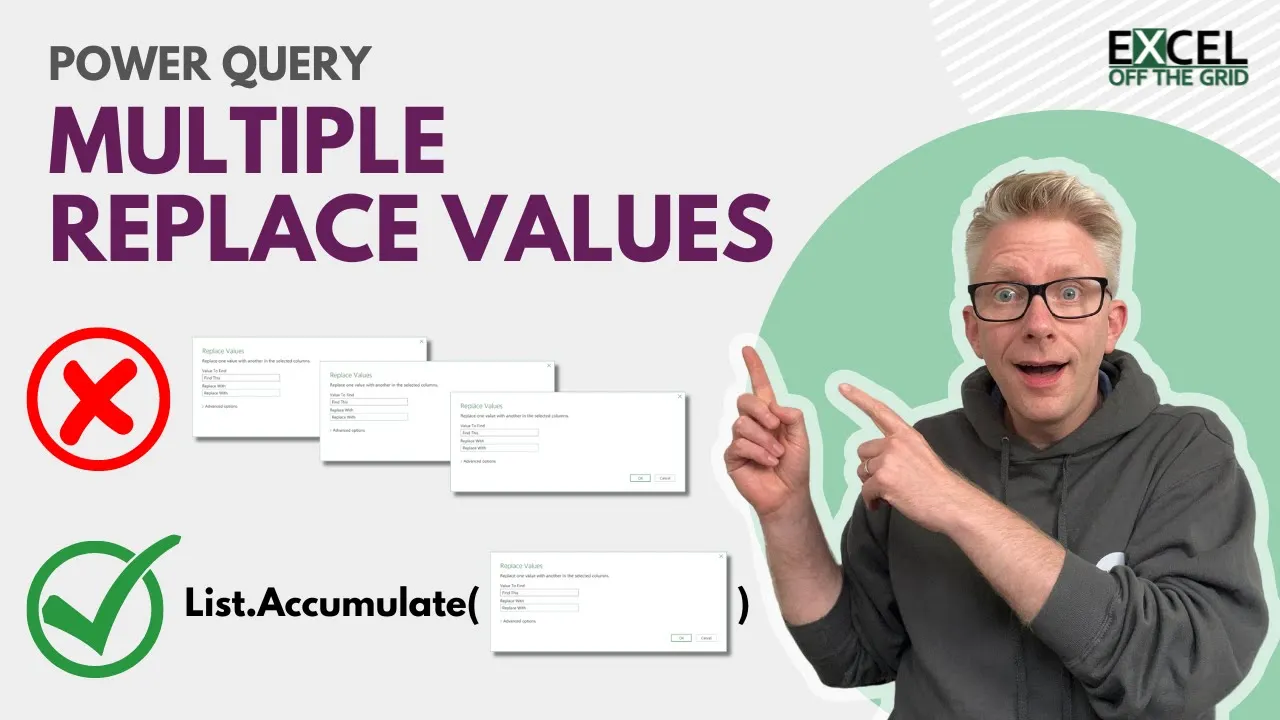
let's suggest that your company is made up of lots of different divisions and each of those divisions sell to the same company you've been asked to get a complete picture of the entire customer base so you've asked each of the divisions to send in their data Unfortunately they each call the customers by different names it might be Wix limited Wix LTD Wix is with an apostrophe there's just different ways to say the same company name so you've got to clean up that data well the easiest way might be with a find and replace values but
you need to do a lot of find and replace actions and that's what we're looking at in this video how you can do a mass finding a place based on a list so if you're ready let's get started here you can see the example data that we are working with so AI gate limited there's no problem but magic Marvin in another division might be called Marvin Hilton Sarah toot might be called Sarah toot trading as epic designs whittlesbury Lodge limited might be whittlesbury Lodge limited but just LTD and you might get Wix is limited Wix
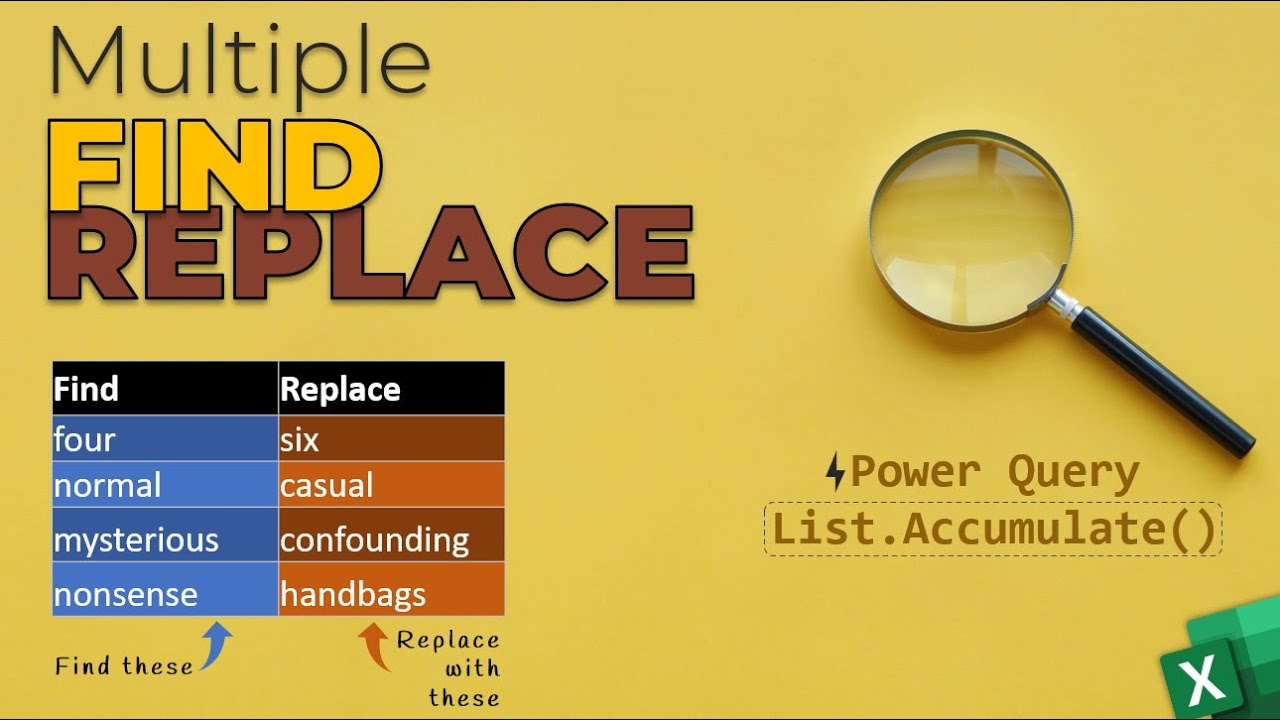
is with an apostrophe or Wix limited with LTD rather than limited so we've got all these different ways of spelling the same company name across all these divisions now to make this find and replace exercise easy we've created a list here's the list of the items we want to find and here's the list of what we want to replace them with we've got our data in power query and I've loaded this table of file and replace into Power query so let's head over and take a look Okay so we've got our two queries here one's
called Data the other is called find replace and find the place has column names of find and replace that is relevant we will need those in a few moments time now initially let's just undertake a replace values action just so we can steal the syntax I'll click on the name column go to transform replace values replace values again in here value to find let's call this find this it doesn't matter what we put in here and replace with and then I'll click ok so really we just want this syntax up here we're going to replace
all of these elements changed type is the name of the previous step find this is the text that we entered replace with is also the text that we entered and their name is the name of the column which we applied the transformation to I'm going to press Ctrl C to copy that and then we can delete that step okay now comes the tricky part we're going to use the list dot accumulate function in power query this does not appear in any of the user interface so we are going to have to write it ourselves by
hand the good news is there's a really good post by Rick degrute about the list dot accumulate function so you'll find the link below to his post on gorilla.bi right let's write this formula ourselves I'll click on the add step icon and let's expand the formula bar I'm going to delete the name of that previous step let's start with our function list dot accumulate and then I'll open the bracket our first argument is a list this is the list that we want to perform this action over so we have a list that is the list
of items that we want to find however what we want to create is a list of numbers that represent each of those items so in curly brackets starting at zero and then I'll place two dots to create a list so I want to create a list from xero all the way up to the list dot count and that is the list of our find replace table and of the find column now let's suggest that we had six items in our find column that means that list.count would return six however power query starts counting from zero
so therefore we do need to minus one from that to make sure that we get the right number of items okay the next argument is the seed this is what are we starting with well we want to start with a table so that table will be our changed type table the name of our previous step hash change type next we need to create an accumulator function and this accumulator function has two arguments in it the first is state and the second is current so as we Loop through this list our current will represent whatever number
we are currently on so it will start at zero the first time it Loops then the second time it Loops it will go to one the next time it Loops it will go to two and it keeps going until it's looped through all of the items in our list dot count minus one now the state is the result at the end of each of those Loops so we're going to start with change type then the next time it will be whatever the result is after that first Loop then the next time what the result is
after that second Loop okay so let's see how we can use this right I'll insert the arrow that we need for a function and then we're going to paste the text that we copied earlier now we don't need the equal sign so we're going to Loop through each time which means that each time we Loop we want the table That We're looping on to be our state so the initial state will be our change type and then as I said each time we Loop that state will then update next we have the find this this
is the value that we want to find well in our find replace table we have our find column and we want to get whichever record is in the position that we're currently looping through so therefore we're going to use the word current next we have the replace with what text we want to replace it with again we're going to use our find replace table and this time we want to use the replace column so which items we want from our replace column well whichever item We're looping through and that is the value current now we're
not going to change our replacer.replace text function and we're still performing this action on the name column and there you can see we've got our close bracket for our list dot accumulate and when we commit that you can see that all of our data is now clean magic Marvin appears twice Sarah 2 to spell correctly every time whittlesboro Lodge limited and Wix limited all those items have now been cleaned well that's it that's how we can replace multiple values in power query based on a list it got a little bit hairy there as we're working
through that list dot accumulate function but hopefully you can see that it's a really powerful function so it's worth spending the time trying to see how we can use that to build this looping type functionality if you like this video don't forget to subscribe to find out when there's more videos thanks for watching and I'll catch you next time