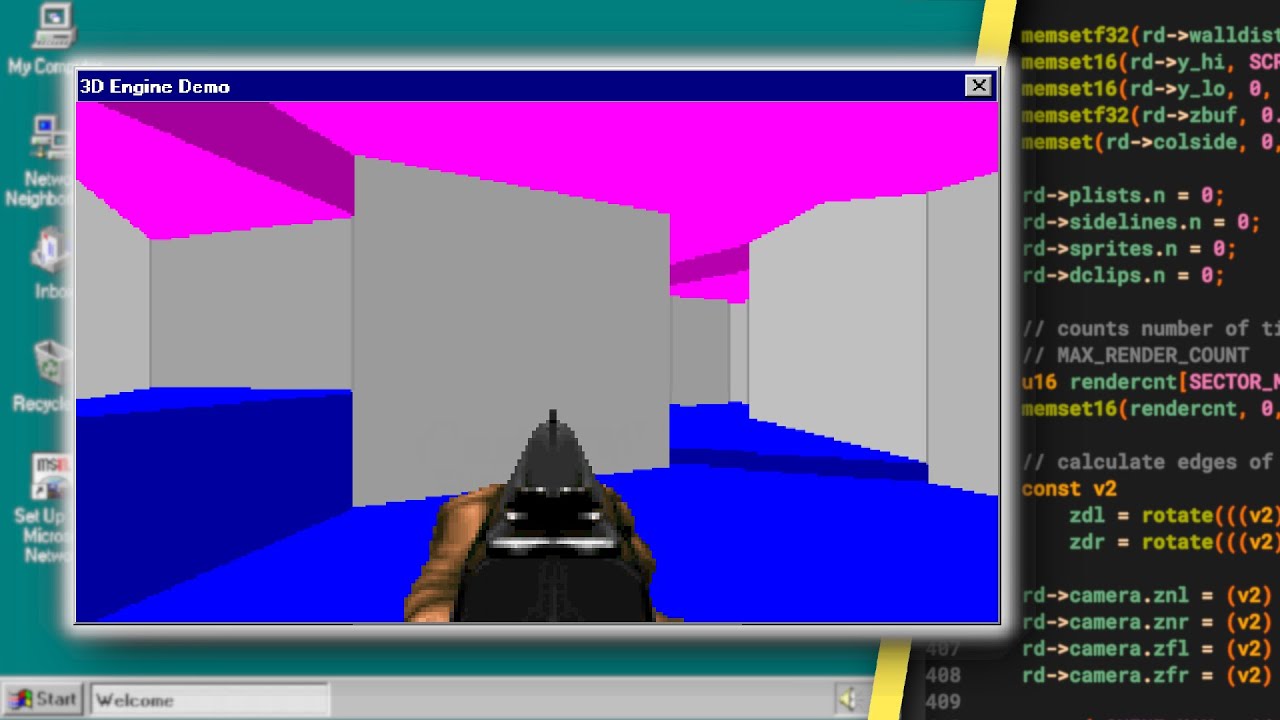
[Music] in this course we'll be building a 2d engine basically from scratch in c by the end of the course you will have created something akin to what's on the screen now complete with a custom physics engine rendering pipeline animation system and sound effects using a minimal amount of libraries i'll walk you through how to create each engine module and why as well as discuss possible modifications and considerations if you're interested triple smash that like button make sure to subscribe and hit the bell to be notified when each new chapter is released there is a certain amount of required knowledge that i won't be covering in depth basic understanding of c and opengl are useful to fully understand this course in this chapter as is tradition we'll be starting with an environment setup i'll just be showing how to install what we need on windows if you're on linux or mac os then you can just use a package manager and why windows because like it or not it's still got the gaming market share by a massive margin so you'll probably need to test your games on windows anyway to build with debug symbols for windows we'll need to use the build tools for visual studio and download that from the visual studio downloads page once you have the installer just make sure to tick the desktop development box and that'll give you what you need now that could take a while to install if you don't have it already so while that's happening we can go and grab some of the other required libraries i've created a fake drive that separates this work environment from all of my other files this is optional and can be done with the subst command as shown on the screen now now inside this work drive we'll need three directories one for the project and one include and one lib directory first library on the list is sdl2 we'll just be using this to create a window and an opengl contacts and also for some timing functions next on the list is sdl2 mixer a plugin for stl2 that will enable us to play audio we'll also grab free type 2 that will help us tremendously with text rendering lastly we'll need some kind of opengl loader in this case glad so head over to glad. david with an i dot d e select uh gl version 3. 3 on the left and core as the profile leave everything else the same unless you want to set it up a different way then just follow my lead on screen to get all the files set up in the places that will work [Music] now we've got that out of the way we'll need to create some scripts we'll be using windows for this series so scripts will be dead simple and they'll be written in batch files we'll create two in the project's root directory now build.
bat and clean. bat for the build script we'll keep it dead simple we'll set a couple of variables at the top the first is files that'll just be a list of all the c files in our project the second is libs that's whatever libraries we need to link against and last up is the build line i'll go through each section cl is a tool that controls the microsoft compiler and linker slash zi will give us the debug symbols slash i followed by our include directory will tell the compiler where the header files can be found the sent files percent just expands what we set the files variable to slash link will link the following libraries which will just be the expanded form of our libs variable finally slash out followed by a colon and then some kind of name is just setting the executable name by default it would be the name of the first c file in this case glaad. exe now let's set up our main.
c file in the source directory we'll just include scdio so we can print something to the terminal then we'll fill out the main function as such pretty standard stuff now assuming that your visual studio tools have finished installing you should have access to this uh x64 native tools command prompt we need to run that to run cl open that up and navigate to the project directory once inside just type build and and my game and hit enter and you should see that it's all working if you take a look at the directory you'll see there's a bunch of extra files in there these are used by the compiler or debugger to do various things but sometimes you'll just want to clean them out so let's make a quick script for that open clean. bat type dell as the command and then we'll follow with a list of things that we want to remove from the current directory so dot followed by backslash means the current directory in windows the star will just match any character or any or a series of any character and then we'll just add the extension that we want to remove so dot ilk obj. pdb and dot exe there we go and now we head back to the terminal type clean and hit enter now if you type dir to list the files you should have a clean directory setup for the environment is now done and we can move on to creating our opengl context and opening a window heading back into main.




![How to make a 3D Renderer [Explained Simply]](https://img.youtube.com/vi/nvWDgBGcAIM/maxresdefault.jpg)