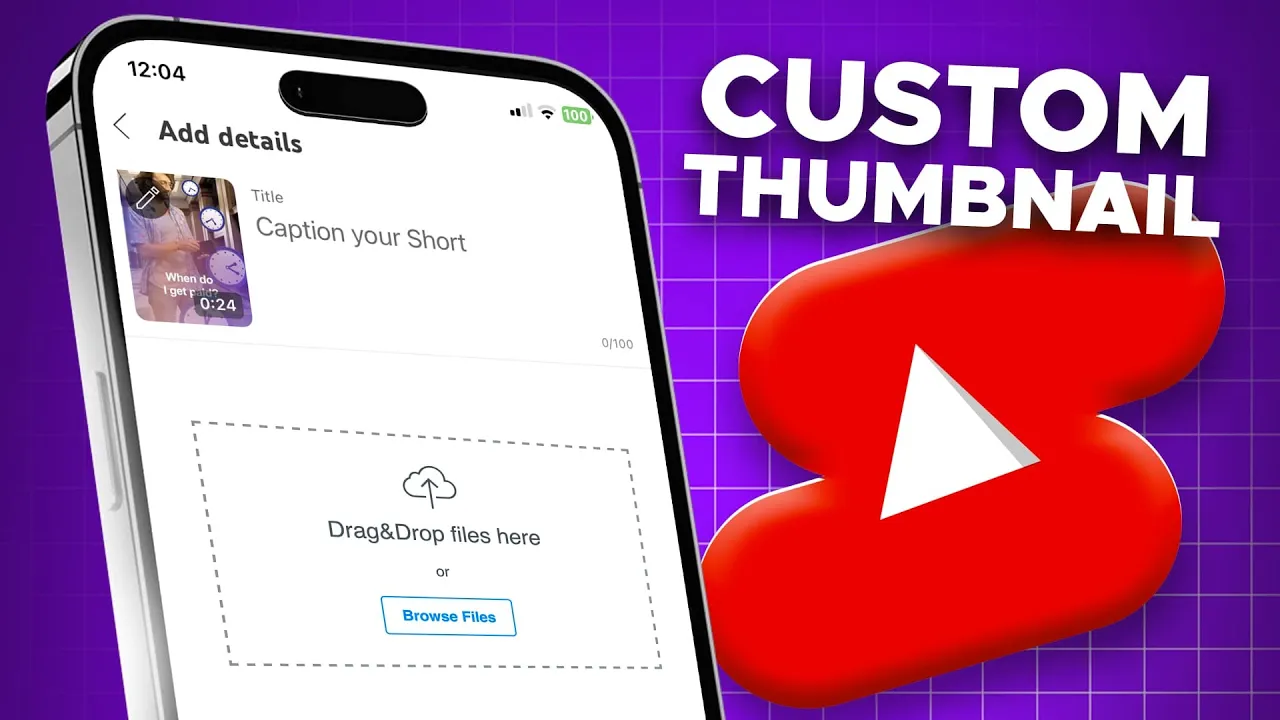
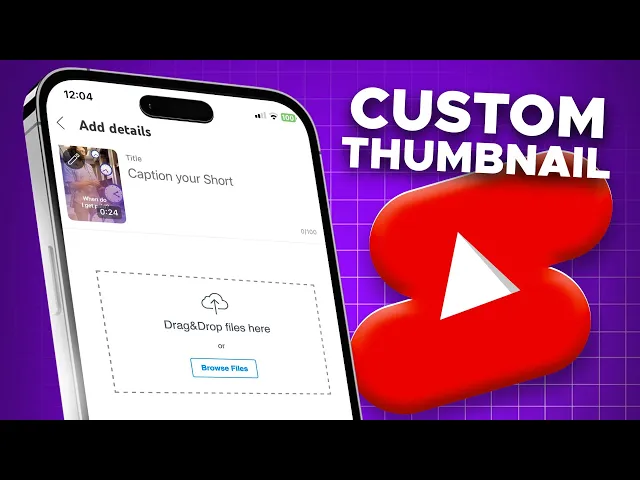
this is how to add a custom thumbnail to your YouTube shorts that is going to show up on the YouTube shorts shelf first you want to upload your YouTube short if you have already uploaded your YouTube short you will not be able to add a custom thumbnail this is crucial for you to understand because you are not able to change the thumbnail after you've uploaded it so make sure you're choosing the thumbnail before you hit publish also you want to upload your shorts from your phone not your desktop I have a surprise for you on
this in a bit let's dive in open up the YouTube app on your phone or in my case I'm going to use my iPad hit the plus button at the bottom and upload a video from your phone's camera roll that you want to use for your short hit next at the top right here from here you can title your YouTube short and before you hit that upload short button at the very bottom click on the pencil icon at the top left here now you can scroll and scrub the timeline of the video and select the
frame you want to use for the video as your thumbnail which will help you get more views on your YouTube short but you might run into a problem with this what if you don't like the thumbnail you're choosing well my friend I got you you can create a custom thumbnail in canva or wherever you'd like before you go to create a thumbnail keep this in mind they should not be like regular long form YouTube video thumbnails they should communicate to the viewer without any text any words exactly what is happening in the video so the
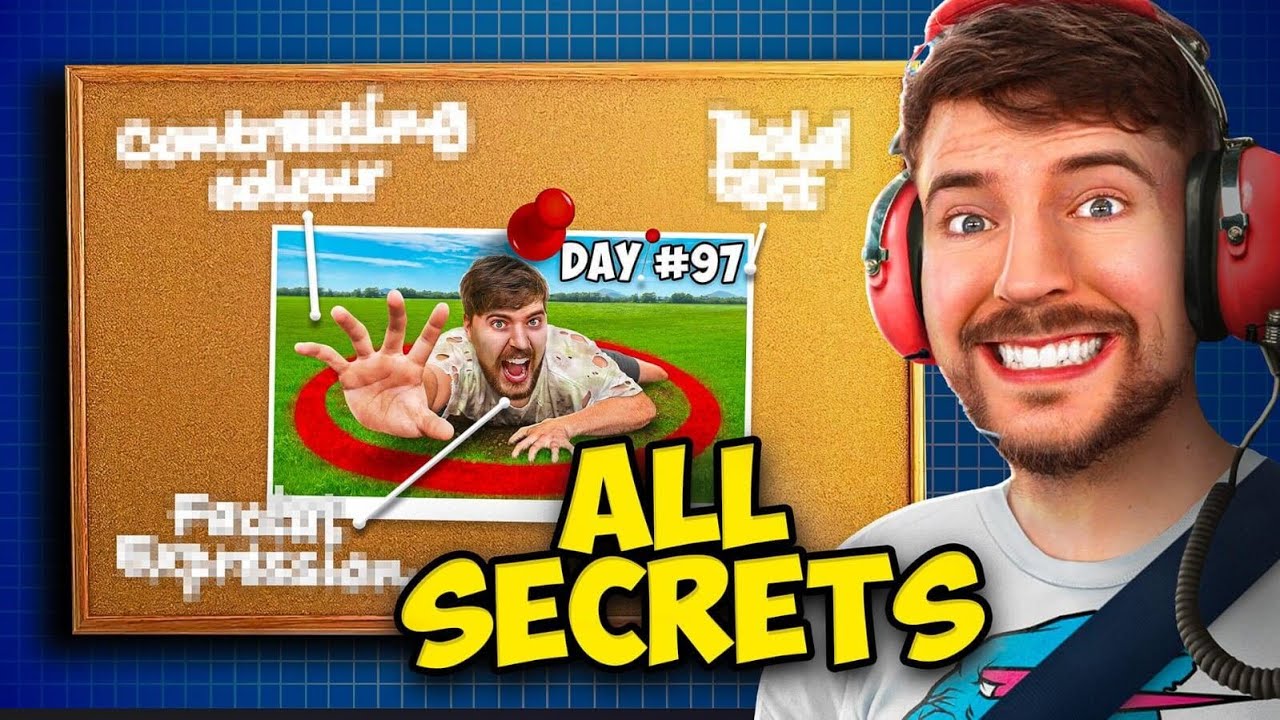
viewer knows what to expect here's some examples from creators that I love to watch Dude Perfect Mr Beast and Nick D Giovani they do a phenomenal job of utilizing that first frame principle where it communicates everything you need to know about what's to come in the video real quick if you actually want to learn more about first frame principle and other strategies for your YouTube shorts go ahead and click this video right here you're going to want to watch it once you make the thumbnail here's the secret trick you're going to use go to whatever
video editing app you use you can use Final Cut Pro Adobe Premiere cap cut actually let me know in the comments below what is your favorite video editing software here's what you need to do you either have to add add that thumbnail at the beginning or at the end of your video on that timeline for this to work it doesn't need to be long point1 seconds is fine you have to do this before you export it and don't worry I'll show you how to remove this everything's going to be okay go ahead and Export the
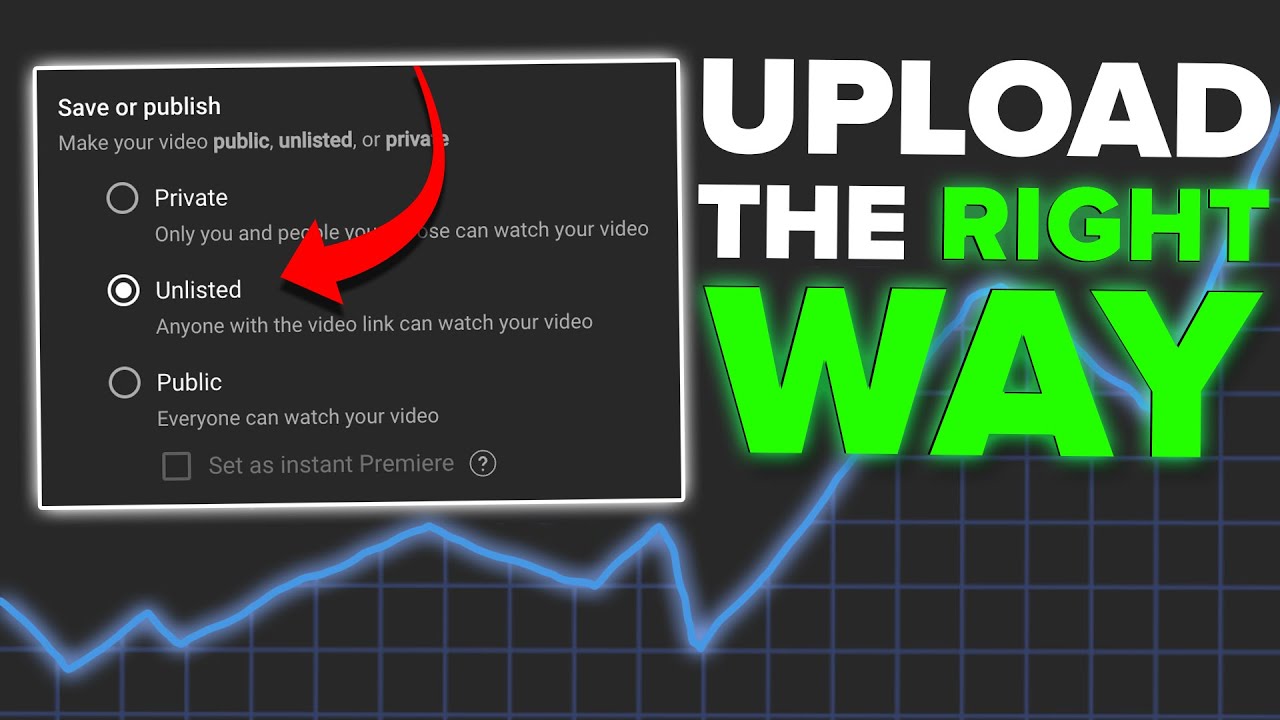
short then come back to your phone to upload your short tap that pencil icon at the top left and scrub the timeline for the image that you just added add your title your tags or anything else that you want and go ahead and upload your short as unlisted or private now for the surprise you're going to need your desktop or your laptop for this go to the video Details page of your short and select the editor go to the trim and cut function of the editor and trim off the part whether it's at the beginning
or at the end where you added that thumbnail save your changes this is important make sure to save your changes now that image is gone from the video but it remains on your short here is one thing that you should know if you add a trending sound or audio to your YouTube short you will not be able to make these edits on your desktop or in the editor and you won't be able to cut out the thumbnail again I don't know if YouTube will keep this feature or they will hide it or they'll remove it
or whatever but definitely take advantage while it's still around hope this video helped and if you did enjoy it you should check out this video right here where I shared five strategies for growing on YouTube shorts and being able to blow up in 202 floor floor in 2024 I'll see you there [Music] he

![How to Change Thumbnail On Youtube Shorts [2024]](https://img.youtube.com/vi/4_r0QTyheTY/maxresdefault.jpg)