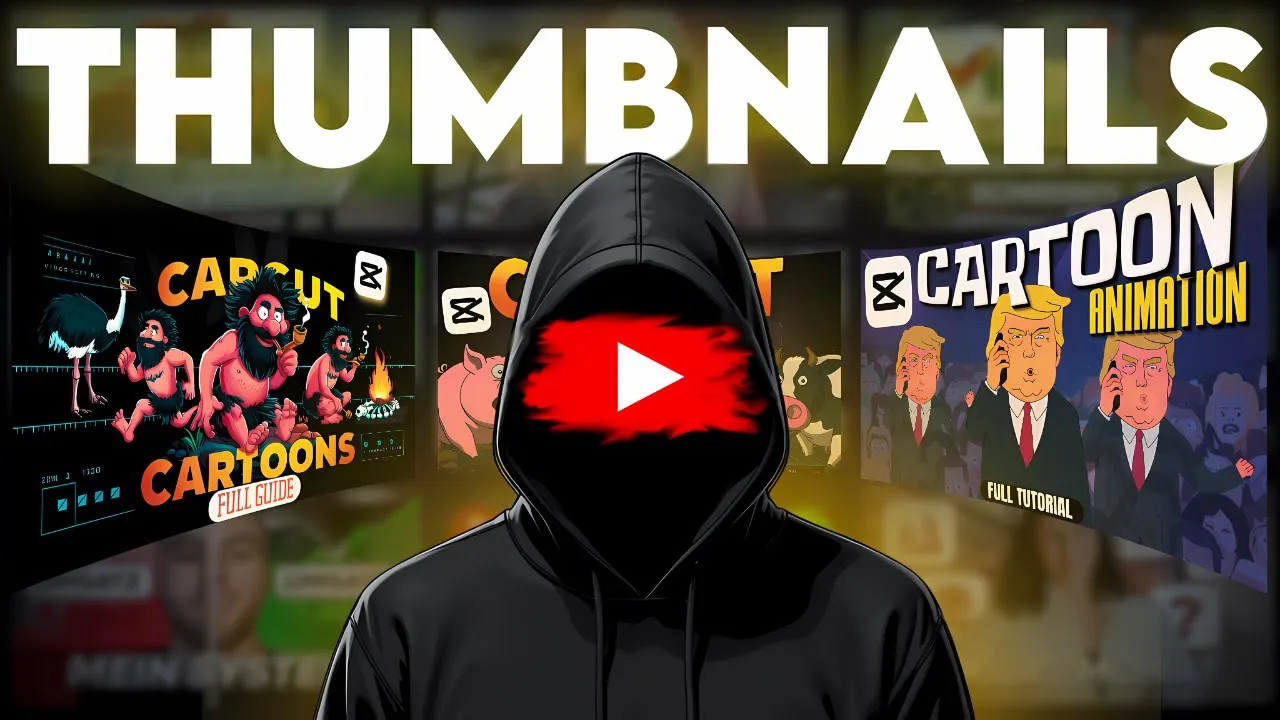
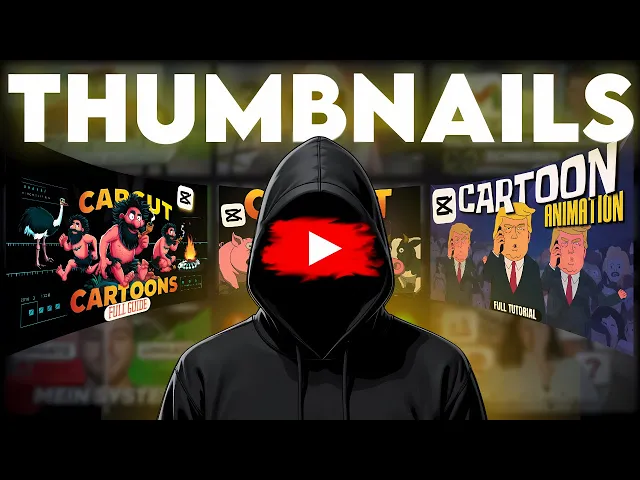
guys this is a 100% free and unlimited thumbnail generator I'm going to copy all of these thumbnails just to show you n stories they have 880,000 subscribers and this is FD finance and we got midnight man this is a typical thumbnail okay we're going to copy hook the Louis Vuitton thumbnail we got magnates media and then to finish it off we have robbers IQ so we're going to copy all of these and I can also show you how to face swap for free if you want to put your own face into these thumbnails so the
first one with n stories was requested by somebody how to make their thumbnails they use a very realistic style we have a baby laying at the foot of a grave I got a very similar image it looks exactly the same now if you bring it over into canva the only really difference that we need is that red circle right there so you bring it over into canva you click on elements type in circle and you'll have this one right here you come up here to the color and you can change the color so I'll change
it to red and then I'll scale down that Circle just a little bit so that it fits over the mother just like that there we go we have about the exact same thumbnail the tool that we're using to create these thumbnails is pick Lumen make sure your aspect ratio is in this landscape 16x9 that way you're going to have the perfect size for a YouTube thumbnail this is FD Finance by the way this is an amazing documentary now here we are back in pck Lumen to generate this type of thumbnail so this one for FD
Finance is a very realistic one but we got this overlay with the American flag in the background I'll go ahead and place that prompt in up here click generate again and you can do it all day long it's completely free and unlimited these are perfect right here we have an American flag overlaid over a Bank of America in the background it looks really good for a documentary type of thumbnail now if I just bring this over into canva now we could just go ahead and click on elements and we could type in something like gradient
and let's just go with this gradient right here let's make it a little bit bigger and rotate it a little bit cuz I want that edge to be coming down like that and I can change the color so let's go with like a darker blue that looks good just like that and now I'm going to come over here to text so I'll just type in full documentary now let's select text make it white and let's go ahead and change the font that one looks good and now I'll select this and I'll come up here to
line spacing and I'm just going to come down with the line spacing so they're closer to each other now let me just highlight this again and come up to the effects Tab and we'll put a little outline around that and let's make change the outline to Black make the text a little bit bigger we come over here that looks really good that looks like a thumbnail that could belong on FD finances Channel let's move right along to the next one we have Midnight Man and this is one of your standard thumbnails now if you notice
on the example he has this gradient overlay in the background use my prompt if you want and you'll get something very similar so first things first after you download your image we're going to do a little trick in order to be able to create that gradient overlay over top of the background come over here to this website called photo room click on start from photo bring in that thumbnail that we just created and just like that it has removed the background from the thumbnail now we're going to download that click on standard resolution cuz this
is a free option and now let's come back over to canva now that we have our regular thumbnail uploaded we also have the thumbnail with the background removed come over to your elements tab you're just going to look for an image with a gradient on it so something like this will work perfectly now what you can do is rotate it so that it's the right way and then we can make it much bigger so that it covers the whole screen now you're going to come up here to the transparency Tab and you're going to bring
it down some just like that get it to a level that you think it looks good and now we're going to come back over to the uploads and we're going to bring in the one with the background removed and we're going to size it up so that it fits the original size now he's standing out from the background now we can go ahead and create some text and we can scale this up we'll change the color to white something like that and then we can upload a cap cut logo just like that and now using
the position tab if you click up here on position you can just send it backwards since we've removed the background from this guy and there now you see it's like tucked in behind his head but it's still above the background which looks really cool and we could do the same thing with the text if we come up here to position move it backward now you can see that it's falling behind his computer screen which looks pretty cool let's just add a shadow come over here to Shadow change the shadow to Black bring the blur of
the Shadow all the way up and the transparency all the way up and then let's bring him back into where he's supposed to be and now as you can see that looks really really good that looks exactly like our example look at that and one more thing that I wanted to show you our free face swapper let's go ahead and download this image and just pretend that this is our face and we wanted to face swap that into our thumbnail let's come over here to pix Nova Ai and it's a free face swapping tool so
first we're going to upload our thumbnail image and then we're going to upload our face and then we're going to click on start face swapping and just like that we're going to get a free face swap back as you can see it's changed his face to the one that we uploaded we're going to recreate this Louis Vuitton thumbnail and I just use this prompt right here to put it in look at our example and look at the one that we created with this free AI thumbnail generator it looks exactly the same this is actually impressive
how close I was able to get it so let's go back over here and let's bring it into canva some of the things that we can do is first we can click on our image and click on edit and then we can come up here to adjust and we can bring the saturation up a little bit bring up the Vibrance so the background really pops then we can add a vignette if you want to darken the edges that looks pretty good and we can bring in some text now that we have our text let's highlight
it change it to White bring it up top here as you can see the text is running across the whole thumbnail so let's come back over here and stretch it out so that it runs across the whole thumbnail and I also want to select it and turn the italics on now we're going to highlight it click on the effects come over to the shadow change the shadow to Black bring the transparency all the way up and then also bring the blur all the way up and then you can change the offset to make it a
little bit better that looks really good right there now let's just click on that text and click on duplicate bring it down here I ran away at 13 now let's bring that over to the side a little bit scale it down just a little now let's look at our example and look at ours that is awesome that is spoton let's move on to the next one magnates media it's this uh crazy Super Mario Nintendo one so let's come back over to pick Lumen this is what I was able to generate which is nearly identical already
so let's just go ahead and download this and we'll come over to canva and now that we have it in canva what we can do is we can click on it let's come up here to where it says adjust turn the brightness up a a little bit like that then you can come also down here to the Vibrance turn the Vibrance up a little bit and the saturation and we can also play around with the sharpness and the clarity if you want it a little bit more sharp and now let's look at our example thumbnail
and then you look at ours and they're nearly identical now let's go over to the last and final example which is from robbers IQ so let's come back over to pick Lumin and let's see what we came up with here's the one that we created so you could just copy my prompt if you're looking for this style and you can come in here and paste it in and it's going to create these thumbnails for you and there you go now let's come over to canva I will bring this in all right and now let's compare
this to our example here's our example and here's ours we're going to click on this click on edit let's go to adjust bring the brightness up just a tad bit and let's also bring the saturation that looks really good and the Vibrance let's turn up the sharpness as well the clarity all right so that looks really good and then another thing that we can do is come back over to photo room upload that image into photo room so we can remove the background and let's go ahead and download that now that way we can come
back into canva and if we want we can put some text behind his head using that method so let's click on text add that text in and make it make it really big on our example thumbnail they have no text I just wanted to show you guys this just in case you wanted to do something like this come up here to the effects change it to a neon like that so it's glowing this is a good way to make some glowing text like that using the neon effect now let's upload that image with the background
removed bring this one in and scale it up so it's the same size as our original now let's click on that text click on position move it backwards and then we can click on our guide that has the background removed and we can click on edit and we might have to change his saturation levels as well so let's up the saturation and the Vibrance and the sharpness a little a little bit but there you go that's a quick little tutorial on how to create these AI thumbnails and how to edit them as well I don't
pay for any of those tools they are completely free to use so make use of them and I'll see you guys in the next video
![Shoot EPIC MOVIES with this FREE AI Tool! [ComfyUI Tutorial + Free Workflow]](https://img.youtube.com/vi/gHI6PjTkBF4/maxresdefault.jpg)

![Gwers Fyw Adobe Express: Addunedau Blwyddyn Newydd [Iau 09/01/25]](https://img.youtube.com/vi/P9-qe89V6Fo/maxresdefault.jpg)