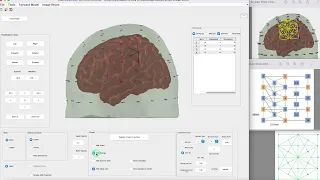
hi my name is Donna from Martinez Medical Systems and in this video I will show you how you can create standard graphs in oxy soft I'm doing this for a measurement that has already finished but you can also do it for ongoing measurements there are a few different ways to create graphs you can access all of them by right clicking on the measurement or by selecting a measurement and clicking on the graph menu at the top to create a new graph you click on create graph you'll see this screen in which you can name your
graph and change any settings before you create it you can also change this later a new graph will be created without any traces to add a trace right click on the graph and select add trace this opens a window with different tabs where you can select the channel and unit that you want displayed in the graph for example that selects oxyhemoglobin in deoxyhemoglobin from channel arcs 1 DX 1 if you would like to create multiple of these graphs you can also use create all graphs this option allows you to create the default graphs again as
you would be when starting a measurement you can select which data types you would like to see in what type of graph single graphs show data of one channel split Paula graphs show data from one sub template and Paula graphs show data from a whole template the polygraphs are useful when you have a lot of channels if you select single graph for all data types they'll be shown in the same graph per channel completing this process without clicking this box will delete all the other graphs for this measurement thank you for watching please subscribe to
our YouTube channel for more videos and if you have any questions about this video have a look in your manual or send an email to ask for info at our team come have a nice day