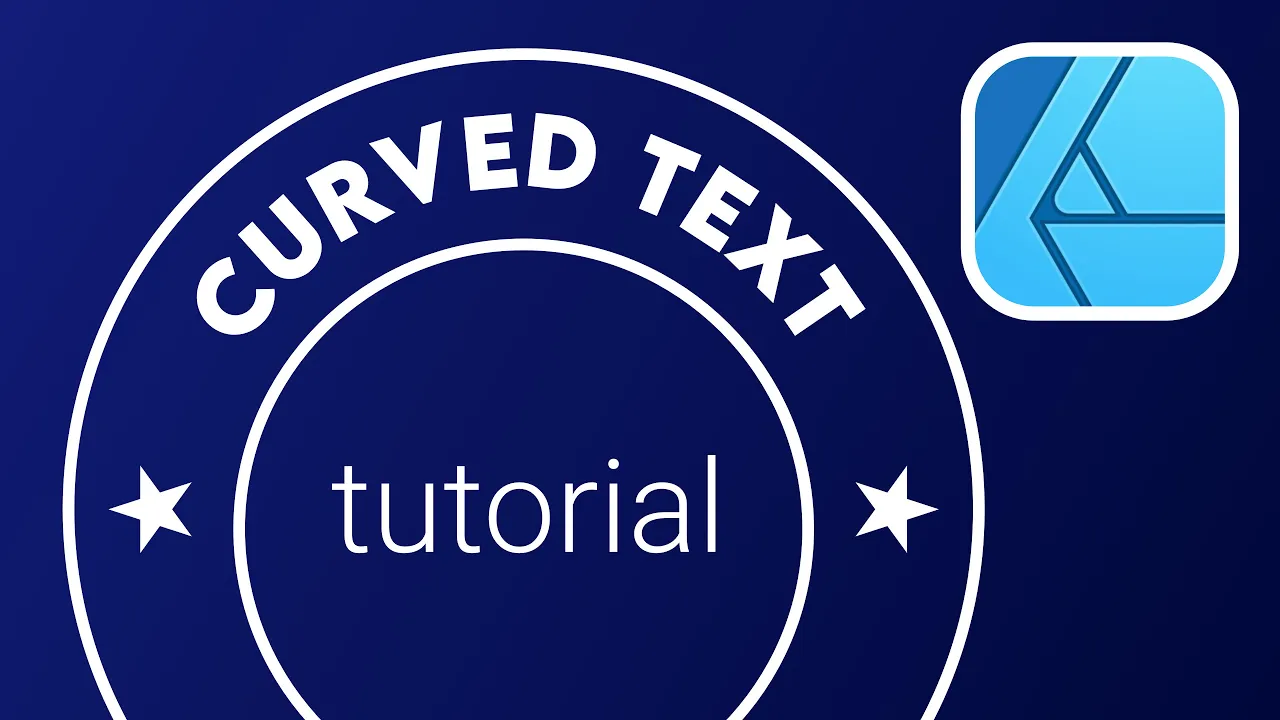
hello there today i'm going to show you how to make a curved text in affinity designer in my case i'm going to put my text to follow the path of the circle but you can use any other shape alright so let's start with the circle hold shift to have a perfect circle and here it is we don't need a fill color for this example so let's just set up stroke color outline like this right click on the layer and duplicate so we got copy of exactly same circle we can resize this one all right now
i need to make it a little bit bigger and i'm going to use the smaller circle as the path for my text so text tool here it is now hover your mouse above the shape you want to use as the path for your text and click like this the shape actually will disappear it will be transformed to the path to lead your text here's my text it's so small let's change the font and here it is we got two toggles green and red so the green is the beginning of the text and the red is
the end now the text is inside the shape i want it to be outside the shape so i need to flip it using the button at the top this one you can flip it back and forward as i mentioned red one beginning sorry green one beginning red one is the end we can set up alignment to the center like this and we got the perfect text on the curve over here in my case it's circle but you can use other shapes as well let's make a duplicate of this circle one more time so we got
this button border and it's looking like some kind of stump already quite easy all right let's try to use the same technique one more time to make a bottom line so what if i try exactly the same step so text tool click on the line on the shape i want to use as the path so this one you see the icon when you hover your mouse i cannot see the icon because now my text is the highest layer i'm hovering over my text so i'll move my text to the bottom so just drag this layer
below now i'll be able to hover my text tool above the shape yeah i can see the icon now click on it the stroke color disappear means you transform this to the path for your text already all right some adjustments like previously we can change the font color just select the text first and here's more text at the bottom of this curve but as you can see it's flipped i cannot really read it so let's undo all of that and let's try to use the bigger circle this time so i'll duplicate the bigger circle and
hover my mouse click on the line and here's my new path the circle didn't disappear because i make a copy i duplicate it before i use this text tool and that's what we need here we need to use the bigger one so the text is pointing the correct direction it's not flipped we can even resize the circle after we add the text like this all right so that's the way how you can add text to any path any line in affinity design and not only circles all right simply make a line then pick text tool
hover your mouse above it and click on it if you would like to learn more about affinity designer you can check out my online course six hour long project base link in the description thank you and see you in my next tutorial




![How to design half curved text effect [Affinity Designer]](https://i.ytimg.com/vi_webp/wZuaf84BlHk/mqdefault.webp)



![How to design double curved text effect [Affinity Designer 2]](https://i.ytimg.com/vi_webp/9f-5rjeGGjU/mqdefault.webp)




![How to write text around circle [Affinity Designer]](https://i.ytimg.com/vi_webp/msAFf3al128/mqdefault.webp)