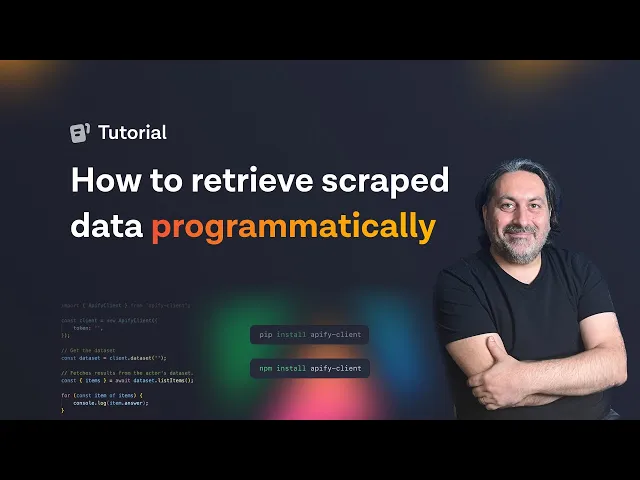
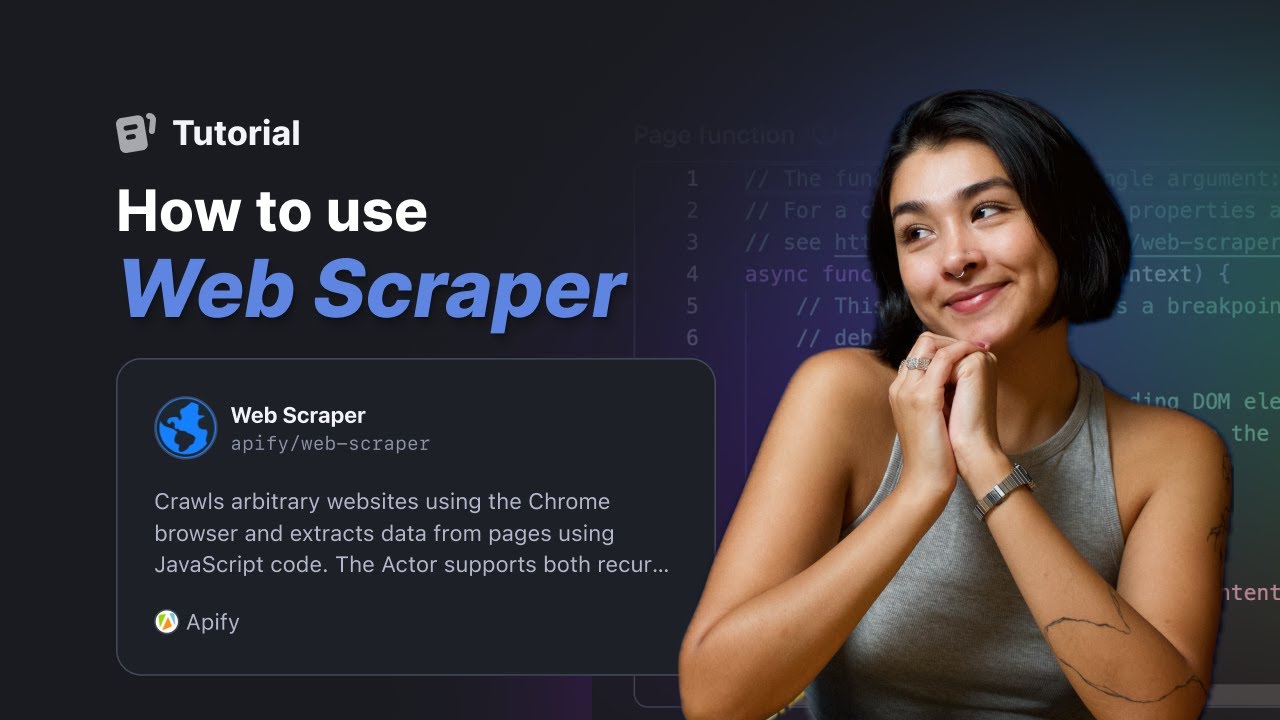
Hi, Theo from Apify here! Until now, we've been showing you how to use our Actors via the interface, but people have requested we do tutorials that show you how to retrieve data programmatically via the API. Well, you asked for it, so we're giving it to you.
Today, I'm going to show you how to download data from any run with the Apify API. This will come in handy if you need to integrate your dataset with other applications or process it with Python code or another programming language. For this example, however, we're going to use GPT Scraper.
I'll show you three options for downloading data from runs for this Actor: A raw HTTP request, the Apify API Client for Python, and, the Apify API Client for JavaScript. To retrieve data with a raw HTTP request, we use cURL, which should be installed in your terminal by default. You need the API endpoint to get the data.
So just go to the run you want data from. In this case, we'll use a dataset from a run with GPT Scraper. Find the dataset ID in the storage section.
You can copy the link from there. Alternatively, you can go to the dataset ID details and click the API section. Here you'll find the API endpoint for the dataset items and copy it.
Now open your terminal (we're using VS Code) and insert the cURL command. The curl version command will check that it works. All looks good.
So we'll just call cURL and paste the API endpoint you copied before. After calling the API endpoint, it will print the data in the terminal. You can also change the format of the data or create a new file with the dataset data.
In this case, we'll save the data as CSV. Run it, and it will save the data in the CSV file. All API endpoints can be found in the Apify documentation, which you'll find in the link in the description.
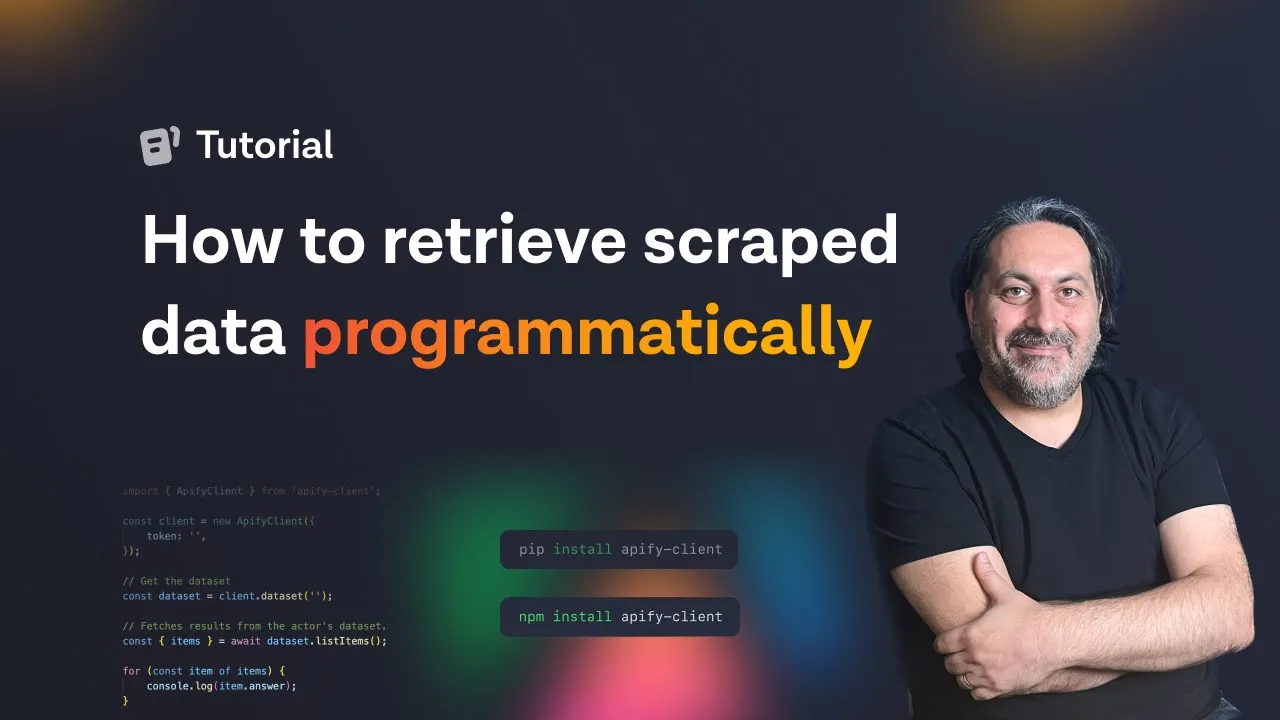
For the Python client, we'll use the same dataset ID. We'll be creating the code in a VS Code file. First, you need to pip install apify-client (you can copy and paste this from the API Client for Python documentation).
Once you've installed the client, import your package, ApifyClient, and initialize the dataset programmatically with your API token. You need to import the ApifyClient and initialize it with your token. You can copy this from the integration page in Apify Console and paste it here.
Just place items in the dataset. Again just copy the dataset ID from the GPT Scraper run and paste it. Initialize the dataset, do a basic loop and go through items in the dataset and print them to the console.
Now you can run your code with the Python3 command. This will print the item from your dataset in your terminal. You can find out more in the documentation for the Python Client (link in the description).
The same steps apply to JavaScript, but you need the JavaScript Client. Install your dependencies, import ApifyClient, and initialize it with a token from the integration page. Pick your dataset (we'll use the same dataset as before).
List the items in the dataset and use a loop to go through each item and print them to the console. Now you can run your code with the node test command. You can learn more in the Apify Client documentation in the description.
That's all for this video, but if you want to keep up with future tutorials on retrieving data with the Apify API programmatically using other web scrapers in Apify Store, click that bell and subscribe to our channel. So long, and thanks for all the likes.