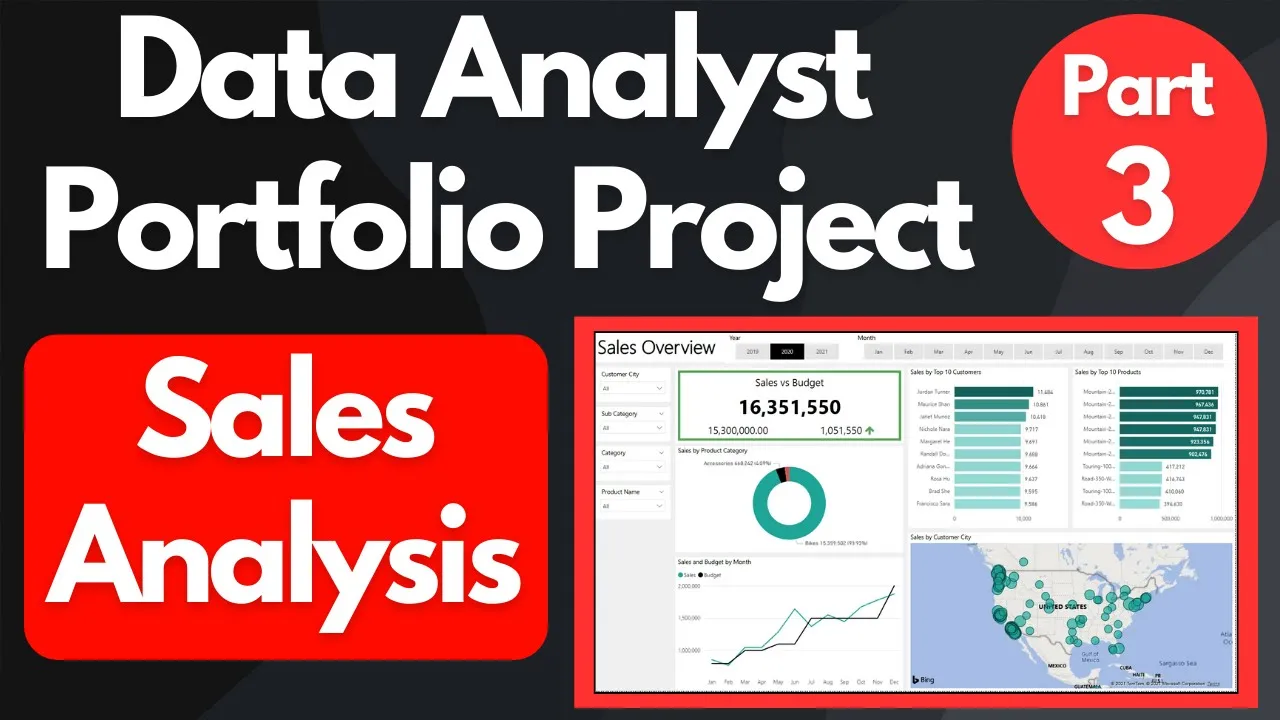
hey guys my name is ali and i am a data analytics manager working in austin norway this is the third video in my series on building a data analyst portfolio from scratch in this video we're going to focus on transforming and cleaning data while referring to the user stories the business demand overview and the business request which we looked at in the previous video we will start off by looking at the difference between a fact table and a dimension table and then we need to identify which tables we need based on the user stories the
business demand overview and the business request and the last step is to do the actual data cleaning and transformation so the first thing we're going to do is we're just going to have a quick look at what is the difference between a fact table and a dimension table because i think it's useful to know and if you want to know more about this i really recommend you to look into some videos about that i'm not going to go fully into that but we'll have a quick look at the differences so let me open a fact
table so if we go into fact finance let's look at the top thousand rows there so notice that it's a very narrow table and it has no text and the purpose of the fact table is that you have the values that you would calculate it is that it's all the metrics and then you have different keys you can see you have different keys that are pointing to a dimension table these these numbers are being described in a dimension table and you can see uh there's a lot of rows here and the reason we do this
is because we don't want it there's no purpose in taking text and storing it over and over in a table so if we were to create a report for finance we would create a report and we would summarize the amount and then because we have keys to different other dimension tables let's say organization key 3 or department key 1 or scenario key number 2 are described in dimension tables so if we go to if we go to dim organization you can see organization key number 3 will be this will be described there so you can
see organization number key number three is the north east division the point is that usually when you create a metric you will say that i would like to sum something by something and usually what you are summing is something that belongs to a fact table and when you say buy something group and buy something that grouping is usually what describes it is usually stored in a dimension table so when we move on to the next step when we look at and we can actually we can just move on right away because i'm not going to
go that much into data warehouse concepts in this video but you do need it's just good to know what is the difference between a fact table and a dimension table so facts are numbers it is where we will do our calculations dimensions are text values that describe the rows in the fact table the next step that we were going to do is we were going to identify which tables do we need and then i want to jump back i want to jump back to the email that we got from steven i want to jump back
to our business demand overview so notice he says internet sales reports okay we have products so sales reports fact table numbers sales products something that describes the the sales so okay that's a dimension clients okay that could be clients it could be customers we'll look for that budget is in a excel spreadsheet which is another fact table but it's not in our data warehouse two years back okay so we don't need sales numbers all the way back fair enough we'll get the business demand overview budgets excel okay power bi to visualize crm system where we
find the data fair enough product customers okay this is a little bit more i think this will hit us better when we when we come back to the actual uh dashboard creation but what i think i know what i need so if you look at the different tables we have you can see we have we have a customer table so let's just for the sake of it let's just take a look you can open that one okay so here we have customer keys and we have a bunch of different columns that describe those customer keys
so a customer key can have x amount of transactions in a fact table x amount of rows in a fact table right here every unique key has a lot of columns that describe the customers for those transactions so what we are doing now or what we are going to do is we are going to figure out which columns do we want to extract from here to create a customer table which we can use for to do data analysis so we have the product category once again a bunch of rows each called you know different columns
that describes attributes for our products we wanted internet sales we have a fact table called internet sales so here you can see there's different dates there are keys to the products there are keys to the customer so we know we can tie the the the transactions to the different dimension tables we can tie facts to descriptions so that's good so we're going to get something from here and then i know we wanted stuff over time so we need a date table too which is basically you know you have a lot of different dates you have
all the dates throughout the different years and different ways different attributes which you can use to group or visualize and you'll see how all this will come full circle as we go now of course because i have looked at it before i have some sql statements ready and what we're going to do is i will open these sql statements one by one and then we can talk we can talk through the different uh the different transformations and cleaning that i do in the sql statement so the the video is going to be long and there's
going to be a lot of details but but bear with me because i wanted to show you guys the concepts because if you if you put this into your data analyst portfolio and you showcase it you will probably you might be tested on it too so it's good to understand different concepts so these are sql statements that i have stored from management studio and let's just start with the calendar so you can see i have fetched the the the date table it's the same as this one it's the exact same with this as this one
same tables but i have of course changed a little bit so what i've done is i've gone in and i have done some ass statements which basically means that i have renamed things so the first thing i did is i commented out some stuff so i'm going to do that i just want to pick up on which ones then i did calendar year i did a where clause i got some different things so the first thing i think is good is we need to give we need to put in some uh comments just at the
top and i think you know use comments uh to your own benefit because first of all it just shows that you are tidy in your work and second of all it's easy to read and refer to if you ever were to talk about this code or present it in any way so i'm going to write cleansed dim date table i want to be specific that it is a dimension table and then i'm just gonna go through and i'm just gonna comment out the stuff i don't need so date key date so that is the key
that is the actual date the number of the week did i bring that with me nope so let's just uh let's come that out so english day name of the week yes i want that i don't need the spanish one at least not not not now day number of the month could be useful um did i bring it no and we're not gonna do it i'll stick to my script number of the year um week i'll i'll keep the week of the year english month yes spanish month name no french month name no [Music] the
month number okay that can be useful quarter year semester nope and i don't need the fiscal values so you'll see what i'm doing i'm just i'm just removing the columns that i don't need so if i now go in if i select this and i run this you'll see that now i have the columns that i actually need so that's the first step and what i like to do underway as we go is i like to format my sql code so i have this code beautifier so if i paste it on one side it'll give
me a nice output which i can put in here and which will make my sql code look a lot cleaner as we go actually it messes up a little bit but we'll uh i'll fix it as we go that's fine and then we're going to go in and we are going to give stuff some other names so the full date alternate key i'll name as date and then english day name of week i'll just call it day weekly number let's put a comma behind you stay week number is week as week number as a month
we need to come up behind you as number and i'm just gonna push through here okay so this is the first step we're just renaming stuff so that is one small call it a day data cleansing step we want um friend label friendly names which you can use in our visualizations later then i'm gonna go left because i like the i like to have the month name i like a short version too that's short and what this does is that it is going to look at the english month name column and it is going to
take the three first letters from the left and i like to do this i think it's very nice when you visualize it you don't need those long labels so i think that's a good a a nice touch so now you can see we have the day table we have the date key which i can connect to our facts so that i can visualize stuff over time you have the date the day if i want to use if i if i want to look at sales for the different days in the week um if i want
to look at sales throughout the week month months short et cetera i have all the columns that i need um yeah and then i'm gonna push it into the beautifier one more time let's see what it looks like okay so i think the 49 looks good i'll paste that back in i'm gonna make some pushy over there i think that looks gonna be a little bit yes once again execute looks good so this is our first table now i i remember that um he said that he only wanted sales numbers for um 2019 and uh
and i think it's like two last years is what i wrote so we could do a where clause a year uh calendar year is larger than or equal to 2019 and only get the date table for 2019 if we want to showcase that we know how you say where clause now keep in mind everything i'm doing is just to showcase different skills that i have in sql all this makes sense but but i'm just trying to write some sequel to showcase different things that i could show that i understand and that i master um in
terms of sequels so so we can keep that it's a little bit up to you up to you you don't have to if you don't want to but i'll do it so there we have this and we can uh the the thing you can do now is just as i've stored the queries now if you want to you can store this query in a in a folder which is what i have done so you know i store it here it's a theme calendar we can call it dim calendar i'll call it v2 just just to
show you guys and then later we can take this code and we can include it on our data analyst portfolio and it'll be part of a story which just shows different types of sql um sql operations that you understand and you can show the before and after there's a lot of different things you can do in terms of how you want to showcase it but i'm going to include it later in the portfolio when we when we get all of it to kind of come together so i'll right click and then i can save this
result i'll save it as a csv and then i'll use that in power bi i'll use that in power bi later so let's do that cleansing and transformation and i'll call this dim calendar save oh this should not be a csv so now we have our first table we have a csv file which you will read into power bi in the next video then i can close this and then i'll close you let's move on to customers let's take a look at that so this is another statement which i made and once again i have
gone through here i've actually done a left join i have joined in the customer city and i've also used a case statement to do some some cleaning and once again i'm just including different different things to showcase sequel experience and then just different functions and then making sure it looks nice and clean to show that i'm you know that attention to details so this one i'm just gonna walk through this one i'm not gonna do this one from scratch but let's just walk through the different things that i've done here so the first thing i
have is i have once again named commented the name on top and then i have selected the columns that i want to and just to show you guys what it looks like i have selected a customer key we need that to connect to the fact table i've given the first name as first name i think that looks better i have taken the last name just just giving it give it a better name notice the brackets if you want um if you want spacing and you're naming in sql sequel columns seems to have brackets around this
one is is a nice i think it's a nice thing to do because you can have x amount of stevens or whatever in this fact table if you have the combination of first and last name that makes it unique so i have concatenated two fields combined them to a full name you can see that here john john yang and then also i have and this one i can show you guys before and after so it's a little bit easier to see what it used to look like um let me see if this so if i
execute this now you can see the test column it used to be m or f for male or female so what i've done is i've gone in i've used a case statement so basically if the whatever the value in the column equals m then use male or else or when it is f then do female which gives me i just think it gives me a better column for later analysis if i were to look at sales per different genders for a product male and female i think it sounds better than mrf once again just showcasing
a different type of function which i think is useful to show in terms of showing that i know some different sql date of first purchase i just kept it i'm not gonna i'm not sure if i'm gonna use it but i just kept it and then this is what i have joined in so what i've done is i've done a left join so you can see i have um given the the the dim customer a different name as c so you can see i have c dot uh something on each column which comes from the
customer table but on this one i have a g which comes from a different table and that is from my geography geography table and what i wanted to do is i wanted to join in the customer city which c does the customer belong to if i use it later in my dashboard or not not sure what is the purpose to show that i know how to do a left join the last thing i've done is i've done an order by under customer key ascending just to sort them by the ascending when the customers were put
into the crm system doesn't really make a difference but hey i'm showcasing that i know how to do a order buy on it on a class so once again um kept super clean i have taken it into the into the sql formatter then i get a nice beautiful sql statement with some different functions that is also trying to format it uh the right way and don't underestimate formatting it is a huge huge um it is a really good way to show your attention to detail and it is something that will be appreciated by people who
work in this type of environment all the time i've also added some additional comments just to explain what it is that i'm doing which is one way is good documentation great second the comments are there if you need to talk about it it's a great great asset for you so let's right click we're going to save this result same place let's go in there sales and we are in video number three and this is the dim customer save then we will close you yes sure i can save you let's do we did calendar with customers
let's do products basically more or less the same as the previous one i have done the biggest difference here is i have joined in two different things because i remember that steven was interested in looking at sales per product so i've gone in i have found the product key product item code i have renamed that is the ask statement and then notice i have joined in the subcategory and the category because he might be interested in looking at sales per subcategory or per the main category and he wants to look at it in different ways
so that's a good shout out um product color size product line so you can see i'm trying to pick the columns that i think i can use in some sort of analysis later does he want to look at sales by product color not sure but it's you know it could be interesting product size maybe product line you know product line product model name product description category i think is a given and then on this one the on the i've done a data cleansing step so let's once again we can do this so if we do
piece state this last example so you guys can see it before and after look at the example column you can see it says currents now there will be some that says no and i've just kind of taken it for granted that if it says null it's not current um so what i did is i did a is null function so basically it's looking at the p status and it's saying if it is null then put this in there um and what it does then it has given me a outdated or um a current in the
column which i can use if i want to filter on the product status for for whatever reason so i'm just trying to think ahead of what could be useful once again i've joined in done a left join um to get in the product subcategory based on the product subcategory key in the theme product subcategory and in the product table and of course then product category in private category key and product product category key joined on those which has allowed me to fetch in these um these two columns and i've used p as product and then
i guess i've used pc as product category and pss product subcategory so i'm gonna do the same thing i'm gonna run this one right click save result as okay so now we have the products and the last is the sql statement for the fact internet sales let's do that so here i have gone in i have commented out quite a bit of metrics that weren't in the in the description and because you know i want to keep it friendly uh i want to make this too advanced um sales amount the sales order number in case
i want to count orders and then we have the different keys to the dimension tables so we are in the back table we have different keys to the dimension tables the values that describe our sales amount you know we can look at the order date we can look at the due date we can look at when it gets shipped we have the customer key and the product keys we have everything we need to connect to the dimension tables that we have extracted and we have the sales amount to do the actual sales salesman analysis so
the last thing i did here i remembered now because um i believe he wrote that the budget is for 2021 um actually it's 2021 and 2020 when i think about it and we usually look two years back in time so what i've done here is this this function is a little bit different so get date gets today's date it finds out based on what right now what is today's date so when i'm recording this it is the 7th of february 2021. so get it is going to fetch that date and the year when i wrap
it in year that's gonna uh that's going to turn that date into a year value so then we have we have the date it's the seventh of uh of february 2021 now we have 2021 because we use the year function around that 2021 minus 2 2019 so what i've done is that i've taken i've taken the left of the order date key and if you look at the order date key the left value is the year so you have 2019 0 1 0 1. so i only i fetch the left part the four first numbers
in the order that key then i say if whatever this function is larger than or equal to the four fourth the four first numbers in order to key then return the row it's just a little bit it's a different type of it's a different type of function shows a little bit of you know intuitive a little bit of sql um skills you don't have to do that um you could just write 2019 the advantage of doing this though is that the if when we go into 2022 the function will automatically update so that we get
then we get 2020 and 2021 and you don't have to go in manually into the sql code and change it so it just shows a little bit of finesse in your code so let's save this one i'm gonna go back again desktop sales and then click back internet sales save so there we go so now we have four different tables we have three dimension tables we actually have two fact tables because we have the sales budget also but we have taken out one fact table from the sequel from the sql environment that we have created
and the next step now is to look at how we can get all this into power bi now we can start to make dashboards and just to mention it i will upload the sql statements to my github and then i will share that in the description of this video and then if you want to you can modify them you can try them out you can play around with them so that you have something to start with as you create these tables which we need to visualize data later so now we have all the data we
need it has been transformed it has been cleansed and it is ready to be loaded into power bi to start creating dashboards and reports if you have any questions about the steps so far or you had any issues then let me know about that in the comments section other than that if you like this video and give it a thumbs up if you want to follow this series or you want to see more videos on data and analytics then subscribe to my channel and i'll see you guys in the next video