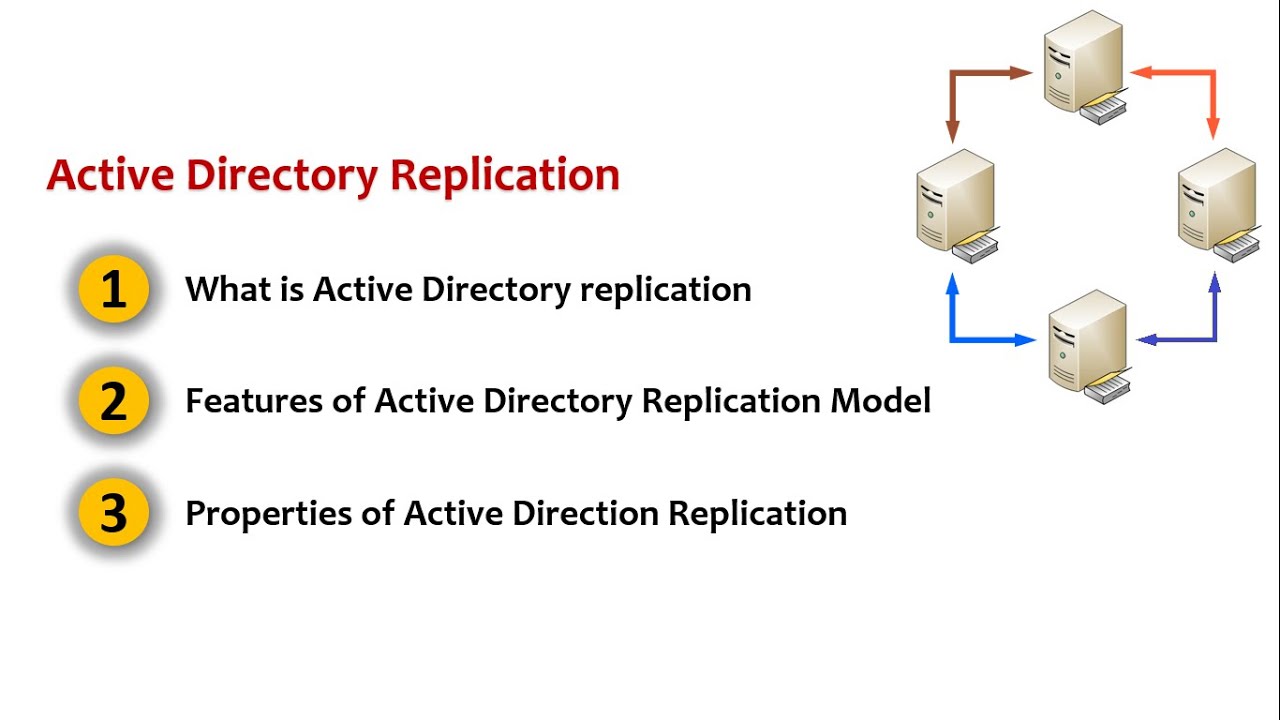
what's up guys paul from the sysadmin channel bringing you the best tips and tools for your sysadmin journey and in this video we're going to cover the steps necessary to fix active directory and domain controller replication so if you ran into this issue in the past you know that it can be a huge pain in the butt to fix when replication is not working you'll run into issues such as group policies not working as expected or some users are getting old and outdated policies in my case i noticed that my logon script wasn't working after
i had updated it so just for some context i use this internals bg info to print out some system info on my desktop so i know which machine i'm logged into it tells me my machine name cpu ram and network speed that and and that can come in handy when you're working on um a lot of remote machines so anyway uh when i checked the net logon folder i saw that it was updated on the dc but not updated on the other so basically one was getting it and one was not so even though i
forced replication a couple of times it still wasn't updating so i decided to make a video in hopes that one day someone can make use of it so i'm running to server 2019 in my lab here but the process is just about the same for 2008 and above so to get started i'm going to open up the event viewer so we can see what's going on under the hood so i'll expand the application and services logs and click on dfs replication since that's where our problem lies and from there i'm going to filter the current
log to only show critical warning and errors so that we can remove all the clutter so once that's done i'll press ok and if you notice here i have i'm getting errors at the replication service encountered errors with its partner dc if i up arrow to event id 4612 we can see that the dfs replication service initialized but it's encountering errors communicating with its partner dc dc02 so after checking these logs it does in fact validate that our assumptions that this is a replication issue is correct so just to show you where i'm at right
now i'm going to open up the um the net logon folder on the dc01 and dc02 and show you uh basically give you a visual of what's happening here all right so with both of these windows open i'm going to put them in side by side mode and create a file on dc02 and we should see it replicate to dc01 so i'm going to name this file test rep dot text and we should see it uh dc01 is now getting it so that replication is good the problem though is that when i create a test
file on dc01 it never actually replicates to dc02 so like i said before this can cause major issues in your environment especially when you're dealing with group policies because some users might be getting the outdated policies when you expect them to be getting the updated ones so we can see here that the file still hasn't replicated and i've done forced replications and and all that stuff behind the scenes and it just it is not working as you can see from the event logs um there is something wrong here so with that out of the way
we're going to do what's called an authoritative restore uh since the policies were updated on dc01 and that is a domain controller that is up to date we're going to use that as the master so i should take this time to note here that this is an excellent time to make sure that you have good backups before proceeding if anything were to go sideways you can at least restore from backup so i would make sure that you have backups of your gpos your sysball folders on each of your dc's and just uh just make sure
that everything is backed up that way if anything like i said if anything goes sideways you can always restore to a previous state so i should also note here that if you're doing an authoritative restore the master is going to overwrite anything and everything to its replication to its downstream dc's so if there's anything that's lost because of this that's why i said it's always a good idea to have a backup just for that extra peace of mind all right so we're going to start off by going into services.msc on our dc01 and stop the
dfs replication service so right here i have a services open i'm going to scroll down to a dfs replication and we're going to stop the service and just to reiterate once again this is the master server that we're stopping the replication on first just so you know where we stand alright so with dfs are now stopped i'm going to open up adsi edit and with adsi edit open we should see the um actually i had already the default naming context open but if you right click the top there click settings you should be able to
get to default naming context from there all right so we'll go ahead and expand the root here and if we expand domain controllers we should see our two dc's uh dc1 and dc2 so from there we'll drill down to our primary dc our master dc and we should see domain system volume within there we should see sysvol subscription and we'll go ahead and open that so with that now open we'll go ahead and scroll down to where we see msdfsr enabled and by default it should be set to true so we'll go ahead and set
that to false to disable replication and since this is our primary our master server we'll go ahead and set the msdfsr options to one all right so once we have that we'll go ahead and click ok there and then now let's go into our dc02 or any other dc's rather and then open up the same sysvol subscription and in this case we're just going to disable the ms dfsr enabled so that should be set to false because by default it is set to true i also wanted to make it clear that the msdfsr options on
the other dc's are left at the default zero when this setting is set to one it tells all all other domain controllers that it's the primary so we should only have uh one domain controller set all right so at this point we've disabled dfs replication service on the master dc we've set the msdfsr enabled option to false and we've also set the msdfsr options option to one on the master server only so now we're going to we're going to need to push a replication from our master server and to do that we have powershell open
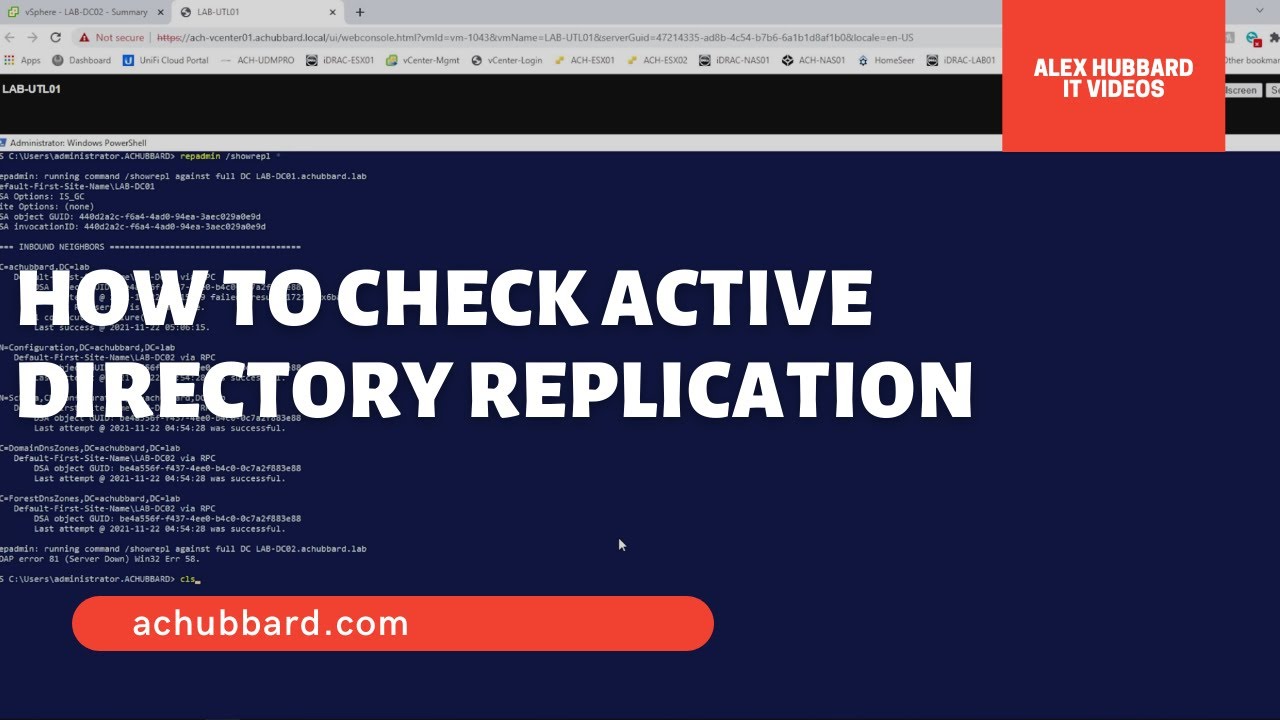
as an admin and from here we're going to type rep admin forward slash sync all the name of the master dc or the master server uh forward slash capital a p e d um and the capital a is for all partitions the capital p is to push out the replication as opposed to pulling it from other dc's the e is for all sites in sites and services and the d is so that it identifies the servers by the distinguished name as opposed to the guide so i'll go ahead and press enter to run that command
and we can see here that there are no errors on each of the replications so sync alternative with no errors so that's uh definitely what we're looking for and with that out of the way let's go ahead and start the dfs replication service on the master server again and with that now running let's go ahead and minimize these windows and let's head back into our adsi edit so going back into our primary dc let's go back into our sysvol subscription and then we're going to re-enable the ms ms ms dfsr enabled option so we're going
to set that back to true go ahead and click apply and ok we want to make sure that we leave the msdfsr options option uh set to one so we won't touch that all right so back in our powershell window let's do another replication so i'll go ahead and click on the up arrow followed by an enter to force another replication all right so at this point once we've confirmed that the sync all terminated with no errors on all partitions and all dc's at this point we can go back into adsi edit and set the
ms dfsr enabled setting back to true so back in our adsi edit we'll go ahead and click on the domain or assist volume subscription scroll down to msdfsr enabled and set that to true again all right um we'll go ahead and click apply and okay and if it seems like we're doing a lot of back and forth that's probably because we are so next up i'm going to go back into powershell but instead of doing a replication instead of forcing a replication i'm going to restart the services on both machines at the same time using
invoke command so this time we'll run invoke command specifying the computer name of dc01 and dc02 and within the script block we're going to specify the stop dash service and then we'll specify the dfsr service so we'll go ahead and press enter to stop that and then we'll up arrow to start it once again i could have easily ran the restart service to accomplish the same thing but i didn't so with that now complete and the dfsr's services now restarted hopefully everything at this point should be replicating just fine i'm going to verify that by
opening the event viewer and if i clear the filter here i'm specifically looking for event id 4602 this event id lets me know that the replication service has been initiated and that sysvol should be replicating so let's go ahead and scroll down here and we're specifically looking for 4602 so with that highlight you can see that the dfsr or the dfs replication has initialized and everything looks good and if you remember in the beginning of the video i had the side by side window of the net logon folder so if we open that up again
we should see that my test rep file did replicate and it we can see that there if i refresh as a final test though i want to make sure that we replicate those settings again just to make sure that everything is working as expected so i'm going to create a new test file and i'm going to name this test dc02 and we should see it replicate on dc01 and alternatively i'm going to do the same thing on dc01 and hopefully we should see it replicate on dc02 since that was the issue that was initially discovered
and there you go life is good again and our domain controllers are replicating all right guys this is paul this is admin channel signing out