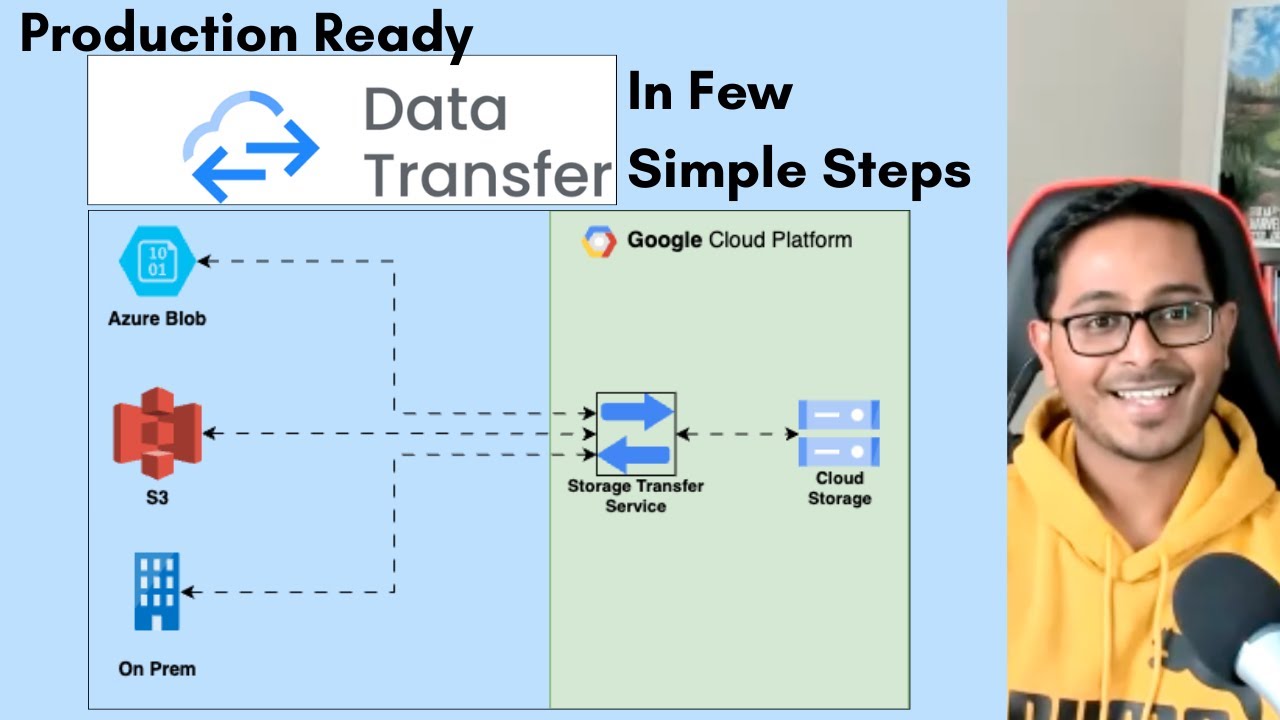
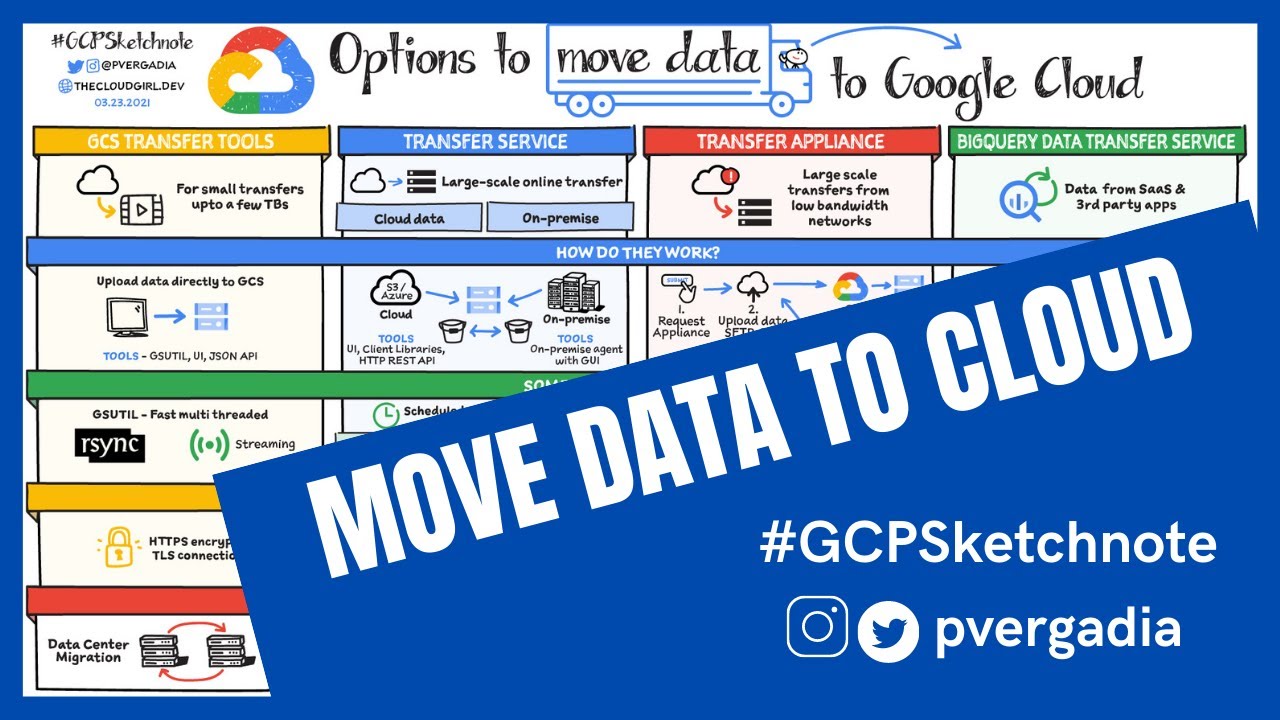
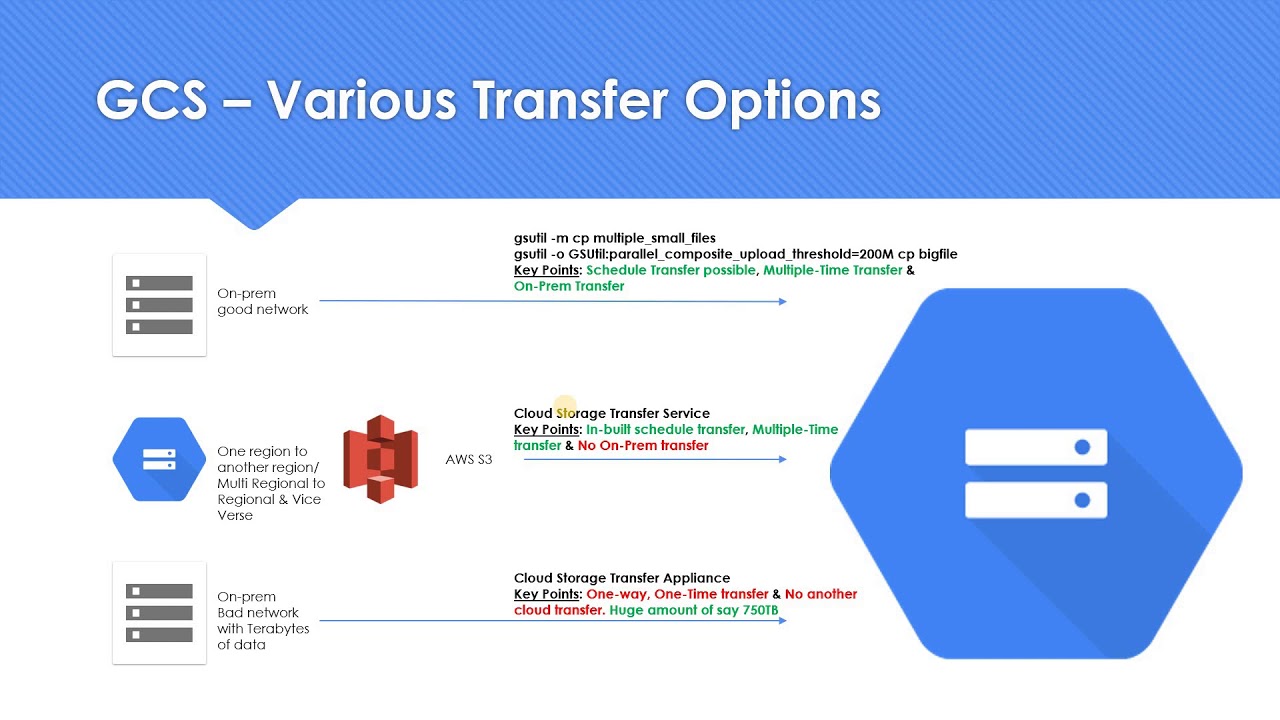
are you looking to migrate large amounts of data between cloud storage buckets but don't know where to start then stay tuned this video is for you hi I'm Chloe and today I'll be walking you through the steps as well as some best practices to transfer data quickly and securely between object and file storage across Google Cloud Amazon Azure on-premises and more with storage transfer service let's get started [Music] what your transfer strategy looks like depends on the complexity of your situation before you get started you'll want to make considerations while developing your plan there are
many options to consider when transferring your data including decisions around logging filtering as well as considerations around deletion versus overwriting for more information on things to consider ahead of your transfer including bucket naming transfer speed optimization downtime minimization metadata preservation options versioned object handling and more check out the documentation Linked In the description below once you've defined your transfer strategy it's time to perform the transfer itself when choosing a location for your storage bucket you'll want to consider the differences in availability price and performance we've provided a link in the description of a helpful table
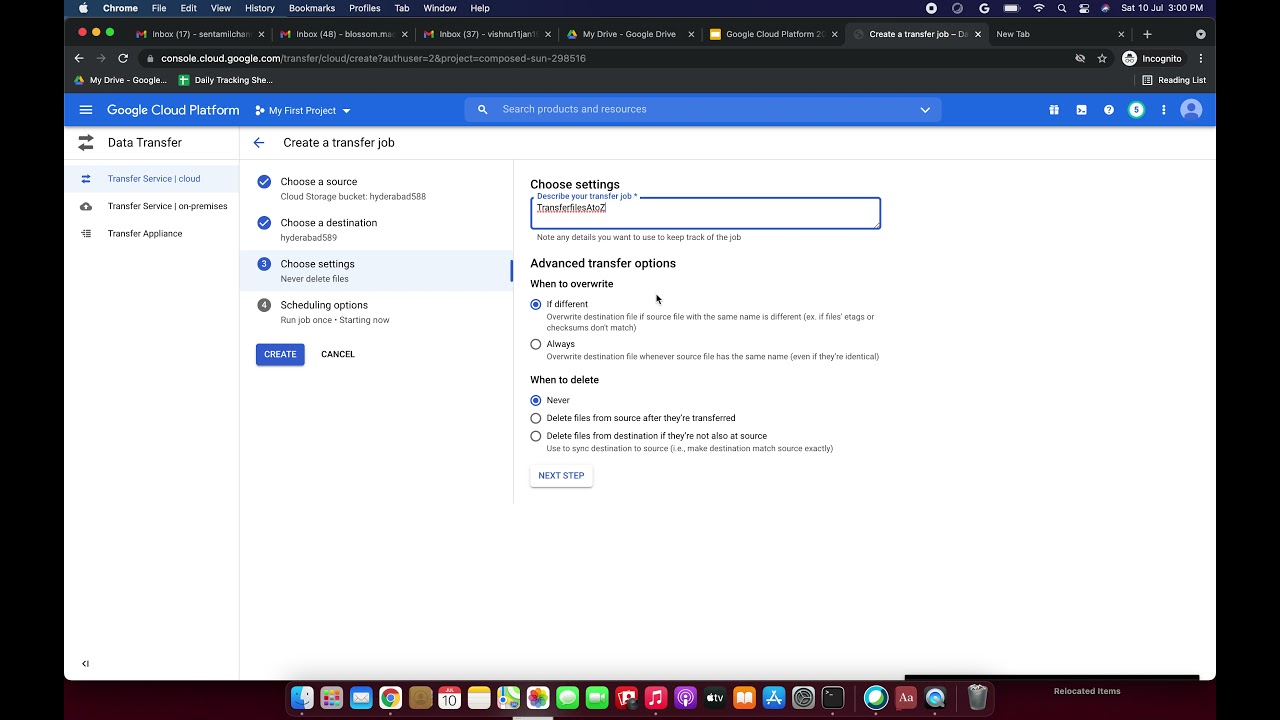
breakdown of these options as well as information on copying over bucket metadata but for now let's show you how it works you can copy objects from The Source bucket to a new bucket using the Google Cloud console the gcloud CLI rest API or client libraries which approach you choose depends on your transfer strategy in this demo we'll be using the Google Cloud console to begin open the transfer page in the Google Cloud console and click create transfer job [Music] get started use Google Cloud Storage as both your Source type and Destination type choose a source
either enter the name of the wanted bucket directly or click browse to find and select the bucket you want choose a destination either enter the name of the wanted bucket directly or click browse to find and select the bucket you want scheduling options you can ignore this section for the purposes of this demo batch is for single transfers or recurring scheduled transfers while event driven is a great option for real-time migrations based on notifications we'll select batch since we're doing a one-time transfer choose settings select the option delete files from Source after they're transferred after
you complete the step-by-step walkthrough click create this begins the process of copying objects from your old buckets into your new one this process may take some time however after you click create you can navigate away from the Google Cloud console if you'd like to view the transfer's progress open the transfer page in the Google Cloud console once the transfer completes there's no need to do anything to delete the objects from your old bucket if you select a delete Source objects after the transfer completes during setup you may however want to also delete your old bucket
which you must do separately once you've confirmed that your data has transferred and you've verified your migration it's time to start using the destination bucket you created be sure to update any existing applications or workloads so that they use the new Target bucket name you can check data access logs in Cloud audit logs to ensure that your operations are correctly modifying and reading objects once you've confirmed everything is working well you can delete your original bucket you can also set up the option of deleting objects after they have been transferred or schedule object deletion for
step-by-step instructions including information on our managed Cron job scheduler in Google Cloud check out the link in the description below ready to get started transferring your data learn more and see a full list of our migration Solutions and services offered by Google Cloud at the link listed on the screen or check out the description notes on this video for even more resources to get started with storage transfer service today [Music]