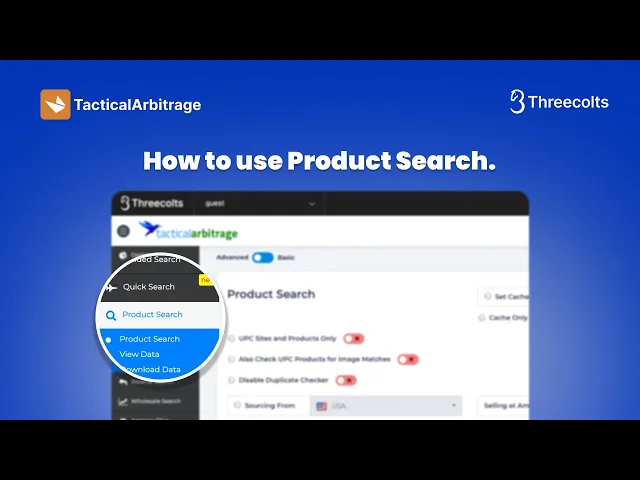
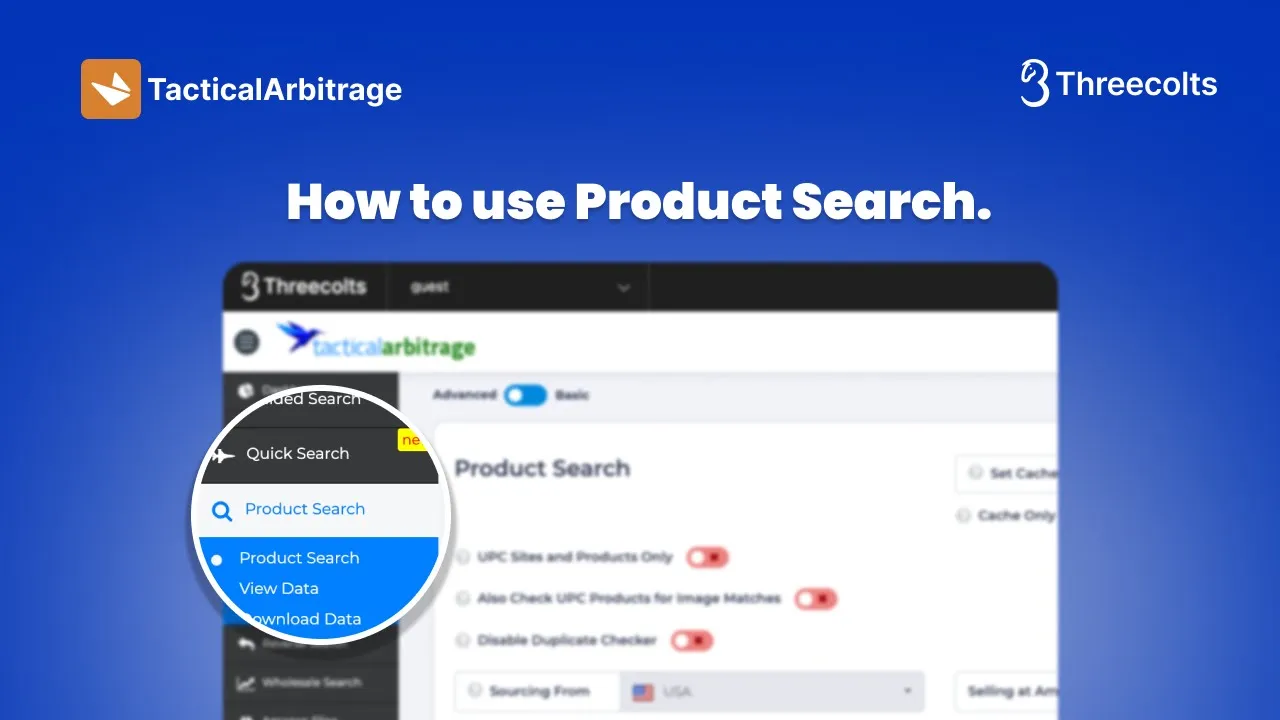
welcome to tcto arbitr product search feature in this quick video we're going to reduce the learning curve to help you start finding products right away to begin with notice the toggle in the upper left this video is in advanced mode if your screen looks like this then you're in basic mode and you'll want to click back over to advanced mode to follow along next up we're going to talk about the cache and then take a quick tour through some of the other settings we're not going to go through all the filters and settings in this
video because I want you to start running scans and sourcing products right right away to start let's talk about the cache which refers to the data that is stored on the TA databases from when websites are scanned by all users the longer the cash the faster your scans will be the key to using cash is that once your scans are complete you want to update the data in your view data so that you have the most current pricing and stock information also note that update data does not use scan minutes next up we're going to
go down to the Dropbox to select a website once you select a website you'll notice that the easy bulk will open up over on the right hand side it is not possible to scan an entire domain on its own you will need to choose categories we're going to go over here and select all you can see all the categories are selected you can have up to 500 categories in a scan you cannot have more than 500 categories once the categories are selected you can add to bulk once you add to bulk you can see how
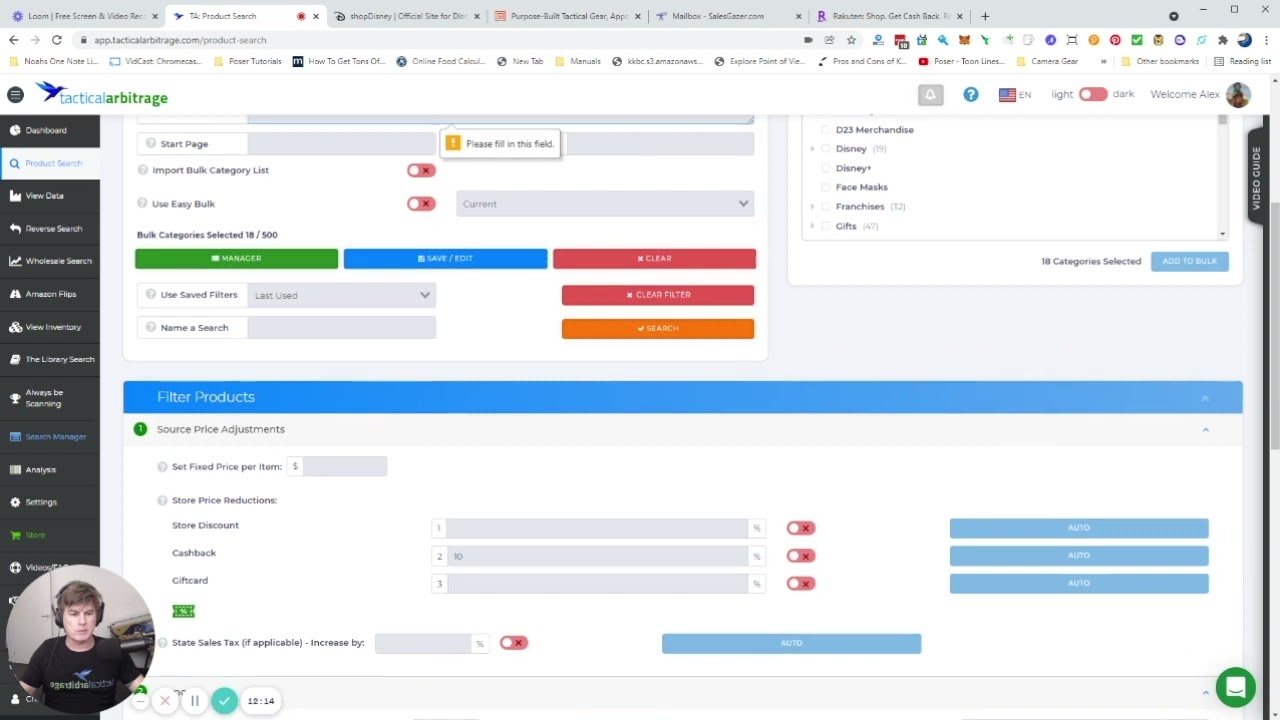
many categories we had 61 out of 500 that are added to the scan next we're it out and you can name the search this makes it easier to find it's not required but it does make it easier to find in your view data then we're going to go down to the filters this is where people a lot of times get lost in the weeds and lose results you may never even use most of these filters to start in the filters under Source price adjustments if you have sales tax you will want to use a sales
tax so it is included in your profit and Roi to boost your profit in Roi you'll also want to enter any discounts or cash back or gift cards that you have found we're not going to go through finding those in this video but we'll take time in another video to discuss where to find those options and to maximize those numbers under remove you'll see the huge list of remove options again this is where you can end up losing a lot of results we're only going to use one filter in here which is to remove outof
stock products this refers to the stock for the source site if you have questions about any of these other filters you can click over and check the tool tips over on the side and we'll also go through the additional filters in another video next up we're going to go down to the source titles in Source titles you can add or remove words to the titles we're going to leave these blank for now and move on to costs and fees if you're using a prep Center you can enter the cost of the prep Center here you
can also enter change it to pounds or kilog for the shipping into Amazon we have this currently set at 30 cents a pound for the shipping to Amazon next up is the profit and Roi we're going to set the gross profit and Roi to at least $3 and then 10% we want to keep these numbers lower to start for online hour trage for OA you want to cast a wider Net versus a very narrow net you can also filter these numbers more in your view data under other filters is where you can have more products
added to your results we're going to use the also show Amazon out of stock results and also show reverse search results of more sources including UPC and title image sites please note that when you use these filters you may see results for more than the site that you scanned which is because tactical Arbitrage is looking for those results across all the different domains that ta has so if you find a product in Target it could look for it in koh's it could look up for it in Walmart it'll look through it in all the different
websites so that you can maximize finding those products once the filters are applied we're going to go ahead down here and click search to start the scan once started you can see how the scan is tracking in the Box up here in the top and then from here we want to start another search we're going to click start another search when you're in the trial period you can run up to three simultaneous searches when you have a paid subscription you can run up to seven simultaneous and have up to 20 scans in the queue so
you definitely want to load up the scans and get ta running for you once we clicked start a new search you'll notice said we had the popup asking about deleting current easy bulk once a scan is started all data is stored with that scan so you do not need to keep the current easy bulk there's an option to save it if you want to use the same list again but normally you will delete this so you can start fresh and not scan the same categories again so go ahead and click delete and then get ready
to start another scan you notice again easy bulk we chose the website and easy bulk opened up on the right hand side we're going to select all those categories add to bulk you can see 104 out of 500 we're going to name this scan and then scroll down to filters TA by default will use the last used filters so if you don't want to make any changes which we're not going to do we're going to go down here and start the new search now you can also save filters so if you do want to try
some different filters for different websites you can go ahead and save those on the top otherwise we're going to go click search again you can see where the scan is progressing and then next up we're going to go in the next video check out the search manager where we can look more in depth about the status of our scans see you [Music] soon