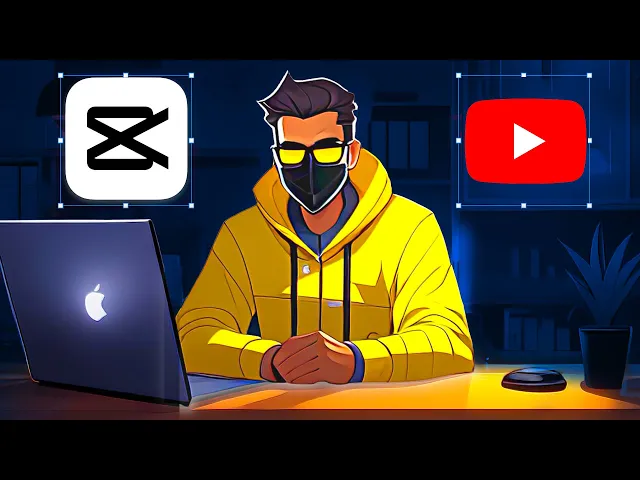
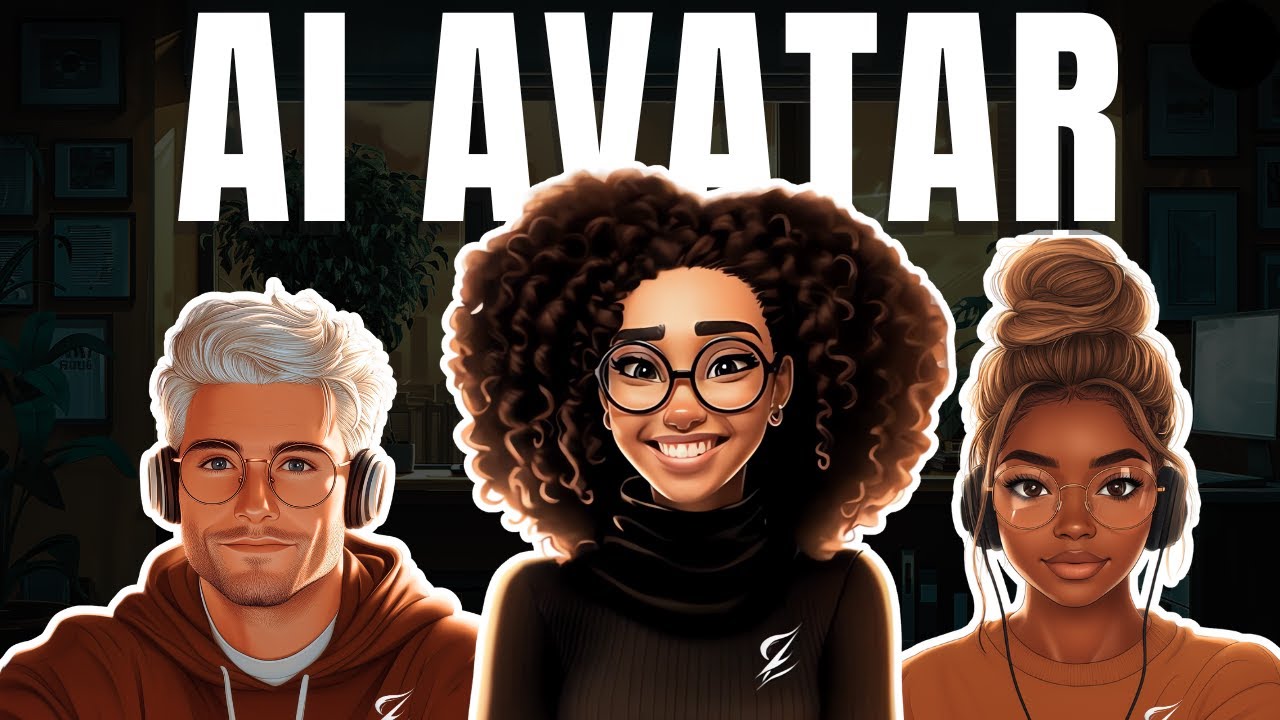
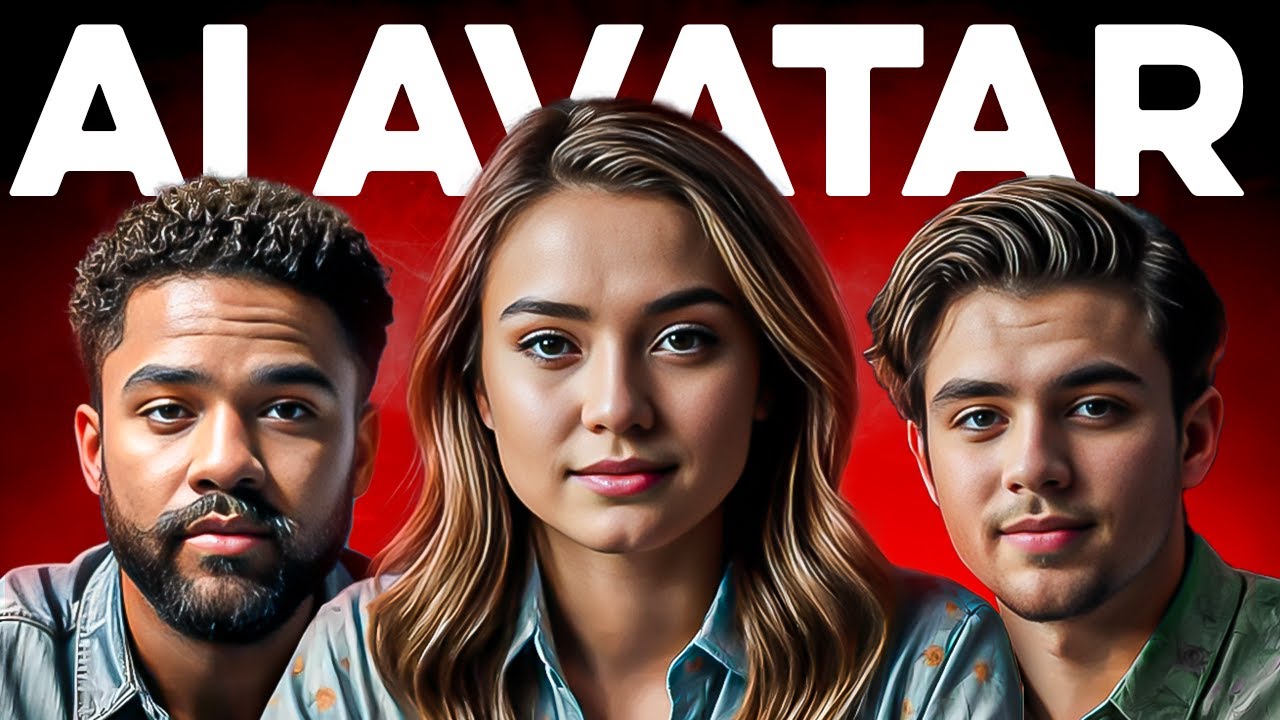
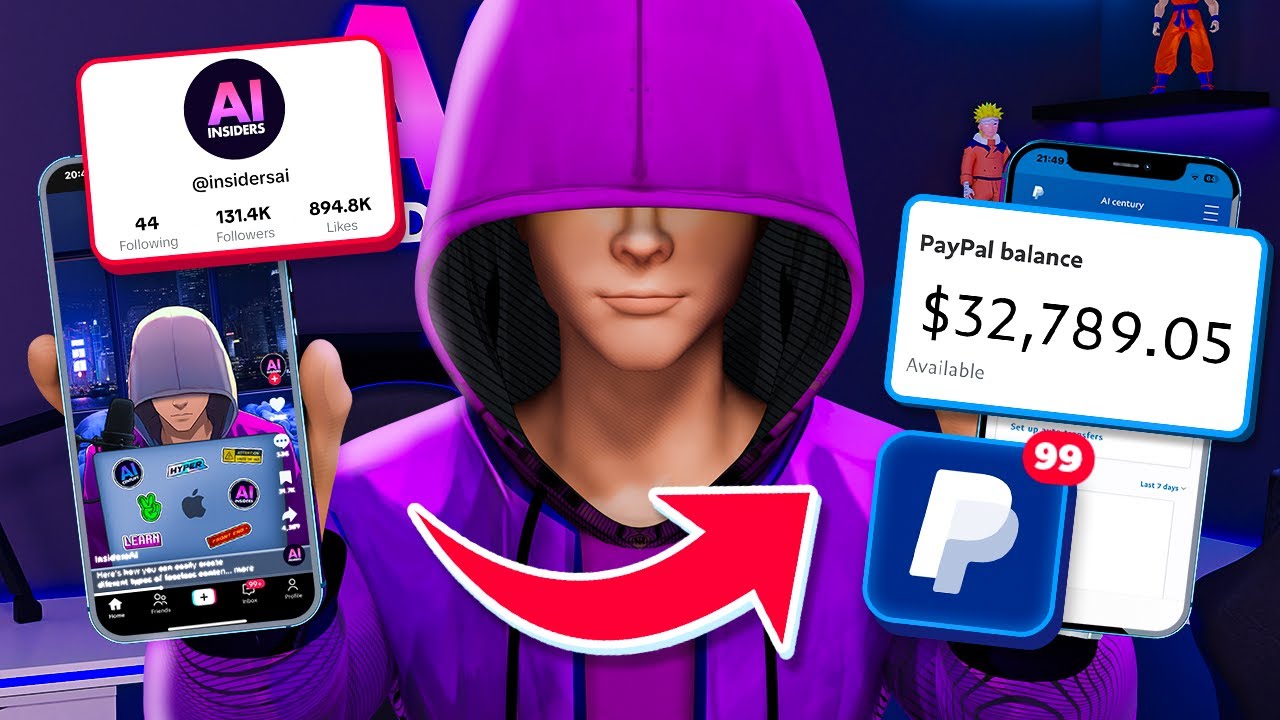
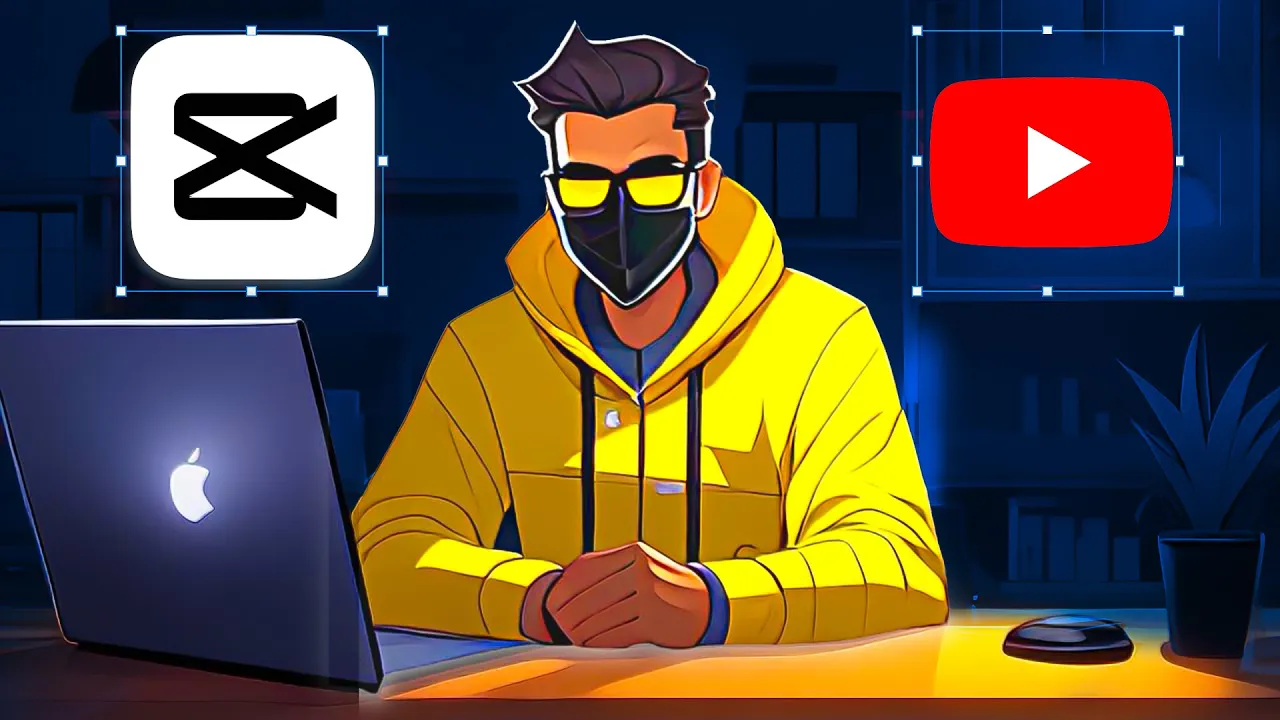
I'm not going to waste your time in this video I will show you how to make a talking animated Avatar like mine using free AI tools it's no secret the channels who have an animated Avatar are blowing up on YouTube and other platforms right now the channel 10x income Grew From Z to 250,000 subscribers in just 3 months with his Avatar and my own channel grew from 0 to 100,000 subscribers in 6 months and I make over $10,000 every month from my digital Avatar in my opinion every faceless Channel who is not doing this is
going to get left behind it doesn't matter what Niche you're in creators like dream and based Zeus screw a Millions with their avatars so without further Ado let's get into the creative process the first thing we need is a character for your video my character started out as a simple sketch that actually looked like this now in full transparency I made this using an app called procreate which is about $100 and you'll also need an iPad but don't worry because I actually just discovered that you can make something even better than this using only free
AI tools step one we're going to generate a character with cap cut to download cap cut all you need to do is open the Google Play store or the App Store and search for cap cut once you have it downloaded you just need to open it up then you're going to search for text to image this function is a lot like mid journey and you can use it to generate images of anything that you want here I've pasted an example prompt in the description that you can use directly but basically I'm telling what it should
be wearing what the room looks like everything that the AI needs to give me exactly what I'm looking for here next we need to come over here and set the aspect ratio to whatever platform we're using it 16x9 for YouTube and 9x6 for Instagram reels make sure to ask it for four options so we have some variability in what we choose click generate and just like that cap cut has created four images for our text in less than 5 seconds I already think that these are solid but if we want to make more variations we
can click on regenerate and it'll create four more or you can edit your prompt if you feel like it's missing something and you can do this as many times as you want for example I can ask it to change to a red hoodie if you like the specific style of just one image then you can click regenerate and it'll give you back as many that are just like it as possible this might end up taking a few tries for you to get perfect but for this example let's move forward with this one when you click
download you're going to notice that the image is super low in quality and that's a problem to clear this up we can search for image upscaler which is another feature on cap cut just go ahead and plug in your image and choose the 4K setting and boom now we have a crystal clear image step two now we're going to modify the background and make it even better to do this we're going to come to a tool called Adobe Firefly they have this amazing new tool where you can basically generate any background you want for any
image first you're going to create an account and then head to generative fill then upload the image that we created created in cap cut and now just use your imagination to remove or add anything that you want in there so let's say you want to add or replace a cup of coffee just click on the area that you want to add it to and type cup of coffee pretty amazing right but look I can also add a plant here by selecting this area and typing in plant I'm going to go ahead and add a few
more elements to make this scene really cool and Visually appealing you could add a window if you wanted to and look my avatar has this microphone so let's add a mic maybe a lava lamp see how this is starting to come together really nicely so now we have the completed design of our character and background when you download it though there's going to be this ugly Watermark but don't worry I'm going to show you how to remove it for free to remove it we can use a tool called clip drop all you need to do
is select the text remover and then upscale our image with clip drop to achieve a higher quality step three now we're going to animate the character with the mask now when I did this to get my character's mouth moving I had to use a super complex editing with key frames and Adobe After Effects but if you don't know how to edit like that there's now a simple free method with AI that works almost just as well and you'll see what I mean at the end of this video you probably notice that my character wears a
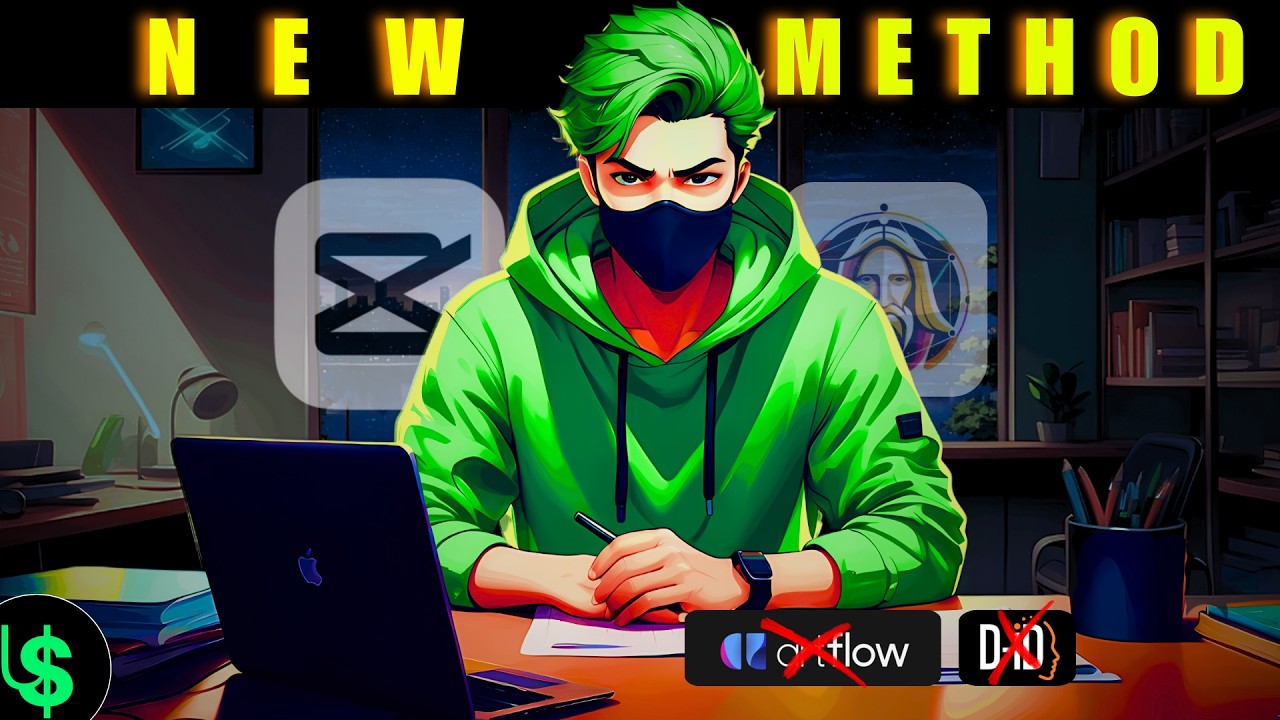
mask and that's not because he has a disease or listens to the media too much it's because it's a heck of a lot easier to animate a character with a mask rather than lipsyncing to every word that goes by so to animate our masked character just go to artlow AI on your browser you're going to need to create a new account then just click on the video studio in the sidebar and open a new video here you can upload your image from the upload section in the sidebar once it's uploaded artflow will detect its face
and it'll ask us to enable speaking animation just click here and then type whatever you want them to say in the box below from there you can choose an AI Voice or you could upload your own as an audio file so let's say that you wanted to use your own voice like I do you could then import that voice and add the voice over as well and I will be showing you guys how to create high retention scripts and voiceovers in a future video but for now I'm just going to use the AI voice that
they have for the sake of this example so again just plug in the script and the AI will put it all together next we're just going to click export and artflow AI will make the video for us in a few minutes now again when you export your video from artflow it is going to have one of those annoying watermarks but don't don't worry if you want to remove a watermark from a video I also have a tool that can do that as well it's called media io on their homepage you can just click on video
and then come to Watermark Remover once you've uploaded your video it's really easy all you need to do is highlight The Watermark section and they have this little green brush that you can select to move over objects and boom now we have a clean version of our masked character so here's how the project turned out you probably notice that my character wears a mask it's not because he has a disease or listens to the media too much but now I'm going to give you some more Pro tips so you use this right if you notice
I only play my avatar a handful of times during the video for a few seconds a piece that's because if I just played my avatar full time you guys would get really bored it's kind of like building a personal brand but without actually showing your face now I'm not going to lie to you it is a lot easier for the viewer to watch an actual human speak than some cartoon character wearing a mask but this does get the job done and again my channel is living proof that it works I'm monetized I've done multiple brand
deals and I generate over $10,000 every month on autopilot my point is this actually works and think about it from a psychology standpoint having an avatar is going to help your audience connect more with your faceless Channel because without a connection then your faceless videos will just get lost in the sauce of YouTube If you liked this video please drop it a like and make sure to check out my last one where I share how I went from 0 to 100,000 subscribers in just 6 months thanks for watching today I'm looking forward to seeing more
digital avatars out [Music] there