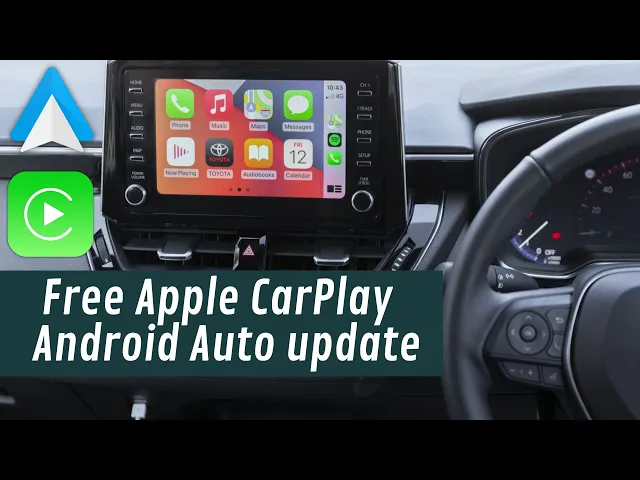
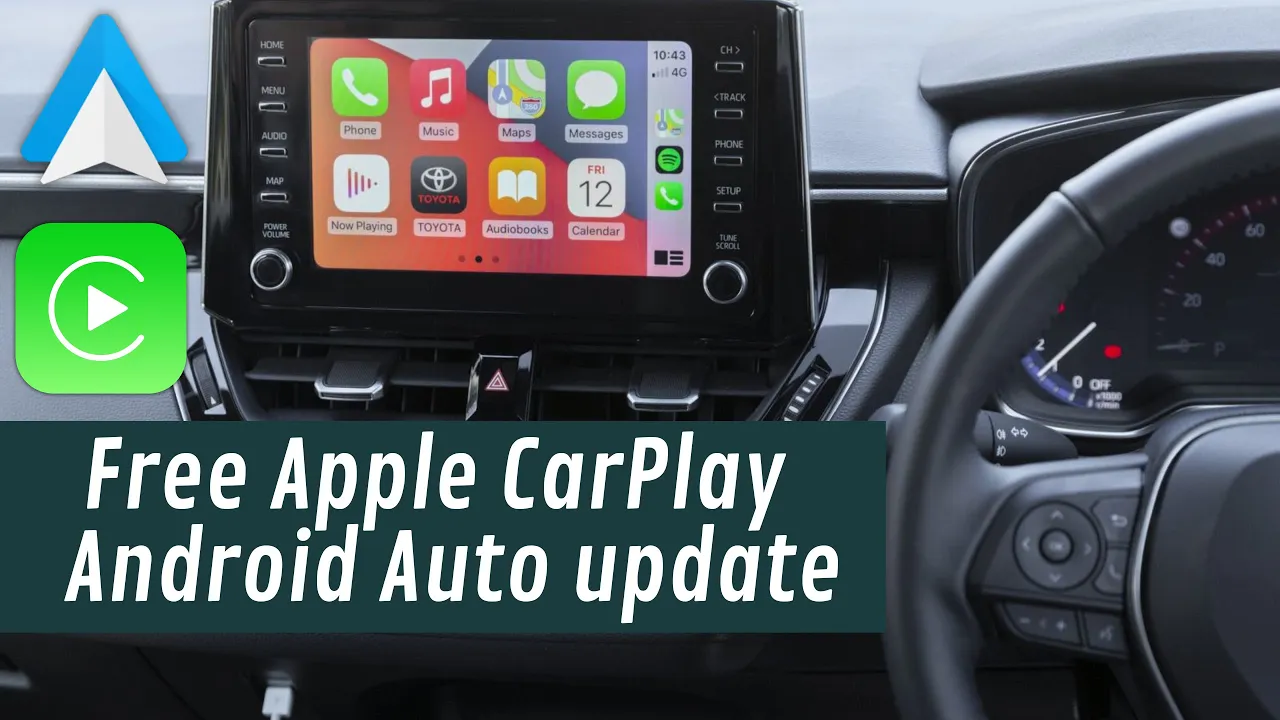
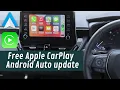
hello everyone today we are going to show you how to install Apple carplay in Android auto on your Toyota RAV4 but it can be installed to any other Toyota model with EU specs built from 2019 to 2021. this is a great way to enhance your Driving Experience so let's just Dive In what do you need a compatible flash drive 32 GB just make sure it's formatted correctly (Fat32) and loaded with the relevant firmware now let's start the engine we want to make sure that we have proper power during the update process inside your car locate
the USB port it's usually in the center console or near the infotainment system make sure to check the correct Port before connecting the flash drive once connected the flash drive will be automatically recognized then let's navigate through the infotainment menu to find the software update section but before we proceed make sure that you verify the current version installed in your own car alright now with the USB plugged in pressing software update we actually get a pop-up new software was found it's mentioning that the only module updated will be the audio one from 1105 to 1257
and it's very important for you to double check the module of this year in your car which is the European specs all the compatible models will be left in the description of this video okay let's press the update software now we are going to be prompted with what this update will be bringing to your car we'll be modifying the audio module and update it with apple carplay compatibility Android auto and some bug fixes to the audio module itself go forward this is a disclaimer that most likely will be losing the contacts already stored in your
card Bluetooth devices registered and so on on my car it was not deleted anything and even if it happens first time you'll connect your phone again everything will be back okay let's press agree pop-up there's a 400 megabyte software update it will be added to the multimedia system so to the audio module before doing so it is best to make sure once again that the engine is running so we are not losing power during the update process all right let's start the update process all right let's start the update process by clicking yes and then
I will just fast forward through the update so we don't want to be stuck watching the progress bar but I will leave everything here for the sake of the timing and to show you guys that the video is not interrupted in between or amended with it enjoy watching and see you again when the update is finished here I realized the camera was locked in portrait mode here we are seven minutes after almost to the end new software is ready to be updated just follow the steps on the screen you don't actually need to move the
car you could stay right where you are as instructed we will be turning off the engine and we will be turning it back on again for the updates to be completed with the engine turned back on follow the guidelines the software will be updated right the infotainment unit is rebooting same as before Toyota logo and basically we get the same disclaimer as every single time we are starting the car let's wait for it to initialize and run straight to the multimedia functions and see the result press continue okay my phone was connected automatically so Bluetooth
connection was not lost let's go to the phone you could see now that the contacts are being re-synced that's automatically at this time I haven't actually removed the USB yet so the phone was not connected by wire and let's find our updates on the first Glimpse everything looks pretty much the same if you go to software version software information you'll find out that is now an open source installed for your audio module and that's specific for the Denso Fujitsu or the Panasonic version of course the same exact one which was installed on the US specs
vehicle which had already the CarPlay and the Android auto installed from Factory all right let's take the phone remove the flash drive connect it with the wire and see the miracle this update consists being a wired function of carplay in Android auto therefore make sure to use the original cables this update will only bring wired connection both for carplay and Android auto there are some dongles which you can get and make this conversion to wireless but since the phone built is charging while in use I'm just happy with the wire connection let's just give few
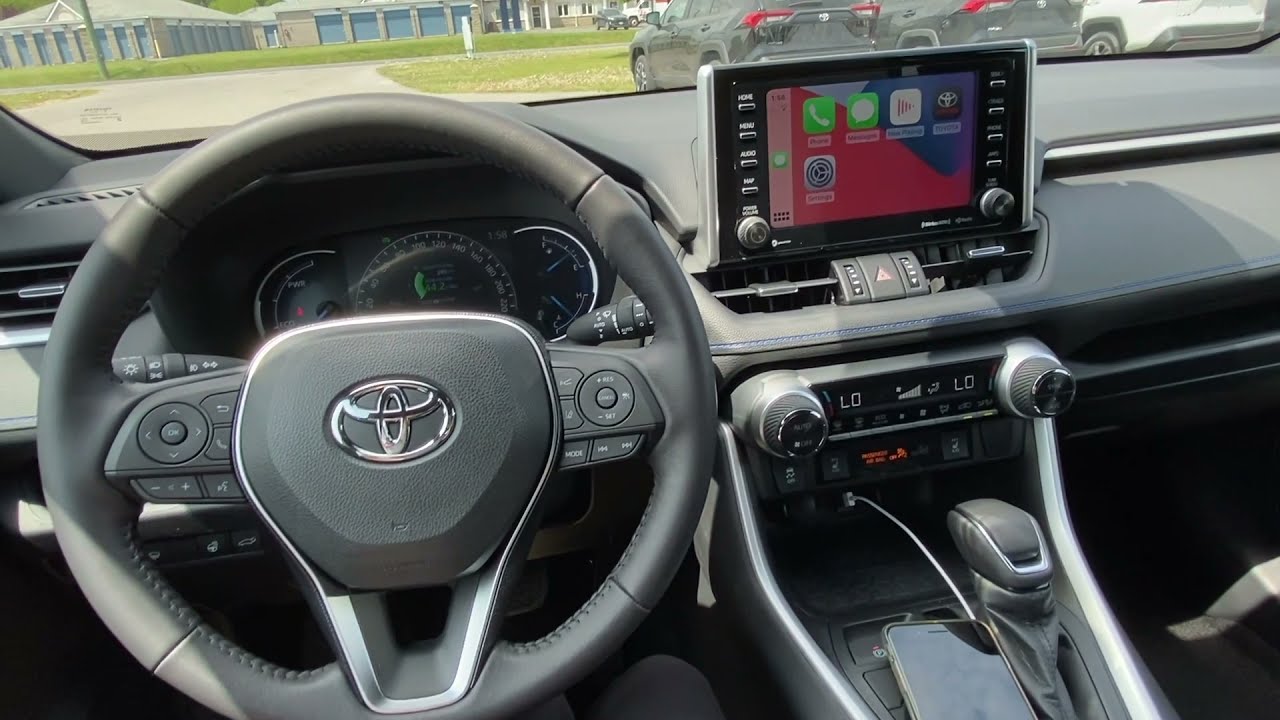
more seconds to initialize this is the first time there's a pop-up phone got disconnected that's the Bluetooth connection I think and voila magic happened Ppple CarPlay is available for this device since this is my daily drive I'll just press always enable but you guys can adapt to each other's situations and there you go Apple CarPlay press allow on the prompt on your phone this way your phone will automatically connect to card play even though it is locked and let's dive in a little bit all right let's start from the beginning take your phone plug it
in with the cable give it a few seconds carplay logo and boom everything is in the car now press the carplay logo and it will always open on the last applications you used I'm absolutely sure that everyone knows how applicable is working so I'm not gonna do a walk through but it's important for you to know that it's working unfortunately I do not have today an Android phone with me but I tested it off camera and everything works just as smooth I'll just scroll through some functionalities we have our Google Maps we have our ways
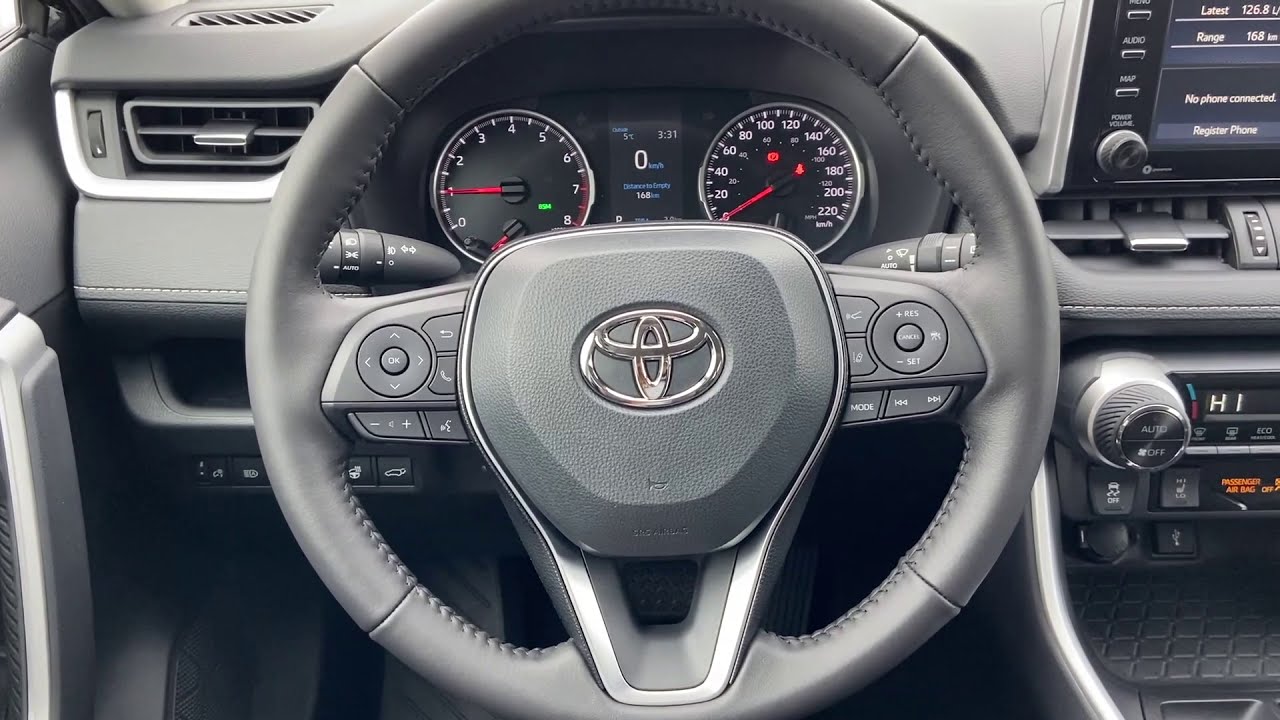
of course how Apple music everything works and as well it can be controlled from the steering wheel buttons as you can see Siri is working as well hi Siri hello Costel how can I help even from the steering wheel if you could press the voice activating button. hi there hi Costel how can I help this works as well to get back of course just press on the Toyota icon and we are back to the main functions of the car before we wrap up this video of course I will be showing you how to create a
flash drive step by step stay tuned to start head over to the link in the description below to download the firmware for this particular Toyota model make sure as well to look for the models listed below as being compatible for which you can find it yourself on your car's infotainment system going to the software model once the download is complete extracted firmware files to a simple folder in your computer as you can see then we will follow when the flash drive as you could see mine is a 64 gigabyte I didn't have a 32 gigabyte
one and for that reason I couldn't actually format it with Windows but you can see that is a FAT32 format file I did that using a Mac computer as Windows is not allowing it is only NTFS and expat so I use the macro computer to format that 64 gigabyte flash drive to a 532 format this will ensure compatibility with the car system which is 532. after that select all the files and you can simply just drag and drop them into the freshly formatted USB disk so once again on the flashlight formatted drive just drag and
drop the files from your disk to the freshly formatted USB I'm not going to leave all the process here but as soon as the copy is done there you have it your flash drive is ready now for the update to your car just a quick reminder while I'm here to guide you and show you how to create this setup this update will be at your own risk always follow the manufacturer guidelines and if your card is still on warranty perhaps it's best to speak with a professional before you do it if you're wondering if your
specific model or infotainment unit are compatible check the description below I will leave a list with all the infotainment models for which this software update should work and there you have it you have successfully upgraded your Toyota infotainment system with Apple carplay and Android auto now we can enjoy a seamless and connected Driving Experience like never before remember if you have any questions about need assistance feel free to drop a comment below I will be here to help don't forget to give that thumbs up if you found this video helpful and if you haven't already
make sure that you subscribe to the channel and this means a lot thanks everyone for watching and until next time drive safe and stay connected