hey guys welcome to today's video i will be sharing 11 of my favorite final draft features and in case you may not have heard of final draft before it's a software um very popular that is used for writing screenplays a lot of people use it on the website they always showcase names of of artists that use it here we have guillermo del toro um jj abrams sophia sofia coppola james mangold well this is almost the list is almost endless as for myself i've been using it since college for a few years now i love it
very much it's a great software and this is not a sponsored video so let's get to feature number one secondary window pretty simple uh feature but nonetheless very useful when you open uh final draft you typically open it in this window you can go to the upper left corner go to views once i go to splits i choose vertically it will give you two windows and you can use any of these two windows to change it to whatever you want here are all your options feature number two beat board so the beat board which you
get it by going to views beat board uh it's basically look at it as a plate where you can throw in anything that is relevant to your screenplay uh these are some of the popular ways that i use it so let's say you write your first uh your screenplay and you review it and you come across a scene that you're not sure if you want to keep or if you want to delete instead of leaving it on the script what you can do is you highlight it you hold left click you move it and it
makes a copy of it for you in the original one you can delete now a lot of writers like to use colors um to for example represent a character or a beat or a section let's say that i want to change this one to green great so that's one way to use it now let's say that you decide in the end that you want to bring it back so you select it you place the cursor to where you want it to be in this case i want to be here in the beginning and voila it
brings it back so it's very very um very useful another way you can use the beatboard is let's say you wrote a scene but you want to see it to be present later in the screenplay let's say in the third act what you can do is you write the scene you drag it to the beat board once it's on the beat board you left click you hold it and you drag it to where you want it to be on the timeline let's use as an example page 80. as you can see it highlights it you
can add any number of scenes across the timeline and it's pretty cool it makes um like once you hover hover over it as you can see it has a pop-up window where it shows it to you again you can change color change it changes the color here so it's very very useful besides putting scenes that you may or may not use you can also add notes so let's say you have an idea for a scene but you don't have all the all the details but you know you can make a note of yourself right here
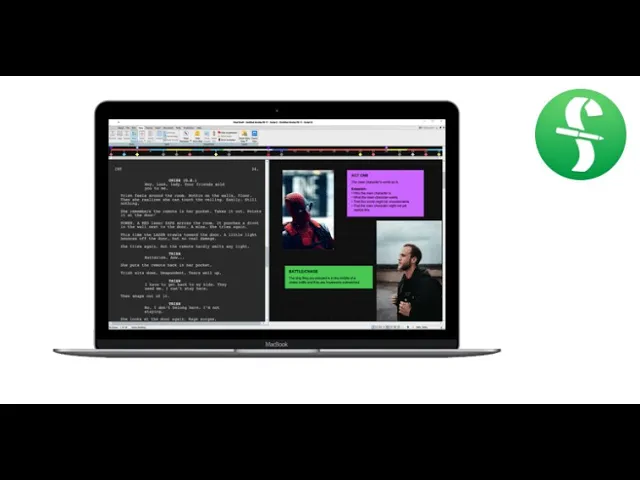
again you can also color it uh let's say that you work well with pictures like i do right click new beat from image and you can import any pictures you want you can name it then you can write any notes you want you can resize it and do so you know again and again [Music] feature number three alternative dialogue so let's say you to land a dialogue and you have another idea and you're not sure which one might work best what you can do is you go to view and you select show alts a plus
sign will appear um in every dialogue section so let's say that you have another idea for this line right here you press a plus line you write in the line and voila a number will appear showcasing how many lines of dialogue you have written you can click it it will give you a drop-down menu showing you all of them you can scroll through them again you can add more and you see three one two three then whenever you want you can review so let's say that i don't want this one so i delete it i
don't want this one either and this is the winner so that's alternative um dialogue feature four replace character name so let's say you come across a character name that you want to change um the first way you can do so is you highlight the name and you type the new name right but you have to do it every single time which is obviously very time consuming what you can do instead is you go to edit you go to replace character you select the character you want to replace you type in the name and all the
in this case elizabeth's will be replaced with the new name feature number five names database so let's say you want some ideas for different character names or perhaps the one you have right now you don't like well final draft test is pretty cool database which you can find under tools you go to names database and basically you give it ideas so let's say you think um you would like to explore character names that was to start with the letter for example j in this case final chapter is giving you or 1100 options um or let's
say j o or maybe e s t you know you get the picture you basically put whatever um letters you think um you would like the name to have and final draft will give you a bunch of examples for you to consider quick side tip when it comes to um character names you can use these websites that i like a lot it's called baby names or yeah baby center i'm sorry and you can basically select it by boy name girl so let's say you're looking for a girl name and you want the origin to be
i don't know let's say dutch you can also select theme you can select popularity um starts with ends with just there's a lot of cool features so you search baby names and it gives you a you know a list of names that correspond to those parameters that you selected feature number six index cards so this feature i think would be very useful for um writers that like to outline their screenplay first to get that you could um you go to indiscard summary under views you right click insert new scene uh let's say interior on a
school day uh marta uh decides to run for school president uh you can change the color and voila you can do it any number of times that that you need feature number seven adding a watermark so let's say you finish the screenplay you want to send it out and you want a watermark to appear um to do that it's very simple all you have to do is go to document you select watermark you type the name that you want i created a fictional name a freaking name let's say joel smith click okay as you can
see it will not appear on the screen play itself or as you said in the screenplay in your computer that you have open you go to file you go to as pdf you save it replace now when you open it you will see that the watermark appears in every page feature eight target script length so let's say that um the screenplay that you're writing you want it to be approximately um well in this screen this example of a script we have open right now this script i think it's almost 25 pages so let's say i
was just starting and i wanted to write a short script of 15 pages what you do is you go to the timeline you right click change target script length you type in the target number press ok you will find that every page up to page 15 is white and every page number afterward is 15 is read indicating that of course you have exceeded your targets your target linked feature number nine changing the language you're writing in so let's say that you are not writing a screenplay in english this is a script that i wrote in
spanish as you can see it is highlighted read all over to change the language to your liking you go to tools you go to spelling you go to language in this case it's spanish and there you go final draft has now changed it to spanish and you can write in the language of your choice um he arrived home um there you go it's it's in it's it's in the language of of of your choosing now let's say that you are not um writing and one of these languages that final draft provides the way that it
works to my understanding is that the list of language options will depend on the on the font on the um on the type of fonts that you choose so let's say for example there's a website here here you go what foreign languages can i use in final draft as you can see final cut has a very long list of languages but it will depend on which font you use so if you want these languages you will have to choose this font if you want these languages you have to choose one of these two fonts feature
number 10 inserting script slash general notes you want to make a note for yourself you right click select insert script notes you can give it a title write the notes uh change the color if you want let's use purple as an example and there you go this little flag indicates the note you click on it and your navigator will appear with your notes and the page number let's say that you pick another notes same thing search script notes title it name color and you're all set now let's say you want to review all your notes
you can either click on the flag or alternatively you can go to tools click on show navigator and all your notes will be there feature 11 reports so let's say you want to get some stats on maybe how often a certain character speaks how often um and how many scenes the character appears there's a lot of options that final draft gives you and to access these reports you go to tools you click on reports as you can see it gives you a number of options let's use character report and up as an example uh let's
choose maybe on the cardos you click ok and there you go it will use a summary telling you how many times carlos has spoken the percentage of the time the total number of words which character they have interacted with the most the scenes in which they appear in so this is a very handy feature and i definitely recommend that you explore the different reports that final draft offers you and well those are my top 11 features um for final draft there are more to cover but i wanted to keep this video relatively short i hope
you learned something and if you enjoyed this video please drop a like you will help this channel very much and subscribe i will be releasing many more videos on filmmaking photography and of course screenplay writing thank you so much for watching have a great day bye