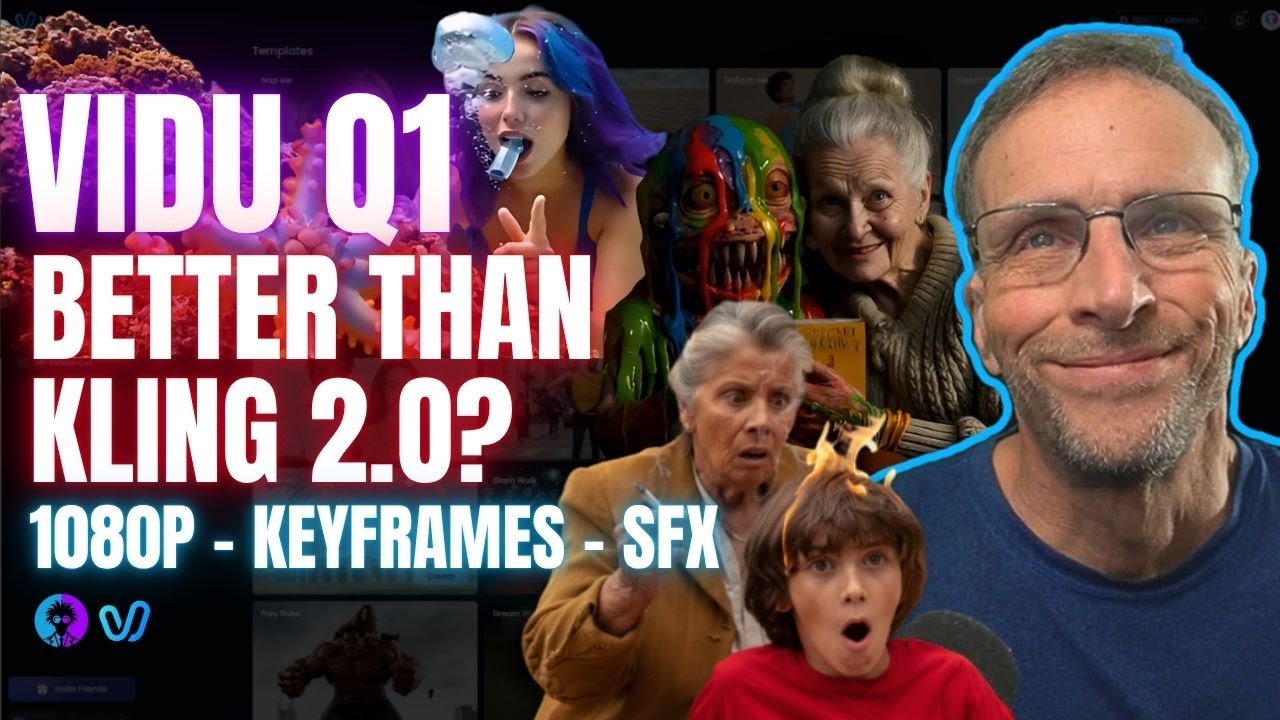
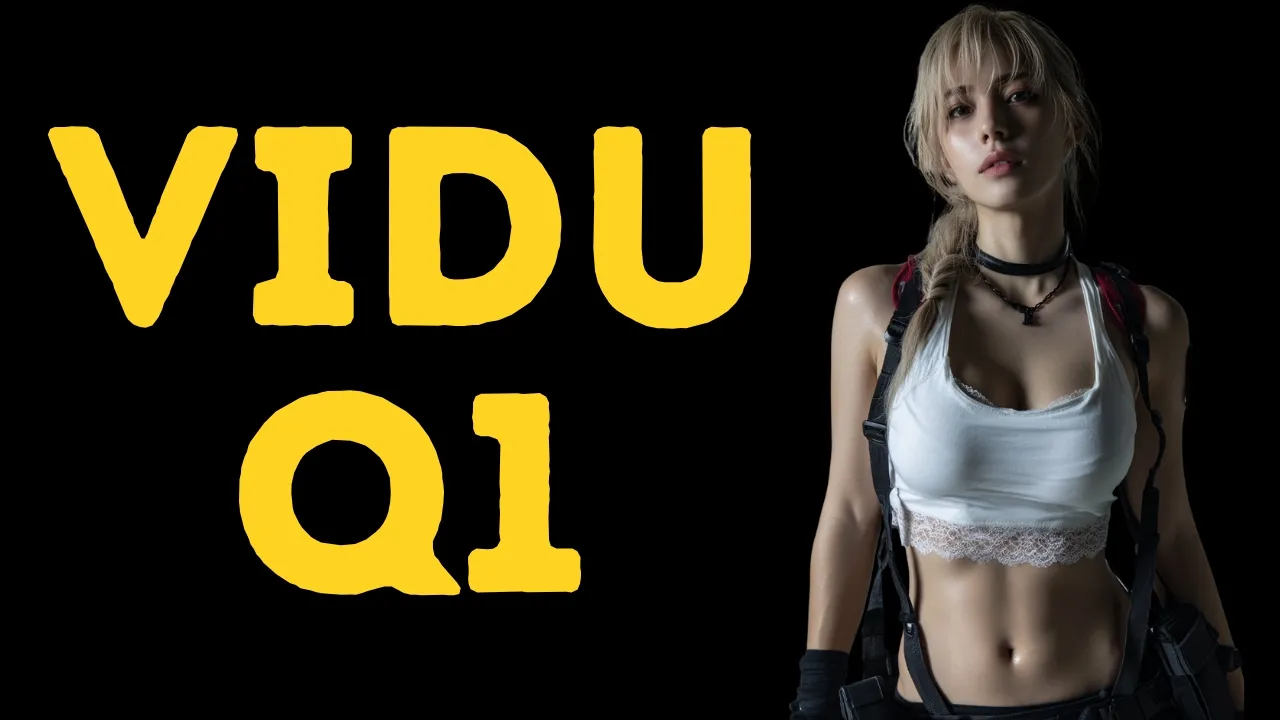
[Music] [Music] Here we [Music] go. Today, VidU just launched their latest AI video generator model, VidU Q1. Luckily, I got early access to this new model, so I can share it with you on the same day as the public launch.
That means you don't have to wait days for a video review or tutorial. The results from the Q1 model are incredibly realistic. I'd say it's the most realistic AI video I've ever seen.
But how well does it handle videography techniques? Don't worry. In this video, we'll test Vido AI's capabilities when it comes to various videography techniques.
And it's not just about the Q1 model. I'll also show you some new AI special effects, AI sound effects, consistent character generation, and more. So, hit that like button, subscribe to this channel, and let's get started.
Part one, VidQ1 basics. The new VidQ1 is seriously next level. The video quality is sharper, cleaner, and way more consistent.
It makes everything look insanely good. If you're new to Vid AI, you can get extra credits by creating a video account using the link in this video's description. From the home screen, just click the sign-in button and you can continue using your Google or email account.
One, text to video. To generate a video from a text prompt, go to the text to video menu and select video Q1 from the model list. Then type your text prompt in the prompt bar.
The best way to structure your prompt is like this. Start with the subject or scene. Add a description of what's happening.
Include details about the environment and finish with the artistic style or medium. Next, select the style, general, or animation. Then, choose the video duration, resolution, movement, amplitude, aspect ratio, and the number of generations.
Click the generate button to start creating your AI video. Here are some example prompts along with their video results. two image to video.
To generate an AI video from a photo or image, go to the image to video menu, you can upload one image as the start frame or two images for the start and end frames, then adjust the other settings. Here are some example AI generated videos using this feature. Part two, Vid Q1 videography tests.
Now, let's test some videography techniques using the Vid Q1 model. One, pedestal shot. A pedestal shot is when the camera moves straight up or down without tilting.
It's often used to follow a subject or reveal parts of a scene while keeping the framing level. Prompting guide. One, start with the subject or object.
Two, add a clear description of the scene. Three, mention vertical camera movement like camera moves upward or pedestal up. Four, include the environment like indoors or outdoors, lighting conditions.
Five, optionally add the visual style such as cinematic, anime, or realistic. Here is an example of a video Q1 AI video generated using this technique. Two, tilt shot.
A tilt shot keeps the camera in place, but rotates it up or down, like nodding your head. It's great for looking up at something tall or down at something on the ground. Prompting guide.
One, describe the object or subject being revealed. Two, use phrases like camera tilts up or camera tilts down. Three, add detail about the height or what's being focused on.
Four, include the setting and mood such as dramatic, peaceful, or mysterious. Here is an example of a video Q1 AI video generated using this technique. Three, dolly shot.
Dolly shot is when the camera physically moves forward or backward, creating a natural motion toward or away from the subject, prompting guide. One, identify the subject of the scene. Two, mention camera movement direction like dolly out.
Three, include emotional tone such as suspenseful, emotional, or epic. Four, add environmental depth like a explosion or smoke. Five, finish with the visual style if needed.
Here is an example of a video Q1 AI video generated using this technique. Four, arcshot. An arcshot is when the camera moves in a curved path around the subject.
It keeps the subject in frame while revealing different angles and the background. Prompting guide. One, clearly describe the main subject.
Two, mention curved movement like arc shot to the left. Three, add scene context such as a celebration, meditation, or battle. Four, include visual mood or style like cinematic or photoreal.
Here is an example of a video Q1 AI video generated using this technique. Five, handheld shot. A handheld shot simulates the natural shake of a camera carried by a person.
It creates a raw and immersive feeling. Great for action scenes or realism. Prompting guide.
One, use action or movement focused scenes. Two, add handheld camera movement or shaky cam to simulate realism. Three, mention urgency or tension like a chase or emergency.
Four, include emotional tone such as raw, intense, or immersive. Five, optionally describe the setting like a war zone, riot, or running scene. Here is an example of a video Q1 AI video generated using this technique.
Six, zoom in, or zoom out. This technique changes the lens focal length to bring the subject closer or farther without moving the camera. Prompting guide.
One, mention zoom in or zoom out directly. Two, focus on what is being zoomed like a face, object, or detail. Three, add the emotional or narrative purpose such as suspense or discovery.
Four, include the setting and lighting to set the mood. Five, optionally describe the artistic style. Here is an example of a video Q1 AI video generated using this technique.
Seven, drone shot. These are high angle shots that show large environments from above. Perfect for establishing shots.
Prompting guide. One, use terms like drone shot or aerial shot. Two, describe the environment such as city, mountain, battlefield, or ocean.
Three, mention the motion like sweeping across or move slowly. Four, add details like time of day, weather, or atmosphere. Five, optionally include artistic style or tone such as epic, serene, or cinematic.
Here is an example of a video Q1 AI video generated using this technique. Part three, AI video effects. With Video AI, you can also create cool videos with special effects using just a single image.
To do that, go to the templates menu, select a template you like, and upload your photo or image. Click the create button to start generating your AI video. Here are some examples of AI generated videos using this feature.
Part four, reference to video. If you want to create consistent characters for your AI movie or ads, you can use this feature. Even though this feature is not available in the Q1 model, the quality of VU 2.
0's Zero's reference to video feature remains the best compared to other competitors. Here are some use cases of this AI feature. One, consistent character.
Now, let's create a consistent movie character using this feature. Click the images button and upload your character reference images. The more images, the better.
After that, describe the video you want to generate using this character. Here is an example of reference images and the AI generated video using this feature. Two, multiple objects.
You can also use this feature to create a video with multiple objects by providing several reference images. Here is an example of the reference images and the AI generated video created using this feature. Part five, AI sound effects.
Vid AI's sound effects generator is like no other. Not only can you generate a single sound effect, but you can also generate multiple sound effects and set their timeline and duration with ease. A perfect feature for AI filmmaking.
To use this feature, go to the AI sound effects menu. To make it easier to understand, let's use the sample project. You can easily change the sound effect prompts, length, and timestamps from the prompt box or use the interactive GUI in the bottom panel.
Here are some examples of AI generated sound effects created using this video AI [Applause] feature. Thank you for watching this video Q1 review and tutorial video. Visit my channel for more AI video content.
See you there.