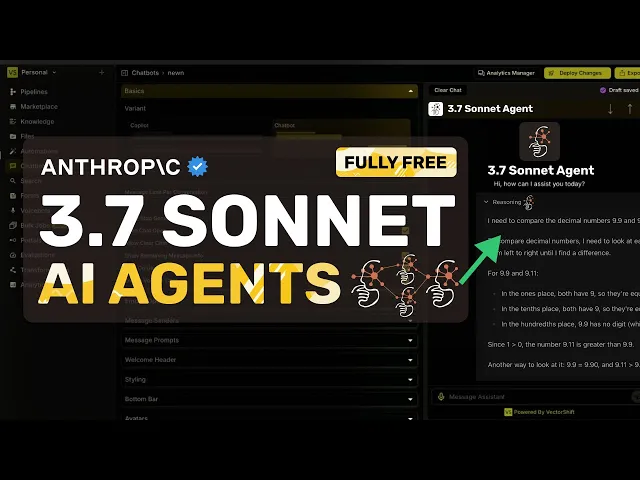
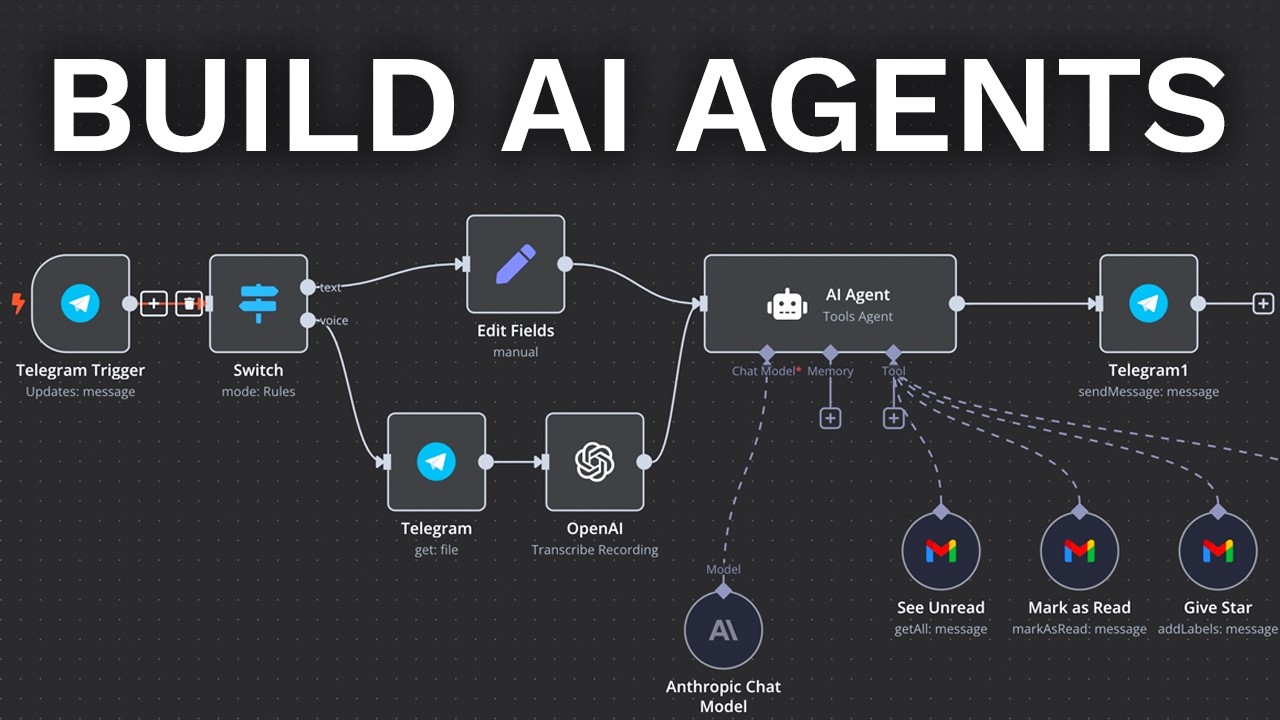
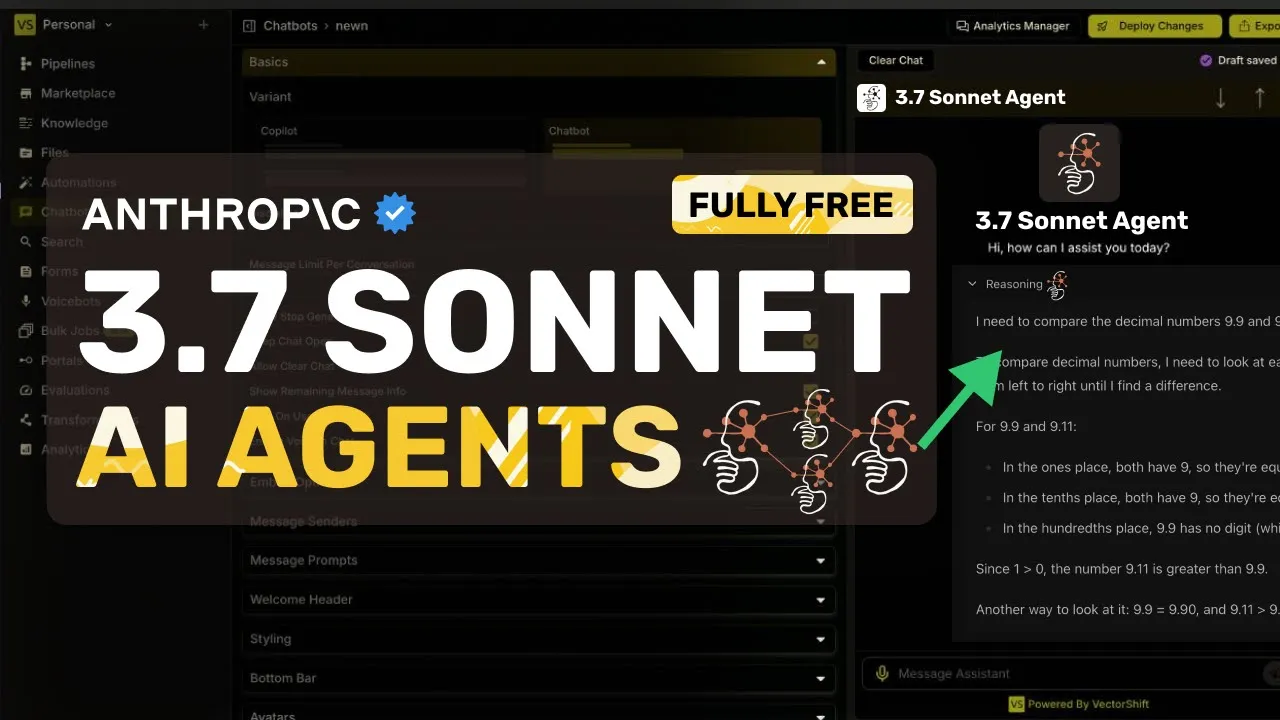
[Music] [Applause] hi welcome to another video so Claude 3. 7 Sonet just dropped and honestly it's pretty amazing like anthropic has been doing some really cool stuff lately and Claude 3. 7 Sonet is no exception it's super powerful really fast and the reasoning capabilities are just Next Level anyway today I thought I'd show you guys how you can easily create your own AI agents using clae 3.
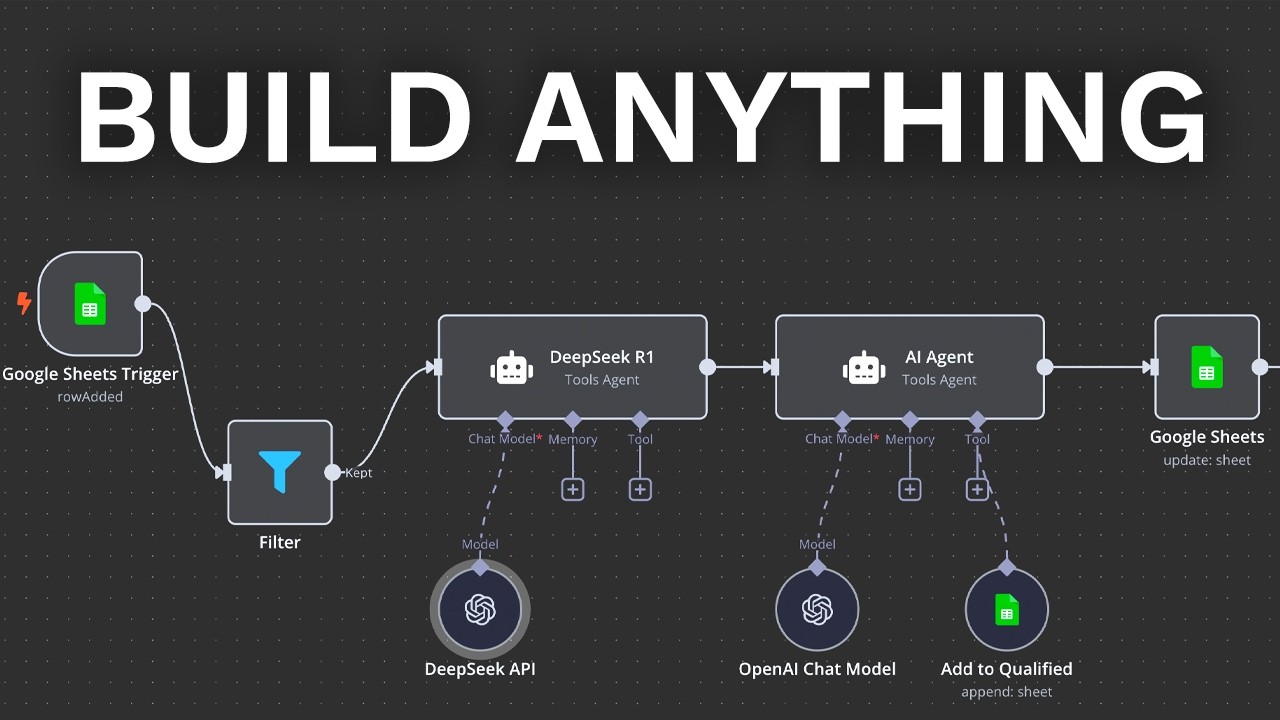
7 Sonet with Vector shift now if you've watched my previous videos you probably already know that Vector shift is one of my favorite tools for creating AI agents because it's super intuitive has a drag and drop interface and you don't really need to code anything which is always great but if you're new here don't worry I'll walk you through everything step by step and by the end of this video you'll have your own AI agent powered by Claude 3. 7 Sonet up and running all right let's jump right into it first things first you'll need to sign up on Vector shift they have a free plan which is honestly pretty generous and should be enough for most of you guys to get started once you're signed up and logged in you'll land land on the dashboard and you'll see a bunch of options like pipelines knowledge bases chatbots and more now the main thing we'll be working with today is pipelines pipelines are basically workflows where you can visually design how your AI agent behaves what it connects to and how it responds to user inputs so let's create a new pipeline just click on the new button and you'll see some pre-built workflows but for now let's just select the blank canvas option to start fresh once you're in the canvas you'll see a bunch of blocks on the left side these blocks are basically the building blocks of your AI agent you can drag and drop them onto the canvas and connect them to create your workflow let's start simple and create a basic chatbot using Claude 3. 7 sonnet first drag in an input block this block is basically where your user input will come from you'll notice that the blocks have been updated recently and now they're even easier to use the outputs and inputs are clearly labeled which is super helpful next we'll need to connect this input to clae 3.
7 Sonet to do that drag in the llm block from the left side now when you click on the llm block you'll see a bunch of options like open AI perplexity open source models and anthropic since Claude 3. 7 Sonet is from anthropic just select the anthropic option and you'll see Claude 3. 7 Sonet listed there just select it and you're good to go now we need to pass the user input to Claude to do this click on the input text box in the LL M Block type two curly braces and you'll see the available inputs pop up just select input one.
text or whatever your input block is named and it'll automatically connect the user input to claw you can also add a system prompt here if you want to customize how Claud behaves for example you can write something like you are a helpful assistant specialized in answering questions about technology or whatever suits your use case once that's done let's drag in an output block this block will basically show the response from Claude to the user again just click on the output text box type two curly braces and select lm. response to connect claud's response to the output block and that's it you've just created a basic chatbot workflow using Claude 3. 7 Sonet pretty easy right but let's not stop there let's make this AI agent a bit smarter by adding some Integrations one of the coolest things about Vector shift is that it has a ton of Integrations like notion slack Discord Google Sheets and more let's say you want your AI agent to have access to your notion notes just drag in the notion integration block connect it to your workflow and configure it to query your notes based on user input to do this drag the notion block onto the canvas and connect your input block to the notion block then configure the notion block to search your notes based on the user's query after that connect the notion output to Claud 3.
7 Sonet by adding it as context in the llm block now Claude will have access to your notion notes and can answer questions based on that context which is super useful you can also add conditional logic to your workflow for example let's say you want certain queries to go to Claud While others go to a different llm or integration just drag in an if else block configure the conditions and Route the queries accordingly this way you can can create really powerful and customized AI agents that handle different tasks efficiently once you're happy with your workflow just click on deploy changes and your pipeline will be saved now you can export this pipeline as a chatbot automation search or form let's select chatbot for now after selecting chatbot you'll be prompted to enter a name and configure how your chatbot looks you can customize the colors Avatar welcome message and more once you're done just click deploy and your chatbot will be live now you can integrate this chatbot anywhere embedded on your website use it via API in your own applications or just chat with it directly from Vector shift it's super flexible and easy to use apart from chatbots shift also lets you create knowledge bases voice Bots bulk jobs portals and evaluations for example you can upload your own documents to create a custom knowledge base that your AI agent can reference just upload your files and your AI agent will have instant access to that information which is pretty awesome you can also create voice Bots that use Claude 3. 7 Sonet to handle voice interaction actions which is great for customer support or virtual assistance the possibilities are really endless overall Claude 3.