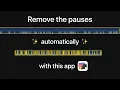
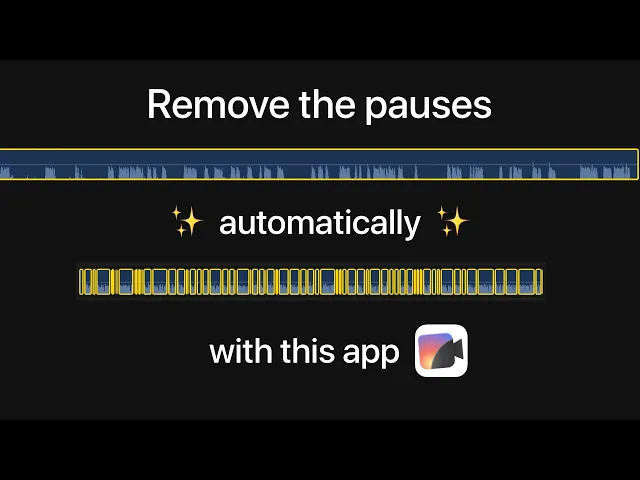
hello welcome to the three cut tutorial we're going to go through how the app works real quick and then I'm going to take a little bit longer and explain what I'm doing in case you want to follow along with the same video I'm linking the video I'm using in the description and you can just download that and play around with it instead of having to find a file to play around with my name is Dave I'm the founder you probably don't care let's get into the video so recut is running on my Mac here and
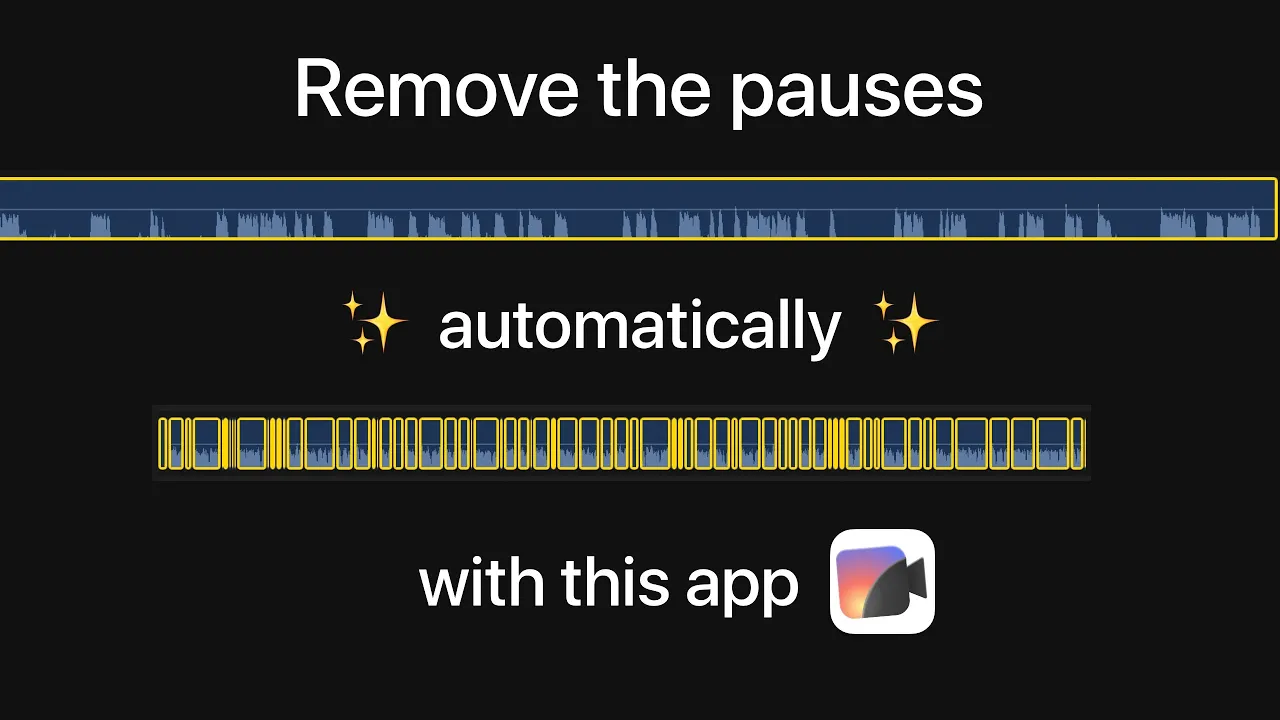
if you have Windows it's going to look really similar going to drop a file in it's going to find all the silent parts we can adjust the threshold if we want to make it find the silence a little bit better we can cut out some of the small stuff with this slider make it feel a little bit looser with that slider and then I'm just going to leave that one alone I'm going to play it back real fast I am and I'm this was all mistakes I'm going to delete everything here and then I know
that I think I just kind of rambled on at the end here or something that's good enough so we'll delete all that and then we'll go export and we can ort to Premiere and this will make a XML file that we can import into Premiere we can also export a video by just hitting this button and then we get our video with all the silence removed so now we've got this demo XML I can open up an empty Premiere project like this double click in the import media area open this XML file and we've got
our edit here so this is the original file this is the actual edited timeline with all the cuts on it you can double click on this and you'll get your edits you can also drag this in uh and you'll get like one contiguous sequence that you can double click on and see the edits inside it if you open up something and you see no Cuts you might have grabbed the video instead of the timeline just a heads up that happens sometimes okay so that was the fast version now I'm going to go through it a
little bit more slowly and we can talk about the settings and how all the keyboard shortcuts work and stuff like that so first we're going to open the file and last time I dragged it in uh you can also click on this little circle to open it or you can do file open either way you can open up a file something else to know is that you can drag in multiple files so if you have an external mic or something you can drag in more than one and they'll all stack up and then you can
sync them up if you click on segments it'll switch to Clips mode and let you drag these things around and so you can line them up with their by their audio wave form and edit multicam videos and and stuff like that that way so I'm going to reset this and set this back to segments so we can interact that way drag in my video again so recut first analyzes the file and it finds all the silent parts and labels them red and the parts that are audible are blue and when you're in segments mode you
can click on these things which is useful because you can then delete them and like delete you can restore red Parts we'll talk more about that in a second let's first get the setting things right and then we can go and do some manual edits so the way to set these really is top to bottom we're going to do threshold first and then everything else so I'll set everything else to zero just so that uh we can see what's happening threshold is usually Auto by default it's on auto you can uncheck this and drag this
slider and it's going to make this yellow band bigger you can see kind of visually how big the threshold is and just as this gets higher it eats more and more of the audio so recut is using this to figure out what is silent and what is not um so it's not looking at uh it's not analyzing background music it's not analyzing speech so if you have any parts where you're talking or there's music or something that's not silent it's not going to get cut out so just something to be aware of it's looking for
like literal loudness you can also drag the bottom of this track to make it bigger and you can see kind of how big the waveforms are and you can zoom in on these and figure out what's really going on as you drag your sliders around so we'll leave the threshold around there I think that's pretty good and then I'm just going to make that smaller again and zoom in a little bit and you can zoom with the plus and minus keys or you can drag this little slider okay we've got our threshold set let's give
it a playback and we'll see how it sounds right now then we can make some more adjustments so as long as skip silence is checked the playback is going to be a preview of how it'll sound once everything is cut out so let's listen hi I'm Dave hi I'm Dave I am hm hi I'm Dave I'm the founder of recut and okay so this was all mistakes and you can see it's making Cuts really quickly like it's these cuts are really tight this ends and that starts right away um so we can adjust these things
by tweaking some more settings so one thing we can do is minimum duration and what this is going to do is get rid of Silence that is really short like this tiny little sliver here it's like a single frame this might be like two frames you probably don't want Cuts where it's that small so you can drag that up and this this value um the default is like 0.5 but you can you know feel free to change all these things this is totally up to you next we can adjust the padding which is going to
adjust how tight or loose things sound so if we make this bigger say like you know 0.5 seconds or something it's going to leave a half second gap between the edge of a cut and where you start speaking so at zero it's like right up against the edge as it gets bigger you know all these things shrink and it'll sound looser so you can play with that and get kind of like the feeling that you want for your videos If you find yourself after exporting having to go through and trim everything um like maybe you
think the cuts weren't tight enough then next time just bump that a little bit bump this value smaller um and you can go from there just kind of tweak and improve over time this last one remove short audio spikes uh gets rid of blue parts that are really short the thinking being that they're probably mistakes these things I'm bumping the mic there's this little thing here where I made some sort of clicking noise if you drag this up it's going to get rid of blue spots that are short um but it might also get rid
of blue spots that were short and important so just something to be aware of you know if it's seeding into stuff that you don't want to get rid of there kind of a balancing act here I'm just going to leave it zero and we'll just delete them manually which I'll show you how to do right now so this was all mistakes and then this is where I started talking so I'm going to click on this and delete it click on that and delete it and then I'm going to click on one and just drag a
box the rest of the way and hit backspace to delete those two the other thing I alluded to earlier was that you can click on red spots and hit backspace and it will keep those parts so if you have some part where you're talking over a screen recording or something and you want to keep it you can do that I don't actually want that part so we'll get rid of it this part's a mistake and then I happen to know that all this is a mistake too so here is what's left it's about 19 20
seconds something like that and now we could export right away I want to show you one little trick before we do that uh there's a mistake in here that we will work through in recut and delete them and delete them and so this part is a flub and I want to get rid of it but I can't do that because it's one solid blue box so there's two things we could do either export this to something like Adobe Premiere or um you know one of the other editors and then you could do your edit there
just make that Trim in your regular editor the other thing we can do is use little trick because I don't have manual Cuts yet working on this but in the meantime you can set the settings back to zero so that we get a silent spot right here let's set the padding back to zero and we'll set the minimum duration back to zero and now we have a silent spot and we can click on just that part and delete it and then when we put these back to what they were um that was5 I think then
these little manual edits stay in place and um now that's gone I'm working on adding manual cuts and also being able to move these red edges um but it's not there yet so in the meantime so that's good enough I think and then we'll go over to export like I showed earlier you can either export an audio or video file I would say if you care about file size try the software encoder because the the default Hardware one it makes pretty big files even though it's a little bit faster and honestly the software one is
pretty much the same speed and you can change the resolution if you want that's pretty much all there is here and then if you want to take your edits into another editor like Premiere or Final Cut Pro or resolve or screen flow or cap cut you can export that here and then open up your tool of choice and do some more editing there's also an option here for Premier to keep the silent segments you can cut around it um so it'll actually leave all the red Parts in your final Premiere timeline which you might want
oh and I almost forgot you can click this Green Arrow and it'll open up the folder where you just saved your file to under Final Cut Pro there's a multicam option where if you check this if you've got multiple cameras it'll put everything inside a multicam clip I'll cover sections in a separate video and that'll be it for now I hope that was helpful and uh if you have any more questions if I missed anything please feel free to let me know in the comments below or shoot me an email my email is on the
recut site you can click on support and that'll come to me that's it see you in the next one



![I Replaced ALL my ADOBE APPS with these [free or cheaper] Alternatives!](https://i.ytimg.com/vi_webp/5EfqHg49kMk/mqdefault.webp)