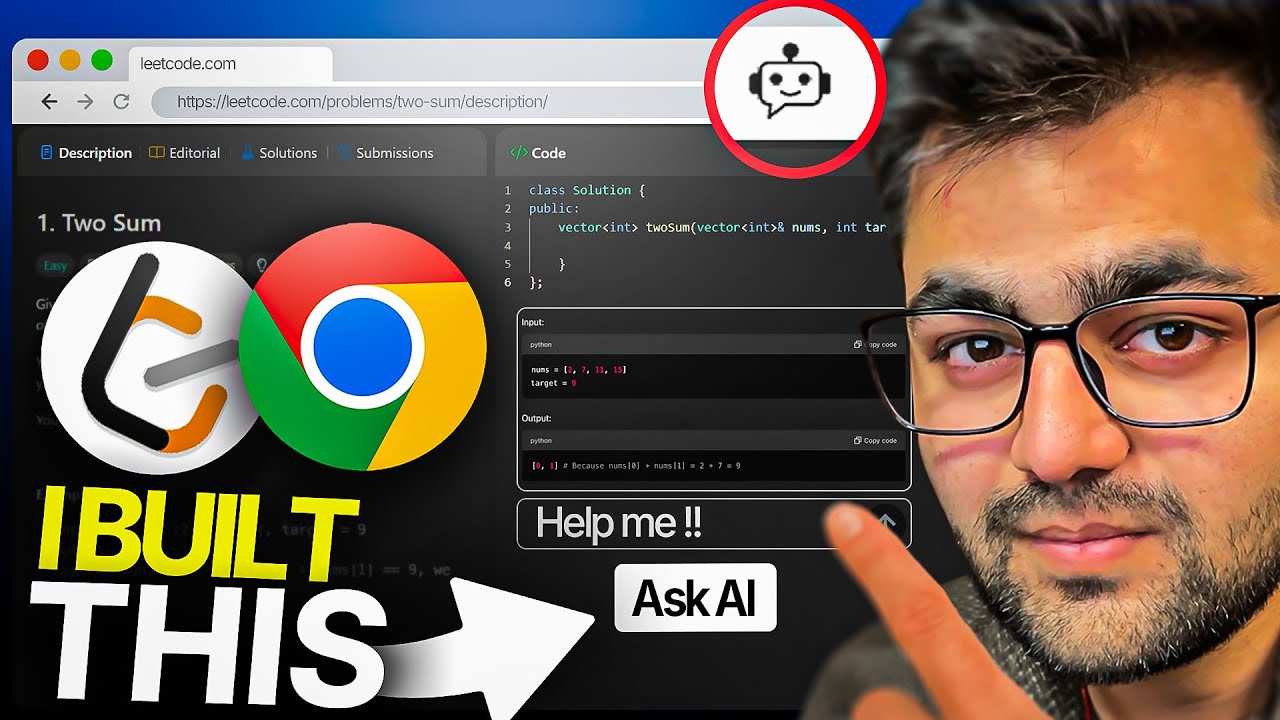
I thought I could show you how you can actually create a Chrome extension using only one prompt in CLA 3. 5 so we are going to use something called project here so I just started a new project right and give it a name Chrome extension we're going to set our custom instruction here in our project uh description here so this is kind of the custom instruction I just like to use for projects so basically pretty simple when I do coding you're a software de with expertise in the kind of thing I want to build so today I put down Chrome extensions JavaScript Etc your task is to develop based on the instruction from the user and I have this when you write code always use very descriptive variable names extensive use of comments to explain code blocks Write Clean and effective code and that is basically uh that I've have been using so far for all my projects and it's been working pretty good you can see we have some content here added to our project knowledge this is uh for the extension we're going to build today we're going to use GPT for o to analyze images using a simple extension so here I kind of just went over to open Ai and I copied from the documentation the kind of information I need I think I need at least to build our app so I grabbed some information about gp4 O's Vision capabilities pasted that into a text file and just uploaded here in our project knowledge using this upload from device so that's very easy to set up so I think I'm just going to go through the prompt we are going to use today to build our Chrome extension so yeah I'm also going to leave this prompt uh on my website so you can go just copy it and try it out for yourself so let me just read through this you can of course skip this but I'm going to read through it so you can kind of get a gist of what we're are going to build today so hello I want to create a Chrome extension that uses the load unpacked feature in extensions to create a Custom Chrome extension I'm going to show you how you set that up it's very easy to use so the first thing is when the user runs the extension and execute a browser action by clicking on the extension icon the extension will screenshot the current screen save the screenshot to a f name image in the current working directory then process the image with the gbd4 O API use documentation then you can see I reference the open ai. text we have uploaded here so kind of we know that this is the documentation we want to use in this uh implementation the second step of my extension is going to be use gp40 to identify the URL of the web page and a title so basically if we find an interesting web page we can just click on the extension and store that so we can have it saved in our notes or we can make a small note of anything that is on the screen so I'm going to show you how I I think that's going to work and the third part is the extension should create a small popup that shows the gathered information from the screen and save the URL with a title uh or the notes to a file so this is the kind of the lookup feature if you save a lot of notes this file can be displayed as a popup from the extensions menu so the user can look at the save notes and that is all I'm going to put in I'm going to finish this prompt with can you help me get started building this extension step by step for me please that is all I'm going to give it now and hopefully this is enough to kind of create a one shot Chrome extension so let's just run this now and take a look at the results okay so you can see here now we kind of got our step-by-step instruction so step one is going to be set up our manifest.
json we're going to create a popup HTML we're going to create a popup. js that's going to contain our logic we're going to implement a background script called background. js right so here we get kind of a implementation how we want to do this we want to create a new directory we want to get our openi API key right we want to implement the screenshot function create icon files so these three files just for our extension that's going to be some icon uh we're going to load the extension in Chrome and then we're going to test it so let me just show you how we can do this now so I went over to vs code Studio just opened a new folder I added an image folder background.
js and I have this open a I key here that I have revoked so I just put that in here uh I created these three icons right files we have the manifest. json we have the popup HTML and we have the popup . js right and all of this uh I just found here in the answer from CLA 3.
5 right pretty simple just copy this go to Cloud uh find our file paste it in and that is basically all we need for our extension so now I'm going to show you how we can actually set this up and start testing and see if this actually works and to do that you just have to go to this chrome uh column extensions and you will get to this page here and then you're going to tick off something called developer mode up in here right so tick that off and we're going to do something called load unpack unpacked here so I'm going to click on this then I'm going to find my folder so this is the folder where I have all my files so I'm just going to click select this right and there you can see here is our extension now so this is the AI screenshot analyzer uh we can of course just reload this we can yeah you can see this is tick stuff we can go up in the corner here and pin this and now we kind of have our icon up in here and we can actually start testing this so remember this is supposed to analyze the screenshot and save the notes or the URL from the screenshot so yeah let's just test it out and see if it works okay so here I am on my website so now we can just uh find the extension up in here click it and we can see we have capture and analyze screenshot so I'm just going to click on that and this has to process the image we captured and hopefully we will get some save notes down here yeah perfect and now you can see uh we saved the URL on the web page we are on and we kind of got some information about the page so you can see it's a personal website overview the image features some information about me right uh and if we go back here now and we click back up on this yeah these are the save notes we have so that is perfect we have the URL and we have the information so let let's load up a different website and see if we can do the same over there okay so we are on the verge. com now let's just click here uh capture and analyze and see if we can actually get the same uh response here so hopefully we will get the URL yeah that's good and we got a small uh description of what the page is about uh if you go back out now and we go back in you can see these are saved to our notes here so yeah I'm super happy with this remember this was a one shot prompt right so we only use this prompt to create this super simple but quite useful extension so I think this just shows how easy it is to use claw 3.