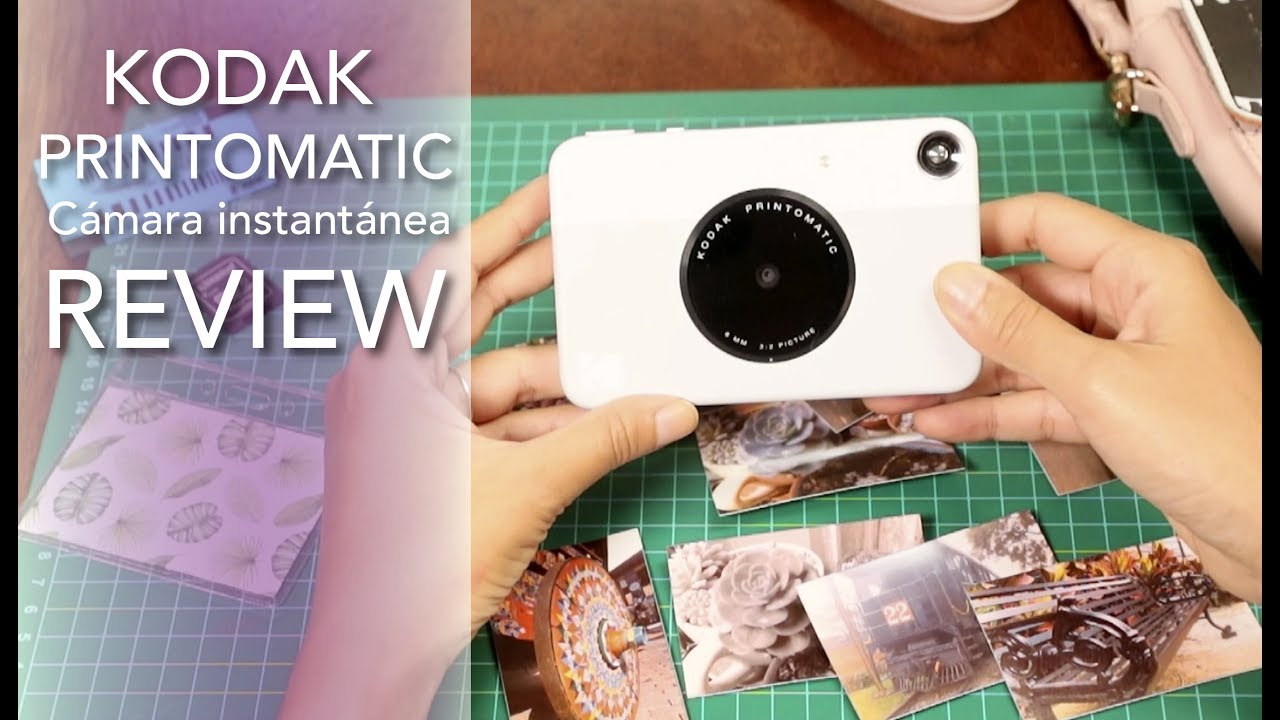
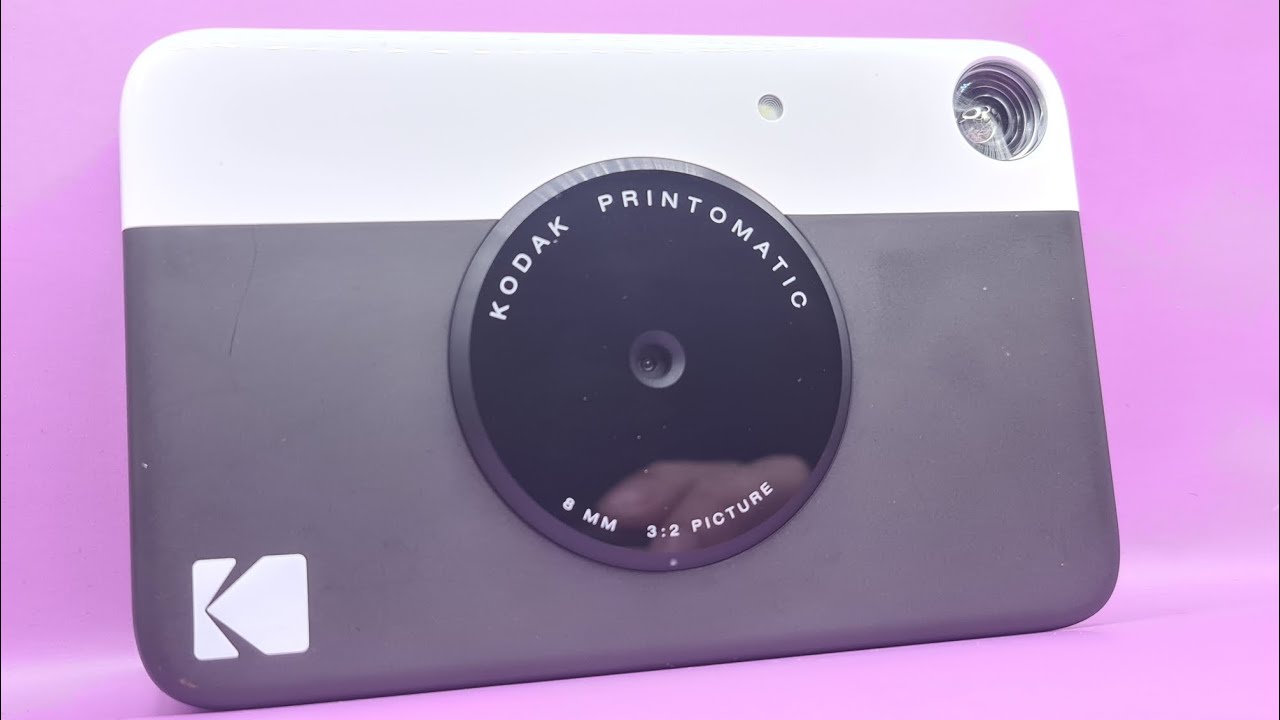
thanks for tuning in paranoomatic camera instant camera um that you may be coming across this particular one was manufactured in 2020 but this will work with models um after 20 2020 and before okay so let's start out with uh the obvious um if you lost your power cord and you don't have a way to power it up these cameras use a simple uh mini usb uh cord that you would use like on most smartphones of your samsung or your lg smartphones so basically it's a mini usb so you can get those at any little electronic
shop or walmart or whatever and that of course just simply plugs into your computer on the side and you want to plug it up keep it plugged in for about 10 minutes probably to 30 minutes to get a full charge um if your pictures are coming out blurry you started using it this actually made this clumsy air you got to make sure you take the the plastic screen protector on it so i was taking pictures and they were coming out blurry and i did not take the screen protector off of it that came with the
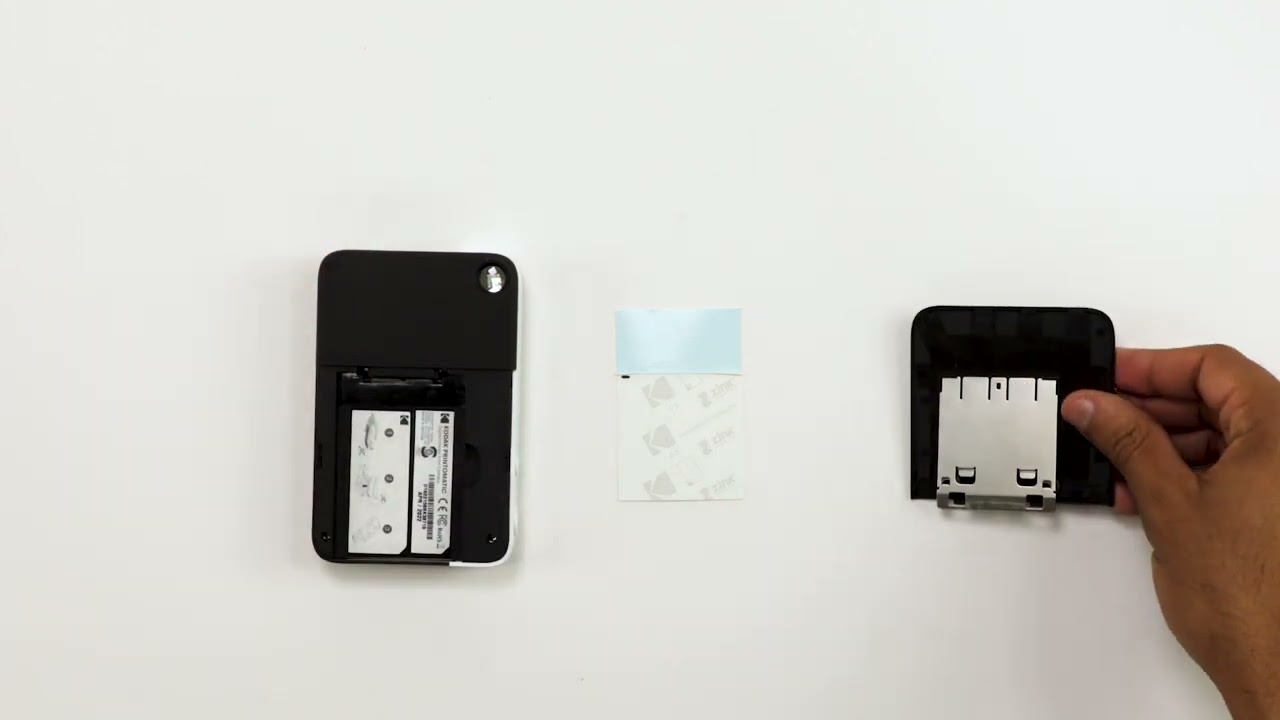
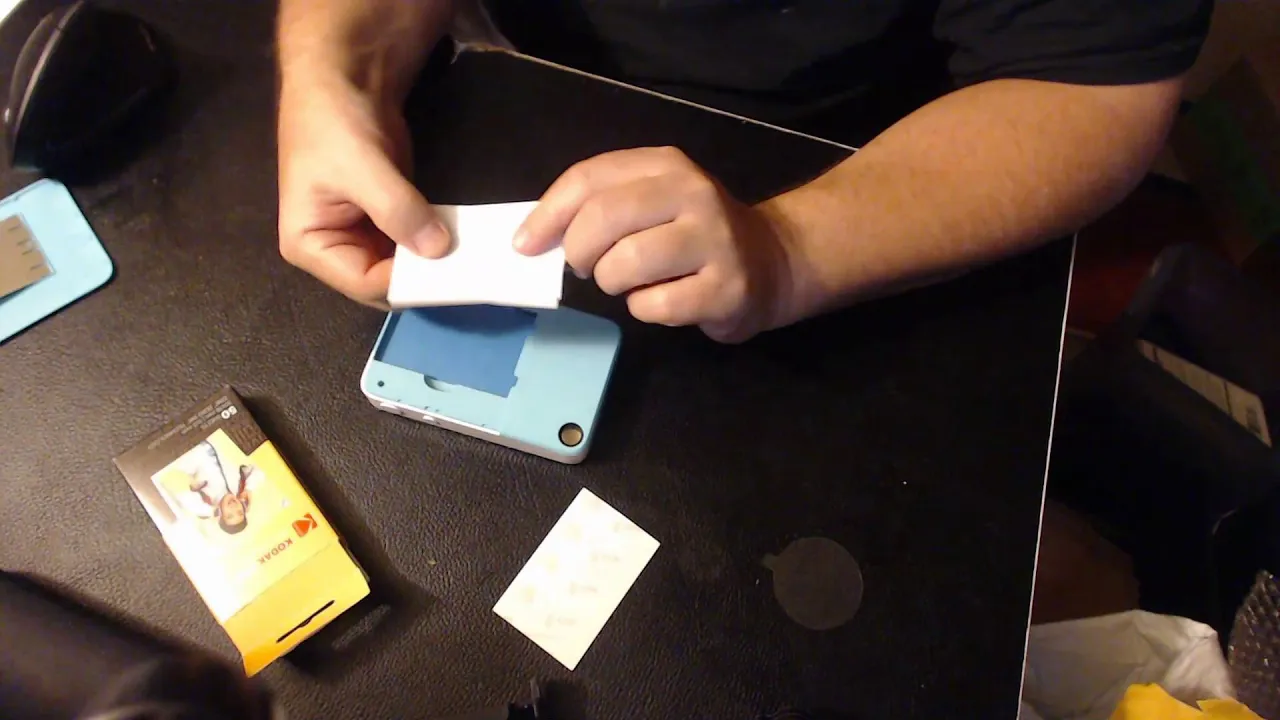
camera when i bought it so that's the next one that you need to make sure you do if your prints if you're the colors on your print when it prints out or coming out wrong you want to make sure you load it correctly so as we're loading it your camera should come with a kodak calibration sheet i'm sure you recognize this if you accidentally threw this away i think there's a way that you can purchase online i'll look see if i can find a way to purchase one and then put it in the description or
in the title but you need to keep this for the life of the camera because if you get other paper other zinc paper you're going to need this so um they expect you to use kodak expects you to use their printing paper right and you load up 10 at a time in your camera nothing more and but you can use other other other paper like i know i think sony's got one and uh hewlett packard i know has them zinc paper three by four and but you're gonna have to load this before you load the
paper so if you are having color problems you want to make sure when you load your your 10 that you load it flat down barcode down to barcode lined up to the front so this is the top of my camera and you want to make sure that's loaded in with your 10 new zinc sheets and what's going to happen is when you take a picture that zinc sheets going to come out first right and then you just keep that for storage for later to use it for your next 10 sheets and then it's ready to
go and you can start taking pictures well if you're having a problem the colors coming out bad that might not have loaded correctly because that zinc sheet will actually also clean uh clean the mechanics inside the print-o-matic so what you would want to do is make sure you don't load more than 10 at on this at one time it'll it could break it but go ahead and load that blue calibration sheet again with and then along with your new sheets and see if that fixes your your color problem now what happens if your your picture
gets stuck halfway in between and it won't come out well don't forcefully take it out you're going to want to power it down completely give it about a minute and then power it back on and then it should automatically come out so don't manually take it out if it it might do it like if your battery ran down while the picture is still in the camera just charge it up for 30 minutes and then turn it back on and then it should come out again don't manually try to force it out if they come out
blank if your pictures come out blank with nothing on it again make sure make sure that the glossy side is up and not towards the bar side so the glossy side up so make sure that you do that if they come out blank what if your pictures aren't centered i was having this problem at the beginning so you see there half of this half the picture is white what that means is you're not centering the object of your picture six feet away so i was taking a picture of a family member here and she was
only three feet away well that misaligned the picture and it made half of it white so whatever object or person that you're taking a picture of make sure they're at least six feet away and then centered all right now what if there's the pictures coming out with lines on it again that could be a calibration problem so if that happens make sure it's calibrated and cleaned with your calibration sheet first and make sure there's nothing obstructing the outside of this too that would make lines um and then finally if the pictures are coming out black
and white you might have one of the older models and right beside the uh the shutter button here on the new on the older models there's another button here that goes back and forth you might have accidentally hit that and so what you want to do is slide it back it's got like three little black dots just slide it back and then that will change it back to color if you have it accidentally on black and white all right um thanks for watching overall i'm happy with this product it's a good it's a good nice
little product and camera just remember it's kind of like 1970s and 80s technology so don't expect it to immediately start taking pictures like one after another you want to give it at least two or three minutes before your to expect another picture to be taken just take your time with it have fun with it don't expect too much of it you know it's not like a 21st century smartphone it's you know older technology and that's the beauty of this nostalgia with these kodak films and these uh principal cameras it's it gives you a little bit
of nostalgia it's kind of fun alright thanks for watching
![Why These Instant Printing Cameras Are Best For Kids? [Don’t Buy One Before Watching This]](https://img.youtube.com/vi/4QwtkbmpGk8/maxresdefault.jpg)