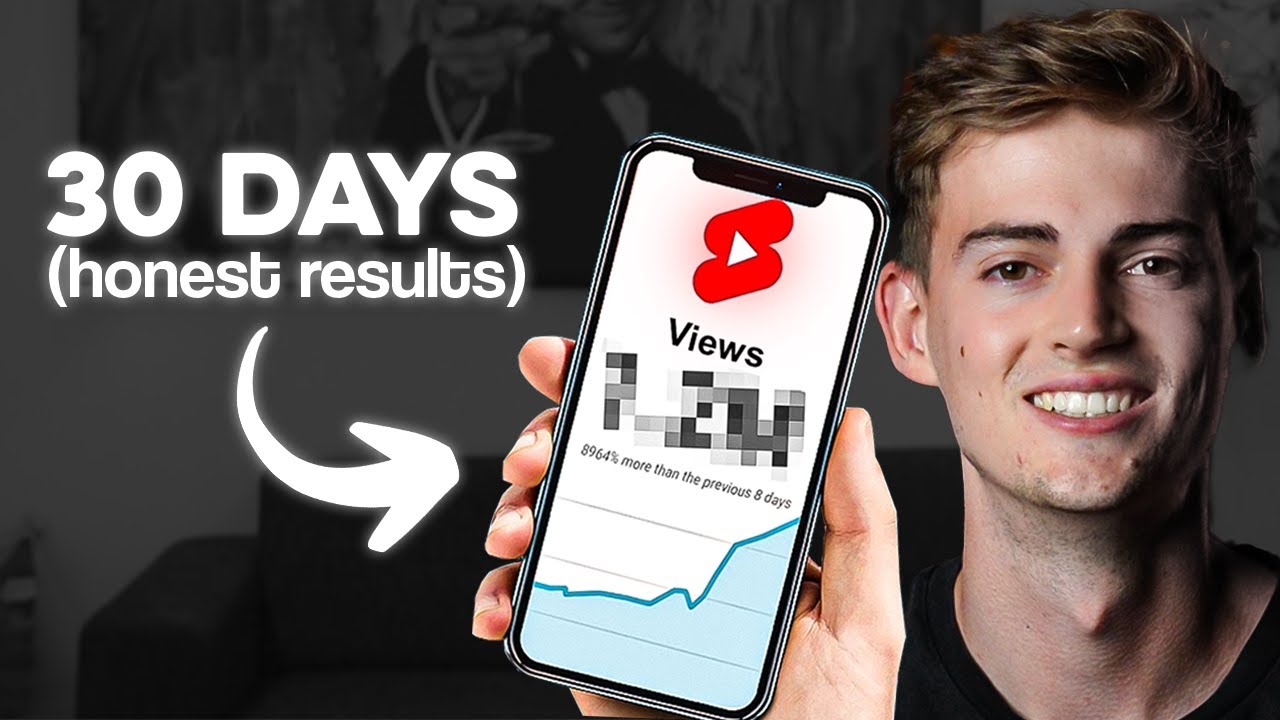
what I'm getting ready to share with you is going to completely blow your mind if you have not ran into this yet if you're a content creator I'm sure you're already aware of how valuable it can be to take the content that you're already making repackage it and then distribute it across all of the social platforms but as you can see in these screenshots I've been doing this on my extras Channel using what I'm getting ready to share with you and you can see it's already brought in a lot more views it's already added a
lot of subscribers to the channel and all I'm doing taking my live streams and some of my video content uploading them into this tool that I'm getting ready to share with you downloading them and then publishing over there every day it's super easy but let's go to the computer so I can show you exactly what it is show you how to use it and give you some things to keep in mind the very first thing I want to show you here in terms of just trust and people that are already using this tool is you
have the NFL that's using this you have Grant Cardone that's using this Scott Galloway the YouTube channel what if John EA myself and a bunch of other content creators that understand the value of using something like this to get out more content let me show you how it works and how easy it is to use First go to your YouTube channel and pick one of your videos or your live streams or your podcasts that are under 3 hours long grab the link by selecting the link in the address bar and hitting copy and then you
go to opus.one and then hit get free clips in my particular case I already have an account here so it's defaulting this into my account as you can see right up here and you can see that I currently have an hour and 20 minutes left of credits so once you come into this part one of the things that you're going to see here is you're going to see where you put the actual link itself once you have the settings exactly how you want them then you're going to click on this in order to generate the
clips but first before you do that let me show you something so if you look at this part right here you have the processing time frame so this is a 9 minute and 1 second video so if if I sit here and I move this around I'm going to cut off the very end of the video cuz that's where I'm sending people into other content and I'm also going to cut off the hook of the video so that I can start this in a place where it's the most likely to get some actual content now
keep in mind this is on a 99-minute video so if you do this to a long live stream or podcast you can really get tons of content out of this but let's see what it makes when it comes to a 9 minute video but before we hit that button one more thing I want to show you here is that you can also decide the length of the clips that you want so if you are uploading this up to Tik Tok for example or you can make longer videos than in that particular case you can do
90 seconds to 3 minutes as the maximum and if you wanted to if you have very specific words that you wanted to look for in your podcast or live stream you can add those words right here and their AI will actually find those words and make sure to build content around those words which is awesome but once you have these very easy settings taken care of the next thing you want to do is hit get clips and one click once you hit that option this part here takes a little bit of time to actually process
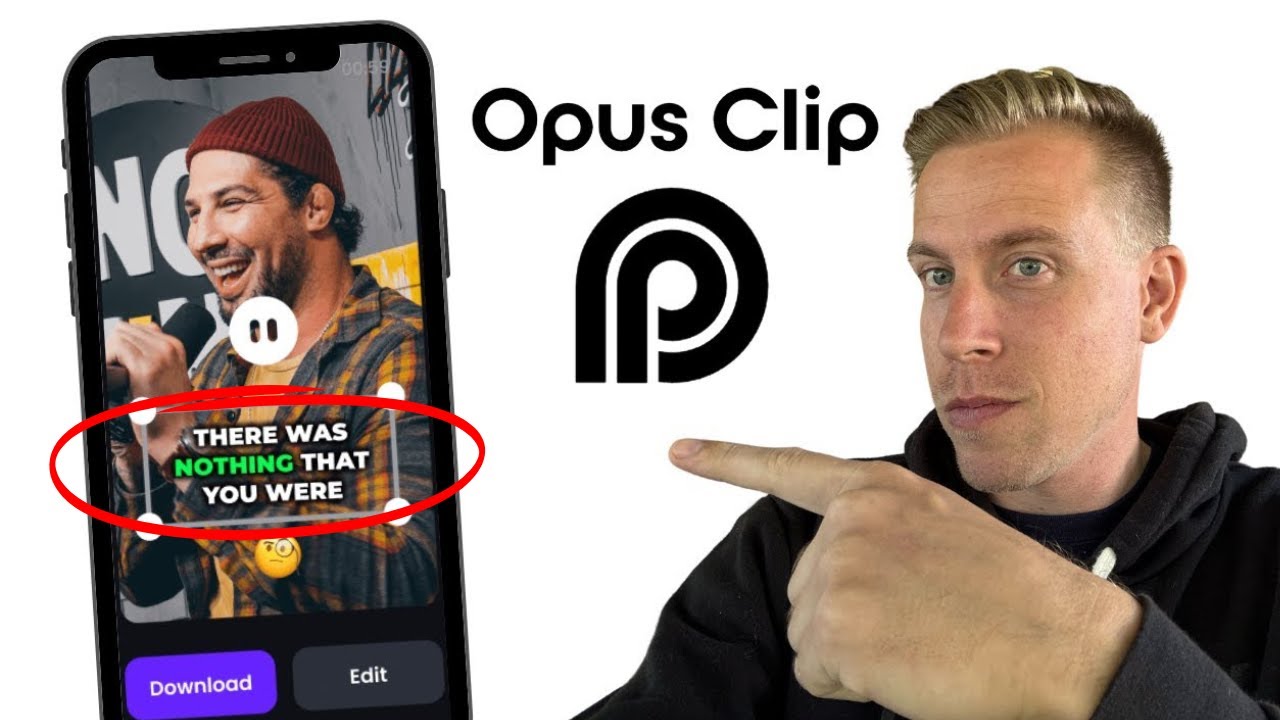
your Clips in the the background so if you're wanting to be super productive what you can do is you can go back in and you can just repeat that process on additional videos so that you can be making Clips while it's processing the other Clips in the background one of the things about this that's amazing that's going to save you some money possibly depending on if you're using services for it is in addition to it taking your longer videos and giving you clips that you can repurpose it also adds captions so you don't have to
use another service for that and if you are somebody that has a guest on your live streams or a guest on your podcast this also identifies the different voices and will switch back and forth based on who it is that's talking and all of this happens automatically but once the clips are made what you can do is you can come in and you can click on whatever piece of content it is that you had it chop up and as you can see in this particular live stream as I just keep scrolling down here I got
47 different clips out of a 3our long live stream it's insane if you're somebody that struggles with titles you can see that they suggest a title to you based on the things that you were saying in the video it gives you a a little bit of an overview of what it is that is being discussed in the video and it gives you a virality score in terms of just how clear this is and how well people might respond to this particular piece of content but check this out let's say when you play it back it's
not exactly how you want it to be what you can do is you can click on the edit button and over here on the Le hand side you can see the dialogue around that clip so if you want the clip to be a little bit longer then you can just click into this area to wherever it is that you want it to start and then just click set as start start and then now it's going to start there and then if I wanted it to end a little bit earlier then I would click into that
area that I wanted it to end and then I would click set as end now another thing I want to bring to your attention is you can see here how some of the words have colors on them that is matching what is going to be seen in the caption so in this particular case it has YouTube as yellow if I wanted to change that then I can come in here and I can change it to green or I can change it to White if I want to and all of this is based on my brand
colors that I set up inside of my my account under my brand template but for me I just went with their default because these are colors that stand out everything's easy to read and then it brings attention to very specific words which keeps the whole thing interesting but if you did want to customize your brand template they do allow that so you click on your profile link you come into the brand template area right here and in this case I'm going to leave this and then you can specify exactly how you want everything to look
now again I'm happy with how they are doing things so because of that I didn't make any changes to this at all but one of the things that you can do is you can add logo watermarks to these you can tell it that you want the captions to be on top or you want them in the middle or you want them down at the bottom you can also decide if you want to have emojis showing up or not which is pretty awesome you can change the font size and the actual font that's being used or
the text style but as you can see you can customize every aspect of this to make it your own but for me the defaults have worked out perfectly so far so if we check in on one of the videos that I added when we first started this we can see out of that 8 Minute clip that I I have a week's worth of shorts that I can use on my YouTube channel which is pretty awesome now another thing I want to show you is let's say when this is generating the clips that it generates Clips
in a way to where you're a little bit off center or you want to adjust yourself in some way all you have to do is just click on the screen itself and you can move yourself any way that you want to you can make yourself smaller if you want you can make yourself bigger so if you need to make any adjustments to the framing of your clip then you can do that by just clicking and dragging if you need to make any changes to the captions like you need to correct something or change the color
or put more emphasis on something then you can just click in here and edit whatever it is that you need and once you have all of that finished then you click save and compile and has one more bonus amazing thing here as if this wasn't amazing enough already if you're a streamyard user you can go into your library grab the share link for the videos you have stored in there paste it into Opus and it can pull the clips from there it can also do it if you upload a video by itself it can do
it if you are uploading videos from Rumble and they're working on doing it from anywhere else you can upload online and just in case you going to ask you can also have your caption show up in a bunch of different languages now there are a lot of AI tools that are coming out for Content creators that makes it easy to work smarter and just get better results I'm making a playlist about all of those tools you can check it out right here go and click into that now thank you so much for watching I'll see
you next time