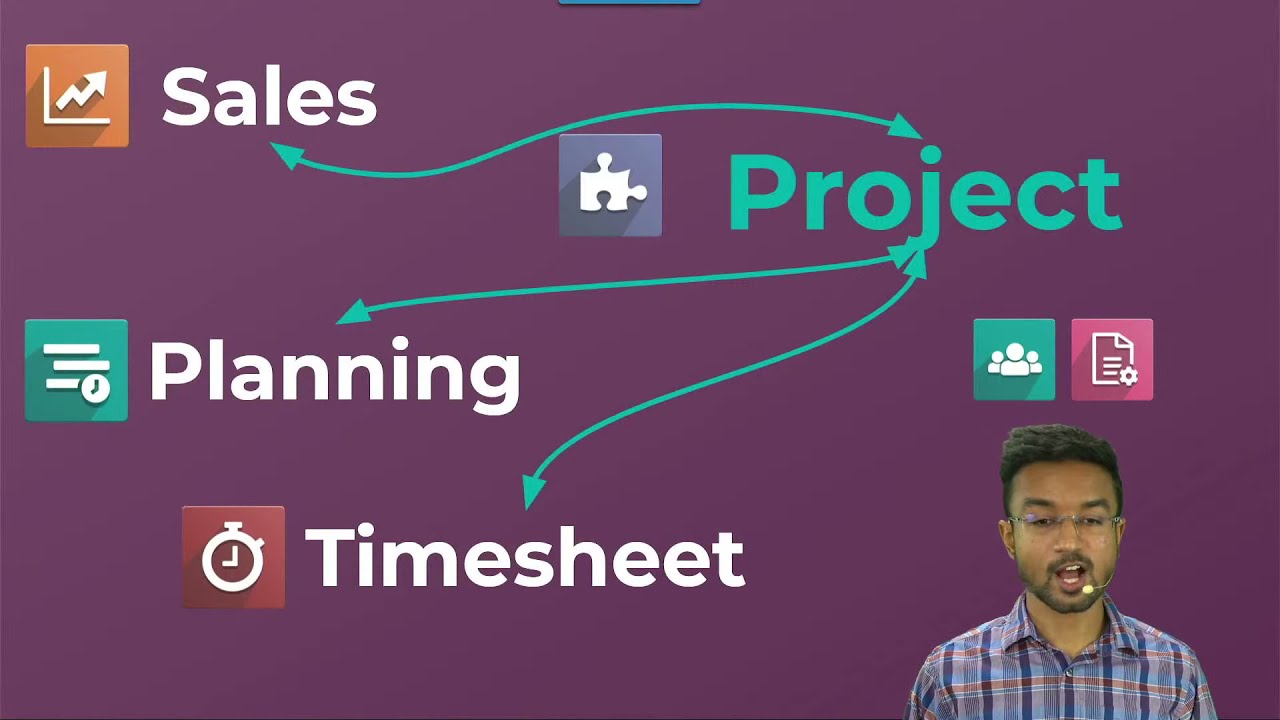
foreign ERS Jose Ignacio here now today we will look at construe power a renovation and construction firm specializing in office space for businesses now they estimate the cost on a quotation but charge customers based on the number of hours worked as well as the materials used now from the salesperson Who quotes and invoices all the way to the renovation workers let's take a look at how odoo helps the stakeholders involved in the project coordinate with each other now it usually starts with a contract that defines the cost of materials and each profile rate which starts
with workers subcontractors Etc it just keeps going now once the customer agrees to the details of the project the plans can be prepared then workers do the actual Renovations based on those plans and finally every month a project manager invoices the customer based on materials and days of work so like the other business flows let's get right into it now a project usually starts at the sales department with the negotiation of a contract with the customer now the sales department works with the sales app where the first step is to create that quotation all right
so to start we're going to open up the sales app and make a new quotation This Time It's The Deco addict and we need a product here and they want us to architect stuff now you'll notice in the description you should always put what it is for this stuff in our case the very first one is plans and do plans take us in our outdoers they do if you are lightning fast but I need days and likewise we'll do a couple more of these so the very next one is going to now be permits you
can have plans but you need permits to actually act on those plans and they will always take longer because red tape is great all right now our next one Gotta Have workers now what are those workers doing well initially the workers will be I don't know building Foundation we're going to set that at 10 days just because I want to give them enough time all right last product what is it well we have a foundation gotta make sure the rain doesn't come in so this one is going to be a roof and three days beautiful
little doers all right now that we're all set here it should be noted that units of measure can also be shown as months or weeks you know for projects that could take longer than 30 days you would just have to configure months and weeks as units of measure in your database now the sales represents the quotation of the customer by hitting send by email and they get that now once that the customer receives this they can actually confirm it through the customer portal using an electronic signature or the sales team can confirm it via the
button at the top of this menu where you see after I send this over we can actually just confirm it right here boom I have confirmed it now that the quotation is confirmed a project and its tasks are automatically created as you can see with the new smart buttons up here ah and it's beautiful see we're making progress because the quotation was approved and the contract negotiated the team can start working on the project now we can click the smart buttons to view the project created by this sales order or we can also go directly
to the projects app just so that you know all right so inside of the projects app you'll find that if you follow the number that we had which is 33 we have our automatically created project when we confirm the sales order now our four tasks are already created here and they're listed as new tasks and each card has the name and the expected working time on each of them as you could tell and they're done in hours just to save you any math because I love saving time now because the architect's tasks are priority we
can actually prioritize them by clicking on this little star icon so let's just prioritize uh what do we need well actually we should only prioritize the plans and the permit the other two we could kind of wait on but we need those two all right now our plans task is still in progress so we can actually move it into the in progress stage now the work permit is ready but still needs to be reviewed especially to make sure that the plans are within the jurisdictions building codes so let's get schedule a new activity right from
the project task so first I am going to click on the little clock icon that we have right here and you'll see that I can schedule an activity perfect now the activity type is a to do because we gotta do it to do now what should we label this well let's say for the summary we need to double check the plans the plans bro all right we're done that's perfect it's beautiful and it's succinct and we're gonna make the two dates let's say Friday boom and we're done now once that we're all set with this
we can actually just hit schedule and would you look at that it's so simple I didn't really have to do much of anything right there and now we could just wait for that activity to pop up ah I love it now while working on their tasks employees can easily record their time right in the project task now up next I actually want to open up something again we're going to open up the work permit task and I need to assign it to myself Jose now on top of that I need to go to the time
sheets and in this case we need to put something in here what are we going to add well let's put researched code and how much time did I spend on that oh doers I spent 24 hours on that boom all right now let's hop on over back over here using our breadcrumbs which today are construction bread and we're going to go back over here to our renovation project again now I need to add a timesheet of eight hours spent again so we're going to open up the plans one and in this case what do I
want to put on this one we're just going to put Jose drafted stuff and this was exactly eight hours beautiful 50 done it auto saves but just in case save manually because I like making sure it does now another option for timesheets is actually to launch the timer that you pretty much can see and the timer will have the time recorded that way as well once they do that now to do so I'll click on the start button that you have right there and once you click on the start button it'll pretty much start this
little timer there and then you can pause it you could do other things and in our case I'm going to pause it then I'm gonna stop it and I'm going to manually record 15 minutes now let's say this was again for code review I am becoming such a great reviewer we'll do movies next though doers and hit save boom both of those are done now when we save we can even see the progress bar over here going up like we're leveling up and that's it right now for the project application teams can easily prioritize tasks
record their hours while keeping an eye on the remaining time for their tasks schedule activities and they can add new tasks or any sub tasks as well we do both sub and big tasks and you can even assign them to anybody on the team and that's what makes it beautiful now let's say that constru power has reached the end of the month and it's time to invoice the customer we need to get our money at this point now to do so we need information about what should be invoiced and what shouldn't be which can be
difficult and no do though it's pretty simple now if you're ready for some more of that odoo magic I have something to show you if we open up the sales app and we go to that Deco addict order boom I want you to take a second to take this in all the hours recorded on the task automatically updated the delivered column over here on the sales order now it should be noted that these delivered times are in days not in hours the original way the so was created but it's better this place so you can
keep track O2 automatically converts the hours from the timesheets into days for us now blue text indicates that these quantities can be invoiced at this point also the related project tasks and time sheets can be accessed from the sales order through the smart buttons that we have up here up at the top and these are always useful for your sales people they need to find that and you'll notice everything is seamlessly integrated which makes it very easy to check now we thought about a couple things but the biggest point is that many of the projects
construct power completes also will require materials like cement and wood panels we need to build these things and that's where the purchase app comes into action now the project manager will create purchase orders from that application so let's open it up all right our door so here we are inside of the purchase application now this is the first time we are using wood Corner as one of our vendors so we're going to set them up right there and we don't have any on-time delivery data for them so in this case I think we need to
send a follow-up email to the vendor to remind them of the delivery as well so I need to make sure the ask confirmation box is checked off over here and we need to set it to one day before and then I'm going to add my 30 wood panels now over here to this order now by adding an analytic account Oda will link the purchase order to the construction project from the sales order so I'm going to click on the analytic column really quick search for the a sales order number that we created earlier in the
default search bar and we selected beautiful we're moving on now it should also be noted that the analytic accounting option needs to be activated in the accounting configuration settings first before using this feature if it is activated and the column is not showing up on the purchase or sales order you want to click on the little dots over here that I always talk about to the right of the subtotal and that'll bring up the little menu right there so that you have it all right finally I'm going to send this purchase over over here by
email and then we're going to confirm the purchase order now teams know that the products are expected for a specific date over here and that's when a bill will arrive so constru power will basically be able to register both the reception of the products and the bill from here and you can pretty much see that and it looks beautiful all right so in our case let's receive these products Now by clicking on you guess that the receive button and then we'll validate and apply these quantities beautiful so the accounting department should have received the bill
from the vendor and to be sure that everything is correct checking it is essential the first step is to record the new bill we can either create the bill from the purchase order itself which you just pretty much follow the breadcrumbs back over on the purchase order and hit that create build button that you see on the screen or you can hop on over to the accounting app which I'm going to show you all right so inside of the accounting application I'm going to go over here to the vendors menu click on bills and let's
create a new bill in our case we're also going to add wood Corner as the vendor now since I specified the vendor I can autocomplete the bill by choosing the correct purchase order so we're going to select autocomplete and select the right bill this is really simple and the team just has to check if everything is correct we can even see the analytic account was added as well and isn't that perfect now cost your power can set a build date and in our case let's make it to today and confirm the bill and we're going
to register the payment to the vendor so we're going to click create payments now I'll validate the payment was sent and bingo we're done and we're moving on and isn't that perfect now a lot of materials were used during the project therefore construct power needs to know what should be re-invoiced to the customer at Cost your power this is also a job for sales reps now of course constru power doesn't have to register anything themselves odoo did it automatically by adding the wood panels to the sales order now that's thanks to the analytic account remember
the blue lines are the ones that can be invoiced now back to our project manager and finally the accounting team can take the very last step now at the end of the month the project manager at constropower invoices the customer for everything that occurred during the last few weeks once again only a few clicks are needed now inside of the sales app we're going to select on to invoice and we're going to select the sales order checkbox and look at that we're moving forward and in our case it's pretty simple so we're going to select
on Create and view invoice Now it only took me a few seconds to have a complete and perfect professional invoice now all the line items that I have over here on this invoice are the quantities on the sales order that are ready to be invoiced so I'm going to select confirm send and print and in our case we're gonna save you know just if it's necessary it might come up for you we also have the option to send this via post if we would like to do that but in our case we're a modern company
here at constru power so email only all right now this whole business flow from start to finish was pretty easy fast and it was super streamlined right my little commenters now how exactly did ODU do all of this anyway well a few settings are necessary to make this flow possible and to automate many processes so let's dive into constru Powers database to see these configurations in action all right so the very first place we'll go to is the product so we're gonna go there and we're going to remove this filter real quick and open up
the architect one now as their Architects are paid per hour constant power sets the product type as a service over here now of course they also need to know how many hours The Architects worked so constru power decided to track the service via a task in the project link to the actual sales order now this way the newly created project is formatted exactly like our template and the customer's invoice based on the timesheets that are recorded on the tasks as well now that's it pretty much for the service product configuration now let's see more more
about the wood panel product constrapower used on site during the project now here inside of the wood panel since consterpower often uses wood panels and construction projects it is essential to set the product as can be expansed as you see doing so allows them to re-invoice the product's cost to the actual customer also since consterpower buys it and then stores it they chose to make it a storable product in this case now because constru power also sells the product it is invoice based on the sales price so even if construct power buys the product from
the vendor at 50 per unit we can choose to invoice the customer the price at like let's say a hundred dollars which means we make some profit right there now because customers do not order the product themselves they ask to be invoiced for the delivered amount aka the amount used in the project and not the ordered amount as you can see over here for the invoicing policy now on the purchase tab we see the vendor we used earlier wood corner and that's important lastly as I mentioned before and this is a big one the analytic
accounts need to be active rated in the accounting configuration if you want to connect purchase orders to a sales order analytics Jose where do I find that I'm going to show you right now navigate to the accounting app select configuration select setting type analytics because there's a lot of settings inside of here and there it is beautiful oh doers and there you have it this is how you can handle construction projects from A to Z using odoo now to learn more about the specific applications I encourage you to check out more of my videos mine
specifically just kidding all of them are great everyone is great thank you for watching foreign