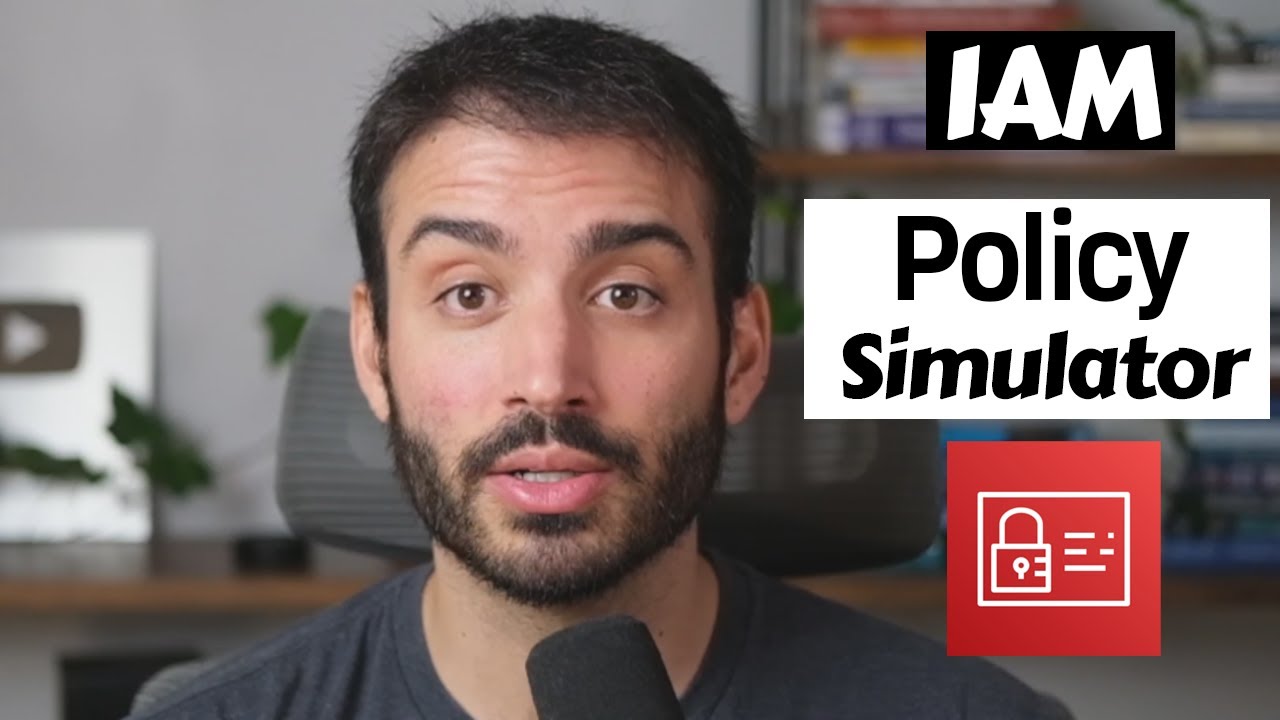
hi I'm joy at Amazon Web Services today I'm going to show you how to create AWS Identity and Access Management policies using the visual editor in the IM console IM policies enable you to grant IM users groups and roles permissions to AWS services and resources the visual editor makes it easier to follow i on best practices by enabling you to create and modify IM policies using a point-and-click interface the point-and-click interface helps you define resources in your policies more easily so you can create policies that grant lease privileged access to services and resources you can
also add conditions on resource access for extra security in this video i will demonstrate how to use the visual editor to create an IM policy that grants list and read access to all the objects in an amazon s3 bucket i will also show you how to require multi-factor authentication to access those as three objects by using policy conditions let's get started to create an IM policy using the visual editor you will begin by signing into the AWS management console with their username and password go to the IM console by choosing i am under security identity
and compliance choose policies in the navigation pane next choose create policy on the top left this brings you to the visual editor the visual editor guides you through creating in iam policy you can also choose to modify an existing policy by choosing import managed policy in this demonstration I will show you how to create a new ion policy that grants list and read access for a specific s3 bucket to begin click on choose a service type s3 in the search filter and then choose s3 next choose select actions you can select actions in multiple ways
first you can search for actions by using the search box or you can enter actions manually by choosing add action next to manual actions finally you can choose an axis level group and select from a list of available actions for example I can choose the list access level group and select from the available list actions you can select all of the actions for an axis level group by enabling the checkbox next to the axis level groups name in this example I'm going to choose the checks boxes next to the list and read access level groups
now that I have selected the actions I need to define the resources in some cases you may see warnings because some of the actions you selected require you to specify a resource these warnings will disappear once you define the resources to define the resources click on the resource section by default the specific resource option is selected to encourage you to grant least privileged permissions and define specific resources in your policy because we want to grant access to a specific bucket choose Add arn next to the bucket resource and enter the bucket name in the pop-up
window type Amazon and choose add next choose a darn next to the object resource type in the pop-up window enter Amazon for the bucket name choose the any checkbox for the object name you can also choose to grant access to specific objects in the Amazon bucket click Add to save your changes next choose specify request conditions choose MFA required to require users accessing the s3 bucket to authenticate with multi-factor authentication for additional security you can also add global or specific conditions such as time or IP address conditions by choosing add condition if you want to
add permissions for another service to your policy you can choose add additional permissions next choose review policy give your new policy a name enter Amazon s3 bucket policy you can also give your policy a description enter allows list and read access to an Amazon bucket next you can review the permissions in your new policy by looking at the policy summary you can verify that the policy grants access to the correct service actions for the appropriate resources you can also verify the conditions on those permissions such as MFA you can see detail list of the specific
service actions and resources in the policy by clicking on the service name after you review the policy and verify it is correct choose create policy in this video I've shown you how to create an IM policy by using the point-and-click visual editor to learn more about AWS iam policies visit the IAM page thanks for watching


![AWS re:Invent 2018: [REPEAT 1] Become an IAM Policy Master in 60 Minutes or Less (SEC316-R1)](https://img.youtube.com/vi/YQsK4MtsELU/maxresdefault.jpg)





![Upbeat Lofi - Deep Focus & Energy for Work [R&B, Neo Soul, Lofi Hiphop]](https://img.youtube.com/vi/THh4fT0O7IY/maxresdefault.jpg)
![AWS re:Invent 2019: [REPEAT] Best practices for Amazon S3 (including storage classes) (STG302-R)](https://img.youtube.com/vi/N_3IaOVcIO0/maxresdefault.jpg)