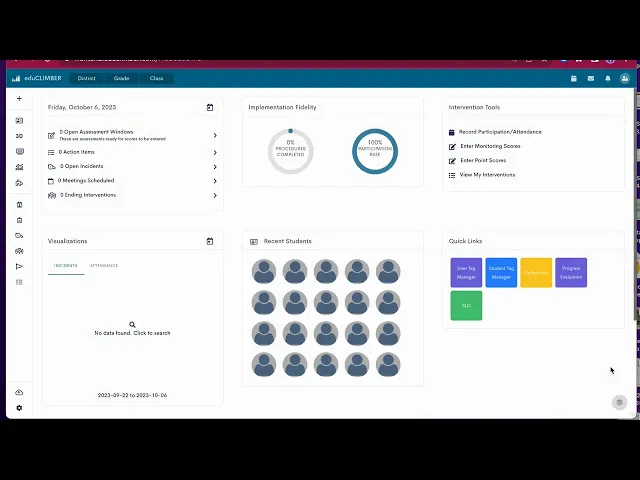
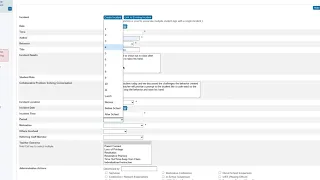
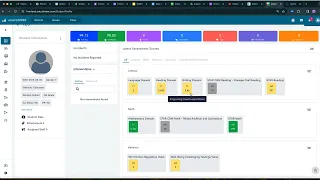
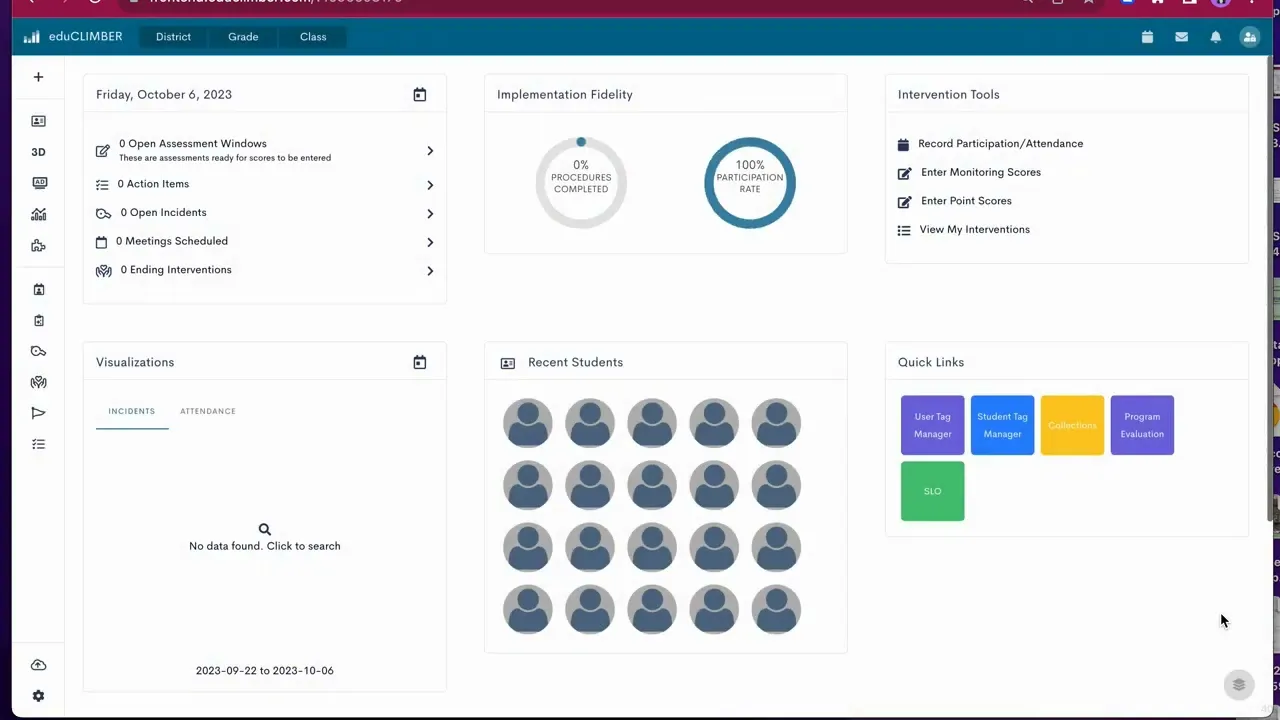
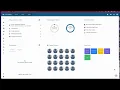
to create an intervention in edge of climber um here's your home screen so you've kind of already logged in everybody has the same home screen it looks very similar across the board um what you're going to do is you're going to go up here to the plus sign and you'll see create interventions um there are a couple other ways to do that as well if you had a data wall you could select students there's this little box next to their name you could select them and a blue bar will come up and say you know
hey do you want to create an intervention you can click that and you can also create an intervention that way if you did it that way it would automatically populate with um your couple of students that you you selected from there but you can do the same thing from here as well so I'm going to go ahead and click create an intervention your first job is to add your students so if you had multiple schools you'd have to select that okay I added one student you can keep adding more students I would recommend that you
add students by group so just because you have students that you're seeing across the entire week and let's say you're using a similar program or a s similar progress monitoring tool don't put them in the same group do them separately um I would literally go based on I see these three students at this time on Monday every Monday at 9 o'clock so I'm going to put them in a group okay um it's just makes it easier as we go through the scheduling so I'm going to click add here you can select a different interventionist I'm
just going to leave it as myself select the level of intervention this is more like a kidt talk kind of level this is more of our SSP intensive intervention um and then you have your specialized instruction the skill area this is a filtering system basically so if I click literacy it's only going to show me me the interventions that we have in our system for literacy if I were to click math it would do the same thing behavior is just the point sheet right now okay I'm going to go ahead and click literacy you're going
to select the strategy that you're going to use there's quite a few things in here based on the recommendations from interventionists and from uh special Educators so select the one if you have an addition that you'd like to make to hear just come let me know um and we can talk about uh that intervention and whether we can get it in the system or not okay I'm going to click C intervention tool it autop populates with a name here but I recommend that you make it identifiable in some way shape or form because if you
had a lot of different um intervention groups in the system you'd want to make sure that you could easily find them and you know which ones are which so in this case I'm going to put 5m and I'm going to put ckla intervention because that's this is the classies in and um CK intervention is the intervention I'm doing that way you could have multiple 5m groups and you could do have maybe different interventions for each one of those all right I'm going to click add up here is the dates for your intervention usually your intervention
should be scheduled in um four six eight week chunks somewhere in there maybe 10 weeks if it's a a longer term intervention so we're going to want to change this date here we'll just go to December um it's on a weekly schedule now most of us don't have block schedules I don't think anybody does and then there's as needed I'm going to go ahead and select weekly I'm going to say that it's Monday Wednesday Friday um it's important to remember which days of the week that you at put here um because later on when you
assign a progress monitoring tool you have to put it on one of those three days you can't test on a different day that you don't see that child so I'm going to say this is happening from 9 to 9:30 on Monday Wednesday and Friday that's the days that you're seeing the child the days you're you're uh administering some sort of intervention this is where you're putting in measures you'll notice it says measure one and you also have the opportunity to add a new measure it would just say measure one measure two measure three so that's
if you're you're using multiple different progress modeling Tools in one intervention group so probably not likely but it could be um it could be that you are administering the star assessment um and that comes in automatically and you're doing a quick fluency check I don't know down here are your tools um I did just mention that star comes in automatically that's both the cbms and the star screener um that makes it easy because you do not have to enter those scores in later so it will automatically populate it'll automatically go on your students charts super
easy you just administer the assessment and then you kind of let it ride um if you do a different intervention tool which again is totally fine um you just have to manually enter those scores in so let's pick this one complex patterns all consonant groups so let's say that's the that's what we're working on that's the progress monitoring tool um we're going to select that we want this measure to configure a rate of improvement so this box is really for if you had multiple measures up here you need to pick one of them to for
it to calculate your rate of improvement and I'll show you that in a little bit it autop populated with our dates of our intervention I'm going to do down here and I'm going to select the same time that I did before 9 to 9:30 that's where my group is okay how often you're doing the um this is how often you're doing the progress monitoring tool we know you're you're probably seeing them every week but um maybe you want to do the progress monitoring every every two weeks like if it's something like star um the cbms
or the um the screener you're you're not going to want to do that every week that would be a lot um so maybe you're only doing it every other week or every three weeks or every four weeks or whatever it might be so um just select that there and the day of the week that you're doing the progress monitoring I'm going to say it's on a Friday so in this case I'm saying I'm doing it every week on a Friday your goal goal is important because that's again how it's calculating your rate of improvement toward
reading your goal so if you're not using star um it might be that you have a a tool that you're using that's out of 10 so maybe this student scored a five out of 10 on their original assessment and now you're saying that by the end of this intervention they're going to get a nine out of 10 okay grade level is not something you need to put in that is for if you are assessing the student outside the grade level that that progress monitoring tool is for so for example in Star um you can change
their expected um instructional level if you change their instructional level it changes where they start on that test and you would want to enter that here just for your own notes it really doesn't impact a later but when people are asking you about the progress monitoring tool um which of course everybody will I'm just kidding they um they might ask well are you assessing them on grade level well no we're assessing them at a second grade level at first grade level all right so I'm going to say that our goal is nine out of 10
I'm going to add that measure this uh review schedule so again it defaulted back we want to go to the end um and we're going to say we're going to um this is how often you're meeting about this student how often are you looking at that plan and saying I looked at my data looked at my progress monitoring and I'm seeing that either this intervention worked or did not work and so I'm going to do something differently okay so we're going to say we're g to do that every six weeks okay and we're going to
do it at an mtss meeting on a Tuesday now if you had a mtss meeting um structure that is already set up in this system which I do not That's why nothing shows up they would show up here and you'd automatically be able to say it would automatically assign the student if you clicked the button um to that meeting in six weeks so in six weeks it would assign it and say okay don't forget to talk about this kid so that's kind of a cool feature right now I'm going to say Do not assign to
a meeting because I don't have any meeting set up so I'm going to click add this is where I can go back and I can edit anything I want to now you can do this at another time too um there's multiple ways that you know once it's in it's not locked in Forever you can change things but um if you you know changing it early is better so if you need to go back you just click update on any of these sections and you're good to go click save it created my intervention um if I
were to click this it would create a PDF of that intervention so that you could you know give it to a parent or whatever you'd like uh put it in their file you know things like that um mine won't work actually it'll create the intervention but I can't open it because it puts the student's name on it um and so since I'm in top secret mode it won't it won't allow me to show you with the name so I'm just say okay okay so it put it in here um you can view your interventions in
a couple of different ways you can view here view my interventions or you can view here okay I'm going to go here it takes you the same spot um we're going to go I have two different groups right now so I think this is the one I just created so I'm going to select that there's my student right there and this is where I can kind of take a a look at their progress monitoring we don't have anything in there right now so I'm going to actually go back here and I'm going to enter my
participation okay entering participation so you'll see right off the bat Britney Preston has two different groups that I could score on a Friday so both groups are Monday Wednesday Friday actually um so they're both here I can select an individual group and say I only want to do that group I could select both groups if I had 10 groups in here they would all show up what's really really nice about that is that there's this feature here um that's a quick enter so if I had 10 groups in here and I know that I had
perfect attendance the entire time you just click it and I know that recommended duration means of that 30 minute group how how many minutes were they actually in the session so I would say I'm going to do present yes complete procedures for all students I'm going to click save it automatically populates here then you can go back through and say oh but this student this one was absent right so it's got 0% here 100% here okay let's say this student was present but only came for 25 minutes you can change it okay um which is
helpful hopefully a majority of your students showed up so it's a quick enter you don't have to really worry about changing anything but if you did need to change one or two students you can do that there okay so that's done that's all you needed to do not too bad if you needed to reschedule a group you can do that right here by clicking this there's also another place that you can do that as well but right here I can click reschedule a group I can add a date for a group so let's say you
needed to reschedule because those students were on a field trip or maybe you're like hey I want to give these kids an extra little dose on Thursday um you could just add that add a date for a group okay so that's it for attendance not not a huge deal um again the really important thing about attendance is because if a parent is like hey my kids in intervention they've been seeing you every single day and they're still not making progress what's up you can go into attendance and say yeah they're assigned to my group every
day but every day they have band or they have field trip or they have some other thing that interrupts them being able to attend that would be a really good reason on why they're not making progress us all right so the next two sections are entering monitoring scores or entering Point scores so Point scores are for the behavior sheets check in checkout sheets uh I don't have any of those right now but if you did that's where you would enter those scores we're going to go under monitor scores again this is pretty easy it automatically
puts all of my groups on one page but I can filter them and I can say it would list students here so I could click a different student if I didn't want to enter progress monitoring for for this student I could pick a different one I can pick all of them however you want to do it the way I see it being the the most effective is if you had the same progress monitoring tool for a bunch of students you could click on those students and it'd be much easier to just log their scores okay
it does go by date so if you picked that um you were doing your intervention or your progress monitoring on a Wednesday this they wouldn't show up here because this is a Friday okay you can reschedule them you can select and say this student uh he was absent that day remember we need to reschedule when um your schedule or at a date um to a different day because that's when we did the progress monitoring so unclick here are your scores it's just a double click you enter your scores so this student let's say uh you
got a seven I already entered this one was a six your errors and accuracy um so that would be let's say you're doing um a fluency check you could say how many errors that student had okay so um not too hard pretty easy um you just click in in it automatically saves there's no saving click X and it's going to automatically start your charts okay so if I wanted to see my charts I want to see what what are my what are my charts saying about how this student is doing I'm going to go to
view my interventions select the group okay so here's my group this student has 100% attendance so far they're participating every single time that's great their latest score was a seven um the more progress monitoring data you have in here these things will start to populate other information will start to populate you can add comments all right if let's say I had a bunch of students in this group like four sometimes it's neat to go to this section right here because you can see overall how are my students doing in this group how is their participation
are they overall on track or not on track how many students in each right um You can add comments you can make those comments private that's really important you can um these are some forms that are already pre-built that you could click click on and defi decide okay well how is my fidelity doing things along those lines those come off as PDFs I have my schedule for when I'm seeing those students which you can edit right and I have my student details which is where you could also put in your exit status so if this
student is exiting this group for whatever reason you could do that here okay group overview again when I click on this student I can go into progress monitoring and it's going to give me his chart so this is his first score right so it charted him at a seven which is really great we're very close to our goal our rate of improvement it's right here at a 0.1 n all right um as you put in scores it's going to add a blue dot so if his score went down it'll go here goes up here and
it's going to keep all the way through okay you can take away your goal line if you want to uh yep by clicking on the word it took my goal line away so now I can just see my dots put my goal line back and I can take away the dots okay down here every time you progress monitoring it's going to add columns and it will come up with um a trend rate of improvement it'll also come there'll be this little button here not button uh circle that has an arrow up or down or to
the side saying he stayed the same he went up he went down whatever um it's just like a little flag so lots of information there um the other thing to note is when you click these little buttons you can add add a new phase um a new phase would be like um let's say you're using Orton Gillingham um and you are moving from CVC words to vccv right you that might be a new phase in this as long as you're using the same progress monitoring tool the phase will show up as one of these black
lines so it'll show up here or here wherever you you changed the phase you can add a student to your group you can add a measure now if you add a measure it is going to rechart it down below this so you'll just keep having every new measure will have its own chart that's where if you had multiple measures for the same group you'd have multiple charts okay you can add comments right here for this particular student you can print your comments and you have reports for that individual student just like what you had for
the whole group right new phase new measure again there's lots of different ways that you can um that you can adjust things can delete it here okay so I think that's it [Music] for um progress monitoring um I know it seems like a lot but I think once you get into it once you get your groups they actually did Streamlight it quite a bit um so like I said you can take attendance all at the same time you could enter your progress monitoring all at the same time you know if you put that in your
schedule for once a week it should go it should go pretty quick um oh the last thing I wanted to show you about this actually let's look at this group so you might have noticed under progress monitoring there's the pin here and if you remember collections you can pin this to a collection so if you didn't want to have to click through all this and see how all your students are doing individually or in their groups you can pin all of the those charts to one collection you open up your collection and now you see
all of those charts in one spot if you ever need help setting that up I'd be happy to do that all righty so I think that's it for this don't ever hesitate to reach out if you have any questions um we'll be doing a lot of I'll be doing a lot of short videos like this uh little Refreshers so keep an eye out for those thanks