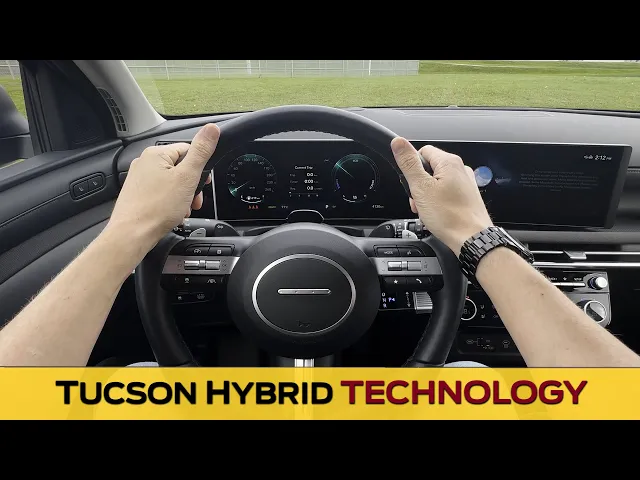
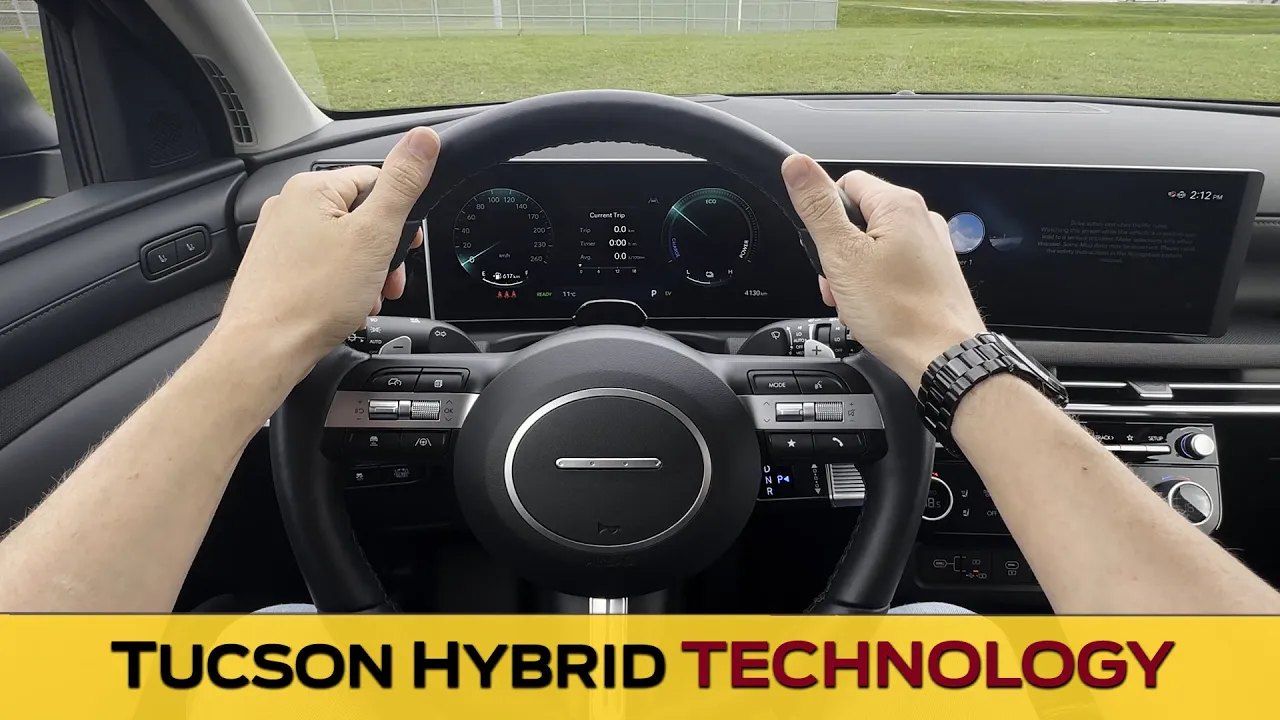
Looking at the steering wheel as well as the cluster screen and a head-up display inside of the Hyundai Tucson. This is the hybrid version of the vehicle. If you're looking for a walkthrough on one of the regular gas versions, you'll find that down in the description of this video.
First thing I'm going to point out is that the steering wheel inside of the Tucson might be heated depending on the trim level that you're in. if you've got it. Down along the middle here, you've got your heated steering wheel option there.
And there are two unique levels that are available. The steering wheel is also going to be manual telescoping across the lineup. So, down by your left knee, there's a release there.
And you're going to go in out. So, full telescoping up and down to find that perfect position. Once you do, click it in order to lock it back into place.
And there are so many different buttons and stocks. But before we get there, down by your left knee, you've got a series of different buttons that are available. So, you can use this in order to increase or decrease the brightness of the cluster screen.
You can open and close the trunk door by just pushing and holding. You've got your traction control system. The only time you really want to turn that one off is if you're getting wheel slippage.
So, slippery conditions, snowy conditions, off pavement, etc. 12volt battery reset is there just in the traditional hybrid version. So, if the vehicle is not starting up, you just push this in order to be able to reset that 12volt battery.
There's the electronic parking brake. You're going to pull towards you in order to be able to turn the parking brake on. You're going to push and hold the brake pedal and then push away in order to be able to turn that parking brake off.
You've got this little fingerprint reader that's available here, too. Well, that's available as an option, which you can set up a few things inside of the infotainment system. There's also seat memory, so you're going to get your driver seat set up the way you'd like to.
So the main lever here, so forwards, backwards, up or down, adjust out your back rest with multi-way lumbar support. Once that's set up, you're then going to push and hold either one or two in order to save your personal profile. But actually, before I said that, I should also should have mentioned you can also adjust out your side view mirrors.
So you adjusted your side view mirrors there. Once your seat side views are set up, then press and hold one or two and it'll remember your side view mirror memory along with your seat memory there, too. And then there are so many different buttons and stocks, but let's start off stock along the lefth hand side here.
So this one obviously is going to be for your blinkers, which I think that blind spot view monitor is beautiful. But with your blind spot monitoring system there, you can toggle it on or off if you'd like to. But the main one we're looking at here.
So you've got your high beams. But if we push away, you see there that it says that I'm in the auto mode right now. So what that means is that if the vehicle recognizes high beams are needed at nighttime, it flips them on automatically.
If somebody's oncoming, it turns them off before turning them right back on again. At night time, you can push away to lock them on, but you can also permanently lock your high beams out if you go into the upper headlight mode there. Push away to turn them on.
Pull towards you to turn them off. You can turn your lights off completely, but I think you should just keep yourself in the auto mode the majority of the time. Stock along the right hand side here is going to be for your wipers.
So, if you just go one down, that's just going to be a quick wipe. You can go up a level and that's the auto or intermittent level. You could then use the rocker switch in the middle in order to say how fast or slow.
Brain's handing the windshield. Going to one of those crazy modes there, too. You're going to pull in towards you in order to get the front wiper fluid going.
You're going to push away in order to get the rear wiper fluid going. And then you've got a control for the rear wipers here as well. So, you've got a few different levels that are available.
The car does have paddle shifters. Now, I say paddle shifters because if you are in your sport mode, they change to traditional paddles. So, hold on.
If we go to H, let's go drive for a second here. You can see there we're adjusting gears out. But if you were in the eco mode, these would act as a regenerative braking switch instead.
So, you can see there you've got three unique levels. So, you've got level one, two, and three. So, what that means is the regenerative braking level.
So, you take your foot off the accelerator pedal or I should say the brake pedal or the accelerator pedal. It's how slow or how fast does the vehicle slow down for you. And that's for the hybrid.
So, you're essentially regenerative braking. It's how much power is the vehicle trying to recapture as you let off the accelerator pedal. It's a beautiful system, but I like that they're multi-function where you're in the sport mode and they act as traditional paddles instead.
If you've never used paddle shifters before, you want to know how to use them, when to use them, why to use them, etc. , You'll find a walkthrough down in the description of this video. Then your other one, your little shift by wire system here.
If you flip up, that's going to put you into drive. If you lightly go down, that puts you into neutral. All the way down in order to put yourself into reverse.
And when you're in reverse, you've got a mirror tilt function there, too. And then a button on the tip of that stick in order to put yourself into park. So, it's a pretty simple system to use once you actually get the hang of it.
One cool thing is that if you're out of park, so you're in reverse, neutral, drive, etc. , if you turn the car off, it automatically puts you into park. It's kind of a neat setting.
And then button galore. The ones here are going to be for cruise control. There's only a single type of cruise that you're going to find inside of this vehicle, and that's going to be the adaptive or the smart cruise control system.
So, you turn the system on this way. It's not going to work because I'm parked, but it would set you at your current speed with a minimum speed requirement of 30 km an hour or about 20 mph. So, the way that this works, you set it at, let's say, 50.
If the car in front of you slows down, yours will automatically break. They change lanes, you change lanes, it's going to pick you back up to your previously set speed. So, it's pretty good from that perspective.
You could, after you set your speed, push up or down to increase, decrease, 1 km, 1 mile per hour at a time. You can push and hold up or push and hold down to increase decrease at larger increments. You'd hit the brake to cancel, pause your speed.
You can push the button in the middle there to cancel or pause your speed and then push it again to resume your previously set speed. There's also this one which is a gap adjustment. So, it's how close or far are you from the leading vehicle with four unique levels.
I want you to think of that like a one Mississippi, two Mississippi to control that distance from that leading vehicle. I'm personally okay on level one most of the time, but you might want to be on two, three, or four depending on your own comfort level and your reaction speed. Then actually you can adjust a few things out.
So inside of the infotainment system, if you go into your setup along the outside, that'll pull you up to this screen. If you go to vehicle driver assistance, driving convenience, you've then got some smart cruise control options. So, you've got your distance indicator.
So, you can adjust it through the infotainment system, or you can adjust it using the button along the left hand side of the steering wheel there, but you can also control how fast the vehicle accelerates. So, with that smart cruise control system, your vehicle starts to slow down because the car in front of you slows down, they change lanes, you change lanes. How fast is it going to speed up again?
I'm okay with level four or five. But there's also the reaction speed. So, how fast or slow does the vehicle react?
So, let's say if the vehicle, if somebody in front of the vehicle starts to slow down, how fast does it slow down? How fast does it pick you back up to that previously set speed again? Then you can recenter it back to zero if you'd like to feature packed otherwise.
And then you've got this button. So, this one, if you just do a light tap, you'll see icons show or hide there. So, just a tap is going to be your steering wheel icon.
If you take that same button and you push and hold it instead, that is going to be your lane keep assist. So, there's lane keep assist and lane follow assist. Lane follow assist is the light tap and what that one means.
So, the lane keep assist, the icon on the right there is going to go green. If you start to veer over into another lane without signaling, it's actually going to nudge you back into your lane versus the lane follow assist with just a light tap. Not self-driving, but the vehicle is going to keep you perfectly balanced around bends and things like that as long as the lane markings are recognized.
I said not self-driving, but if you lose focus for a second, rubbernecking, it's going to keep you perfectly balanced around bends and things like that, it is a phenomenal system. But if you want a live demonstration of actually using cruise control, you'll find that down in the description of this video. The buttons along this side here, the mode button is going to be changing between all of your available sources that you can set up through the infotainment system.
I'll show you that in a second. And then your custom button down here, which you can have it adjust out to do different things, too. So, if you go back to your setup here, inside of your setup, you've got buttons.
From buttons, you've got one down low, but the two on the steering wheel here. So, you've got your little star icon. What does that do?
Does it toggle the display off, bring you to the home screen, the hybrid screen, etc. I've got it set up so that it turns the display off if you just want more of a relaxing drive. And then your mode button.
What sources do you tend to listen to? Sounds of nature, AM, FM, USB music, etc. You can adjust this out.
So when you go to tap that mode button, it cycles between all of your sources with your up down button. So that's this switch here. You can have it adjust a few different things.
But if you have preset set up and you go up and down, it's going to change you between all of your available presets. But if you take that same up down switch, if you push and hold it up or push and hold down, it acts as a seek button. But you can also change stations and things like that using your voice instead.
If you had a phone hooked up, so Android Auto or Apple CarPlay, you can do a long push and hold of that button in order to activate either your Siri or your Google Assistant. You can answer or hang up on a phone call. And then there's also a volume rocker where you can push in the middle in order to be able to mute out your audio instead.
Inside of the cluster screen, you've got your speedometer along the lefth hand side with a different type of gauge along the right. And that's because this is the hybrid. So, I want you to think of this bottom gauge here as a charge gauge specifically for regenerative braking.
So, as you go to break, you're going to notice that the charge gauge drops because it's trying to recapture that charge in order to charge the vehicle back up again. When you're in the plug-in hybrid, you can obviously plug in, but when you're in the regular hybrid, it's a tiny battery, which means that you don't need to actually plug in. Think of this one and this one down here.
These are essentially going to be like your traditional tachometer views instead. So, you put your foot down, it's how much power are you actively using. You can see how much charge you currently have.
Along the very bottom side there, you've got your fuel gauge. your drive mode that you're currently in. So, as you move between all of the different drive modes, is the vehicle ready to drive?
Yay or nay? Outside temperature, what gear are you currently in, so drive, neutral, reverse, park, but before I go to park, you've got all of your different sensing systems around the vehicle. We're sitting in EV mode right now because I'm just sitting here, but you might notice that the engine kicks on every now and again just to charge the battery back up a little bit.
You've got your current odometer along the bottom right hand side there too. And then along the top it's going to be a series of different icons. So as you get different safety systems enabled, disabled, etc.
Those would show up along the very top. Smart cruise just because I'm currently parked right now. But you've also got the flexibility of being able to customize the screen a few different ways inside of the infotainment system.
If you go to your setup again and then screen layout, that's going to pull you up to this screen. So you've got different gauge styles. So we're in classic right now.
So you can go classic, modern, or more of like a simplified look. I'm a bigger fan of classic, especially as you go between different drive modes, but you go to your sport mode. I mean, look at that.
That's beautiful. So, I'm personally in sport mode most of the time, but you can go either way if you'd like. But you can also permanently lock it in to one of the other drive modes there.
Now, it's kind of an odd setup right now because if you go back into your cluster head-up display, you've got different options here. So, specifically tachometer. Do you want to show your tachometer in the eco mode?
Yay or nay. So, when you're in different modes, you can have it set up this way, too. And then to mention here, you've got your little pages button with your scroll wheel.
So, the pages button here that gets us between three primary pages there. So, you can see your three little dots. And then you've got a bunch of different dots along the outside here.
So, that's going to denote what page you're currently on. You've got your current trip. So, that's the last time you turn the vehicle on.
What's your fuel economy? How long's it been running for? Etc.
Since refueling. So, last time you filled the vehicle up, what's the range that you've gotten? And then since the last time you've reset, what have you gotten to?
You can see here along the bottom, it says okay to reset on all of these options. So, if you take your little scroll wheel here, that acts as an okay button. So, if you ever get messages in the cluster, if you push and hold, that essentially acts as an okay button.
So, you push and hold here, it's going to recenter you back out again with your fuel economy options here. So obviously in Canada, so if you're in the US, it's going to be miles per gallon, etc. But the little notch right in the middle there, that's 7.
5 L per 100. So it's going to be the same thing. Obviously, if you're in miles per gallon, that little notch there is going to say what your current economy has been.
Engine temperatures there. Your tire pressure, so as you go to drive, you'll notice that your tire pressure shows up. There's the flexibility of adjusting it out to PSI, kpa, or bar.
I'll show you that one in just a second. Power distribution. You can see which axle is getting which amount of power as you drive.
And then there's your charge mode here. So since this is the hybrid, you'll notice that when the vehicle is actively charging up, you'll notice that it's kind of sending power there into the battery in order to charge it up. It actually looks pretty neat as you drive.
And you can also adjust that out inside of the infotainment. You've got your route options that are available there. So if you had factory navigation inside of your Tucson, you'd also have the flexibility of not getting full mapping cluster.
But look at this. turn by turn directions. So I think it's >> turn left and then turn left.
>> I think that's kind of useful. >> There we go. Meeting up the guidance there.
But I think that's kind of useful. So yeah, like I said, it's not full mapping cluster, but you've at least got your turn byturn directions there. And then if you didn't have a route actively going, then your turn byturn directions wouldn't be there.
It would just be a compass. And then you got this screen, which is a driving assistance screen. So, what you'll notice here, specifically with your blind spot, if somebody enters the blind spot on either side, you'll notice that there are red boxes that pop up along either side.
That lets you know that there's somebody that's actively in your blind spot. It's actually kind of neat. And then a small highlight, you hit the gas pedal or the brake pedal, I should say, and you can see the brake lights come on.
You got your blind spot monitoring system there, too. I just think that looks beautiful. And then when you get onto that page, so specifically, it says to press okay in order to get to some additional settings.
And that's going to be a bunch of different driving assistant settings and things like that inside of the infotainment system. But if you want a full walkthrough on the infotainment, you'll find it down in the description of this video. Some versions of the Tucson also have a head-up display.
If you had a route going, that would show up. But if you didn't have a route going, then that turnbyturn direction there would go away. Inside of the infotainment system, you've also got a few different options that are available for the head-up display.
So, you can show or hide different things. So, do you want to enable or disable the head-up display completely? Yes or no?
You can toggle that off if you'd like to. You can also adjust a few things out. So, you can adjust out how high or low the head-up display sits.
And you can also adjust the rotation. So, if you have a tendency to sit one way or the other on your seat, and you can adjust at the brightness, but I always recommend maximum brightness. One thing that I have noticed is that if you use polarized sunglasses, it is very very difficult to actually see the head-up display.
It's like that with most manufacturers, even on max brightness. You can also control the information that's showing up there. So, do you want media showing up?
So, as you change between your different sources or your different presets, does that show up as you cycle through? Yes or no? Your driving assistance views, blind spot, etc.
So, if we go back, hold on. There we go. So, if you notice somebody's in your blind spot, you'll notice boxes pop up along the right hand side or lefthand side that are red, letting you know that somebody's in your blind spot along either side.
It actually looks really, really neat as you're driving. Inside of the infotainment system here, if you go to your setup, general units, you can change out your measurement units. So, do you want to be in either miles or kilometers?
Hold on, I'll be a little bit more pronounced. So, we go to eco for a second there. But, I mean, that's kind of nice.
And then as you go to actually, let's go to the screen. So, your trip counter, it changes absolutely everything out. And it's the same thing for Celsius versus Fahrenheit down low.
If you're in a North American spec or Canada spec vehicle, I should say, let's go outside of the US. So, kilometers, you're going to be used to that liters per 100 because you can go either way. But the measurement you're probably used to seeing is going to be this one here.
And then your tire pressure. Do you want to have it measured in either PSI, kPa, or bar. You can also adjust out your language and a number of other things here, too.
So, if you want a full walkthrough on the infotainment, you'll find it down in the description of this video. Down low, you've got your either volume rocker or tuning rocker. There are series of different buttons to get to different pages inside of the infotainment system.
Your four-way blinkers are there. all of your climate control settings. If you've got the passenger side set up something different, it now says sync, so you can tap that in order to sync it to whatever the driver's side is.
Heated seats are there in most trims with ventilated available there as an option. You can toggle your climate control settings off completely if you'd like to also adjust it your fan speed. Turn AC on off.
Do you want to focus on your windshield face feet? Some sort of Frankenstein combination. front defroster, rear defroster, heated steering wheel, and then circulation.
So, is it going to just circulate air throughout the cabin, or is it going to pull air from outside in? Down low, you've got your two USB type-C power points. This one is a charge port and a transfer port.
As long as this is highlighted, so you be on the lower one there. If it's just this, you're just looking at charging. If it's this, it's charging and data transfer.
There's a 12volt power point there. all of your different drive versus terrain modes, too. So, as you go between all of your different modes, look at this.
You go sport. If you push the little switch here, that's going to change you between either drive versus terrain mode. So, play with traction control, stability control, and things like that.
I, I said, personally a big fan of being in that sport mode, though. There's the auto hold setting. So, with that one enabled, if the vehicle's in drive, you come down to a complete stop.
You take your foot off the brake pedal, the car is not going to move. There's downhill brake control, your camera there, so you're at least going to have a backup camera inside of the Tucson. The higher trims, though, they'll have this swing out.
So, front view, but also, yeah, that's swing out view. I love it. So, full 360, so you can see what's going on all the way around you with your different views there.
You can click through to get to some different views for both your front and back camera. So like a front wide, rear wide, etc. There's your park sensing system.
So that beeping that you get as you get closer to obstacles, you can toggle it off. Up overhead, there's an auto dimming rearview mirror as an option. Higher trims with a home link system.
So garage door opener. If you've got one at home, you can program that in. There's an SOS and tow mode just in case.
You can control each individual light, turn everything on, or do you want your lights to come on when the doors are open, yay or nay? And then if you've got the panoramic sunroof inside of your vehicle, you can use this switch as like a multi-function. So if you just do a light tap, that's going to start opening up the shade.
You can click away at any point to pause it or continue the process. But you can also take that same button now. You can push up in order to create a little breeze.
push away to close. But if you take that same button and do a hard open or close, it opens everything or closes everything in tandem, which I think is kind of neat. I know that was a heck of a lot of information, but that's everything that you need to know about the steering wheel, as well as the cluster screen inside of the Hyundai Tucson.