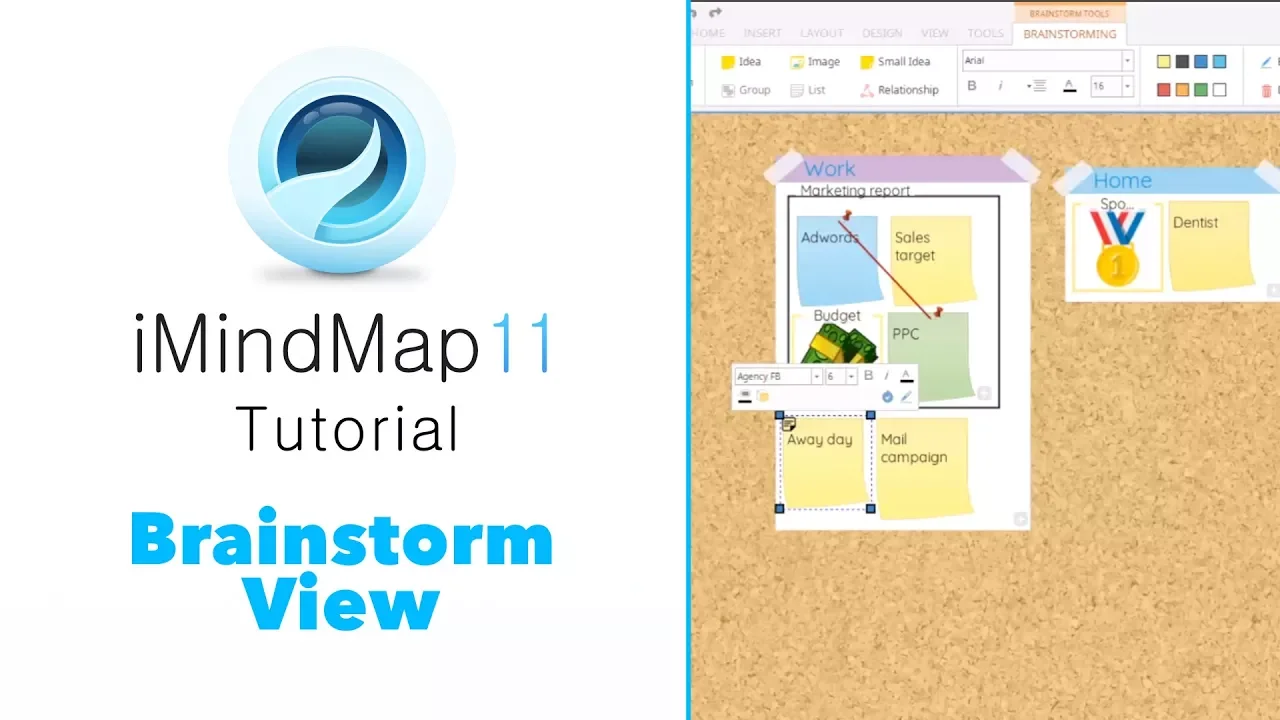
hi and welcome to this imindmap 11 tutorial all about brainstorm view so we're here to start at the I my map home screen where we'll select brainstorm and click to begin we've been taken through to there's the corkboard canvas now you've got a quick start option here where you can just simply type to start inputting ideas onto your canvas so I'm going to start by doing this so I'm simply on my keyboard and I'm typing the kind of tasks or to dues that I would need to do within say a week once you've got your
sticky note basic skills here you can click and drag it to place it anywhere on the cork board you like you've also got these anchor points here which will allow you to make it whatever size you want like so so I'm going to go ahead and continue to add ideas and click an answer to insert the text onto the sticky note I can click enter again to add another sticky note okay so I've got a few ideas there to work with but if you were to continue like this it would probably add a little bit
overwhelming so what you can do is head up to toolbar and click group this will bring up a new group which you can name it whatever best suit so for this project what I will do is have a group for any tasks that to do with work I'll also create a group that will include anything that's to do with my home life so again it says case of taking and dragging them to where you want them and then you can click and drag your sticky notes into your group like so now from here I'm going
to show you how to convert an idea into a group now where this is useful for example is this marketing report a lot of these ideas fall underneath that so I'm going to turn marketing report into a group by selecting it and clicking this convert type here convert to group once I've got that group within my work group I can click and drag the relevant sticky notes into my marketing report group and that will grow as I build upon it so I can continue adding ideas to work that fall outside of this group just as
normal so that could be things like we're doing we're planning a mail campaign we've got going on etc and all the same rules apply okay you can add a letter to your project by clicking lists from the tool bar here and that will create a list for you on your cork board canvas so type within this box the name of your list we'll keep it very simple for this example and build a shopping list hit the plus icon here to add your first item hit enter and then hit enter once again to correct another item
so hit an answer to put the text in and then enter to insert our next item like so again clicking and dragging it to wherever we want it on our cork board next I'm going to show you how to add a little bit of customization and really bring your project to life so the first thing I'm going to show you is how to change the color of your sticky notes you simply select the one you want to change the color off and click here and choose an option from our color palette show you that one
more time like so I'd use colors to categorize your work and bring a little bit more order to your project now one thing you might want to do is add a little bit more of visuals to your project again you've got the option here to add icons images emojis so I'll show you how to do that simply click on the sticky note you'd like customized head over to our image an icon library here and we will start and here for a relevant image and click to insert oh yeah again I'll show you maybe this time
we're using emoji something relevant for sports day so we'll go for a middle again so using images it's just a really nice way it helps you have recall it helps really personalize your project and it just makes it look really nice and visual as your project grows you may begin to spot connection between ideas now to highlight these simply click the relationship icon from the toolbar and with that highlighted you can click and drag a digital string between two ideas and that will just visually indicate that the two ideas are in some way related if
ever you want to add a little bit of extra detail to your project but not to cutter up a really good tip is to insert notes so again I'm going to click my sticky notes and I'm going to head over here and click on the note icon so in here I can add in a little bit more detail about what this is about which can remain hidden until I need it to cook an exit there and you can see that it's got a little note icon on the sticky note so what you can do is
double click and it will call up all that information that I just added but it'll remain hidden until I need it so now you have an example of a basic brainstorm project I hope you've really enjoyed this tutorial and that has given you a few tips that will help you get even more out of your I my map 11 software head over to our YouTube channel for more






![Data Modeling for Power BI [Full Course] 📊](https://img.youtube.com/vi/MrLnibFTtbA/maxresdefault.jpg)








![How To Use Microsoft Project | Hands-On Training | Beginner to Pro Tutorial [Full Course]](https://img.youtube.com/vi/9rAW74Kg0N0/maxresdefault.jpg)