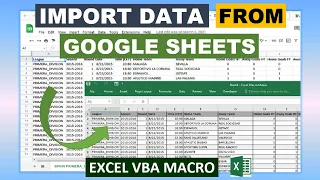
hello friends welcome back today we would be learning something very exciting and very interesting that is how to automatically sync excel sheets with the google sheets so first let me give you a demo this is my excel sheet this is the data first name last name agent occupation these three columns i would explain you in a while but these three should be there in your excel sheet for the sinking to happen the purpose of these three columns i'll explain in detail in few minutes so let's see our google sheet so this is the google sheet it also has this column first name last name age occupation and unique id so now when i click on this button just wait for a few seconds and now if i check my google sheet you could see the data is getting populated over here and within few seconds both the excel sheet and the google sheet will have the same data here the execution has completed you could mark the status like check the status the series has been marked as synced which means both the data are same you could see you could do a quick verification this is the google sheet which was auto populated from the source excel sheet so these columns are exactly the same so a question would be coming to your mind what if i do some edit for example if i change the age at row number three from 50 to 52 i change the age for row number five from 25 to 18 and also the occupation from service to student so you could see automatically the sync status has been vanished from here i'll show you how i did that but again if i want to sync it i just click on this button over here if i see my google sheet the same changes have been reflected over here you could see the last row age is 18 occupation is student at row number 3 8 is 52 so all the changes which were made on the excel sheet have been synchronized in the google sheet as well and again the status has been marked as synced hope you found the demo interesting now i will actually show you all the steps and the code which will actually perform the task of synchronization between the excel sheet and the google sheet so let's begin so to achieve the synchronization between the excel sheet and the google sheet we have to follow these 10 steps i'll show you each step one by one it does not involve any complex installation the steps are pretty straightforward and if you follow these steps i can guarantee you that you would be able to achieve synchronization of your excel sheet with the google sheet so these are the first three steps step one on the excel sheet which needs to be synced we have to add these three columns so this is my excel sheet so i have these four columns which has the actual data and these three columns i told you these are very important i'll explain you the importance of these columns but whatever are the total number of columns in your excel sheet make sure the last three columns are these three columns unique id to be deleted and the status these three columns should be added to the excel sheet which you need to sync so this was step one step two step two is very simple we have to create a similar google sheet like it will have the same column headers as the excel sheet but here in the google sheet the last two column status and to be deleted column can be ignored so if you see my google sheet it has the same column headers first name last name agent occupation and unique id this is the additional column but the to be deleted column and the status column are ignored so these were the first two steps pretty simple now the third step the third step is the most important step in this entire tutorial the step says create a google form having fields corresponding to the column headers now i'll show you how to create the google form we'll be using this google form to actually perform the synchronization to create a google form what you have to do is go to this url docs. google. com here select this main menu forms and select a blank form now you have to add the fields with respect to the column headers so here which column headers do we have the first name last name age occupation in fact we should refer to the excel sheet because we are syncing from the excel so we should be referring to the excel sheet so i would have first name last name age occupation unique id and to be deleted like all these columns would be added as a field in the google form so to add those fields it is very simple by default this form will come with one field uh i have to select short answer because this would be the for first name click on this button again this would be short answer for last name so like first name and last name i have added age occupation unique id and finally to be deleted this i am keeping it as a multiple choice because the options would be either yes or no so the first option i'm marking it as yes and the second option i'm marking it as no and my google form is ready one important thing on the top you can see this form is collecting emails we do not need that just click on chain settings and uncheck this checkbox and save it now your form is ready so so now we have completed the first three steps which you mentioned over here and now we will come to the fourth step which is link the google form to the google sheet created in step two so i'm here at this google form and this is my google sheet like i had cleaned i have given this name sync with excel this was my google sheet and i have to link this google form with the google sheet how to do that you have to go to the responses tab of this google form here you could see this control the three dots click on it select response destination since i have the statute ready i'll select select existing spreadsheet click on select and here select the google sheet in our case it is sync with excel i just double clicked on it and the form is now linked with the sheet you could see a new tab has come up over here it has the same columns first name last name age occupation unique id to be deleted and an additional one which is called the time stamp now what is the meaning of this step linking of google form to the google sheet it means that whenever a response would be sent to this form a corresponding entry would be made in this google sheet so this was step four in which we linked the google form with the google sheet our intention would be this is our excel with the data from this excel somehow we have to populate the google form and as soon as the google form would be populated a corresponding entry would be made in this sheet so now how to populate the google form from the excel for that we would be needing some details about the google form so we will perform the next step the next step is step number five generate pre-filled url of the google form so how to do that this is my google form on the google form on the questions tab on the top right hand corner select this control with three dots you'll get this option get pre-filled link click on it this kind of a form will open just populate with any random values unique id also so all the fields with any random values and select this option get link so below you could see this option to copy the link click on it so now your link has been copied on the clipboard this link is the pre-filled url so i'll show you which is the pre-filled url if i just do a control v you could see this long url is the pre-filled url so this was the step number five in which we generated the pre-filled url before moving on to the next step which is actually using this pre-filled url into the vpn macro let me explain you about this url so this is the url up to here we will need this url and whatever you see as and entry 747 and np these are actually nothing but the corresponding fields so this is the google form and if you see the first name was mentioned as jk v blah blah blah so you could see the same thing is available over here which means this field for first name corresponds to entry dot 747 and whatever it is similarly each of the input field over here has a corresponding entry id you could see this one and finally you could see the last one entry.
47918 that is for the to be deleted control so we have the url ready and we understand like each of these entries are corresponding to the fields which are there on the google form now we move on to the next step write the vba code to submit the google form and observe the response sheet now this is one of the most important steps here we would be submitting the google form through the excel vba macro so let's do that for that i go back to my excel vpn macro go to the visual basic and insert one module like this and give any name so before writing the actual code to submit the form through the excel macro there is one prerequisite which is go to tools over here then references and make sure microsoft xml v3. 0 is selected there would be other versions as well but for this objective make sure microsoft xml v3. 0 is selected once this is done click on ok now we start writing the actual code so first of all we create this object set http this is any variable of your choice is equal to create object msxml2.
server. xml http now if within tools references this is not selected xmlv 3.