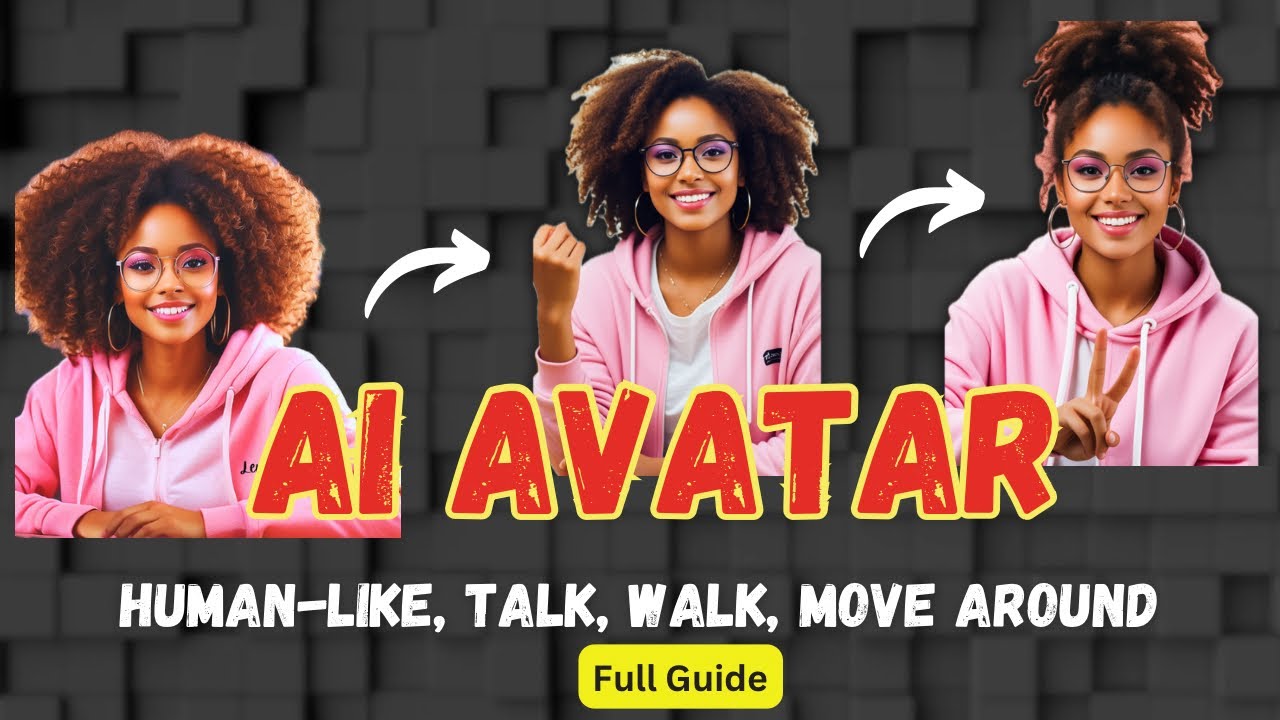
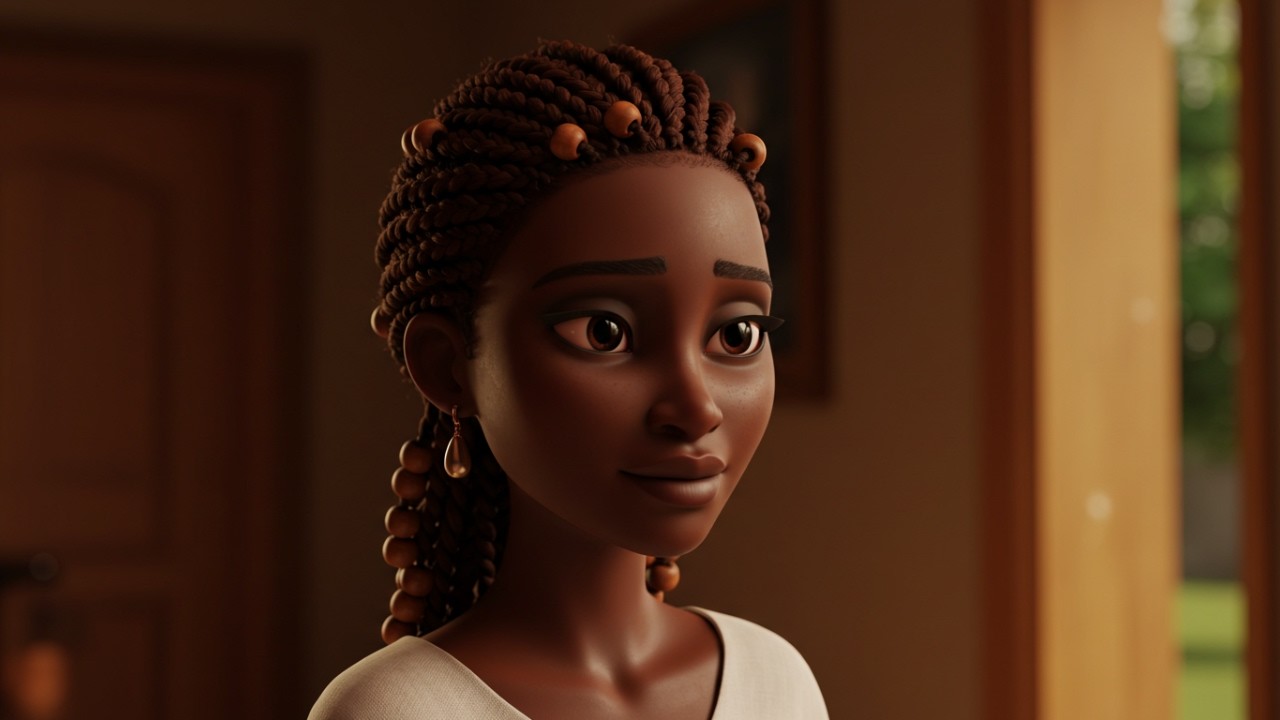
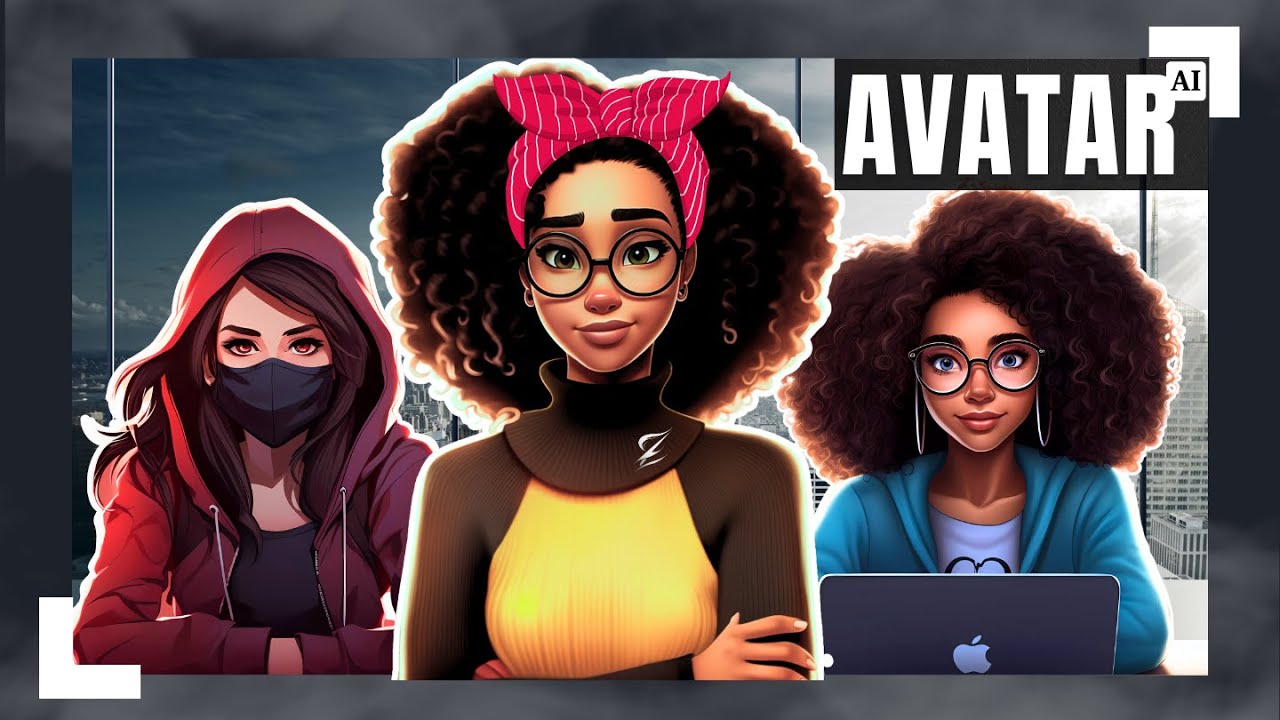
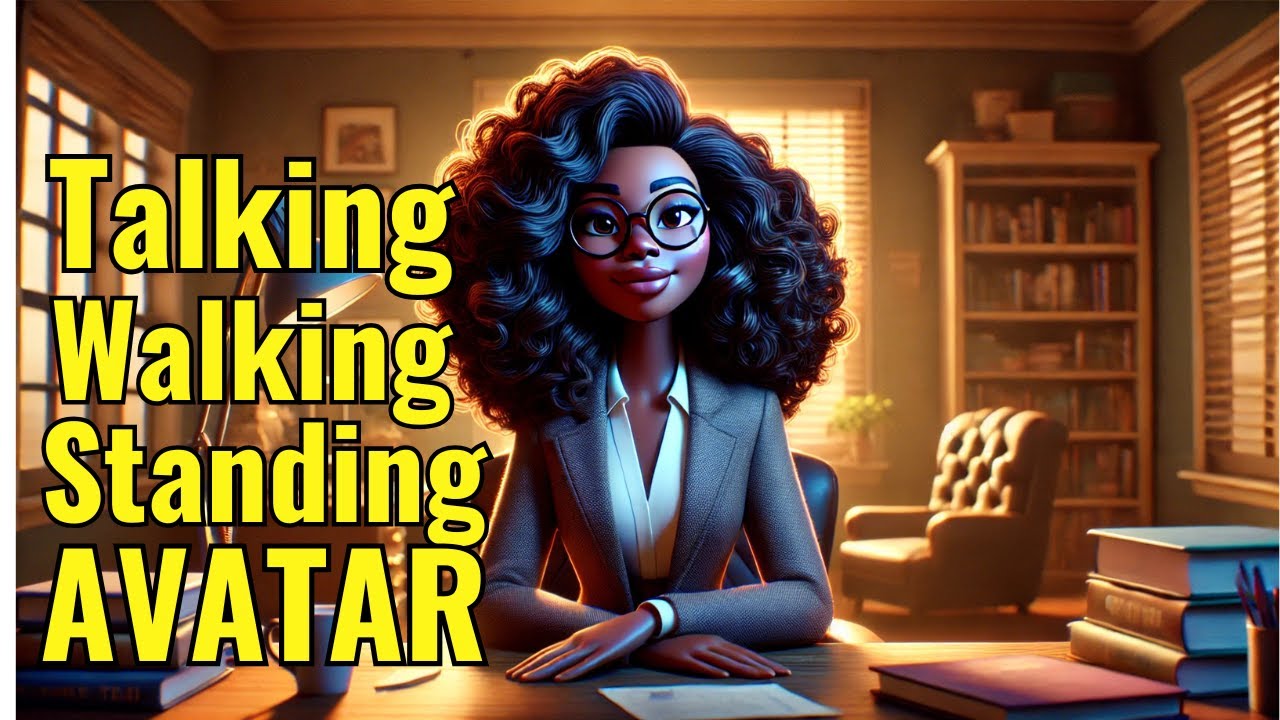
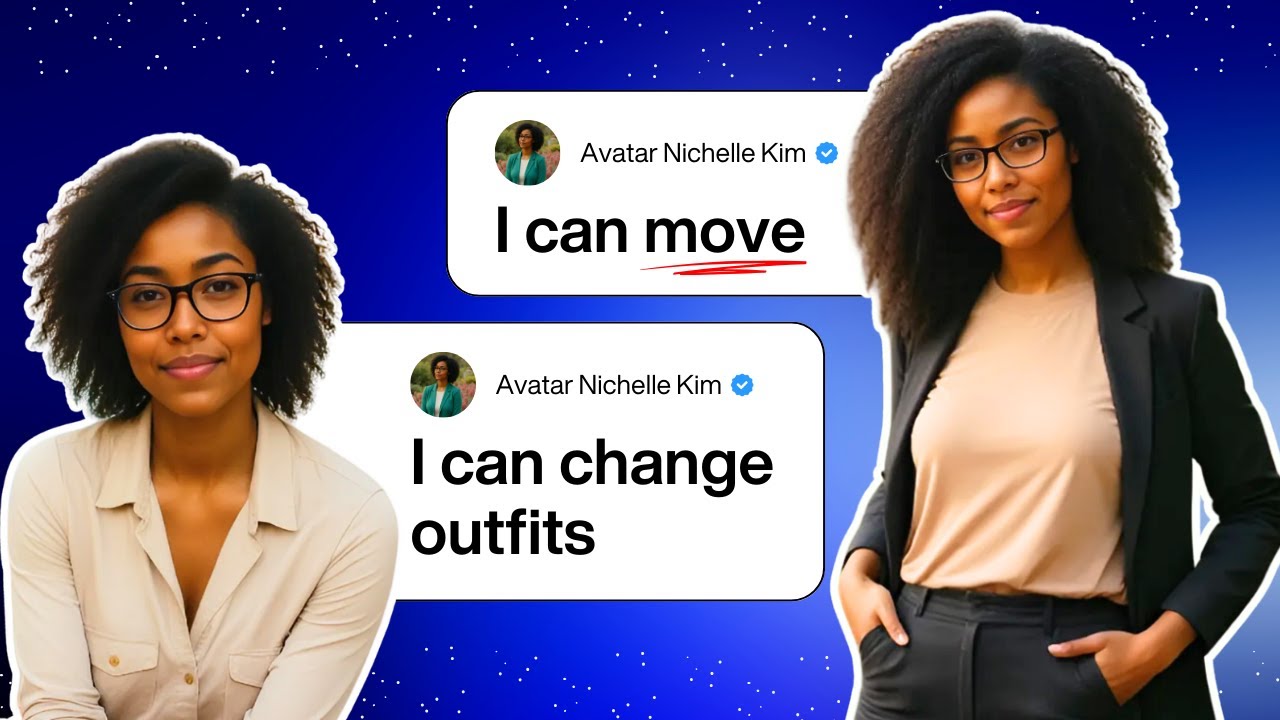
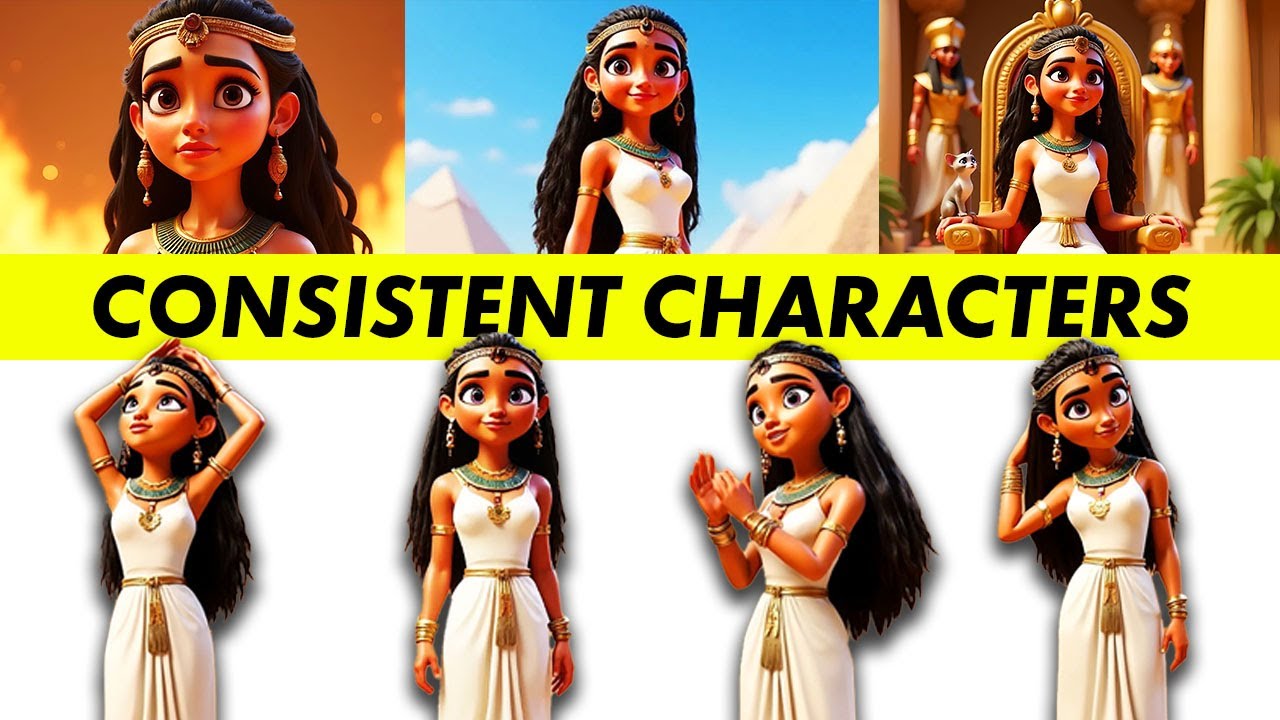
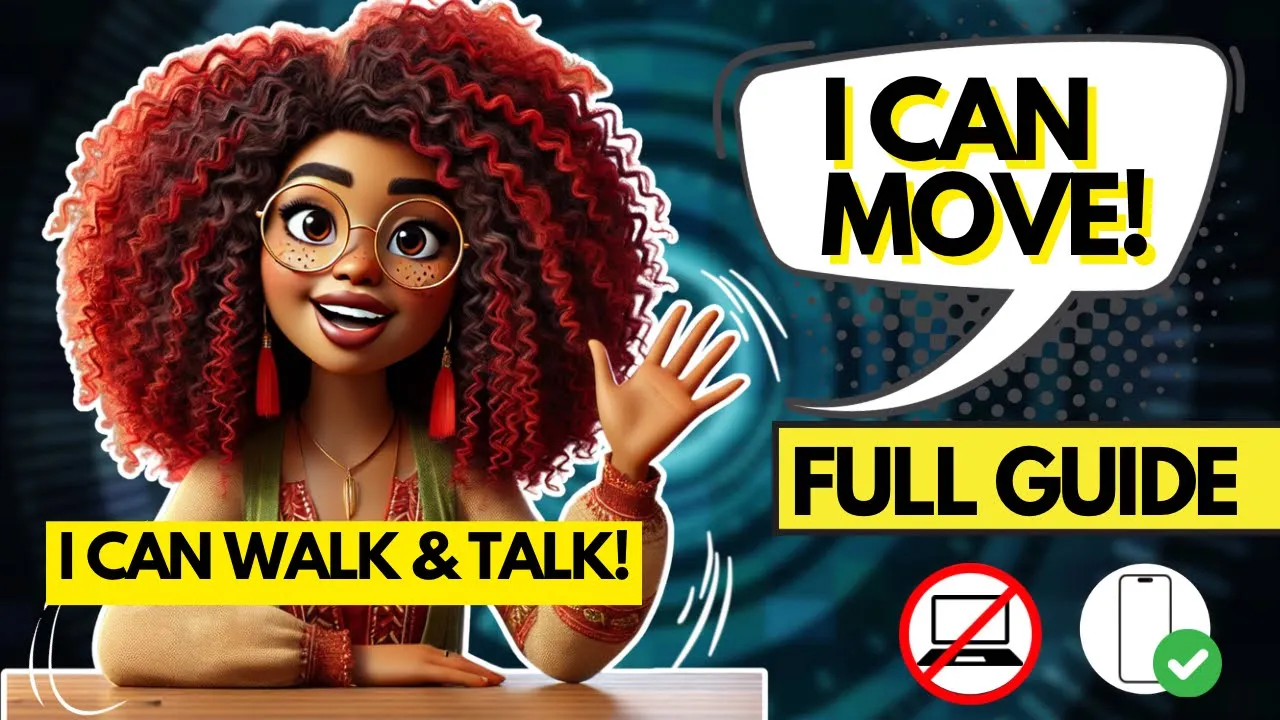
welcome back in the last video I showed you how to create a consistent AI Avatar design it for free and edit it to your liking I also shared my exclusive movement prompts now it's time to bring your avatar to Life we'll apply those prompts to animate movements add gestures and perfect lip syncing plus I'll show you where to find the right voiceover let's get into it these are the prompts I'm going to use to make my avatar move so I'm going to copy the first one which is open Palm emphasis then I'm going to take
it over to howu howu is the best image to video generator I've ever used and I mean that look at this it's smooth it makes the generator clear I love it look at this also when you sign up you get free credits about a thousand I believe so what we're going to do is go to the plus sign down at the bottom and then we're going to upload our image that we created in the first video so there's image to video text to video and story to video so what we're going to do is image
to video so you're going to upload your image which the image we just created and then in the bottom you're going to paste The Prompt that we just took from my prompt list and then you're going to make sure you're on this one because the other ones aren't for character creation so you're going to click this one and then you're going to generate Now it only takes a few seconds this is the video it's smooth you can see all her fingers her facial expressions it's pretty good at generating I really really love this so you're
going to click recreate and you're going to click replace now what you're going to do is take away the prompt cuz we're going to use a different one I'm showing you how all of these are usable to use so now we're going to use handwave for engagement you're going to paste that one then you're going to make sure that it's on that model and you're going to click create it literally takes nothing but a couple minutes maybe seconds this is the video so you can see all her hand she's waving she her lips are moving
this is the best generator you're going to get down at the bottom you click download and it goes straight to your phone now we come over to Runway because this is where we're going to lipsync our video so as you can see you can videos here so I could have used this to create my image to video but I really like the way how you makes my videos look so there's generative session act one video to video and upload from the internet but what we're going to use is act one act one is going to
need your facial expression so you can make your Avatar's face move its eyebrows mouth all that good stuff so you do get a free credits about 125 which is really good but if you did want to buy more credits you just click here and then it shows you monthly and annual so let's get started you're going to click act one and then you're going to upload the video you just created on hellu with your avatar so we have two we have this one where she's waving and then we have this one where she's gesturing with
her hands and talking so let's use this one click choose it only takes a couple seconds and then you click next and now you're going to upload a video of you saying what you want your avatar to say and you're just going to use your face don't worry it doesn't show your face in the Avatar or anything like that you're just using your face for expression so I already recorded a video of what I want my avatar to say don't worry I am going to show you a way that you don't have to use this
so you can still get the voice so I uploaded my video which as you can see it's blurred out because it is me and then you click generate now it's going to take about a couple minutes maybe 3 to 5 minutes to generate go to files and it should be right there so there it is and then you just click on it and I'm going to show you your channel will benefit big time from this so this is how I create mine it turned out so much better than I thought you click download and it
goes right to your camera roll as you can see at the top now I'm going to show you a way where you don't have to use your face go over to 11 Labs which also you can use on a free account there's so many realistic voices that you can use so what you're going to do is type something in the text which I'm just just going to put a little introduction and as you can see it's a free account or you can pay five which is pretty cool and then there's also the Creator account which
is 11 and then there's the pro 99 I am using the free account so I'm going to click one of these voices that I like which I like Rachel and I'm going to click generate speech hey there I'm Lola here to bring sounds like sounds pretty good now all you need to do is down download it and it will go straight to your files on your phone download and there it is so once you have that you're going to go over to pix verse AI you also get free credits on here and it also is
an app Unfortunately they don't have lip sync on the app so we're going to use the internet so you click speech and you upload the video of your AI moving so we're going to use the wave one and then down at the bottom you could upload Auto original audio or upload Auto so you click upload Auto and you use hey there I'm Lola here to bring the fun the one we just created on 11 labs and then you click generate so once you click create it takes about a couple seconds couple minutes and this is
the video hey there I'm Lola here to bring the fun facts and everything in between let's dive in so that turned out pretty good and then you just click download and it goes straight to your phone and you do have to click with the watermark now you're going to come back over to canva and I'm going to show you how to get rid of those pesky watermarks for free so this is where I created my avatar but I'm just going to click another canvas so I can show you how to get rid of the waterit
so you're going to upload the video and you're going to stretch it out to the canvas of 16 by9 then you're going to upload the photo before you created the video and then you're going to take the little sides and bring it over as far as you can so it will cover up the watermark down at the bottom so just like that see now it's gone and it doesn't look weird down at the bottom without the watermark now I'm going to show you how to do the other one so you can just download this one
if you like but I also have this app Annie eraser which is free and you just upload your video or your photo so it has a little eraser that you just put down in the corner where your watermark is and then you click next and now the watermark is gone so it does have a little blur spot in the bottom which is fine cuz I don't really think anybody's going to notice upload the photo again once you take away the bottom Watermark and then you upload it again so you can take away the top Watermark
and then you just click generate and now it's Watermark free for free hey there I'm Lola save your and everything in between let's that's it that's how I create my AI Avatar it's pretty easy but I did need to put it in two parts because I wanted everyone to see exactly step by step if you enjoy learning about Ai and how to use it on your phone don't forget to like And subscribe and hit that Bell button so you can get all the new updates thanks for watching