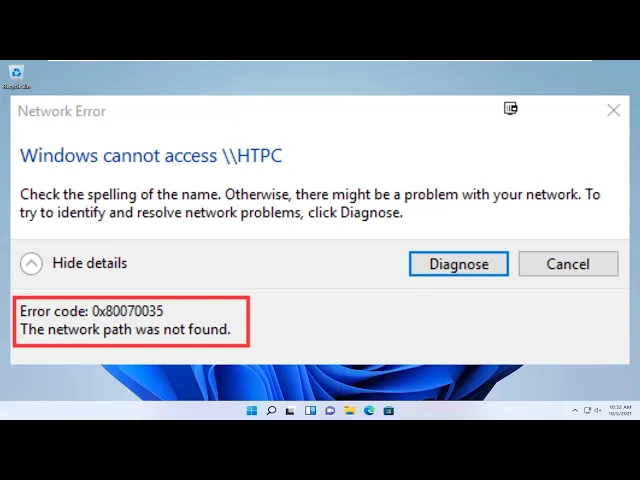
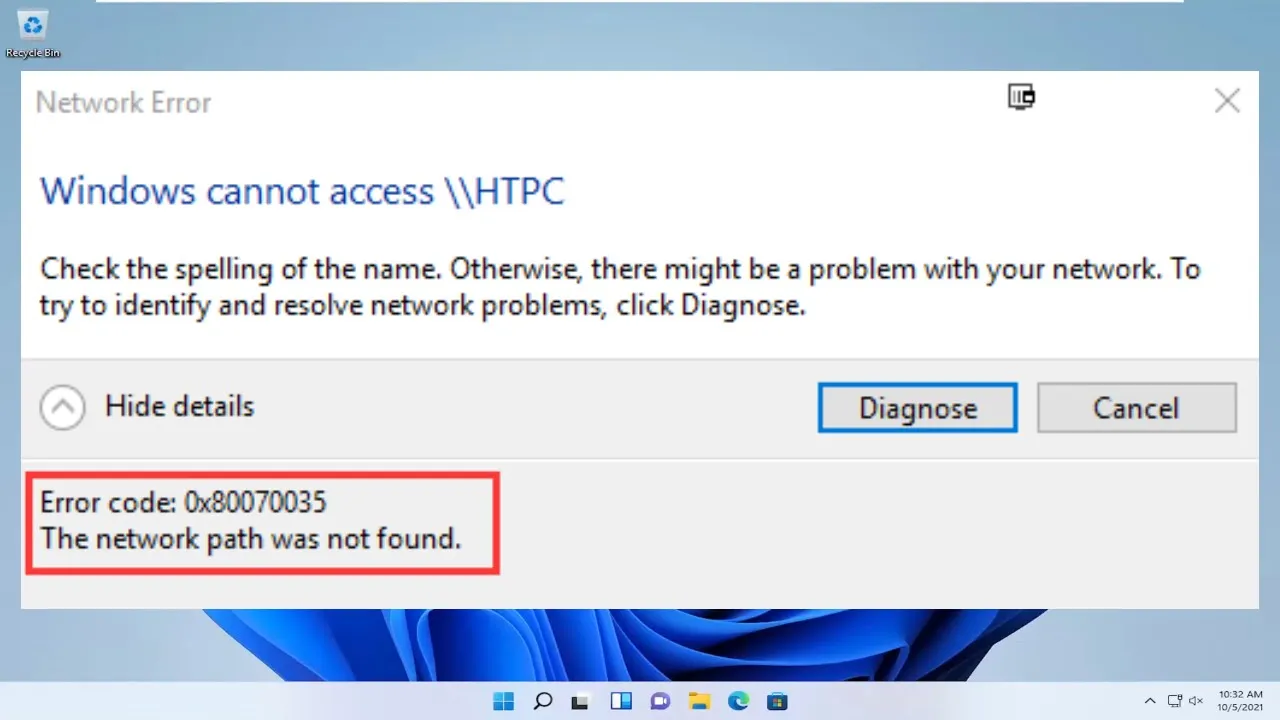
[Music] wow [Music] everyone how are you doing this is md tech here's another quick tutorial today i'm going to show you guys how to resolve an error code 0x80070035 specifically if you're trying to map a network drive and you get an error that the network path was not found this tutorial will be for you guys and it might actually give you a little bit information saying to check the spelling of the name or there could be a problem with your network so in this brief tutorial i'm going to show you guys a quick workaround to
hopefully resolve this problem so we're going to jump right into it and the first thing we're going to do is head over to the star menu and we're going to open it up and now we're going to type in services should be listed as the desktop app on windows 10 right underneath services so you want to left-click to open that up okay so now in the services window i'm going to expand the view a little bit so we can see where we're going and we're going to be looking for something that says tcp forward slash
ipnet bios helper so we're going to scroll down on this list pretty far here until we get to like i said tcp slash ip net bios helper i'm going to double click on it underneath startup type if it's set to manual or anything other than automatic you want to set it to automatic so click on automatic and make sure it's a startup type automatic and then you want to click on apply to save our change and then ok to get out of that window now we're going to close out of the services window and we're
going to head back to the star menu and open it up now we're going to type in network and sharing center should be listed right above control panel so you want to left-click on that okay and now underneath network and sharing center there should be something this is network near the top underneath active networks underneath connections directly across from it there should be something that says ethernet you want to left click on that now at the bottom left you want to click on the properties button please now you might need administrator privileges in order to
access this and there should be something that says internet protocol version 4 tcp forward slash ipv4 so what you want to do now i'm going to left click on it and then left click on properties now at the bottom of this window you want to click on the advanced button right here so now underneath advanced tcp slash ip settings where you want to select is the wins or wins tab and then you want to select enable net bios over tcp forward slash ip so click on that if it's not already selected and then click on
ok click ok to close out of this other window and then close out of the ethernet properties window as well i know there's a lot of windows to close out here but i promise we're almost done so the next thing we're going to do is head back to the star menu and we're going to open it up and now you want to type in regedit r-e-g-e d-i-t and then you want to right-click on the best match it should say regedit and then left-click on run as administrator if you receive a user account control window you
want to select yes so now on the left side you want to go underneath the h key local machine by expanding it by either clicking the little arrow or double click on the folder and then once you're done doing that you can click on the little arrow next to the software folder now you want to expand the microsoft folder as well you want to scroll down to get to microsoft licensing so ms licensing and then you want to expand this folder and then there should be something that says hardware id and store you want to
delete both of these so you can export them just if you want to back them up and save however i'm going to just delete them because i know i definitely don't need them here like i said you can export them if you needed to so you just would go right click on the file and then export just to save it in case you made a mistake but we're going to just delete both of these pretty simple so i just use my keyboard delete key you can right click on it and then click on delete from
the context menu as well you don't have to do it the same way i'm doing it so once i'm doing that i'm going to close out of the registry editor if we were to go underneath network and you wanted to go map your network drive you should be able to just go through the steps you were going through before you found this tutorial and hopefully you should be able to enter your credentials and you should be able to access your network drive and you should be good to go so i do hope this brief tutorial
helped you guys out and i will catch you in the next tutorial goodbye