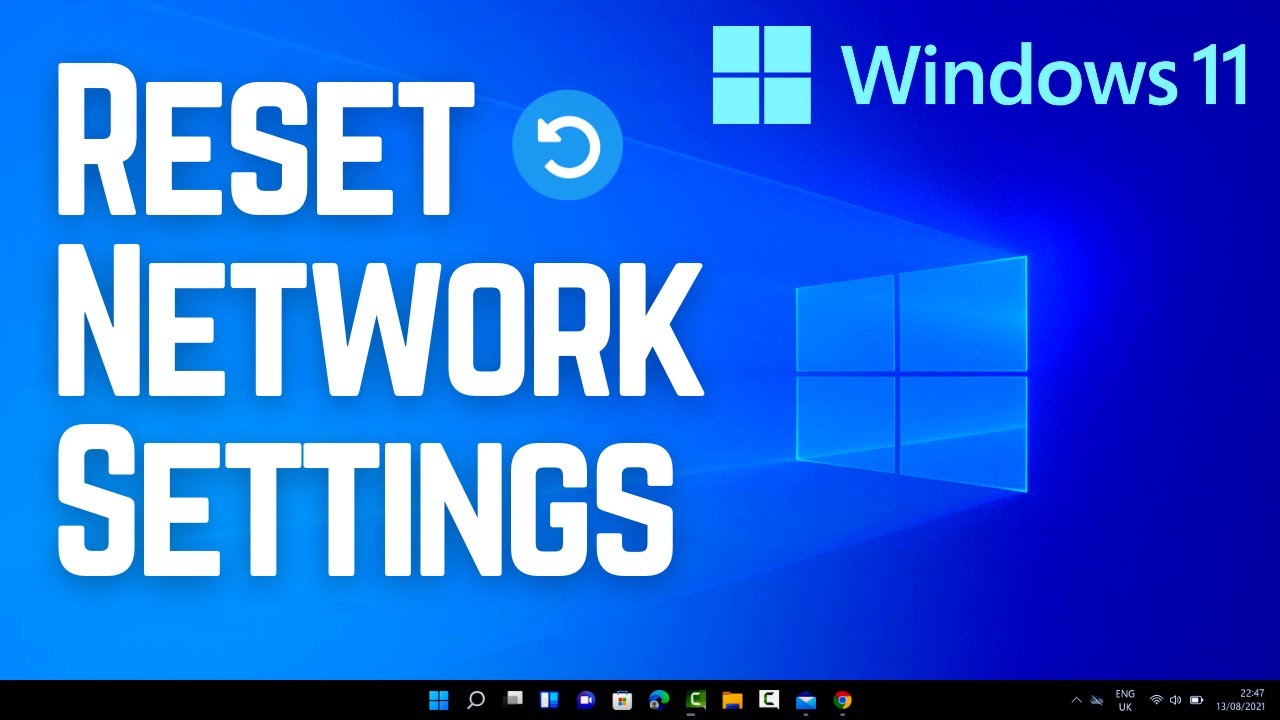
would you guys today we're taking a look at four ways to reset your network settings to fix Internet connection issues so if you're having an issue and you're on Windows 10 or Windows 11 or an older version of Windows you can use these fixes to try and fix your Internet connection that you might be having an issue with now remember as long as there's not a hardware issue like a router issue or something like that or an ISP issue these settings should help you fix your Internet problem that you might be having so let's take
a look at the first one which a lot of people probably don't even know exists it's inside windows itself inside the settings pane once you go inside here you need to go to network and internet once you're inside here you're going to look for the advanced network settings inside Advanced network settings this will open up another window which is going to allow us to click on the network reset which will reset all the network adapter to factory settings you'll see right at very top it will say reset now and it says this will remove and
reinstall all of the network adapters and set other network components back to their original settings you might need to reinstall other network software afterwards such as VPN client software and virtual switches and things like that so bear that in mind it says network reset you can click yes and it will say windows will now shut down in five minutes this means after five minutes it's going to give you some time to close down any programs and then the computer will restart automatically so let's go ahead and we can force this by just hitting the reset
here and going ahead and resetting the computer and this will reset our network settings on this computer it's pretty straightforward and sometimes this fixes a lot of the problems now if it doesn't fix you can still try some other things and I'll show you another few ways so next we're going to type CMD and open up the command prompt and run this as administrator this will open up the command prompt window once we're inside here you will see a little black prompt window here and what we need to do is type in a bunch of
commands I'll show you some of these commands you can use to reset a lot of the settings here so we're going to go to net sh space windsock space reset this will obviously reset the windsock and we're going to go ahead and you can see that uh work perfectly fine and we now need to restart the PC after that but first off before we restart let's do a bunch of other commands we can do ipconfig space forward slash and we're going to do release and this will release the IP address and you can see here
it's just done that right here and now we can do renew so we're going to do ipconfig space forward slash renew and you can use the arrow cursor keys on your keyboard to put the previous command up and just go back and put renew in and it will then renew your IP address there we go that's now done next up we're going to move on to the next thing which is net sh and we're going to do space int and in space IP and in space reset and once we've done that we can put space
all and this will do everything and we can see here that it's going to reset everything right for us and it will say here everything is okay and if you see any problems here you can then investigate a bit further but you can see it's gone ahead apart from one there which uh failed because it was accessed denied next up we can do net sh space win HTTP or one word and in space reset and then space proxy and this will reset any proxies if you had them on your system there is no proxy on
here but if it did it would reset it and take it off next up we're going to do ipconfig space forward slash flush DNS this will obviously flush our DNS cache now once you've finished with the command prompt you can close the window down and restart your PC and this Germany will help reset all of your network settings so we're going to go ahead and take a look at another one here which is a batch file now batch files can be quite useful for this sort of task it means we don't have to type in
any commands it will take care of all of this in one Fell Swoop and you can see here there's a bunch of commands in here which are very similar to what we've just run here and there's a few others inside here but basically what it's going to do is reset our network settings here and you can use these commands inside this batch file and just right click and run it as administrator as I'm going to show you right here and right there we can run this and you go off and do all these commands for
us without having to type in anything just be patient and let it finish its thing and then what you can do once that's finished you can then restart your PC and hopefully your internet connection issues will be fixed so finally let's take a look at an application you can use called net adapter repair all in one this is quite a older program now but it still works pretty well and you can see here we've got some additional tools here you can either check mark these manually yourself you can clear the host file you can view
the host file you can clear the static IP settings and enable DHCP you can change to Google DNS we can flush the DNS cache we can clear up and uh root table we can also do net bios reload and release and we can do a bunch of other things in here like clearly SSL state you've got your enable Lan adapters and enable wireless adapters here reset internet options security privacy and set network Windows services to default and you can run all the selected or you could just go ahead and click on the advanced repair here
and it will go off and do Advanced repair for us we can ping IP addresses and ping DNS right here and all you need to do is you can see here it's going to tell us what script it's going to run and what it's going to do when sock tcpip repair and a bunch of other things here just run this you'll see a prompt box flashing on the screen and you can see the commands it's run down there it's now finished and we can now restart the system in 50 odd seconds and once that's done
it will sign us out and restart our PC and once that's done you should have a resetted network settings now if you're having intermittent network problems and things like that maybe it's got corrupted or some sort of issue like drivers and things like that these are can be very useful but if you've got a problem with your Hardware or it's an ISP problem then these are not really going to help you and not going to fix your problems so make sure that it is a Windows related issue and these should work perfectly fine and fix
your Internet issues anyway when I said my name has been Brian from brytekcomputers.co.uk just want to say a quick shout out to all my YouTube members I really do appreciate the support I shall catch you in the very next video or I'll see you on our Discord server for a check link will be in the video description have a great day and I'll see you again real soon bye for now foreign [Music]






![[SOLVED] WiFi Not Showing in Settings On Windows 10 | Missing WiFi Fix](https://img.youtube.com/vi/SAeXcMiJyOs/maxresdefault.jpg)