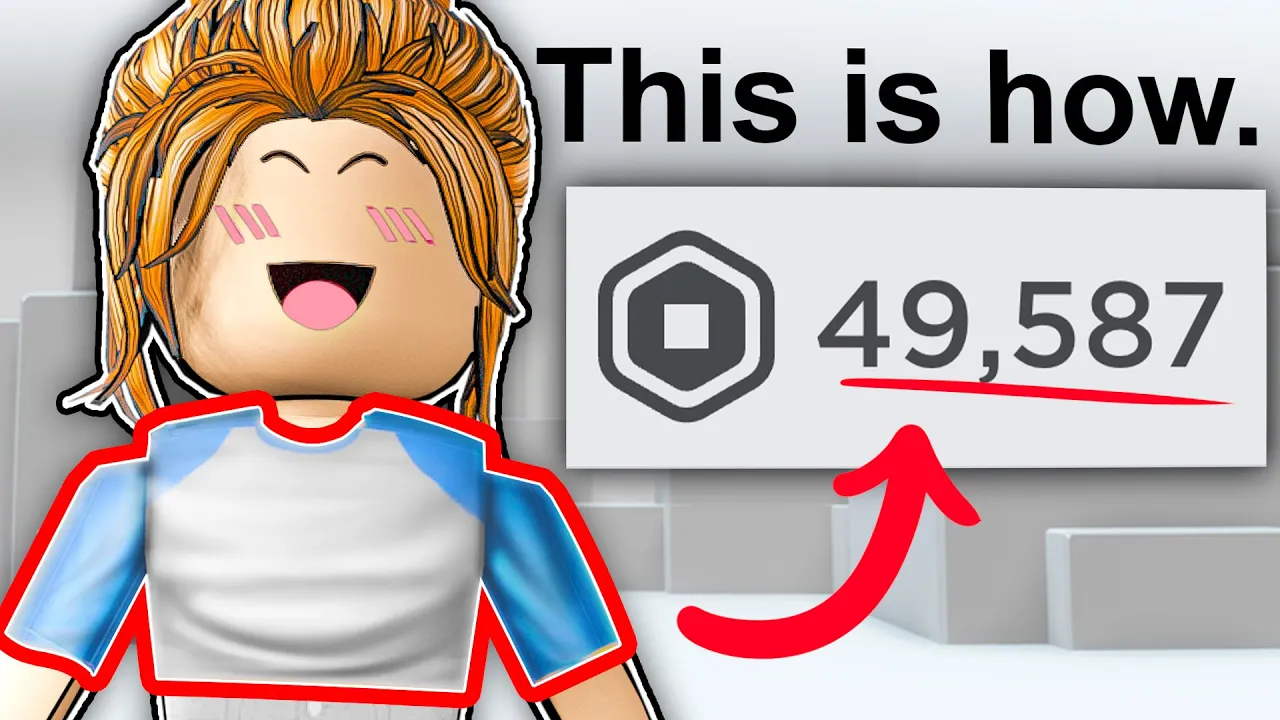
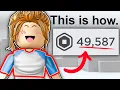
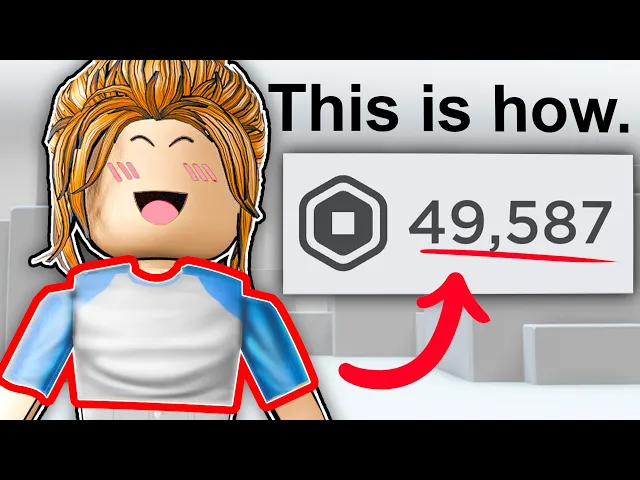
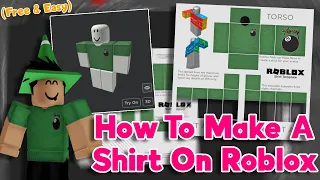
in this video i'm going to be showing you how you can make this simple roblox clothing design step by step if you're completely new to roblox clothing design this video is for you we're going to be going to five key concepts you need to understand as a roblox designer and by the end of this video we're going to be making two versions of this outfit a girl version and a boy version now for our software i'm going to be using a free website version of photoshop called photop so you don't have to download or install
anything to use this software you just have to go to photopi.com now let's get started by going through the first concept you need to understand the first principle you need to understand is using reference photos for your designs a lot of beginner designers fall into the same first mistake just trying to make a design without a proper goal in mind good designs need good references now there are a lot of ways you can find good reference photos you can go to different social media platforms like pinterest twitter or even discord servers now if you want
to follow along with this tutorial i'll be linking the reference photo that i'll be using for this video that's step one let's move on to the next principle to start let's first grab the roblox clothing template to add our template go up here on files and select open and the file explorer should show up now just find the template you want to use i'm going to be using this template i made for beginner designers if you want to download this template it's in my discord server the invite link is in the description let's lock this
layer so that we don't accidentally move it and cause errors later now i'm going to be taking the reference photo i showed earlier and copy and pasting it into the template now i'm just going to resize this by selecting the move tool i'm holding shift so the image stays in proportion now if you don't see the handlebars don't panic odp isn't broken just go up here on the top left bar and turn on transform controls while you're at it turn on auto select so that we can select the layers on the canvas freely without manually
selecting each layers on the layers panel if you don't know how to navigate inside photo p you can zoom in by holding alt or option and using the scroll wheel or you can press z on your keyboard and drag left or right on your mouse and you can pan by holding the space bar on your keyboard now that we have a reference photo let's add in our base layer to do that let's go to the shape tool then right click and select the rectangle since we'll be making the half shirt first for the girl version
make a separate rectangle for the torso and sleeve make sure to name these layers first by double clicking on the layer itself let's merge these layers by holding shift and right clicking and pressing merge shapes let's change the colors now we can use the colors from our reference photo to do that select the base layers and press u on your keyboard now in the top bar just click on the fill icon and select a small square button to copy the color just hover your mouse and click the color that you want to sample from the
reference photo now if you want to undo just press ctrl or command z if you want to redo just hold ctrl or command shift and z let's drag the template layer above the base layer so we can better see our template now since the shirt has different colors and parts we're going to have to use the pen tool to create custom shapes to do that just grab the pen tool then right click and select the curvature pen tool now let me show you how easy it is to make custom shapes using this tool let's start
by making sure that the drop down menu is set to shape instead of path let's start creating this curve type shape right by the armpits just click where the shape begins and ends to add an anchor point then just add another anchor point in the center to make a clean curve make sure that the fill color is set to a gray color you don't want to use white this will make more sense later also make sure that the stroke is set to none now we're only going to be working on one side first because we
can just mirror this shape later let me show you that in a second now if you want to straighten out certain parts of this shape hold ctrl or command and click on the anchor point this will remove the curve settings on our shape if you want to adjust the anchor point just go into toolbar and select the direct selection tool by right clicking this will let you adjust the anchor points individually and that's how easy it is to make custom shapes using the curvature pen tool to mirror the shape to the other side let's first
duplicate this layer by pressing ctrl or command c to copy and v to paste to mirror go to edit transform and select flip horizontally now we could use the direct selection tool to adjust the anchor points a bit more i'm just going to be repeating this but on the back side so i'm just going to speed it up now from our reference photo i can kind of tell that the white parts of the shirt is connected to the back side of the shirt i'm going to be making a custom shape to connect these areas so
using the same tool then i'll just duplicate it to the other side alright we're making a ton of progress let's make sure save this project by going to file save as psd now the layers panel is kind of getting crowded let's merge all the white shapes we made to be a little more organized to select multiple layers hold shift on your keyboard and right click on the layers and select merge shapes like we did before you'll still be able to adjust the anchor points like a normal shape layer this is called working non-destructively so we're
going to be adding a clipping mask on the white parts of the shirt let me show you what a clipping mask is in a second and i'm also going to be showing you why we're going to use it to add a clipping mask you first need to make sure that the base layer is underneath the shape layer then right click on the shape layer we made and select create clipping mask this will basically limit the pixels on the layer underneath now the clipping mask is an extremely useful tool we can be using this more in
just a second and the next step is to add the neck hole we can do that by grabbing the shape tool again and selecting ellipse just try to recreate the neck hole part i'm holding shift to keep the proportions i'm holding the space bar to move the shapes while i'm laying it down now i'm just going to align this to the center using the template as a guide now make sure that the fill is set to none this is the opposite of what we did earlier now just select a color for the stroke just use
the same color that we use from our base layer set the pixel size to 5 or whatever you think works the best we can use the direct selection tool so we can make uneven and imperfections just like how a real shirt works the next step is to make the hole by using the mask i'm going to show you in a second why we're going to be using this tool instead of the eraser to add a mask go down here on the layers panel and press this small icon make sure that the base layer selected this
will create a new tiny white thumbnail beside the layer this will basically let you reveal and hide parts of the layers depending on the color we can hide parts of the layers by grabbing the brush tool and making sure that the hardness is set to 100 make sure that the foreground color is set to black this will basically let us hide whatever we paint on and if we switch colors from black to white we can reveal parts of the layers white reveals and black hides parts of the layer now just erase the circle from the
neck hole alright so this is looking trash now most tutorials probably end right here they won't show you the good stuff and we're exactly like them thank you for watching this video hope to see in the next one right so let's actually make this look less trashy but before that make sure you subscribe and hit the like button if you're enjoying the video so far it would really help this channel and would really help us make more videos like this let's add a bit of detail and imperfections we can do that by grabbing the curvature
pen tool and adding some extra anchor points on the base layer to add some wrinkles and imperfections i'm going to be doing the same thing both for this leaves make sure you don't overdo it because it would look really weird it's very small detail but it will look amazing once you upload it in roblox now i'm just going to extend the anchor points on the white parts of the shirt this will make more sense later i'm just going to select them using the direct selection tool and drag them down let's add some textures i'm going
to be using this wrinkled image i found online i'm going to link this in the description if you want to download it now i'm just going to align this on the base layer using the selection tool i'm also going to change the blending mode to multiply to make it transparent we can decrease the opacity to make it look a bit more subtle now just create the clipping mask on the base layer i'm just going to repeat this process throughout the whole shirt by copy and pasting it you can always go back and adjust the opacity
if you think that it's too much remember that these small details should be very subtle now i'm just adjusting the alignment again using the move tool now that that's done let's add some shading to make it look a thousand times better let's first add some general shading i'm going to be using the shading template that you can find on my discord server i'm going to put this above the base layers and the texture layers we made using the arrow keys again to better align it to the template i'm also going to make a clipping mask
let's decrease the opacity to make it a bit more subtle let's go one step further by adding some wrinkles since i want to keep this tutorial as short as it already is i'm just going to use these pre-made shading template now this shading template is part of the monthly clothing assets you get from the asset pack if you want to learn more about the clothing asset pack then make sure to visit our website at roblox school dot com slash asset pack but you can also make your own shading template that looks like this i've actually
made a tutorial on this before i'm going to link it on the top right corner of your screen and in the description below now since this specific shading is meant to be for long sleeve shirts and this is a half shirt i'm just going to move it up a bit to make it look more cohesive let's create a clipping mask again as we did before and also adjust the opacity now as you can notice the neck hole outline is kind of standing out we can fix this by dragging this layer underneath the texture and the
shading layers we made and just add a clipping mask now you probably don't need to do this part but earlier i didn't do a good job masking the neck hole so i'm just going to go back and adjust the mask a bit more we can go one step further by adding some highlight to do that make a new layer and add a clipping mask now just grab the brush tool and right click on the canvas and select a soft round brush make sure that foreground color is set to white now you can adjust the size
of the brush however you like we're going to be painting on the center parts of the template now you can adjust the flow of the brush to 40 to make it a bit more subtle now let's just continue to brush on the center areas let's change the blending mode of this layer to overlay to help blend these two colors and let's also decrease the opacity you can always use the eraser to make some parts a bit more subtle we can add some more small detail by adding some shadows on the base layer to do that
make sure to select the base layer and go down here on the layers panel and select this small effects icon and select drop shadow you can play around with the settings if you want but i'm just going to stick with these settings i've already set up now the next principle is one of the most important you need to understand but you probably never thought of and that is testing your designs before you upload them to do that let's turn off the template layer and the reference photo by pressing the eye icon so that it doesn't
cause any problems once we upload it on roblox let's export this as a png by going to file export as png now a common misconception is that you need a template in order for you to upload your clothing designs on roblox and this is not true you don't actually need to upload your designs with a template as long as the size of the image is 585 pixels wide and 559 pixels tall it should be able to work now to test this i'd recommend that you use a tool called row viewer it's basically a website that
lets you test out your clothing designs for free just drag in your file and you should be able to see what it looks like you can visit the site at rowviewer.com i'll link it in description below you can add some more adjustments if you want to but i'm pretty satisfied with mine so i'm not going to edit it further now at the beginning of this video i mentioned that i was going to show you how you can make a boy version of this shirt let me show you exactly that to start select the base layer
and using the direct selection tool select the anchor points underneath drag them down using the arrow keys now for the white parts of the shirt i'm just going to repeat the same process and that is the power of using shape layers for your designs now the shading isn't really lining up to fix this first make sure that the shading layer is selected then grab the rectangular selection tool and select the torso part of the shading then make sure to rasterize this layer by right clicking on the layer and selecting rasterize then let's copy this layer
by pressing ctrl or command c then press the delete key on your keyboard now just paste this layer by pressing ctrl or command v this created a new layer let's just adjust the size of the shading and decrease the opacity like we did before [Music] now this part is optional but i want to change the shading of the shirt to add some more variations i could do that by adding the shading image i made specifically for this case now the shading preset is part of our upcoming product the ultimate shading pack i'm going to be
releasing this product pretty soon so make sure you subscribe to get updated i'm going to change the blending mode to multiply to make it transparent and i'm also going to decrease the opacity i'm going to use the mask to erase some parts and make it a bit more subtle now let's change the color to do that select the base layer and press u on your keyboard and select fill as we did before let's use a dark gray color you don't want to choose a really dark color because you won't be able to see the shading
i could do the same thing for the neck hole outline layer and there we go you just created your first clothing design if you want to watch another tutorial click on the video on the right side of your screen make sure you subscribe to see more videos like this
![How to make a Roblox Shirt Using Pixlr! [2023]](https://i.ytimg.com/vi_webp/Wb3Mc-WDp7k/mqdefault.webp)





![3 HUGE MISTAKES ROBLOX CLOTHING DESIGNERS MAKE! [❌STOP DOING THIS❌]](https://i.ytimg.com/vi_webp/PI0EObrPu-s/mqdefault.webp)