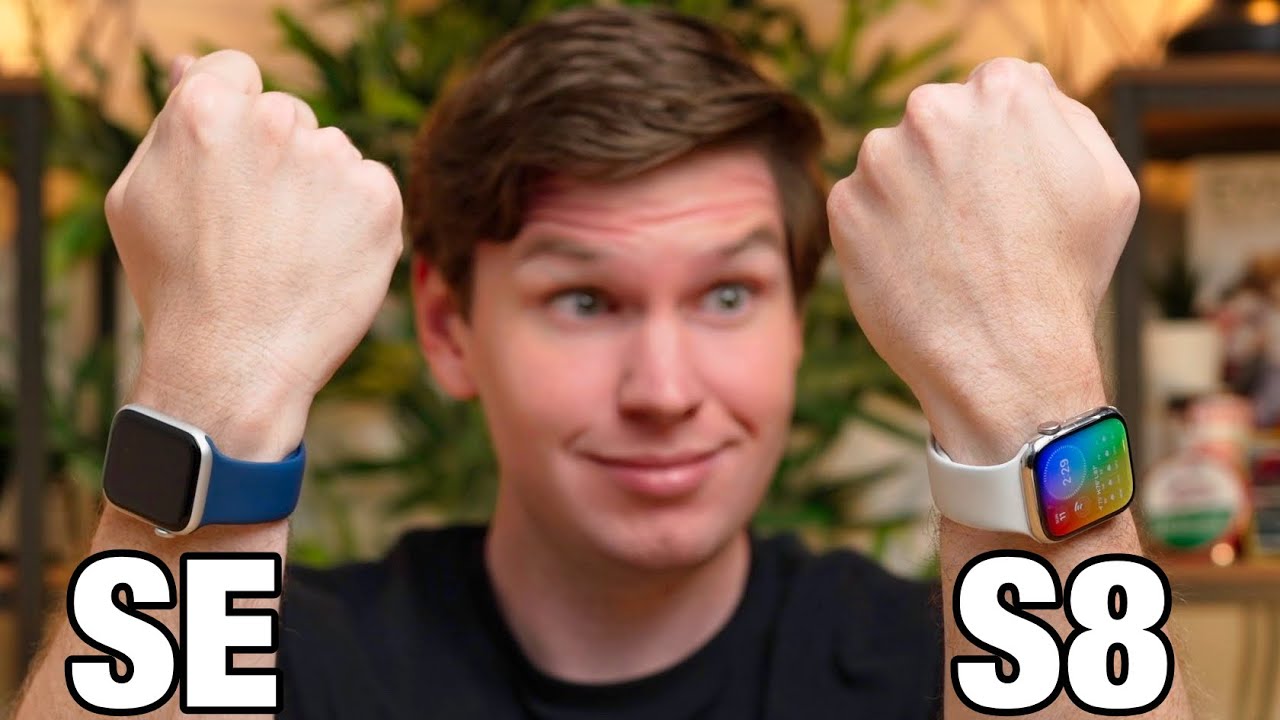
if you have an Apple Watch there's a good chance you're not using it to its full potential I'm always amazed by how many people that I talk to who have an Apple Watch and use it every day but have absolutely no idea about some of these amazing features so in this video I want to share with you 30 of my favorite hidden features and some of my top tips too that can bring your Apple watch to the next level and the best thing is it doesn't really matter which Apple watch you have right here I
have the series 8 but pretty much everything on this list will work with any other Apple watch whether that is the ultra the series 7 the 6 the SE all the way back to a lot of them even work on the series three so with that being said let's jump into the video the very first one is actually gesture controls so this allows you to use your entire watch with just one hand so you don't need your other hand you can pinch you can clench you can move your wrist around it'll give you a cursor
and you can navigate everything on your watch really really easily using that now of course it does take some getting used to but once you get The Knack of how to actually wear your watch and where to pin it really does a fantastic job and this can be found if you go to settings then you go to accessibility and then you enable what's called assistive now this was made to use the entire watch with just one hand but for many people that might not be what you're looking for which brings us to number two on
this list quick actions now quick actions allow you to do the same thing clenching and twisting your wrist and things like that to answer phone calls to pause timers to do little things like that and also to take photos as well so if you're using the remote camera app on your watch and you have your your camera set up somewhere you can pinch it'll take your photo so you don't have to actually like go and have a photo of you in a group looking like this right it's a lot more subtle if your hands like
down at the side or something like that moving on to number three on this list this is the taptic engine being used for getting directions so your watch can tell you to turn left turn right and when your destination is very close just by vibrating on your wrist a certain number of times and you might think why would I ever want this well for one I would use this all the time if I were biking so when you're riding a bike you you can't always hear the directions it's really hard to see and if you
don't have a place for your phone taking your phone out it can be dangerous to do that so it's a lot easier to have vibrations on your wrist and know when you have to turn and moving on to number four which is very similar to number three this tells you the time using haptics so if you go to settings and go to clock you can enable this and essentially if you just put two fingers on your watch and you hold them there for about a second it'll vibrate on your wrist and it'll tell you what
time it is with vibrations this is great if you're in a meeting and you're just wondering how long it's going and you don't want to like be rude and look at your watch so you just go and tap your fingers it'll tell you what the time is similarly if you're in a really dark place maybe in bed or in a movie theater and you don't want to blind yourself or other people you could use it then as well moving on to number five this is changing the honeycomb menu into a list menu simply go and
tap and hold the honeycomb menu and you can change it into a list menu this will be alphabetical order which tells you the name of the app next to it which is great for anybody who is new to Apple next except we have find my iPhone but a slight variation from the one you're used to rather than just going to the control center and tapping to make a sound on your iPhone if you tap and hold it'll actually turn the flash on it'll blink on your phone so if you are for example maybe you had
a loud party or something then you could do that and find your phone really easily and speaking of control center you can also open your control center from any app anywhere on the watch interface simply by tapping and holding on the bottom for about a second before swiping up that way you can always change the brightness always change your connectivity anything else in your control center regardless of what app you're already in in this next one I know a lot of people that would really benefit from this this is actually setting your clock forward or
backward by a couple minutes so people that are habitually late to things often do this with their car but an Apple Watch syncs with your phone so you might assume you can't change your time but you actually can you can change the time on just the watch and set it Forward by just a couple minutes by going to settings and then going to clock and you can set it for forward by maybe five or ten minutes just to help you stay on time a little bit better and speaking of cars the next one is the
ability to use your Apple watch as a key for your car now my car is nowhere near expensive enough to have this feature but a lot of nicer cars out there BMWs for example allow you to connect your phone to your car so your iPhone has Apple pay has a card in there that is your key and you can add that to your watch as well and use your watch to unlock your car but speaking of unlocking you can also unlock regardless of how expensive your car is you can unlock your Mac your MacBook your
your Mac Pro iMac whatever using your Apple watch simply on your Mac go to system preferences go to security and go to use Apple watch and this will allow you to unlock without ever needing a password simply by wearing your Apple watch and being close to your laptop the next one on this list is actually the ability to use Siri on your watch now I've used Siri quite a bit to translate so if you just want to know quickly like how do I say hi in this language how do I say thank you you you
can ask Siri how to do that but of course it is definitely limited small display you're not going to get a big translation there which is why it's always better to actually know the language which ties me into the sponsor of today's video which is speakally now speakally is an app that teaches you how to learn different languages I've been using it for a little while to learn Spanish before my upcoming trip to Spain so I can get around order food and understand things a little better the app gamifies the learning as well so you
have streaks on there even though I like I lose my streaks all the time I'm not really good at learning languages but you can choose your level as well so I chose the beginner level of course because clearly I am an absolute beginner when it comes to learning Spanish but the app also helps you build a larger vocabulary with many different styles of learning so they've got listening exercises they've got live situations they've got flash cards they've got review segments and they even have live tutors available so you can test your progress and ask you
and ask your own questions to help your learning accelerate even more the app also allows you to choose your focus whether that it's reading and writing or speaking the language so it can really be catered to exactly what you're looking for speakally also adjusts to your learning speed and works on both your phone and your desktop both iOS and on Android and if you're interested in getting started I have a link down below that'll give you a seven day free trial and you can save up to 60 on an annual subscription so thanks to speakally
for sponsoring this video getting back to the Apple watch tricks the next one on the list is holding a call until your phone until you find your phone rather so if you get a call on your watch say you're outside by your car and your phone's inside rather than like sprinting inside and you missed a call or instead of answering on your watch when you're out in your driveway you can go on your watch tap the three dots and say answer on iPhone it'll tell the other end of the line wait on it like wait
a second it'll put them on hold and play a sound until you get to your phone and actually answer that and of course that kind of ties in with the idea that some things are just easier to do on your iPhone and so one of them might be typing another one might be just be navigating and changing your watch face things like that and so if you ever want to manage your watch from your phone what you can do is go to settings accessibility and go to Apple watch mirroring and this will mirror your watch
on your phone so you can customize it and change anything you'd want to from the convenience of a larger screen on your phone on a slightly different note we can actually take screenshots on this watch by pressing both buttons simultaneously you can enable this by going to settings General and then screenshots and if you wonder why you would ever want to do this well I would do this for example if I were out and about listening to music and I really liked a song I could go into Spotify and just you know screenshot that so
that later I can go back and find out what that is and it's easier than at the time like going in and adding to a playlist or something like that now this next one might seem basic but I had to add it because a lot of people that I surveyed didn't actually realize you could do this if you double press the crown it'll toggle between your most recent app so it does save you a lot of time that you don't have to go back to your honeycomb find the app again and go into one at
a time toggling between them makes multitasking actually feasible on the Apple watch you can also save yourself a lot of time by reorganizing your control center so if you swipe up from the bottom your control center might have a lot that you don't need if you go all the way to the bottom you can edit this and you can either add remove or rearrange things by tapping and holding them within your control center probably one of the features that I value most on my Apple watch is actually the environmental noise notifications I think it's really
important like I review a lot of earbuds and I really need my hearing to be as good as possible so I don't want to have any hearing damage from being at you know loud loud clubs or concerts or bars or whatever and so having noise notifications that tell me when I'm in an environment that's over 90 decibels or 100 decibels I think is really convenient so if you go into settings on your watch go to noise you can not only enable this but choose what the threshold is of where you will be notified speaking of
phone calls you can also silence the call if you're just really not into accepting the call just by palming the watch this will silence it on your phone and on your watch as well of course the Apple watch has a lot of different apps and I made a full video about some of my favorite apps on the Apple watch now one of the best ways to Leverage The Power of your phone with your watch is actually through the shortcuts app Now shortcuts on your watch not only allows you to do all the shortcuts you made
on your phone for example texting somebody or doing whatever but you can also add those as complications on your watch face so you can see right here if I just tap on my watch face on the right side of that complication it will send it'll open up the the whole thing to send a text and I'm able to access that very quickly there's also a nightstand mode on here so if you go into settings go to General and go to nightstand mode you can put this next to your bed and it'll show you the time
in a really nice dim layout it's going to be in whatever orientation you need it to be in based on your watch charger and when you're doing this it shows the charging like as a little circle there if you want to see what the charging percentage is just tap the green circle getting into the whole category of Fitness here there are a lot of different Fitness oriented uh tips and tricks I wanted to show you so I figured I'd put it in an entire category the first one is offline music with the watch while you're
running so I love going for runs and not bringing my phone I don't want to carry a phone I don't want an arm sleeve I don't want a pocket I don't want a fanny pack I just want to run with my watch and my music and nothing else I mean besides like clothes obviously but but running with this is great so you can connect your airpods to this you can download songs offline on Spotify and then you can go for a run and never have to worry about having your phone with you and if you
have an LTE model of course you can also use Siri you can also listen to online Spotify and of course you could make some emergency phone calls if you ever needed to if you go into settings go to workout and then go to auto pause I would recommend enabling this if you are for example in a city where you know you're running in their stoplights and things like that it's a great way to automatically pause whenever you stop running but if you don't enable this and you suddenly need to pause your workouts you could also
do to the really convenient thing of pressing both buttons at the same time but keep in mind one of the earlier tips I said was that you can do this to take a screenshot if you enable both it weirdly does both at the same time so if you're in a workout and you press both it'll pause your workout and it'll also take a screenshot of your paused workout of course Apple watches are like large display as far as watches go but it's still like you know pretty small display and so when you're running and like
moving around a lot it can be hard to see small text on you on your watch so it's really important that you show only the most important text there and you optimize it for your own vision and so to customize your workout screen on the watch app my watch app on your iPhone you can go to workout and then go to view and you can customize what's shown up on each workout individually so your running workout can show different metrics in a different layout than other workouts I think that is incredibly useful Additionally you can
also enable and end workout reminder so I think we've all done this before especially with other watches other than the Apple watch I will go for a long run I'm sorry excited about my run whatever I get back to the car I forget to pause it or stop it I get in my car I start driving and then later it shows me a graph of like my average speed and like it jumps up to like 60 miles per hour so that's where you get a reminder of course on the Apple watch to end your workout
to enable this go into settings and go to workout you can also set manual heart rate zones so if you for some reason don't like the heart rate zones that are assigned to you maybe you talk to your doctor and they recommended different heart rate zones you can go into settings go to workout and go to heart rate zones and customize each of your heart rate zones based on your own needs you can also skip the workout countdown so if you have for example like a 5k you're running and they shoot they shoot a gun
or whatever it makes them kind of bang then you want to start it right away you don't want to miss the first three seconds and in order to skip the countdown you simply tap the middle of the countdown it'll skip it and you're ready to go so the next one on this list requires a little bit of help from your iPhone so what you can do is go on your iPhone go to settings go to focus tap on the plus and create your own custom Focus mode you can choose the caller what this is for
and what it's actually going to do then on your Apple watch whenever you swipe up you can go and enable your own custom Focus mode from the control center and this will do whatever you want it to 29 30 yeah so those are my top 30 hidden features for the Apple watch if you have anything that I didn't recommend be sure to go down and leave a comment I'm always interested in learning about new tips about the Apple watch and now the next step before you click off this video is to head over to this
next video and check out my top apps for the Apple watch now in that video I recommended a lot of things that can really bring your Apple watch to the next level and give you drastically more functionality so if you enjoyed this video consider liking and subscribing I'm Mike O'Brien and I'll see you over there