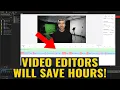
recently I was scrolling through Twitter and I came across a tweet that talked about a program that can save you quite a lot of time it was a tweet by Cody Warner talking about the recut program and basically what it does is it analyzes your footage determines where the silent parts are and then it automatically in a very clever way removes the silent Parts making a whole bunch of jump Cuts I have to say it is a pretty impressive piece of software because it can save you so much time [Music] if you haven't heard of
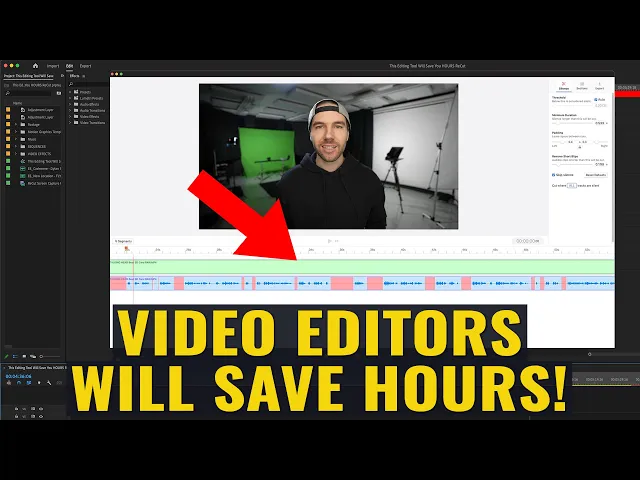
it the program is called recut and I've been going back and forth with the developer I've been giving some feedback and my initial thoughts on using it so how it works is you drag and drop your footage into the recut Standalone app from there it analyzes all of your footage in just a few seconds and then inserts cuts into all the areas based on the settings you input that have silence so first I'll go through the process in real time so you can get an idea of how quickly this can be done and then I'll
do a slower breakdown walkthrough of the entire process so you can get an idea of what I'm doing and follow along so this is the program recut and you'll see just how quick it is [Music] thank you [Music] and just like that I am done so this was a 30 minute video originally but because of the automation process of it analyzing the audio and then deleting all of these blank silent spots it made 217 Cuts so the original duration was 30 minutes and now we're down to 22 minutes 46 seconds so that's quite a lot
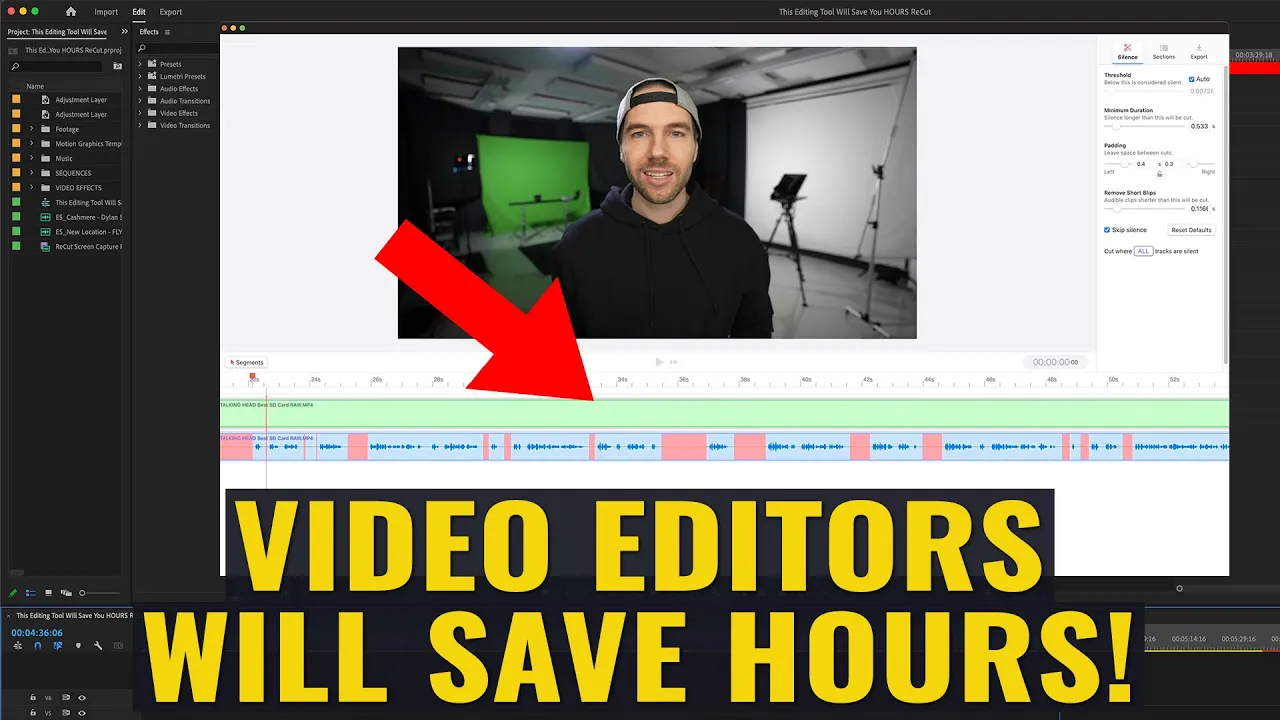
of footage that it cut out automatically and quite a lot of cuts that I don't have to make now alright so I'm gonna delete this and we'll go back and then now we'll walk through exactly what I was doing to get to that final result so we drag in our footage into the top part here so this is going to start analyzing and since we've already analyzed it just a second ago it happened a little quicker there and as you can see if we zoom in you have all of these sections here which are a
different color than where the audio waveform is so in the silence section up here you have your threshold minimum duration padding remove short blips skip silence Etc so up here are settings that you can customize to get the desired result that you want so let's move a few of these and you'll get an idea so so the higher we go the less Cuts it'll make and the lower we go the more cuts it will make then for the padding this is basically you know the space at the beginning and end before your audio so on
the left side you can see what that does that's basically like the breathing room after you finish a word at the end of a sentence so I think it's a good idea to leave a little bit of space I think around you know 0.6 or so is fine and then on the other side typically when you're doing Vlog Style YouTube videos your cuts are going to be pretty quick and I would suggest having this side a little tighter than the other side that means the line will be cut pretty closely to the starting word and
then in your editor you can find tune that next we have remove short blips and that's basically saying that this is the threshold so any clips that are shorter than this amount will be left out and then of course you would want skip silence to be on and cut where all tracks are silent or where any tracks are silent so for me I will keep it on all once you have these settings where you'd like it it will save this that for the next time you open recut which is nice then from here you can
go do export but if you do want to split up your file into multiple sections you can mess around with the split on silence so this will you know split all the clips into different segments so at the export page you can actually export a video in whatever resolution you want with MP4 wave or m4a but for us we're actually going to go to the timeline choose our editor so we'll use Adobe premiere.xml since that's what I'm working in today and then our goal is to remove all of the silent parts so we want to
make sure that this isn't checked and then we go to export save it we can go into our editing program we go to file open and then we'll navigate to the XML file which is right here we'll click on open oh and then it automatically creates a sequence for you that matches the resolution of your footage and then it has all of the 200 plus cuts that re-cut made and just like that you can use the up or down arrow to go through and jump to any part that you want and at this point you
actually don't even need to use your mouse because if you press the you know if you don't you can press spacebar listen to that if you don't like it you can press delete down arrow go to the next part delete if you don't like it down arrow delete down arrow or you can you know Skip a bunch of parts and because Premiere highlights each one it's kind of a cool way to edit and I think I'm going to adapt this style of editing where I'm using my mouse a little less because now through automation by
using recut it has made a whole bunch of uh cut points for me within just a few clicks just wanted to break the video up here for a quick second to let you know that we have a ton of resources on our alley and will.com website like our color grading let's pack or our Premiere Pro Motion Graphics mogritz Pack that we use to speed up the editing process in most of our videos we also have a business success ebook that I recently wrote for creatives and entrepreneurs that includes how we structure our business make money
earn passive income the app software and subscriptions we use as well as a ton of other resources and sales strategies for growing your business and Landing clients so if you're interested in any of these they're on sale now at thealinewheel.com website or through the link in the description okay that's it for this video and thanks again to Cody Warner on Twitter for reminding me that this is a program that does exist and for giving me that inspiration to download it and actually use it and if you want to pick up recut yourself I've left a
link in the description so that's it for this video thanks so much thanks for watching if you did like it give it a thumbs up and subscribe to see more videos from us in the future we have over 200 videography related videos so lots of tutorials and camera how-to's for you to learn from alright we'll see you guys in another video foreign