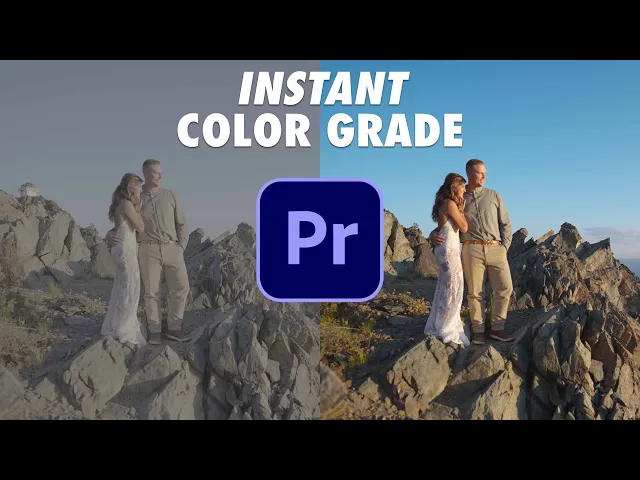
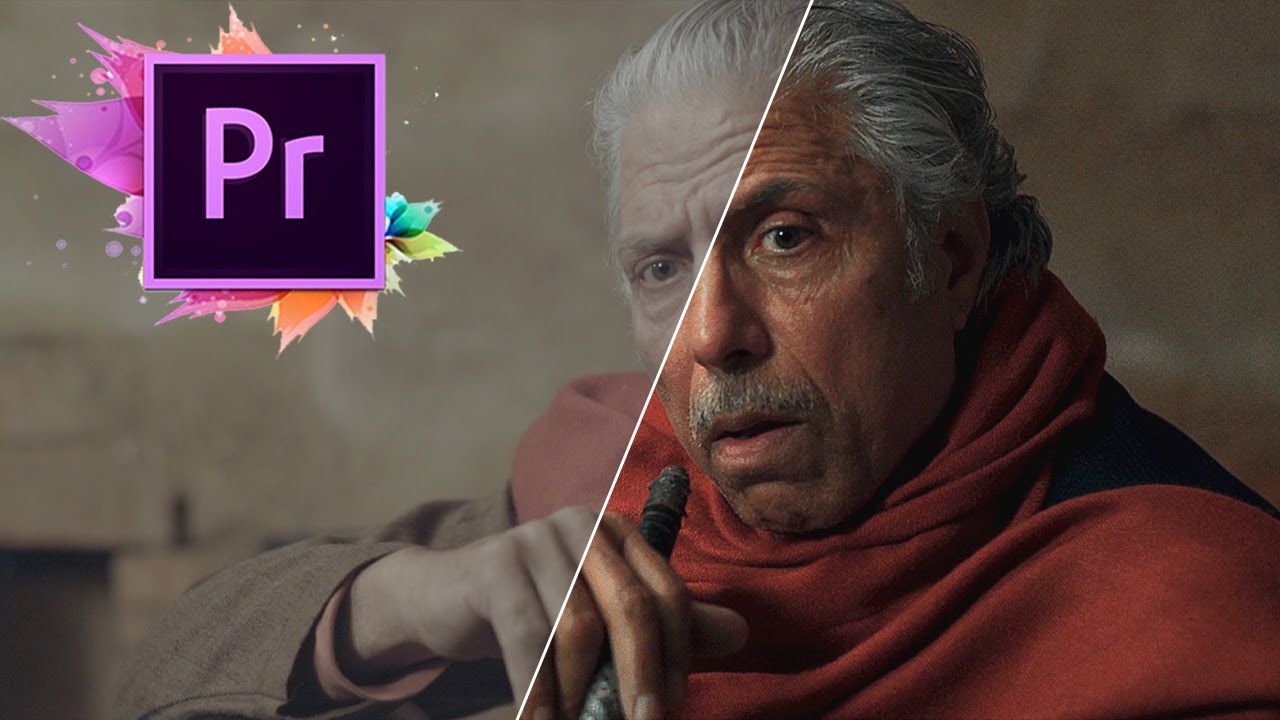
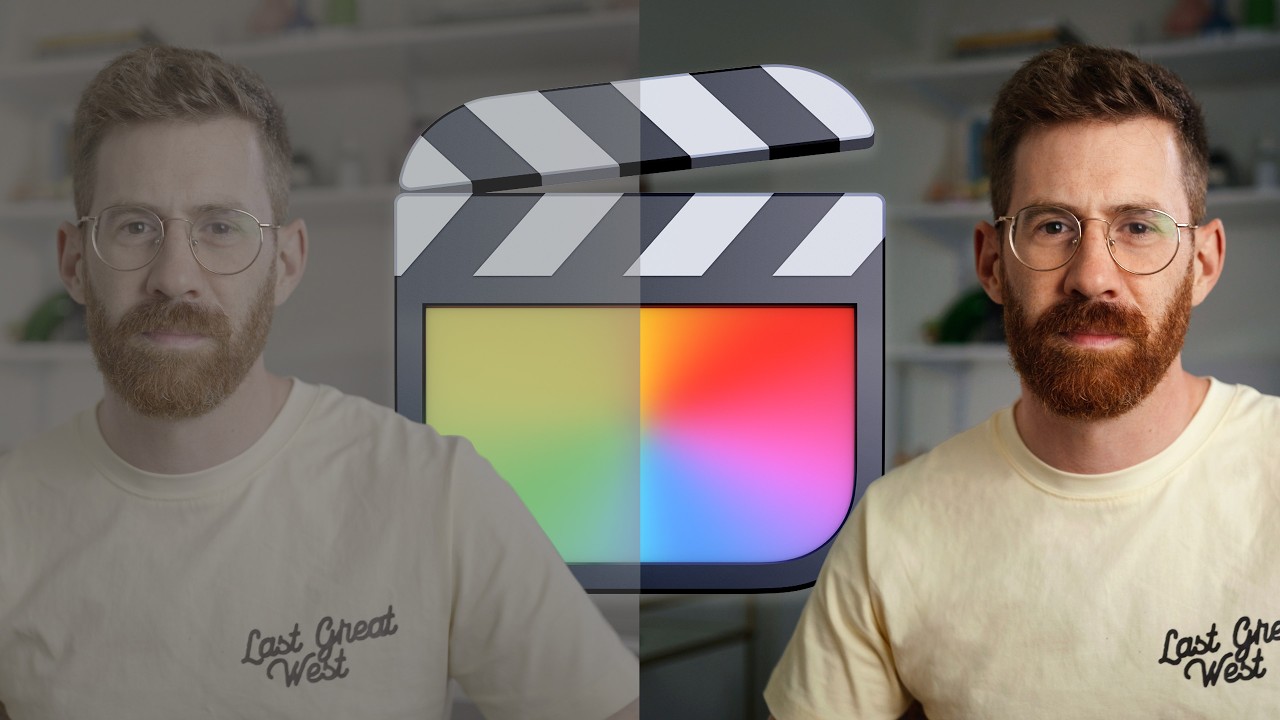
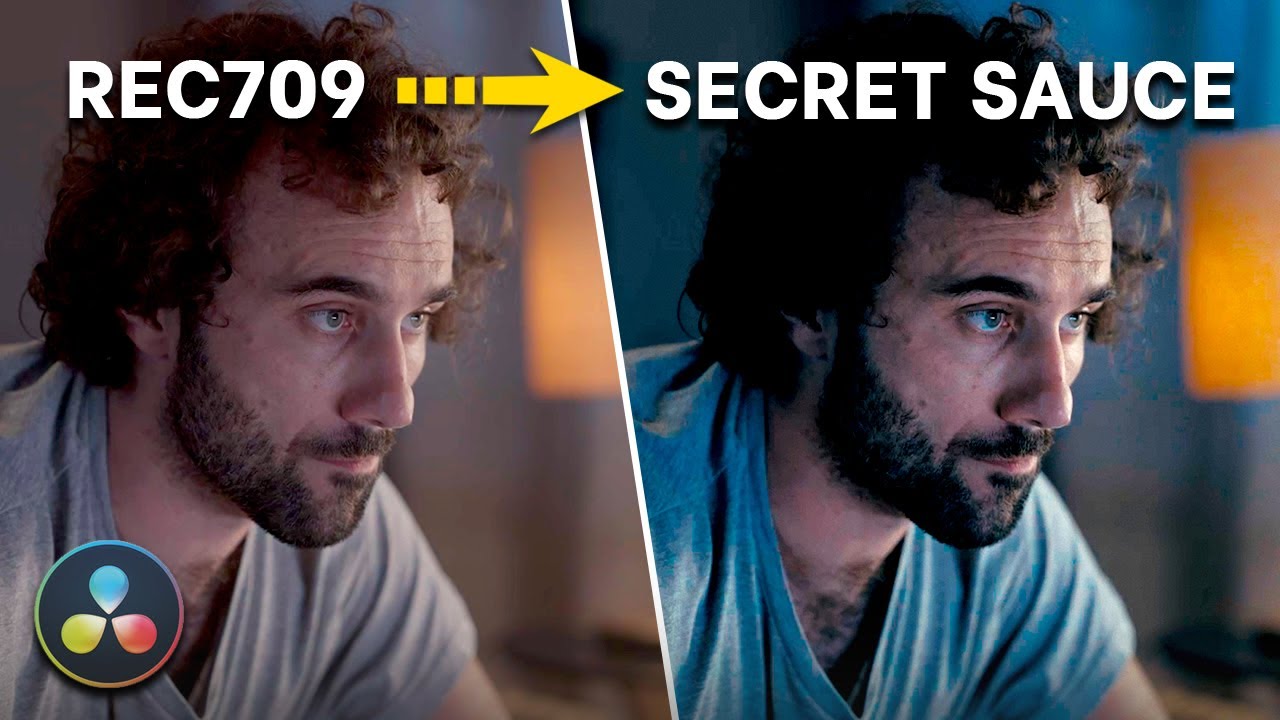
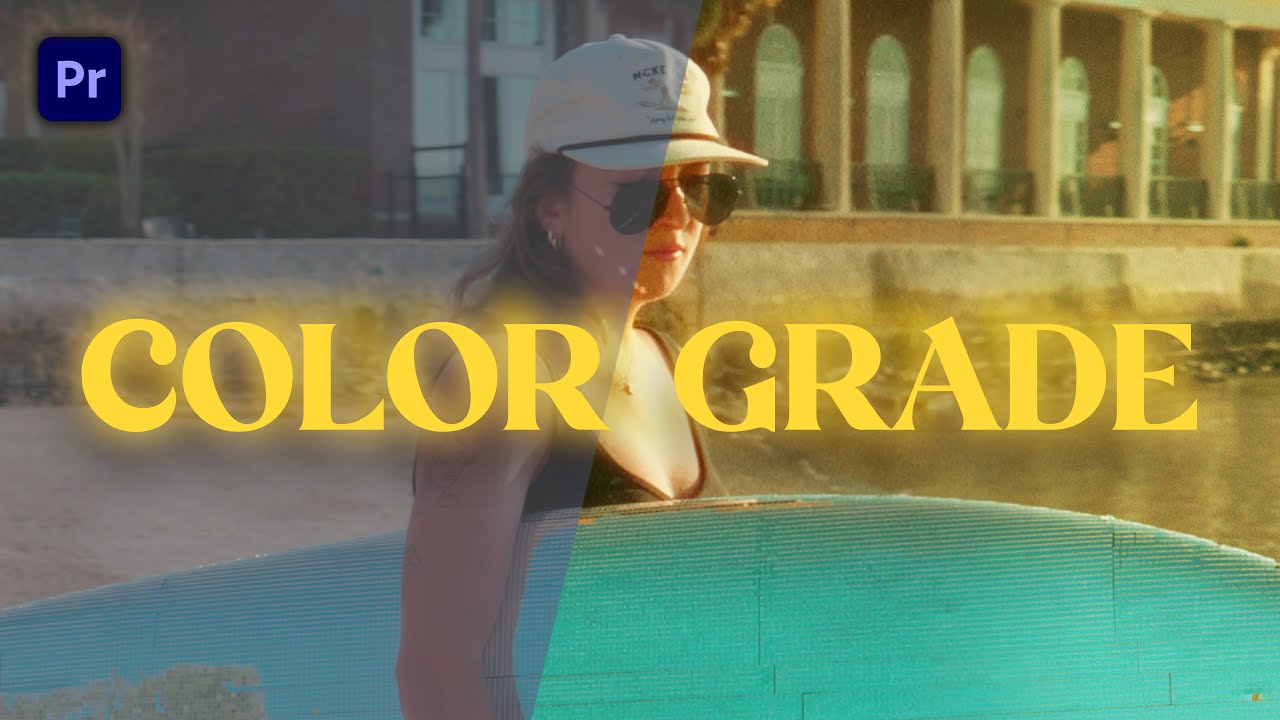
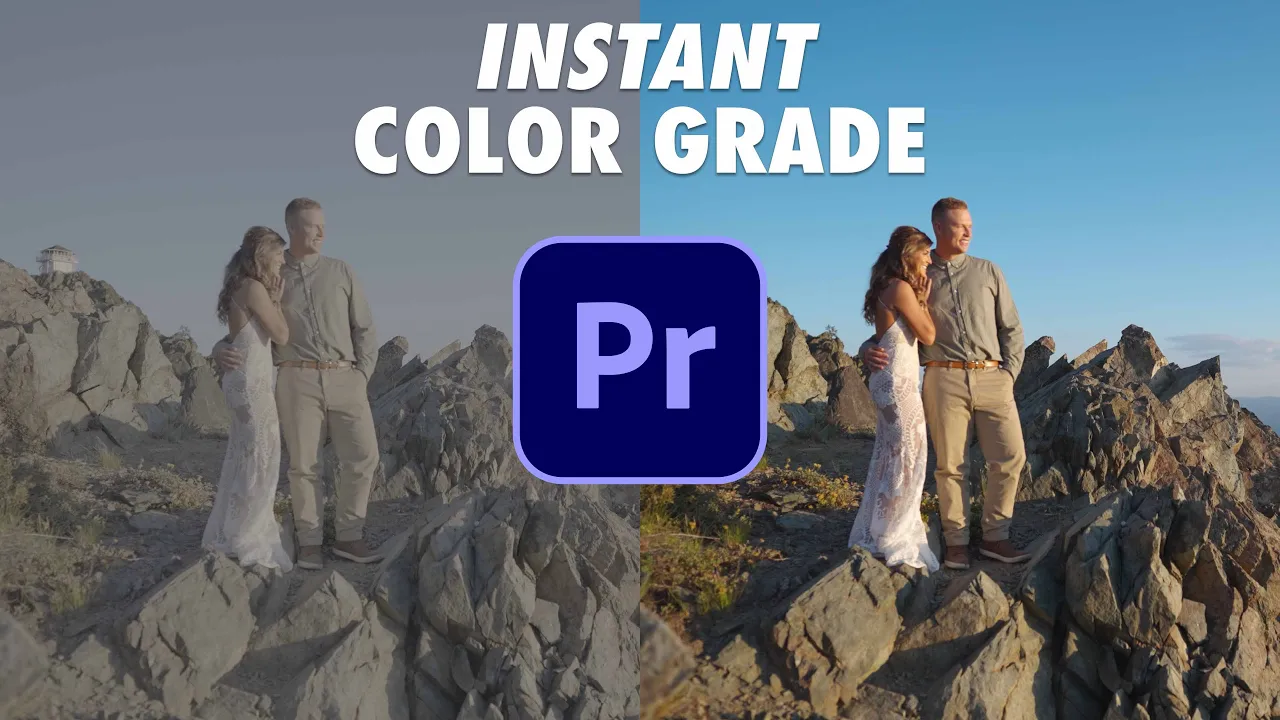
I'm about to show you how to use color management to take your log footage that you filmed with any camera that looks like this super flat and desaturated to this super colorful and contrasty instantly in Adobe Premiere Pro. Hey, I'm Matt Johnson, and because I want to help you out even more, I want you to know that I've put together a free guide called Edit Videos. Like a pro in.
This guide is going to show you some of the biggest secrets that I've learned over the years as a video editor. This guide is completely free and you can download at the link down in the video description. And I'll also link down in the video description to my color presets called Who is Matt Luts that I've made that work fantastically with log for any camera in Adobe Premiere Pro, these are going to give your footage a beautiful and unique look, with colors that look vibrant and true to life.
Those presets are linked below. Diving right into Premiere Pro. Now, the first thing you need to know is that at the time of recording this video, I am using Premiere Pro version 25.
1. Because Premiere Pro 25 was the version where they introduced all of these color management features. So please make sure that you've updated to at least this version if you want to be able to follow along with this tutorial.
Now here is a brand new project that I have created, and I've imported some footage that I filmed in S-Log3 with my Sony A7 S3 camera, but I haven't done anything with it yet because we have a few settings that we need to tweak right here at the beginning in this program to make sure that everything works like it's supposed to, and to not worry once we get these settings dialed in, like I promised at the start of this video, you'll be able to add contrast and saturation to your colors of your log footage instantly. We just need to get things set up first getting started, then in your empty project here, go up to File Project Settings and select Color. Then here for the vast majority of videos that you're most likely going to be editing, you're going to want to leave the HDR graphics White Night setting to 203, because you would only tweak this setting if you were exporting a video in High Dynamic range or HDR for viewing on an HDR screen.
But spoiler at least at the time of making this video, most videos made for YouTube, etc. are still in the standard dynamic range or SDR format, which is why you would want to select 2 or 3. You can leave 3D, let interpolation to tetrahedral or whatever it gives you here.
Because my computer has a GPU, it's allowing tetrahedral, but you might be tri linear. That doesn't really matter. What is very, very important though?
Arguably this is one of the most important settings in Premiere Pro is this viewer gamma setting. In the past, premiere has had a lot of issues. Let's say, when it comes to the quality of color that you get from the program.
Specifically, if you've ever exported a video from premiere and your colors looked really washed out and desaturated and you're like, why the heck is that happening? For my exported videos? Well, this viewer gamma setting is one way to fix it, but I know by the way that if for some reason this setting does not fix this issue because computers and programs can be difficult like that, I want you to know that I have another tutorial that I've made that has helped literally hundreds of thousands of people at this point, and that will definitely help you as well.
If you are dealing with washed out and desaturated colors in your exports in Premiere Pro, so I'll be sure to link to that tutorial down in the video description. But for now, hopefully this setting will also help you. So whenever you are choosing a viewer.
Gamma. By default, premiere is an editing program that was built for use by broadcast companies like if you're editing a video made for television, not for YouTube or Instagram or TikTok. And the issue is that if a video is made for television, it's going to have a different brightness and contrast level than it would if it was made for viewing on the internet.
That's why this setting here is so important. So to make sure that your colors are going to look accurate, it's very important that you go into this viewer gamma setting and you set it to 2. 2 web.
If it says 2. 4 broadcast, you don't want that. You want 2.
2 web, which as the name implies, is the setting you want to use. If you're editing videos that you want to put on the web, aka the internet. Yes.
With that done, now we have one final box to check and that is this very important auto detect log video color space box. Side note by the way, Adobe may have changed the name of this box in future versions of Premiere Pro. Here's the beta, for example.
And over here they're calling it Color Manager. Auto detected log and raw media. So if it says that it's the same thing, don't sweat it okay.
Just make sure that this box here is checked. Essentially what this checkbox does is it tells Premiere Pro to look for any log footage that you've imported and instantly bring that log footage into the color space of your project and make it look contrasty and saturated. and the biggest thing that you need to know is that the first time that you check this box in a project, there is a chance that premiere is going to automatically add contrast and saturation to your video clip immediately, but there's also a chance it might not.
And so if it does not, Do not stress. There is another box that we can check that will make sure that it is enabled. And I've good news too for your future editing projects because you have.
Now check this box. This box is going to stay checked. And so the next time you have a project, you're not going to need to go back into your project settings and check this box again.
By default, it's already going to have these settings locked in for your future projects as well. Which means that any time you import log footage to Premiere Pro, it will automatically make it not log anymore and add contrast and saturation, which is really awesome. Are you ready to add some contrast and saturation?
Because we check this premiere is now going to detect that this was filmed in S-Log3 and add contrast and saturation press okay, boom. Oh, check that out. But wait a second.
It's looking kind of like overexposed here. It's looking too bright, too colorful. Well, that's because the settings might need to be tweaked a little bit.
But don't worry, I'm going to show you how to fix that in this video. We'll get to it in just a minute. But first we need to create a new sequence because we have even more settings to tweak in there for color.
To create a new sequence, you can either press control N on PC or command in on Mac to bring up the new sequence dialog box. And what you're looking for is this Color Management tab up here. alternatively, if you're somebody that does not like using the new sequence dialog box, do not stress.
You can also go over here, click and drag your video clip over to the timeline, which is what a lot of people do, and that will automatically create a new sequence. And then as long as you have the sequence panel selected here, what's that line in blue. You can go up here to Sequence Sequence settings color management.
And look it's the same exact setting. Awesome. Love that.
Once you access this color management tab, however you get to it for working color space. This is a very important setting because unless you are editing a video that you filmed in HDR, you want to edit in HDR and export HDR to be viewed on an HDR screen. For working color space, you're going to want to select Rec 709, which is also known as Standard dynamic Range, and this is the most common working color space for YouTube, etc.
And then you're going to want to make sure that you have this auto tone map media box selected. This is very important because if you do not have it properly selected, it can make the colors in your video look really weird and funky. Kind of like this over here.
so I don't know if you saw it whenever I created this new sequence earlier. But if this is how our video clip was viewed whenever it first added the color management to it, if we press okay because we're using the auto tone matte media, boom. Oh look.
Okay, so there's overexposed. This is the proper exposure level. This is looking really good.
This is the power of tone mapping and why it's so important. set up Reaper says, hey, you want a tone map? This video clip.
So it looks like it should. Yes, yes I do. That's why we dialed in the settings the way we did.
So they look beautiful. With that done, now you may be thinking okay, cool that. Are we done?
No. Not quite. We are not done with settings, but I promise we're getting very close To access these final settings, what you're going to want to do is go up here to your workspaces in the top right, select the color workspace like you would do if you were working with color and color grading your video.
And then over here on the right, you're going to see that you have your Lumetri Color settings. These are all very common. If we select a clip.
Oh look here's my creative with Luts. Here's all of my color temperature exposure, contrast. I'm sure you've seen this before.
If you have worked with Premiere Pro doing any color grading, but up here is sort of a secret settings menu that Adobe has added. And look at all of these settings. And here they're compressed.
Let's uncompressed them. Wow. There is a lot of settings here aren't there?
Yes there are. Let's talk through them because I'm going to make it really easy for you. These are very important though.
Up first under Preferences and Display Color, you're going to want to make sure that Display Color management is checked. This box is really important because as the tech says, whenever you mouse over it, turn on to display color accurate values on any monitor. In short, if you want the colors that you're viewing while color grading to be as accurate as possible.
Yeah, you want to make sure that this box is checked, and I can't really think of any situations where you would not want to have it checked. So yeah, definitely check it. Next you can leave extended dynamic range monitoring turned off and less.
As I mentioned earlier, you are creating an HDR video. Then in that case you would want that on for transmit device playback. We can ignore that.
And let's go down here to the project color management demo. And wait a second, Matt, this looks familiar. Are these the same exact settings that we had whenever we went over to our project settings?
That color window look, they're the exact same. What? Yes.
So this is Adobe giving you multiple ways to access these settings. And another spoiler here for you. Remember how we were over here in the sequence settings?
And we were like, oh yeah, here's the color management page here. For sequence settings look right here. Sequence working color space of time I mean it's the same thing.
So Adobe is giving you multiple ways to access these settings. And trying to make it as easy as possible for you to tweak them, which I really appreciate. And now you know where all of these settings are anyways, because we have already dialed in the sequence settings and the project settings here.
Well, we're doing good. All we really to do is cover these settings here in the middle. First of all, let's talk about what you should do if your footage is still looking flat and desaturate.
If you made it this point, you're like, Matt, you're showing all this stuff with color and I'm not seeing it. My footage still looks like it's in log. Well, that's probably because there was one checkbox that was not checked.
And so the best way I can put it is that sometimes even if you check this auto detect log video color space box. Sometimes it won't apply to your video, especially the first time that you enable it. I don't know why I'm just the messenger here.
Okay, And your footage is going to look like this. Super flat and desaturated. But to fix it, guess what you do?
You go over here, check this box. Boom. Contrast saturation added in.
Done. Isn't that awesome? But hold on a second, because we're not quite done with settings.
I know I've said that a lot, but please, we're so close here. Okay, there's a few more things that I need to make sure that, you know, go down here. It says source clip 1665.
And over here we have this clip here. So anytime you select a clip that's going to activate this part of the window over here, if you don't have it selected not going to activate. But if you select it it's going to activate.
And this source clip setting is really important because this is how you can tweak the colors of any of your individual video clips. If for some reason Premiere Pro does not recognize these settings for your clip properly, this is how you can fix it so no, by the way, just like how all of the rest of these menus were visible in other parts of Premiere Pro if you wanted to access this menu, because of course, you can access it to go over here to your project panel, right click, go to Modify Color and Look. It's the same settings again right here for your source clip.
So if you want to access it, you can do that to just another thing for you to know. Anyways, like I said, these settings here are going to be really useful if you need to modify a certain clip, especially for premiere, do not recognize what settings that were used with it properly. Maybe it is thinking that you filmed in a different log profile than you actually used, for example.
So let's talk about how to fix that. First of all, you have the input, which is where you can go here. You can add a lot.
And so if you had a really specific tweak that you were trying to make to a clip because you were trying to convert it from log to saturated and you had a very specific look you were trying to make it have, this is where you could add a LUT. Just keep in mind that you don't really have any customization here. So by default, I would always recommend going over to the edit page, going over here to creative, and then adding a lot right here.
Because when you control the intensity and a lot of other settings, which is really good. So I would only use this input if you had a very specific lot that you were trying to apply at this stage in the color grading process. Next, here is how you can tweak your videos.
Color if Adobe got it wrong. So whenever you have this auto detect log video color space box checked, notice that by default if I uncheck these settings down here different, whenever I check it, it says oh hey. So I'm reading the media file and it says it was filmed in Sony S-Log3 at three Sony.
But if for some reason that was wrong or incorrect because maybe the metadata got screwed up, I don't know. Well, the cool thing is you can go over here to override, click this dropdown. You have a ton of other settings.
It's like, actually no, it's not Sony. I filmed this in canon log. Oh, that looks weird, right?
It doesn't look weird. So you have a lot of interest if you're doing aces, you got settings here for that. If you're shooting an apple oh look at that.
See. So there's a lot of different ways that premiere can read it. But by default it's going to read using this use media color space.
And that should work. But if you need to tweak it, feel free to. Now, unfortunately, Adobe has not added every single type of camera here, and so you may notice that there's some stuff missing and that is okay.
I'm know that they are working to add more color profiles from different camera manufacturers, so I would expect more cameras and log profiles to be supported in the future. But for now, we're just gonna leave on the default because that looks really, really good. Also, if your colors are looking weird for some reason, you can check this preserve RGB box, which is going to bypass the color management.
And that might be another way that you can help tweak your video clips if you need to. So you know. And that is how you can use color management to get amazing colors in your videos in really one click.
Once you set up for the first time in Premiere Pro, it's awesome. If you haven't checked out my color presets yet, they work very similarly to what I showed you how to do in this video. Color grade log footage.
But my Luts will go even further. Applying a custom look to your colors that is vibrant and true to life. Plus, they work with log footage from any camera.
I will link to these color presets down below as well as to my edit videos. Like a Pro guide, this guide is completely free and will quickly show you some of my biggest tips for how you can be a better video editor. Thanks so much for watching!
Please subscribe if you want to see more video editing tutorials in the future and have a great day! And the biggest thing that you need to know is that the first time that you check this box in a project, there's a step that we're going to cover in a minute that you're going to need to take to make sure that Premiere Pro is detecting your log footage and adding contrast and saturation to it. But for your future video editing projects, because you have checked this box, this box is going to stay checked whenever you edit future projects as well.
And next time you go to edit a project, you're not going to need to go back in here and check this box again. And because this box will already be checked, any log footage that you import into future projects will automatically not be logged anymore. It'll have contrast and saturation.
It's pretty cool. But we aren't done yet. Stick with me, because we have more settings that we need to talk about.
And in addition, because this is the first project that we have checked this box for premiere may not automatically add contrast and saturation to our log clips. There's another setting that we're gonna have to enable to make sure that it works properly Anyways, with that done, now let's press okay And now that we've closed that box it's time for us to create a new sequence because we have even more settings to tweak in there for color. to create a new sequence.
You can either press Ctrl in on PC or Command in on Mac to open up the New Sequence dialog box, or you can go up to File New Sequence to also open it up. Or you may do like many people do whenever they're editing, and you may click on a video clip you already imported, drag it over to your timeline sequence box and create a new sequence that way as well. It really doesn't matter how you do it as long as you have this selected here.
You can also go up here to Sequence Settings Look. Here's the same settings you have. If you had gone through the New Sequence dialog box.
Regardless of how you do it, here are these settings that you're going to need to work with. First of all, you have the working color space, and unless you have filmed a video in HDR, you want to edit it in HDR and export it in HDR to be viewed on an HDR screen for your working color space, you're going to want to select Rec 709, which is the standard dynamic range, and this is going to be most common for YouTube, etc. .
So let's select that. And then you also want to make sure that auto tone map media is selected, which is essentially going to look at any HDR colors and then bring them down into the rec 7 or 9 color space, which is really important. Your colors are gonna look really weird if you do not do that.
With that done, let's press okay. And are we done with settings? No, we aren't done with settings, but I promise you we are getting very close to access these final settings and also where we're going to be able to add contrast and oh, crap to, Because I already did that.
Dang it. I'm sorry. Editor I'm sorry.
So when I did this demo project earlier, it did not automatically add color and contrast in saturation to the footage, but it's doing it now, and I don't know why. So that's fine. So sorry about that.
Let's go over here. Turn this off. Uncheck that okay cool.
And then we're just going to pretend that I already selected that okay. And then I'm sorry to make this more difficult for you here. We're going to have to go back to the sequence part again.
So we're going to go back over here and we're going back to where I pressed okay. And I'm going to say, so we're back. We're back here at this box.