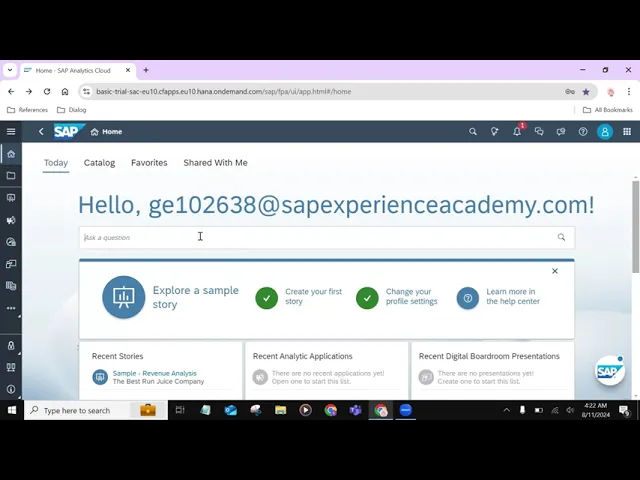
hello everyone welcome back to overview of the sap analytics Cloud Series in this video we are going to explore sap analytics Cloud platform so this is the main home screen and landing page for the sap analytics Cloud it contains a number of shortcut panels and quick links for getting right into creating our first story so there is a search bar on the homage where you can ask the questions for quick insights for example I'm going to ask show the top five products in my particular data sets which called the customer so I ask it questions
so this will bring up the just ask AI functionality in the sap analytics Club So based on my data sets it will produce the output so let's close this one so after that you can able to see some panels are listed here so these panels are used to show you the recent activities in the sap analytics club for example recent stories recent analytic applications recent digital boardroom presentations are created by the particular user are listed here then we move to the site navigations so all of the sap analytics clouds core apps files settings are contain
in this site menu that slides out from the left of the screen on your demand so in here when we select the file repository which is which will containing all of the files assigned to the particular user then the next one apps so under the app section you can access your stories analytic applications data analyzer digital boardrooms and more other applications as well so the remaining menu items allow the user to access their security connections and system settings so I'm going to push this panel in so normally sap analytics cloud has three fundamental components which
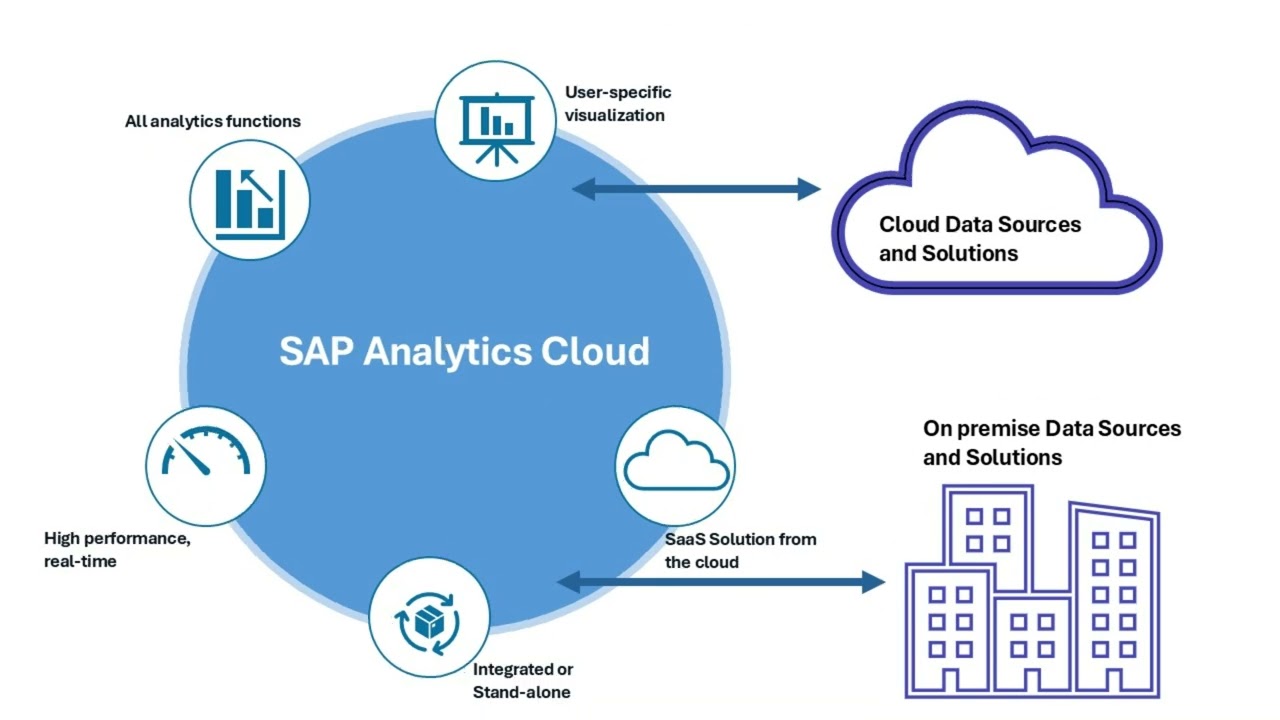
are data model and the stories so the first step to analytics is getting access to your data therefore connecting our on premise or the cloud data sources is the essential action to making the data driven decisions with the sap analytics Club so to establish the connection we have to click on the connection action in the site navigation so I'm going to click on the connection action inside the connection you can able to see some sample connections are provided there so to add a new connection you have have to click on the plus icon so I'm
going to click on this add connection icon in here there is a three types of connections are made available which are connect to the live data Acure data and connect to the public API so connect to the live data is allow access to the data in the real time so when when we expand this one we can able to see what are the data sources provide the connect to the live data feature the second one is acur data which means that you can import the data and save it in the sap analytics Club so here
we can able to see those are the data sources provide the acur data connections so the third one connect to the public API you can able to expand this one also and see some of the public apas are listed here so based on your requirement you can able to make the connections with proper connection informations for example if you want to create acur data connection you can expand this your data and select your data sources if for example you are going to create the connections with the saps for Hana select the data source and it
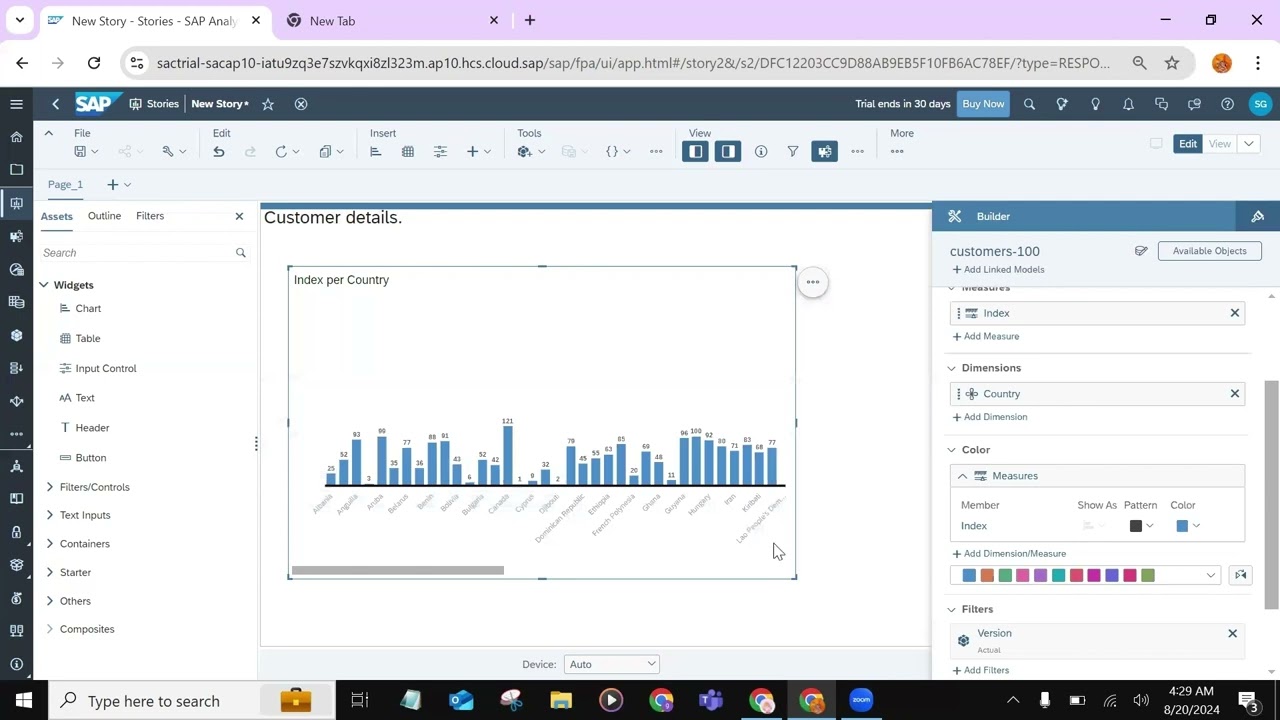
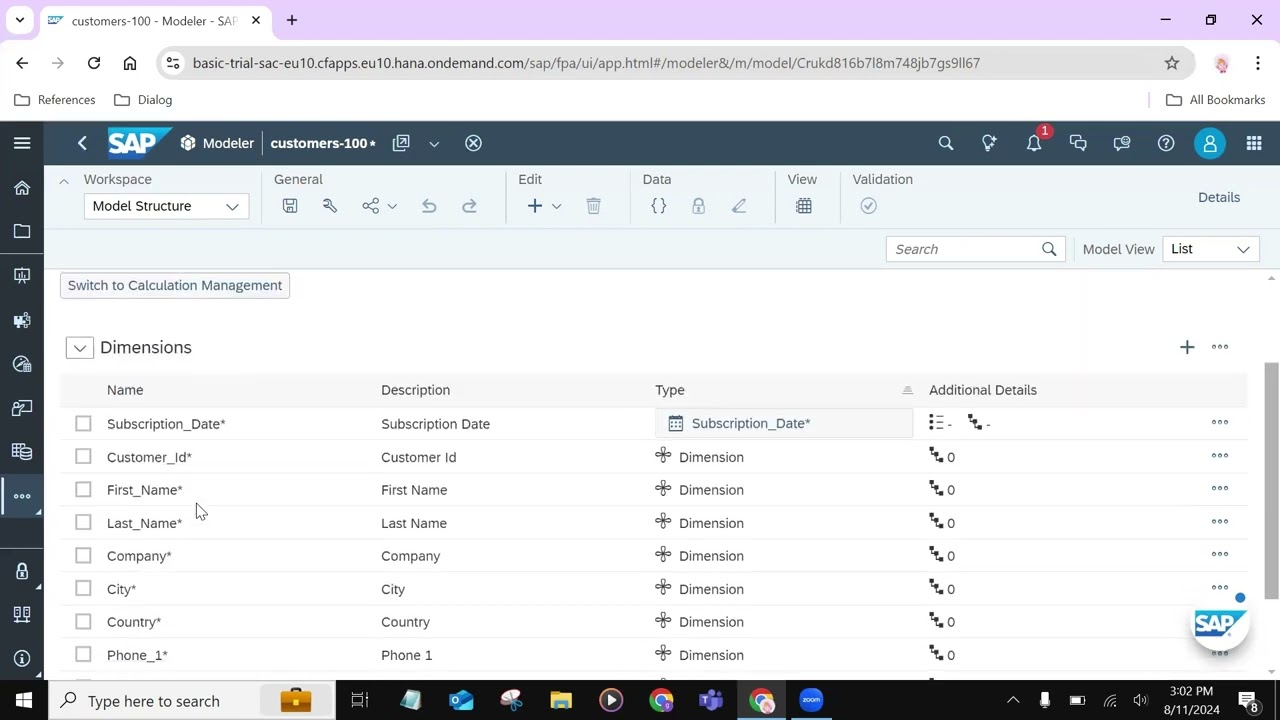
will ask the connection information you have to provide the connections informations and create the connections with the sap analytics Club so this is all about the data connections inside the sap Analytics cloud in next video we are going to see how to create a data models and use those data models inside the story creation so thank you for watching this video and we will meet in the next video thank you