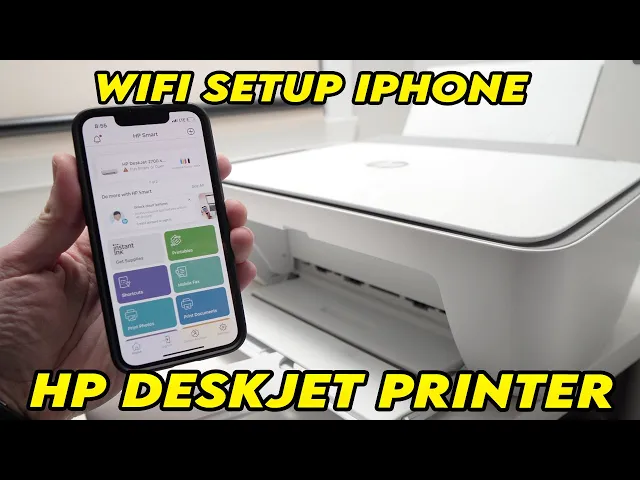
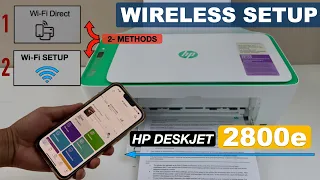
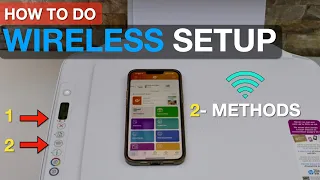
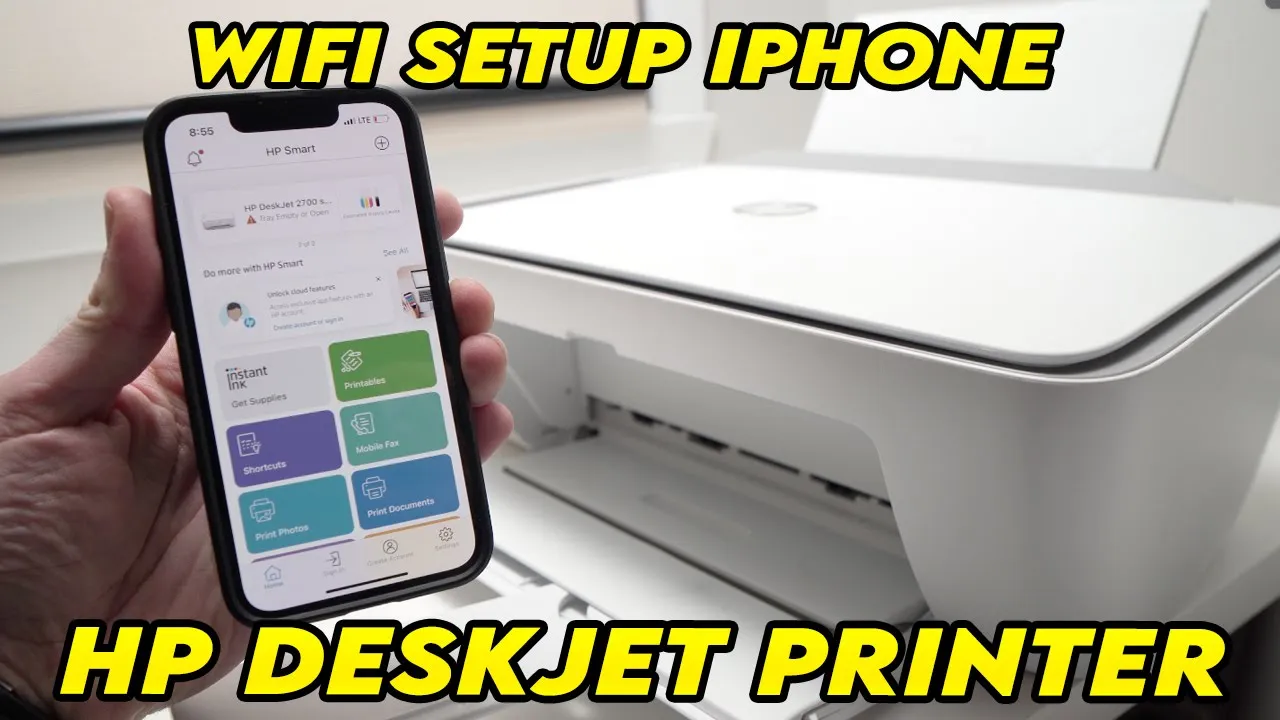
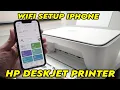
in this video i'll show you how easy it is to connect your iphone to your hp printer this jet 2700 series 2600 series and many others okay it's very easy the first thing you have to do is let's go to the screen here and you need to make sure that you have a small icon here i know you can't see it it does it's not there yet an icon that is showing a phone with a printer if it's not there like in mine all you have to do is take two fingers press the wi-fi button
and the button right above you know there's an arrow in a page press them both at the same time and the icon will appear okay perfect it appeared did you see it okay what it means now is that you need to take your iphone the app store and once you're on the app store you need to search for let me search it for hp just type hp there okay and you need to select hm hp smart sorry this one okay so you're gonna select the hp smart app you're gonna download it and it will load
up okay and at the top here you can see add your first printer we're gonna tap on that once you're on this page you're gonna tap the add printer the one that is on the bottom none not the one on the top here tap that one it will search if your printer is not appearing it's searching all you have to do is to go to the wi-fi settings just drag down and go press on this wi-fi and you're going to connect to your printer manually okay so you see it here direct 2c hp deskjet 2700
series well it's that one you're gonna tap on it and it will ask for a password to know the password of your printer each printer have a different password you're gonna press this i button here okay and what this will do let me do it for you it will make sure there is a page by the way and it will print the password for you okay perfect gonna take this and to find your password it's right here it's on the bottom of the page and you see the wi-fi direct name is and the wi-fi direct
password is and there is there will be a number here that you'll need to type on your iphone to connect so let's do it okay so now i'm connected to my hp printer i just need to go back in the hp app and now here we go my printer has been recognized just tap on the printer that you see and that's all and if you go a bit below here you're going to have many options you can scan directly from the printer to your iphone wirelessly you can also print you just need to connect your
hp account and you can make one very easily to have access to these lower features here okay so this is how you connect your iphone to your hp deskjet printer thanks for watching i hope this was useful if so please leave a like a comment and i'll see you in the next one