hi welcome to my channel my name is Cornelia I work as a recruiter and today I wanted to do another tutorial on how to use Linkin recruiter because uh from last year when I've done my last tutorial LinkedIn had a lot of features changed I mean they are kind of the same but they look different that's why I wanted to do another tutorial and maybe this will be shorter than the last one and more helpful to you so yeah let's get straight into [Music] it the way that you get through Linkedin recruiter is by pressing
this icon here and yeah basically this is your normal LinkedIn profile and if you want to go into recruiter you have to press this this icon here the thing is that if you don't have a license to use LinkedIn recruiter this thing won't show here and usually if you work as a corporate recruiter or stuff like that it should be here because the company will pay for it you don't have to pay it uh yeah as you see here this is the company that I'm working at the moment and this is my personal profile and
to access LinkedIn recruiter I have to go into the shared license that I have with my colleagues from the same company this will be the first page that you'll see after you go into LinkedIn recruiter and the easiest things that you can do is to write here some keywords or some things that you would like your candidates to have in terms of skills experience or anything else and of course LinkedIn will show you everything or all of the candidates that match those criterias that you write here this is the easiest way but it's it's not
really the most efficient way because you'll have a disorganized search that's why I wanted to show you how you can do an organized search and have all of the candidates that you need in specific folders based on the job description or based on the type of candidates that you are looking for that's why you need to create a project you need to go here to the project tab press here and yeah as you see here are all of the projects that I've done with of course the description and the number of candidates here but to
create a project you really don't need to click it just to move it here and you have to press here create new project and yeah as you see here you have the project name of course the name of the company you can also add here some description if you like job title or seniority level but yeah as you see all of these things are optional so if you really don't have the time to do it you don't really need to write everything here but yeah if you if you want to or if you want to
be more organized or to have more details about that specific project you can do it I usually just write the project name because this is a must complete type of field just for the sake of the example I would like to look for buyers or so yeah for specialist within procurement that can speak Italian and English that's why I will choose to name this project by the name of the role that I'm looking for and also on the main important skills let's say knowing Italian and also something that I do most of the times is
write the date where I'm searching because I usually do multiple searches in different days and I also do followup messages and so on so yeah that's why I wanted to write the data as well and today we are on the 21st of February I'll just write it in this way to to have this abbreviation and yeah let's say that I want to skip all of these fields because I don't want to complete them and here you have a field which is Project visibility as you see it has a start here so it's a must complete
type of field if if you click here private basically you'll be the only one who sees this project and also the members that you invite to that specific projects maybe you want to invite a colleague or your maner if you choose here public all of your colleagues that have the same shared license for link recruiter can see it so yeah if you for example work with I don't know multiple recruiters from the same company looking for the same kind of role you can click it here but I would advise to be always on the private
tab so you can have the full control of that specific project and all of the candidates that you find there another interesting thing it's here the AI assistant feature I've also done a video about it and how to use it I will share in the description down below the link on how to use a functional LinkedIn recruiter okay mov forward I will press here to create the project and this will be the first page that LinkedIn recruiter will show you after you press create project and yeah as you see here you have multiple tabs the
filled talent pool basically shows you what will be the candidates that will be a good fit for you you have other three things that are within the talent pool tab the first one is recruiter search here are all of the filters that LinkedIn recruiter suggest you to complete to find the most suitable candidates for the position that you are looking for here you have recommended matches based on the fields that you will complete in those filter sections and on the candidates profiles that you are going to click LinkedIn recruiter will find other profiles that will
be similar to those and you will find them here in the recommended tab also you have this part of hidden candidates these are candidates that you've pressed on the hidden button before or you already talked with them or they were banned by someone from your company and so on and they press on the hidden button so yeah you can press it here to see the hidden candidates and here on the pipeline side here will be all of the candidates that you are going to save in that specific project from your search you have here a
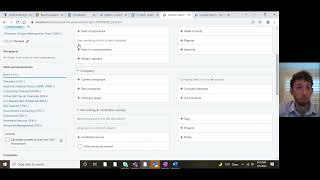
lot of filters as you see and you have more if you press this button here with advaned searches so yeah as you see there are a lot a lot of filters and you really don't need to complete all of them there are not I mean just a few of them are really important for General searches and for the skills that you're looking for in specific candidates so yeah I'll just quickly go through all of them explain them all to you and the way that I use them mostly here with job titles you can write of
course the job titles of the persons that you are looking for yeah as I said before I was looking for buyers so I can write this thing here as you see LinkedIn recruiter will show you here all of the types of buyers that you can search for because these are let's say the labels that are most used in LinkedIn usually here the job title with these three dots or three lines and three dots if you press here you'll see that within this umbrella of buyer in fact you'll have a lot of other role titles that
are included here and of course you can select them or deselect them based on what you're looking for and so on Ming forward locations here you can write either a state like a country or a city you can write multiple cities let's um assume that I'm looking for someone in Czech Republic and specifically in Prague so I will write Prague and yeah as you see here you have a lot of prag options this is a very big city so yeah that's why they are writing it in this way if you want you can choose all
of them if you are not I don't know for example very picky on the specific location or street where the C where the candidates are located moving forward skills and assessments so in this field you can of the skills that you are looking for in the candidates that you want to speak with and that will be a good fit for the position that you are responsible for as a recruiter from the skills that you'll write here LinkedIn recruiter will select those candidates that have those specific skills in their profiles at the skills section so if
you write the skills in the skills section LinkedIn recruiter will select the people that wrote those skills here in the skills section of their profile as it is in this example of my own profile let's say that I'm looking for a person who worked with SIP someone who was involved in strategic part of the business yeah okay I mean of course here you can put a lot of other skills but yeah just for the sake of the example I'll will just let this do here here on the company side you can look for people that
worked at some specific companies if of course you want to to head hunting or stuff like that when I was working in an agency we had clients that told us to specifically Target people that worked at Google or Microsoft or those type of financial companies because they wanted the people to have a financial background or working in fch and so on so yeah here you can actually write the companies you have this Tre dots thing uh this is something that you'll see on everything that you select in LinkedIn recruiter if you click on them you
he right the priority tab must have can have or doesn't have if for example you want to look for people that are not working at your current company you can press here doesn't have for example and the LinkedIn recruiter will show you all of the candidates that are not working within this company if you press on the three dots you see here these things of priority that I've already showed and here you PR have preferences so you can choose current or past so this includes also people that are working at the moment and people that
worked in the past or current or past or uh past not current so people that worked in the past and that are not working at the moment not at all every time when you want to negate something they will turn into red if they are red basically LinkedIn recruiter will exclude all of the candidates that have these things in their profiles moving forward to keywords this is my favorite filter because uh I can use my Boolean search here and in my opinion with the Boolean search you can write a lot a lot of other things
if you want to use the keyword section basically all of the words that you are going to write here and also with the right connectors LinkedIn recruiter will show all of the people that have that specific word in in their profile so it doesn't really have to be at the skill section maybe a person didn't write HP at their skills but they write it in their responsibilities at their past work experiences for example in this way using the keywords section you can find people that worked with sap and that for some reason forgot to put
it in the skills section right then spoken languages this is really important for people that are looking for employees that can SP multiple languages here you can write multiple languages or just one in my case I want for them to know Italian okay and yeah as you see here I press on this three little dots and I want it to must have so basically now LinkedIn will show all of the candidates that have Italian in their profile go down and you see here that you have different levels of languages and yeah let's say that I'm
looking for professional working because usually professional working is equivalent with A2 in a specific job and the other one which is full professional is like like a C1 recruiting activity this is another important filter especially if you work with a shared license like I do so here you can use candidates that have been messaged before or have notes or tags or have been in other projects or I don't know they have rums attached to their CVS and so on I usually use this filter with messages because I don't want to message people that have been
messaged before by some of my colleagues because it's kind of weird I maybe my colleague is in process with a specific candidate and then I'll message them also for another position that I'm resp responsible for and then the candidate will be kind of confused of why these two recruiter from the same company are messaging me even though that person is already in process for a specific role with our company so yeah that's why I wanted to uh press this two dots which doesn't have because I don't want LinkedIn to show me people that have messages
from me or from my colleagues and also you can choose the period of time let's say that I don't want candidates that have messages from you from my colleagues from the past three months moving forward with the senority level here uh you can press entry training senior manager in my opinion you should leave this thing open because candidates usually don't complete these things this will be the type the number of people the LinkedIn recruiter will show you if you press entry for example now as you see here are zero everywhere because of these two companies
so yeah that's why I will delete them after I deleted the companies they showed me the number of people that will be senior with all of the fields that I've already completed here first name last name you can look for People based on their names if you don't want to use location and you want to use the zip code you can put it here also in terms of network relationships you can you can ask Linkin to show people that are second connection or first connection with your profile profile languages is something that I never use
this is a filter that gives you the opportunity to choose the language in which a specific profile is written so for example if the profile is written in Romanian or English or Italian and so on you can choose it from here but it's kind of irrelevant in my opinion then Industries here you can choose in which industry the people worked before LinkedIn will show you all of the candidates that work in this if you want LinkedIn to show you all of the candidates that never work in this field you can press this thing here so
yeah as you see but at the moment I don't want to use it then schools you can choose the school that that a specific candidate finished this is important for junior position or for interships maybe you want people that finish a specific profile at a specific University like I don't know computer science at Harvard also with the fields of study so at schools is the name of the school and then the fields of study is what they've studied so yeah they're major let's say then you have here the year of graduation this was very important
when I was looking for juniors because for one of the position that I was responsible I had to recruit people that were recent graduate so yeah they graduated in that specific year on this side you have years of experience so here you have the total years of experience of a person then you have years of experience in a current company maybe are looking for frontend developers or for designers who are willing to work in a permanent type of role and uh yeah from my experience there are a lot who are working on contracts so this
is something very useful in this case you can write here from 5 to 30 years because a usual contract is I don't think is longer than two to 3 years another thing is years in current position is the same thing so if you had a person that worked as a data scientist then data engineer then data scientist at the same company and you have in your job description that you need a person who has five years of experience as a data scientist for example you can write this here in the job title and then put
it right here in the current position so yeah you can actually play around with all of these filters until you you can find the right candidates based on your requirements and the requirements that you had in the job description employment type something that no completes on their LinkedIn profile so yeah it's it's best to leave it open in my opinion A lot of people that have a preference for full-time but they are open for contract as well also we have these things about companies I already spoke about current companies past companies you can write here
the name of the company and basically link LinkedIn recruiter will show you people from that specific company also company sizes maybe you are looking for candidates that worked in bigger Enterprises before maybe you are looking for people that have experience working in startups because the environment is kind of different than a bigger company also company followers uh here you can filter from people that follow your company on LinkedIn this will increase the chances for them to respond to your messages and be interested in the jobs that you advertise because they follow your company so yeah
basically they are invested in your company or know about your company already as you see LinkedIn recruiter gives you a lot of filters that you can choose that can help you select a better candidates you then we have recruitment activity we already talk about recruitment activity with people that were messaged before or were in projects or have notes and so on in ATS this is people that are in your internal it the one that your company is using so yeah you can press this one here TXS projects notes we already spoke about this and custom
Fields here you can filter by people that have work authorization a specific country or people who are willing to relocate I never complete these two filters because usually don't complete this on their profiles so that's why if you choose something here some of the profiles won't appear because they don't have that specific informations on the candidate profile so yeah let's see these are all of the field that I've mentioned right let's go here and press search we have here other filters as well on the top part here are open to work candidates so these are
candidates that usually clicked on their own profile that they're open to work then you have active Talent these are people that apply to jobs so people that have this requirements that you asked here that apply for jobs in general so they're active then you have rediscovered candidates these are candidates that have been messaged or have been saved before either from you or from one of your colleagues and you can click here and yeah basically see what would be the people that were already messaged or already saved in a project here you have internal candidates these
are candidates from your own company that express interest in switch jobs within the same company on this field you have people that selected that they are interested on your company as you see here in the description you want more Chas for people to respond to your message you can click on open to work because these are people who are open to work and most likely will be open to respond to your message and will be interested in the job that you advertise especially if they have the skills that you need here so yeah as you
see we have 14 people and you can click on each of the profile look at their experience and so on languages you can go to the next one and yeah so on you have to to read to click on every profile and read it and see if there actually will be a good fit for you let's say that you want to save this to people in your project then you want to message them later you can press here save project you can also message them directly or save to another project you can also add a
note and a lot of other things here save to PDF this means that you can download their profile as a PDF so yeah let's say that I save this to people to my Pipeline and if we go here to pipeline we'll see that the candidates that I've selected were saved in my project in the project buyer with Italian 21 FB you can message each individual or you can send bulk messages bulk messages are when you send the same message to multiple people that you find this is easier for you because you can only press here
message and you write here literally the same message and you send the same message to all of them the problem will be the fact that usually messages that are not personalized have a smaller rate of responses from the candidate side so it will be great if you can at least write something that will help you personalize a little bit for example will show you a template of mine you can use this variable and yeah this is something that you have from LinkedIn recruiter and when this message will be sent to these two candidates there will
be the first name that they have on LinkedIn here you can write this here using this one as you see you can put his first name last name or full name so yeah you can write this thing here you can put the title you also have the opportunity to write it with AI here you can click here on draft messages and yeah as you see the AI function from LinkedIn will help you write a message which includes some of the details from their profile and also some of the details from your company you can also
redraft this message so yeah you can tell recruiter to draft another message until you like the one that it's shown here I wanted to show how you can save a mess message so yeah for example let's say that I write here a message I wrote this message and you can press here save template and you can press it here you you just write a number and you can press it to be seen only by you or for anyone from your organization and you also can save it as a current template so you can update the
template that you already have here or you can save it as a new one and of course you have right here another title okay after you message these two candidates of course I'm not going to message them because I actually don't have position for them this is just an exercise after you message them they will appear here in contacted people so of course at the moment they are not here because I've never contacted them but yeah after you contacted them they will be here and after they reply to your message they will be here you
can select these people and you can do a a lot of things with them you can either add a know save it to another project archive I also wanted to show you the recommended match section as well because at the moment I've already selected some people I already filled some filters on LinkedIn so yeah LinkedIn recruiter will show here on this section people that will be let's say a good fit for my position in terms of the filters and the searches that I've done so yeah you can go here and see this profile maybe you
can go through it read the description and so on and if you think it's a good feed you can press here save to pipeline you can save it to another project if you think that this person is better for another position that you have at the moment it's pretty easy to use and you have all of these things here and and yeah my advice would be to play with all of these things so you can learn better what would be the best fit for a specific role and yeah of course based on the this job
description that you have on the country on the type of employees and so on that you looking for you can use different filters as I said before LinkedIn recruiter has an AI type of search as well so yeah I already made a video about that but just to show you quickly you can go here to recruiter search and uh you can press on this start thing whatever and here you can write things with your own words and the AI function of LinkedIn will automatically put them in those filters that I've mentioned so yeah let's uh
add the fact that I want the people to speak Spanish as well so yeah now LinkedIn recruiter as you see if I go here to filters as you see he added Spanish but because I didn't specify what level of Spanish I need they just wrote it Spanish L will show me candidates that had have Spanish in their LinkedIn profile but um they will show me all of the candidates not selecting the ones that have a professional level another cool feature is the fact that you can save this um custom filter and you press here save
as a custom filter and of course you can give it a name buyer with Italian for example and then save it and now if you want to go into another new search for example and you don't want to write all of these filters here you can press this one and here will appear all of the filters that were completed in the search in the custom filter that you already saved so yeah this is all let me know in the comments down below if you have any other questions in terms of how to useing team recruiter
and so on and uh yeah just let me know if this video was helpful for you don't forget to subscribe like to sat ET and yeah see you next time bye